(All Methods to Fix) Computer Keeps Booting to BIOS
You can click the full steps to quickly access the workable solutions.
| Workable Solutions | Step-by-step Troubleshooting |
|---|---|
| Fix 1. Check Hardware Connections | When your computer keeps booting to BIOS, the first thing you can do...Full steps |
| Fix 2. Disable Fast Boot and Set Proper Boot Option | Another alternative is to disable fast Boot. Windows Fast Boot is a way...Full steps |
| Fix 3. Run Windows Repair | The third way to stop your PC keeps booting to BIOS is to run Windows repair...Full steps |
| Fix 4. Check the CMOS Battery | The CMOS (Complementary Metal-Oxide-Semiconductor) battery provides...Full steps |
Why Does My Computer Keep Booting to BIOS Instead of Windows
The BIOS (Basic Input/Output System) is a firmware that provides runtime services for operating systems and programs, initiating hardware during the booting process. However, do you know how to enter BIOS in Windows 10/11?
The BIOS (Basic Input/Output System) plays a crucial role in a computer's operation, managing data flow between the OS and hardware devices, and is essential for the overall functioning of the system. If it fails to boot, it can cause significant harm to the system.
The error is caused by a change in BIOS setup, failed updates of recently-installed applications, hardware compatibility issues, external hardware connection problems, boot key being pressed on the keyboard, outdated BIOS, improperly plugged-in OS drive, misconfigured boot sequence, and CMOS battery issues.
4 Ways to Fix Computer Keeps Booting to BIOS
To correct the Windows booting to BIOS error, you can try resetting the BIOS settings to their default values, updating the BIOS to the latest version, or running a System File Checker (SFC) scan to fix corrupted system files. Additionally, you can also try running a bootable antivirus scan to detect and remove any malware that might be causing the issue. If none of these steps resolve the problem, you may need to consider reinstalling Windows or seeking professional help from a computer technician.
Fix 1. Check Hardware Connections
If your PC keeps booting into BIOS, start by checking the hardware connection. Ensure that all cables, including the power cord, CPU cooler, and any other peripherals, are securely connected to the correct ports. Additionally, verify that the RAM is properly seated in its slots and that the graphics card is securely installed in the PCIe slot.
The first step is to ensure that all external hardware connections are properly connected to the PC. If the connections are incorrect, it may cause the BIOS to open whenever you try to load Windows, making it difficult to access the operating system.
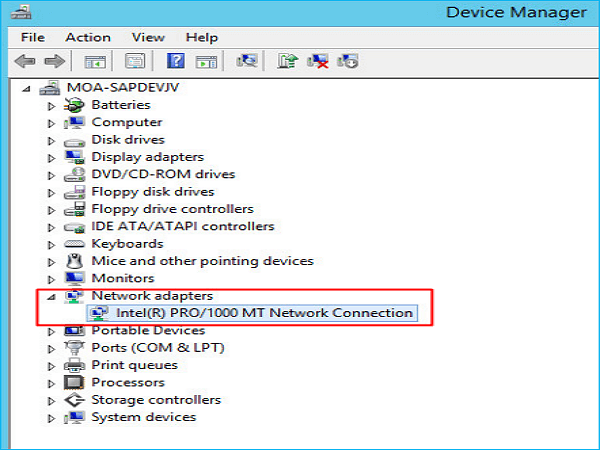
Check if your computer is booting properly and if all internal components are functioning correctly. Also, verify that external devices like keyboards and mice are working as expected. To troubleshoot, unplug all cords and reboot your computer.
Fix 2. Disable Fast Boot and Set Proper Boot Option
To resolve the issue where the computer won't boot beyond BIOS, you can try disabling Windows Fast Boot, which enables a faster boot process but prevents access to BIOS settings during boot. Disabling Fast Boot allows you to access BIOS setups and correct the boot order, potentially resolving the issue.
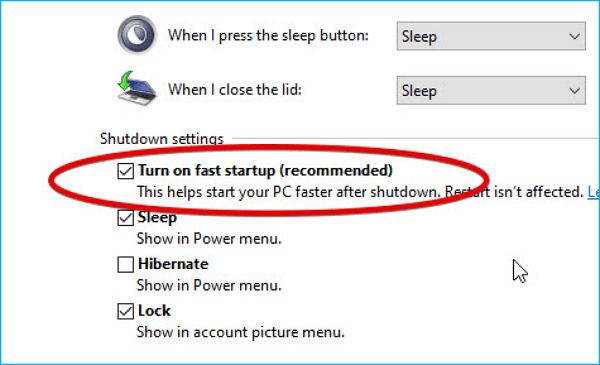
The steps are as follows:
- Shut down the computer and boot into BIOS firmware settings.
- To access advanced settings, click on the "Advanced settings/Mode" option located at the bottom-right of the screen. From there, select the "Boot settings" tab.
- Then disable Fast Boot, save changes, and reboot your computer.
- Set your "Hard drive" as a primary booting option.
The problem may not be with the boot device, so check to confirm desired changes/outcomes.
Fix 3. Run Windows Repair
If your PC keeps booting to BIOS, you can try running Windows Repair. To do this, follow these steps: Insert the Windows installation media (such as a USB drive or CD/DVD) and restart your PC. Boot from the media, then select the language and other preferences and click Next.
- Create a bootable Windows USB stick or CD/DVD or help.
- Connect the drive/USB to your computer.
- Set the hard drive as the primary boot drive.
- Reboot your computer, then wait for the bootable device to complete loading.
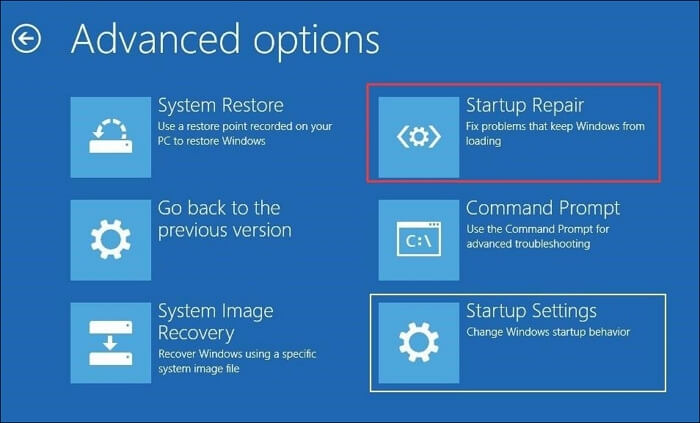
To repair your computer, click on the "Repair your computer" option, which will take you to a screen where you can type "Win Re" and then click Troubleshoot, followed by Advanced options and finally Startup Repair. From there, you can complete the Windows repair process.
Fix 4. Check the CMOS Battery
The CMOS (Complementary Metal-To fix a PC that's stuck in BIOS mode, you need to remove and reseat the CMOS battery, which powers the BIOS firmware. Take out the CMOS battery, wait for a minute, and then put it back. Reboot your PC, and it should now boot to Windows instead of BIOS. This simple trick can resolve the issue and get your PC up and running again.
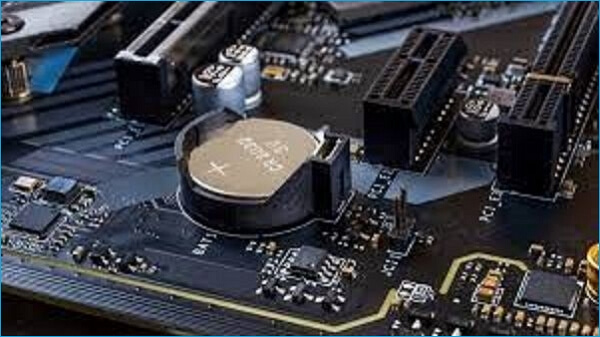
If you're experiencing issues with your device, try resetting the password by following the steps provided. If that doesn't resolve the problem, it's possible that the battery is dead and may need to be replaced.
Bonus Tip: How to Backup Your Computer for Data Security
When a computer boots into BIOS, it may alter the boot order and hardware configuration, potentially leading to data loss due to system installation or hardware failure. In such cases, using professional backup software like Qiling Disk Master Pro can be a lifesaver, as it allows you to restore backed-up data to your computer.
Qiling Disk Master Pro is a backup and recovery utility that allows you to back up systems, files, disks, partitions, and applications, and compress backups to save space, also creating a WinPE emergency bootable disk.
This software allows you to make full, incremental, and differential backups, catering to various backup needs. It also provides 250GB of free cloud storage and a secure zone to protect your data.
To create a backup of your computer, follow these steps: First, you'll need to save any open documents and close any unnecessary programs to ensure they don't interfere with the backup process. Next, insert a blank CD, DVD, or external hard drive to serve as the backup storage device.
Step 1. Launch Qiling Disk Master on your computer, and click the Backup and recovery tab page.
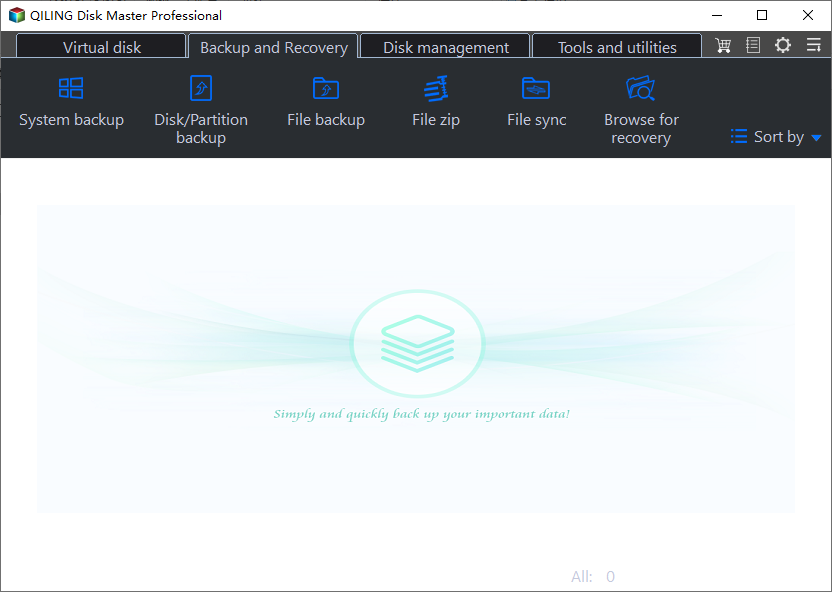
Step 2. To back up your Windows operating system, click "System backup" to start the backup process.

Step 3. Your Windows operating system information and all system related files and partitions will be automatically selected, so you don't need to manually select them. Next, you'll need to choose a location to save the system image backup by clicking on the illustrated area.

Step 4. The backup location can be another local drive, external hard drive, network, cloud, or NAS. We recommend using an external physical drive or cloud to preserve system backup files.

Step 5. Settings like daily, weekly, monthly, or event-based automatic backups, as well as differential and incremental backup options, can be accessed through the Options button. Upon clicking "Proceed", the Windows system backup process will initiate, and the completed task will be displayed on the left side in a card style.

The Bottom Line
When your computer keeps booting to BIOS, it's often due to hardware failure, which can lead to data loss. To prevent this, try using the default boot device to boot straight to Windows, thereby minimizing the risk of data loss.
The article recommends Qiling Disk Master Pro as a safety measure to secure data and programs, protecting them and keeping system files and other crucial files backed up, making it easy to retrieve and access anytime.
FAQs
1. How do I get out of BIOS Loop?
To get out of the BIOS loop, press the F10 key on your keyboard.
2. How do I stop my computer from automatically booting into BIOS?
To prevent your computer from automatically booting to the BIOS, ensure that all hardware connections are secure and functioning properly. This includes checking the power cord, CPU, and other components to guarantee they are properly seated and connected.
3. What is the difference between BIOS boot and UEFI boot?
BIOS has drive support stored in its ROM, supporting 2.2 terabytes, whereas UEFI supports drive sizes up to 9 Zettabytes.
4. Is my motherboard BIOS or UEFI?
To determine whether your PC motherboard is BIOS or UEFI, follow these steps: Launch Windows Virtual Machine, click the Search icon on the taskbar, type "msinfo32" and press Enter, and then look for the "BIOS Mode" or "Secure Boot" entry in the System Information window. If it says "BIOS Mode" or "Legacy BIOS," your motherboard uses a BIOS. If it says "UEFI" or "Secure Boot," your motherboard uses a UEFI.
Related Articles
- How to Fix Windows 10 Start Menu Critical Error
- Tutorial on Windows 10: Move Partition to End of Disk [Step-by-Step Guide]
- How to Fix Spotlight Search Not Working Ventura/Sonoma
- Acronis Clone Disk Wizard Stuck During Cloning Process - How to Fix
- Tekken 8 Save File Location & Config File Location How to Back Up It
Discover the Tekken 8 save file location with our comprehensive guide. The detailed steps to save the file location and config settings of Tekken 8 can be found in the guide, which provides a thorough walkthrough for users to locate the save file and configure settings for the game. - [Fixed] Target Disk Mode Not Working on macOS Ventura/Monterey
Having trouble with Target Disk Mode not working on your Mac? Check out these tricks to solve your Target Disk Mode problems and learn how to fix Target Disk Mode not working to safeguard your data. - Fix ACPI_BIOS_ERROR (0x000000A5) in Windows 11
Products
Articles & Tutorials
- Data Recovery
- Data Backup
- File Recovery
- File Backup
- System Backup and Restore
- Disk and Partition Clone
- Technical articles
- Mobile articles
- Disk Master Help
- Windows Data Recovery Tutorials
- Windows Secure Delete Tutorials
- Windows Partition Management Tutorials
- Windows File Backup and Restore Tutorials
- Windows System Backup and Restore Tutorials
- Windows Disk Backup and Restore Tutorials
- Windows Clone Tutorials