Tutorial on Windows 10: Move Partition to End of Disk [Step-by-Step Guide]
Moving a partition on a Windows computer involves running secure partition software to relocate the partition, allowing for better hard drive management. This detailed tutorial provides a step-by-step guide on how to move partitions to the end of the disk on Windows 10.
Why Move Partition to End of Disk on Windows 10
The two main reasons for moving a partition on a hard disk are to free up space on the original partition and to improve system performance by relocating frequently used files to a faster location.
- To fix the "extend volume grayed out" error
- To extend the volume, move the unallocated space behind the target partition. This involves selecting the unallocated space, then clicking the "Move/Resize" button in the Disk Management console.
The disk management for Windows has features like shrink volume and extended volume, allowing users to adjust partition sizes. However, the extended volume option is often greyed out when trying to expand a partition after shrinking another, requiring additional steps like moving the recovery partition to create adjacent unallocated space.
To successfully extend the target partition, it's crucial to move the unallocated space to the right side of the target partition, which can be achieved by moving the partition. This ensures the unallocated space is placed in the correct location, allowing the target partition to be extended without any issues.
Can I Move Partition to End of Disk on Windows 10 with Diskpart
Diskpart cannot move a partition to the end of the disk on Windows 10, as there is no "Move" command in its Command Prompt.
Diskpart is a utility created for Windows that enables users to manage their hard disk partitions, including formatting, enabling, and creating new partitions.
The DiskPart utility in Windows is a command-line tool that allows you to organize storage devices and partitions. With DiskPart, you can create primary and extended partitions inside an extended partition, as well as change the active partition on the device. While it may seem intimidating at first, the many features and benefits of DiskPart make it worth using, and you can get more information by typing "help" in the diskpart window.
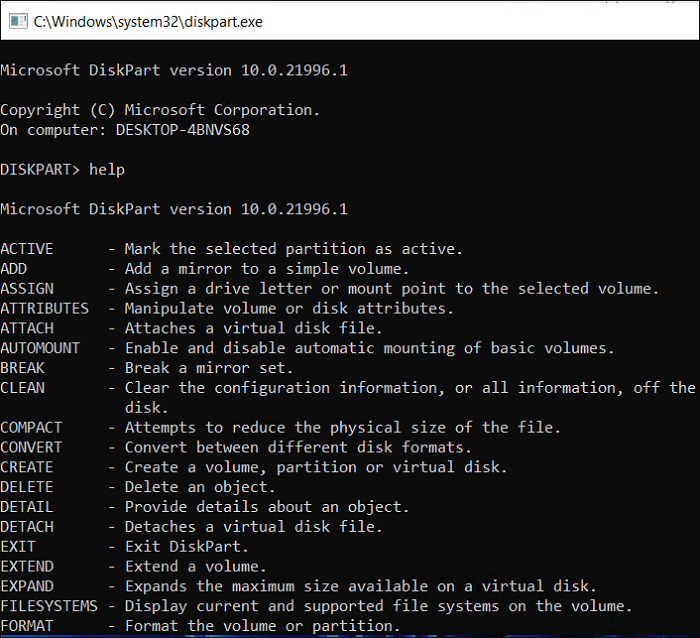
To learn more about the functions of Diskpart, you can check out some helpful links that provide additional information on its capabilities.
You can use a third-party partition manager software, such as Qiling Partition Master, to move a partition to the end of a disk. This software can help you resize, move, and merge partitions on your disk without losing any data. It's a user-friendly and powerful tool that can handle complex partition operations.
Step-by-Step Guide on Windows 10: Move Partition to End of Disk
Qiling Disk Master Professional is a user-friendly solution for moving partitions in Windows 10, providing disk management and data security while minimizing downtime. It features a simple interface that simplifies complex operations and ensures easy navigation of all features, backed by 24/7 technical support. Download it to move your partition.
Step 1: Locate and select the target drive/partition
Launch Qiling Disk Master, go to Partition Manager, select the target drive/partition, right-click and choose "Resize/Move" to adjust its size.

Step 2: Resize or move the partition
1.To shrink the partition, simply drag one of its ends to free up unallocated space. Once done.
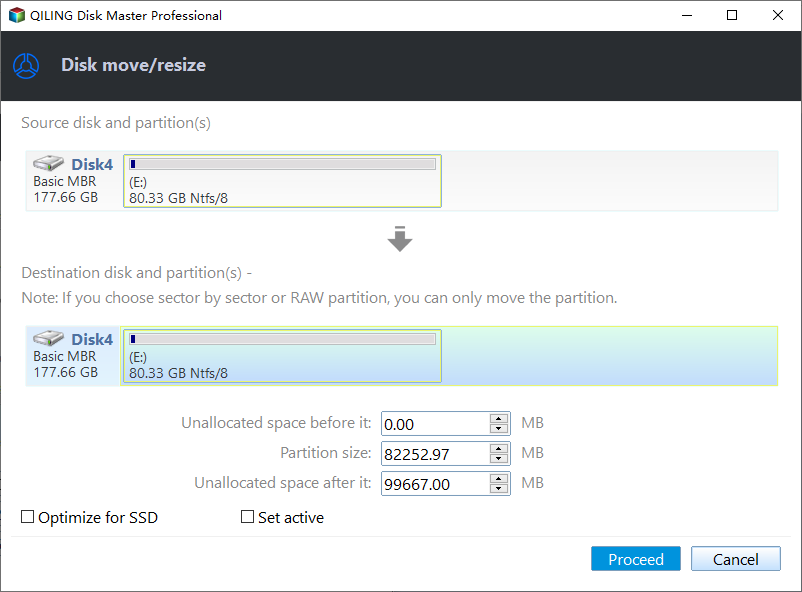
2. To extend the partition, ensure there's unallocated space available. If not, create some by following the previous steps. Then, drag your mouse into the unallocated space to extend the partition.

3. To move a partition position, you need to have unallocated space next to the target partition. If not, free up some unallocated space first.
To resize/move a partition, right-click on the target partition, select "Resize/Move" from the context menu, and then drag the partition left or right to adjust its position.
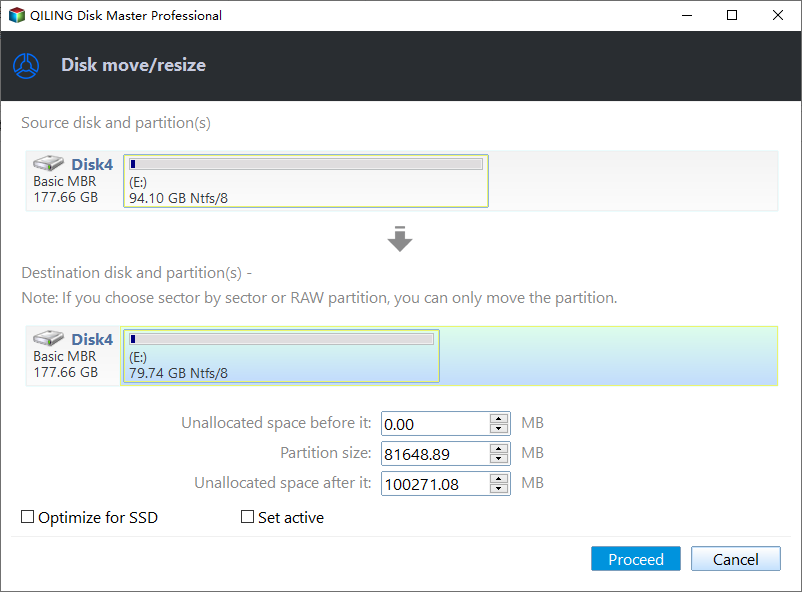
Step 3: Confirm the result and apply changes
At this step, you will see the new disk partition information & diagram.
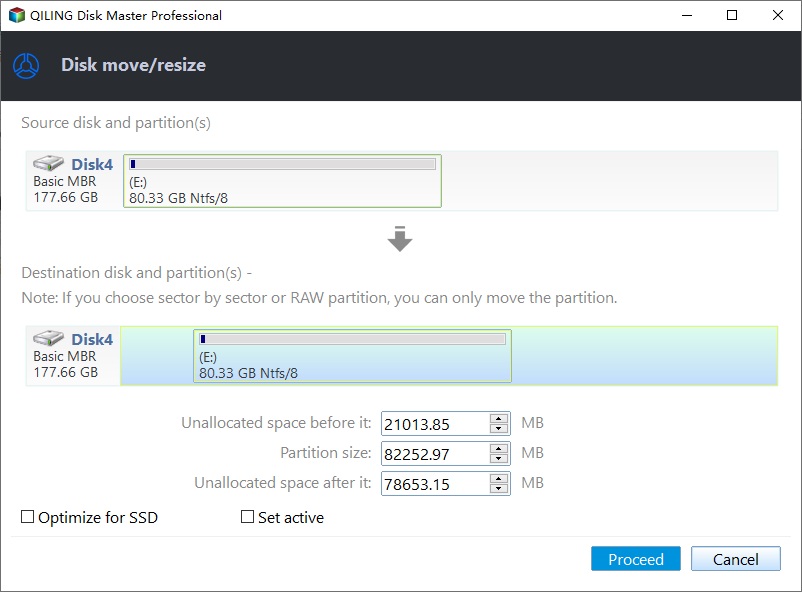
To save changes, click the "Proceed" button.

The Main Features of Qiling Disk Master
- Cloning involves creating an exact replica of a hard drive partition, allowing it to be used for imaging another drive. This process is useful for backing up data, upgrading to a new drive, or creating a duplicate drive for testing purposes.
- Disk partition management involves creating and deleting partitions on a hard drive, allowing for the organization and optimization of storage space in various file system types. This feature enables users to divide a single hard drive into multiple partitions, each with its own file system, to better manage data, improve performance, and enhance overall system organization.
- You can generate detailed reports over a hard disk partition, including storage space used and remaining, and partition health.
- You can merge partitions on a USB drive or split a partition into multiple pieces without damaging the data.
- According to Qiling Partition Master reviews, you can resize partitions without deleting or recreating them.
- Partition Previews allow you to test and verify the partition before implementing it, ensuring it meets your requirements.
I strongly advise using Qiling Disk Master, a powerful tool for advanced disk management, including partitioning, cloning, and migration, which is ideal for tasks not covered by built-in OS disk management tools. It's essential for keeping up with critical disk maintenance tasks, such as merging partitions on SSD or USB drives, converting file systems, deleting or creating partitions, and more.
Conclusion
As a Windows user, it's crucial to manage your computer's data by creating partitions for your OS, personal documents, and programs. This helps ensure safe and smooth operation, as well as better hard drive management. Although Microsoft's DiskPart Move Partition feature has limitations, there's an alternative solution: Qiling Disk Master, which allows you to move partitions in a few simple steps.
The Disk Cleanup and Defragmentation tool in Windows 10 is more flexible and advisable for partitioning the hard drive, making it an essential tool for anyone wanting to keep on top of many important disk maintenance tasks.
FAQs About Window 10 Move Partition to End of Disk
Suppose you have further questions on how to move the partition to the end of the disk on Windows 10. Kindly find answers to your questions here:
1. How do I move a partition to the end of the drive?
Users can't move a partition using Diskpart or Disk Management, but can use third-party tools like Qiling Disk Master to achieve this.
2. Can you move a partition in Windows 10?
Although Disk Management doesn't allow users to move any partition, it is possible through third-party software like Qiling Disk Master, which works well on Windows 10 and has an easy-to-use Move Partition feature.
3. How do I reallocate space on my C drive?
You can use Qiling partition manager software to allocate space on your C drive, which is user-friendly and suitable for all levels of Windows users, and allows you to manage partitions with features such as merging non-adjacent partitions, increasing C drive space, shrinking or extending partitions, and more.
Related Articles
- Find / Change Thunderbird Storage Location (Step-by-Step Guide)
- How to Reinstall macOS in 3 Methods [ Ventura/Monterey/Big Sur Available ]
- Fixed: "Server DNS Address Could Not Be Found"
- How to Fix Dynamic Mirror Showing Failed [Three Working Solutions]
This guide is designed to help users understand and resolve the dynamic mirror showing failed error. The error typically occurs due to various reasons. - Windows 11 Update Slows Down SSD Performance? Newest Guide
Windows 11 update slows down SSD performance. Is that true? How to fix it? If you are considering updating to Windows 11 or have updated to Windows 11, don't miss this article. - Windows 7 Black Screen with Cursor - 7 Quick Solutions
Fix Windows 7 black screen with cursor using seven troubleshooting methods to help your PC boot normally again.
Products
Articles & Tutorials
- Data Recovery
- Data Backup
- File Recovery
- File Backup
- System Backup and Restore
- Disk and Partition Clone
- Technical articles
- Mobile articles
- Disk Master Help
- Windows Data Recovery Tutorials
- Windows Secure Delete Tutorials
- Windows Partition Management Tutorials
- Windows File Backup and Restore Tutorials
- Windows System Backup and Restore Tutorials
- Windows Disk Backup and Restore Tutorials
- Windows Clone Tutorials