How to Reinstall macOS in 3 Methods [ Ventura/Monterey/Big Sur Available ]
Reinstalling macOS If your Mac is experiencing a severe problem that regular troubleshooting can't resolve, the next step is to reinstall macOS. You can choose to reinstall macOS without losing data, as opposed to deleting the internal storage and installing macOS from scratch. To do this, you can boot your Mac in recovery mode, select the option to reinstall macOS, and follow the prompts to complete the process. This will erase any corrupted system files and restore your Mac to its original settings, while preserving any personal data and installed applications.
- Tip
- The methods in this article apply to macOS Ventura, macOS Monterey, macOS Big Sur, macOS Catalina, macOS High Sierra, or earlier Mac operating systems, with Monterey being used as an example.
When Should You Reinstall Your macOS
You might want to reinstall macOS if your Mac is malfunctioning or you want to remove any potential issues caused by previous updates. However, keep in mind that reinstalling macOS will erase all files and data on your Mac, so make sure to back up your important files before proceeding. Reinstallation can potentially resolve problems with your Mac.
Getting rid of potentially corrupted files is the most obvious reason to delete old system data. Update installations might occasionally corrupt files, and if this occurs, you might have to reinstall macOS to fix the issues and try to recover lost files after the macOS update.
Another reason to force delete your Mac is that if you plan to sell it, you might also decide to reinstall macOS, which can help prepare the device for its new owner and ensure their privacy safety.
How to Reinstall macOS Without Losing Data
You need to upgrade or reinstall your macOS due to your Mac's poor performance or hardware issue, but are worried about losing data. Fortunately, there are two methods to help you fix this problem.
Procedure 1. Use a data recovery tool to help reinstall macOS
Before reinstalling your Mac, you can retrieve your data from a backup, such as an external hard drive or iCloud storage, if you had previously backed up your device. This allows you to restore your files, photos, and other important data after the reinstallation process.
If you haven't made any backups of your Mac, you'll need the expert Mac data recovery software tool, Deep Data Recovery for Mac, to quickly recover deleted files on Mac during a macOS reinstallation.
Deep Data Recovery for Mac
- Recover lost or deleted files, including documents, photos, audio, music, and emails, in an effective installation process.
- Recover files from formatted hard drive, emptied Mac's Trash bins, external drives, digital cameras, and camcorders.
- Support data recovery for sudden deletion, formatting, hard drive corruption, virus attacks, and system crashes, even if reinstallation fails.
If you experience data loss after reinstalling macOS, you can recover your lost data using Qiling Data Recovery for Mac. To do so, follow the steps outlined below to successfully recover your lost data.
Step 1. Select file types
Launch Deep Data Recovery for Mac, select the file types you want to recover, and click "Fast Scan" to begin the recovery process.

Note: You can choose different search modes based on where and why the data was lost.
Step 2. Search for lost files
To search for lost files on macOS, select the disk location where you want to look and click the "Search for lost files" button.

Step 3. Go through the scanning results
Deep Data Recovery for Mac will immediately scan your selected disk volume and display the scanning results.

Step 4. Select the file(s) and recover
Select the files to recover and click "Recover" to get them back.
Procedure 2. Reinstall macOS via macOS Recovery mode
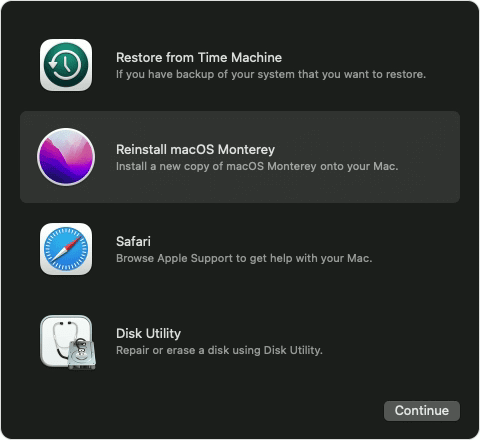
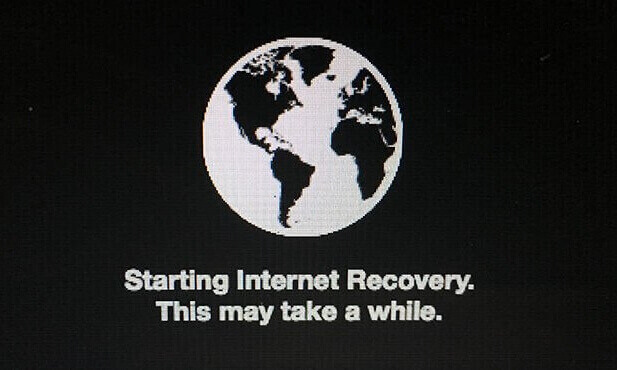
Reinstalling macOS can launch macOS Recovery, your Mac's built-in recovery system.
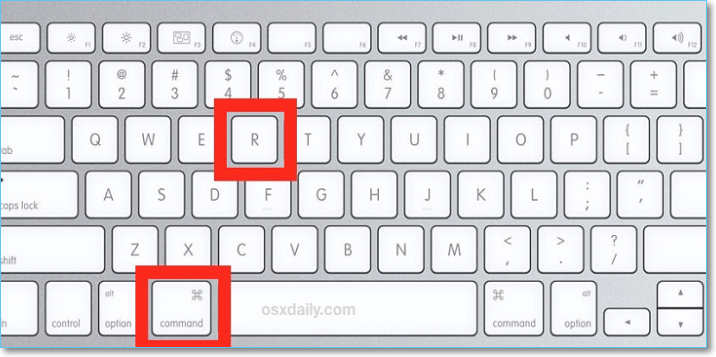
To enter the Recovery mode on your Mac, press the "Command" and "R" buttons simultaneously during startup until you hear the startup bell and see an Apple logo, allowing you to easily reinstall the macOS or restore your current OS.
Step 1. Restart your Mac device.
Step 2. Hold the Command and R keys while your Mac restarts, then release them once you see the Apple logo on your screen.
Step 3. Choose "Reinstall macOS" from the tools window in macOS Recovery.
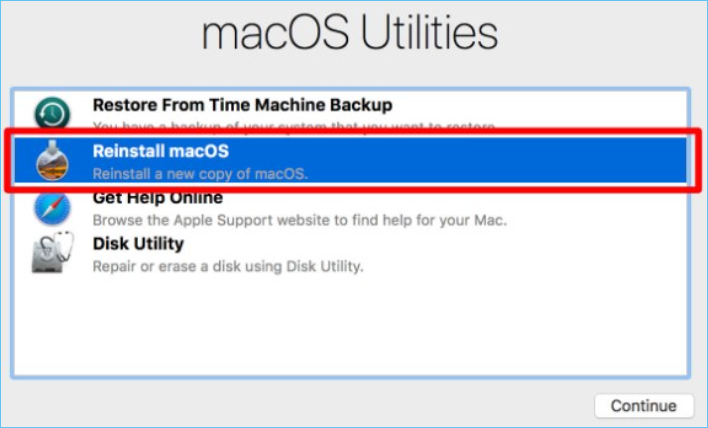
Step 4. Then click "Continue" and follow the instructions on the screen.
Step 5. The instructions were not provided, but I can provide a general response. After agreeing to the terms, you would select your hard disk from the list of available storage devices in the next window.
Step 6. Click Install to get your macOS reinstallation started.
How to Reinstall macOS from USB
If you need to reinstall macOS for hardware or software troubleshooting or to install the same system on multiple devices, you can install it from a USB instead of waiting for Recovery to download the files. This can save you time if you already have the installation files downloaded.
- Before you start the steps, you need:
-
1. A removable USB flash drive is at least 128 MB in size. (Note: The original statement was incorrect, and I corrected it to a more accurate value.
2. Ensure the USB drive doesn't contain vital information before we erase it.
3. Mac admin rights are required.
4. In case something goes wrong, a backup of files.
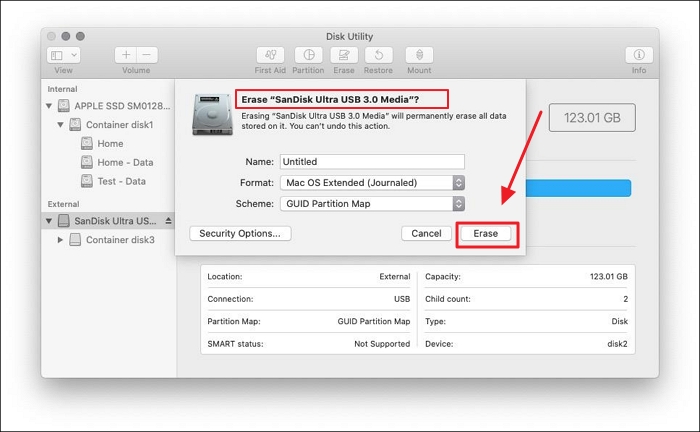
Step 1. Format the external drive
1. Go to "Applications" – "Utilities".
2. Choose "Disk Utility" and then select the drive.
3. Click Erase. (The USB drive needs to be renamed so that we can use Terminal commands to activate it.)
Step 2. Download the macOS installer
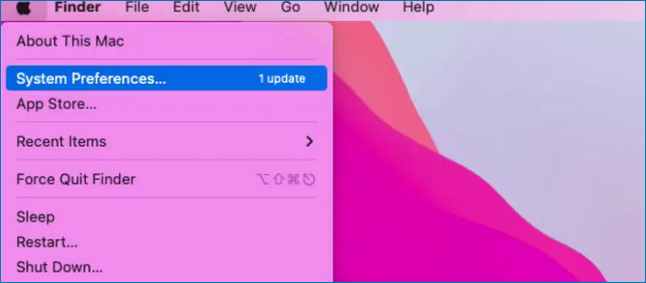
1. Open System Preferences.
2. Choose "Software Update".
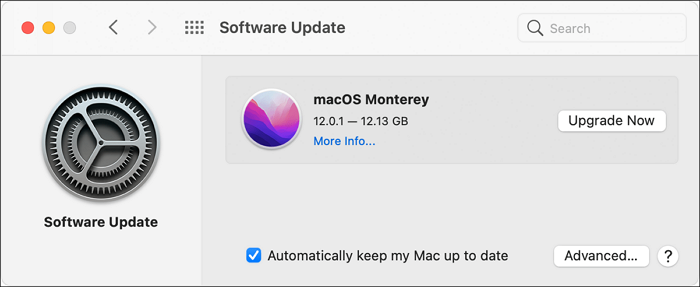
3. Download the macOS installer files.
Step 3. Create a bootable USB disk
1. Open the "Utilities folder" in the Finder, then double-click "Terminal".
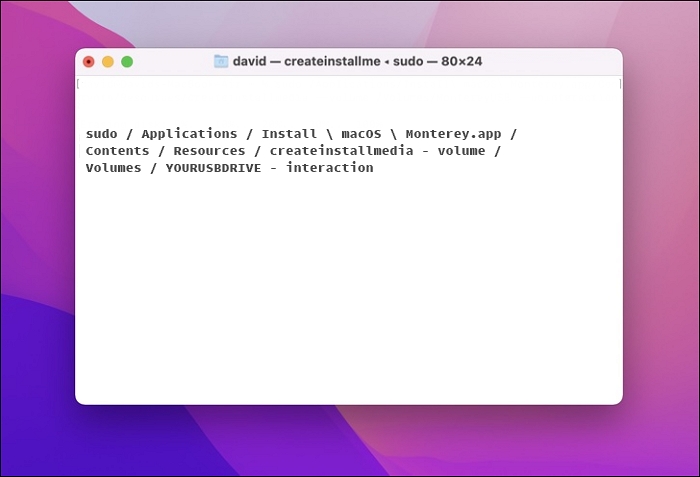
2. Type the following text into the Terminal:
To create a bootable USB drive for macOS Monterey, you can use the command `sudo /Applications/Install\ macOS\Monterey.app/Contents/Resources/createinstallmedia --volume /Volumes/YOURUSBDRIVE` in Terminal, replacing `YOURUSBDRIVE` with the actual name of your USB drive. This command will create a bootable installer for macOS Monterey on the specified drive.
3. Press "Return".
4. Enter your admin password.
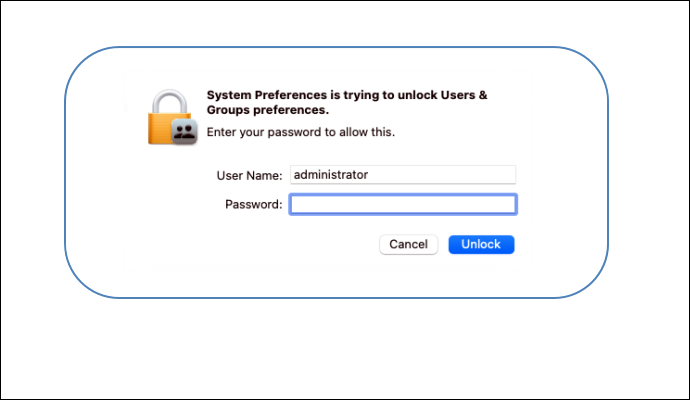
Terminal will eventually delete your USB drive and turn it into a bootable one that you can use to reinstall macOS.
Step 4. Boot your Mac from a USB drive
You can now choose your USB drive as a startup disk, which will allow your computer to boot from it into macOS Recovery and display the macOS installer on your screen.
How to Reinstall an Older Version of macOS
If a newer version of macOS is slowing down your Mac, consider reinstalling an older version. You can find older versions of macOS by learning how to get old versions of macOS. Typically, a Mac runs the OS that was pre-installed on the device or later versions.
Step 1. Check to see if the macOS or Mac OS X version you want to install is compatible with your Mac.
Step 2. To install the software, download the installer for the Mac OS X or macOS version you want to install.
Step 3. Once you've downloaded the installer, your Mac will be upgraded or downgraded when you click to install it.
You can delete your data before installing an older version of macOS.
Conclusion
To reinstall macOS, you have two options: reinstalling without deleting your data or wiping the internal storage and starting from scratch. Regardless of your choice, it's essential to protect your data by making a backup or recovering it in time. A tool like Deep Data Recovery for Mac can assist you in securing your data during the process.
Reinstall macOS FAQs
Here are 4 questions that you might be interested in. Check here for the answers.
1. How do I reinstall my Mac completely?
With the introduction of Monterey, Apple has simplified the process of obtaining a brand-new installation by allowing users to restore their Mac to its default settings through the System Preferences menu, eliminating the need for bootable USB devices or Recovery Mode.
2. How do I reinstall macOS from a USB drive?
- Step 1. Choose the USB drive to reinstall macOS.
- Step 2. Format the USB drive.
- Step 3. Download the macOS installer to the drive.
- Step 4. Restart your machine in recovery mode to reinstall macOS.
3. How long does it take to reinstall macOS?
Installing in place on a computer is generally faster than performing a complete reinstallation, as it allows you to retain existing data and settings, potentially taking around 45 minutes or less to complete.
4. How to reinstall macOS without Internet?
You can reinstall macOS even without an online connection by creating a bootable installer on a USB device.
Related Articles
- 5 Best S3 Backup Software [Can't Miss]
- How to Clear Recents on Mac Without Losing Data [2023 Guideline]
- How to Solve "No Usable Free Extent Could Be Found" [Efficient Solutions]
- How to Factory Reset Dell Laptop [Step-by-Step Guide]
- Internet Explorer History, Statistics & Facts
Explore the complete history of Internet Explorer (1995-2022), from its market dominance to end of life. Key statistics, version history, logo evolution, and the browser's lasting impact on the web. - What Is an Intrusion Prevention System (IPS)?
An intrusion prevention system (IPS) monitors and blocks malicious network traffic in real-time. Learn how IPS works, its types, benefits, and how it protects against cyber threats.
Products
Articles & Tutorials
- Data Recovery
- Data Backup
- File Recovery
- File Backup
- System Backup and Restore
- Disk and Partition Clone
- Technical articles
- Mobile articles
- Disk Master Help
- Windows Data Recovery Tutorials
- Windows Secure Delete Tutorials
- Windows Partition Management Tutorials
- Windows File Backup and Restore Tutorials
- Windows System Backup and Restore Tutorials
- Windows Disk Backup and Restore Tutorials
- Windows Clone Tutorials