Windows 7 Black Screen with Cursor - 7 Quick Solutions
If you're still using Windows 7, you might be experiencing issues like the "Black screen of death" where your computer boots to a black screen with a cursor, due to Microsoft's 2020 end of support for the operating system.
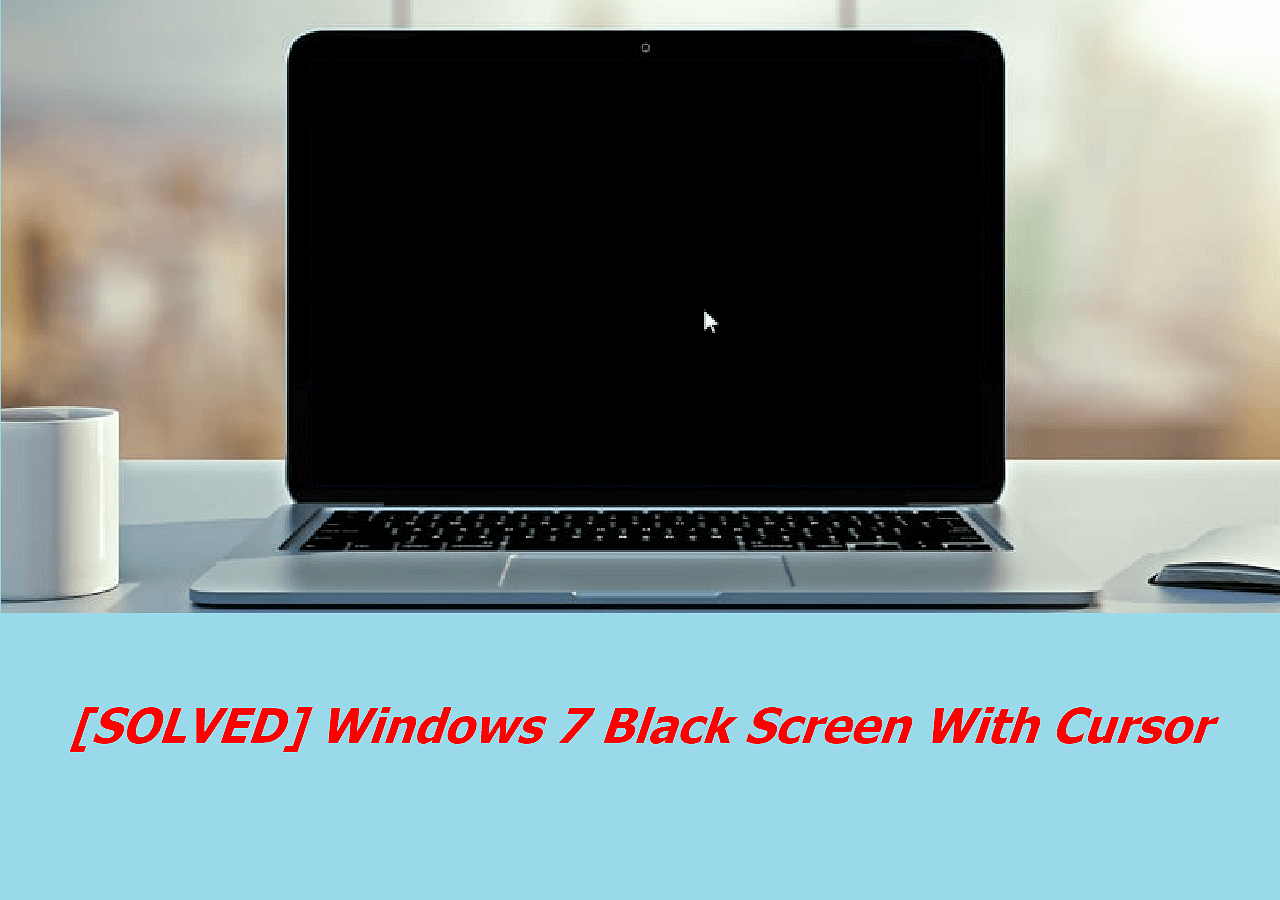
If you're experiencing frequent errors, don't worry, as there are often reasons and solutions behind them. This issue can affect both Windows 10 and Windows 11 users.
If you're experiencing a Windows 7 black screen with a cursor, there are several steps you can take to resolve the issue. This problem can be caused by a variety of factors, including corrupted system files, driver issues, or a failing hard drive. To fix the problem, you can try booting in safe mode, running a system file checker, or using a repair disk to restore your system to a previous point. Additionally, checking for driver updates and running a virus scan can also help identify and resolve the issue.
Why Windows 7 Black Screen With Cursor
Windows 7 black screen with a cursor can be caused by several reasons, including corrupted system files, driver issues, or problems with the display settings. Other possible causes may include malware or viruses, overheating of the computer, or issues with the graphics card.
- Corrupted system files;
- Outdated drivers;
- The graphic card issue;
- The hardware is damaged;
- Corrupted system files;
- OS is incompatible with some external hard drives
Regardless, you can try the following solutions to fix your problem step by step.
6 Quick Fixes for Windows 7 Black Screen With Cursor
There are multiple ways to resolve the black screen with cursor issue in Windows 7. You can try any of the methods listed below to see if they can help you solve the problem.
- Fix 1. Restart Your Computer in Safe Mode
- Fix 2. Hold the Power Button
- Fix 3. Unplug All External Devices
- Fix 4. Perform a System Restore
- Fix 5. Run System File Checker (SFC)
- Fix 6. Update Your Windows Drivers
- Fix 7. Run Task Manager
Fix 1. Restart Your Computer in Safe Mode
If your Windows 7 boot has a black screen with a cursor, you can boot into Safe Mode to load essential system files and drivers, which can help you identify and fix the black screen problem.
To boot your computer in Safe Mode with Networking, restart your computer and press the F8 key repeatedly until the Advanced Boot Options menu appears. Select "Safe Mode with Networking" from the list, and your computer will boot in a minimal configuration with networking enabled.
Step 1. Restart your computer.
Step 2. Press the F8 key (or F10, F12, Delete key) repeatedly before the Windows logo appears.
Step 3. Enable Safe Mode with Networking by selecting the option from the Advanced Boot Options menu and pressing Enter.
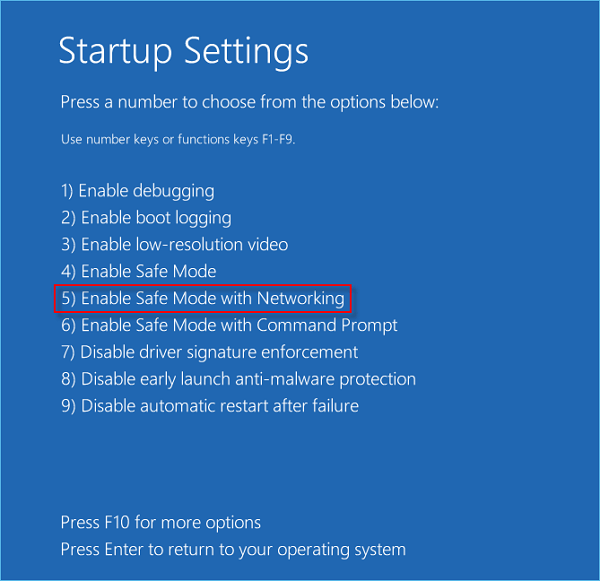
If your computer boots up successfully in Safe Mode, you may be able to identify and fix the black screen with the cursor issue effectively.
📖Read Also: Acer Laptop Screen Black
Fix 2. Hold the Power Button
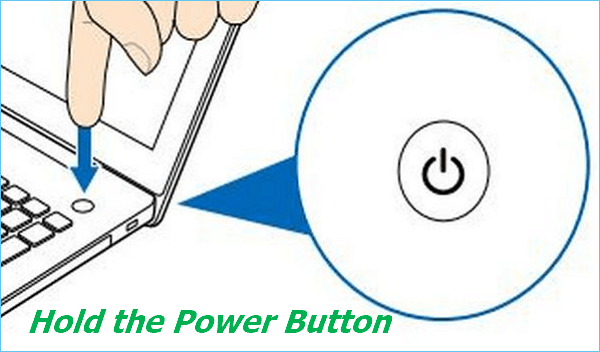
If restarting your Windows 7 computer in Safe Mode doesn't resolve the issue, you can try shutting it down using the power button, forcing the computer to restart. This alternative approach can sometimes help resolve the problem.
This method can help fix most issues that prevent your computer from booting up properly.
Step 1. To safely turn off your computer, press and hold the power button for a few seconds until the computer shuts down completely. This will ensure that all processes and programs are closed, and the computer is powered off.
Step 2. Long pressing the power button to restart your computer normally.
Fix 3. Unplug All External Devices
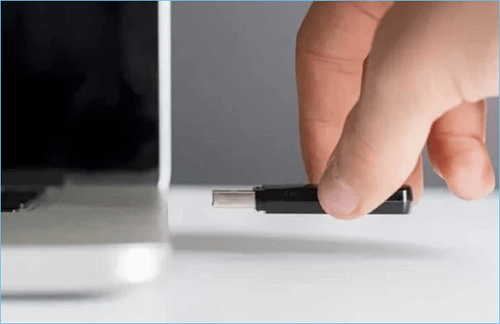
If your computer boots up to a black screen with a cursor, it might be due to an incompatible external hard drive. To resolve the issue, try unplug and disconnecting all external devices, including but not limited to, external hard drives, USB drives, printers, and other peripherals. This should help identify the problematic device and allow you to troubleshoot or replace it as needed.
- USB drive
- Microphone
- External hard drive
- The charging cable(laptop)
- Battery
- ……
Fix 4. Perform a System Restore
System Restore will help to retrieve your computer to its previous status, and the black screen cursor problem will be fixed naturally. But the premise of using this way is that you must create system restore point before. You can follow the steps below to perform a system restore in Safe Mode:
Step 1. Repeat the steps in method 1 to enter Safe Mode.
Step 2. To restore your computer to a previous state, click on "System Restore" from the search results, then select the desired restore point and follow the prompts to complete the process.
Step 3 Select and open "System Restore" from the results list.
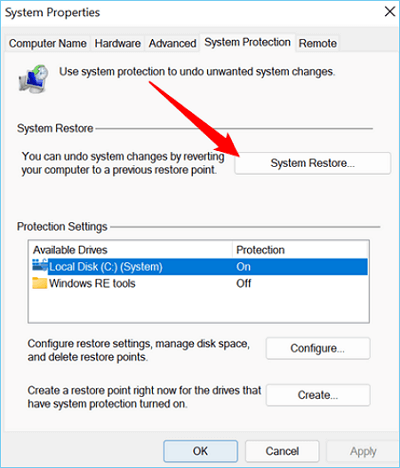
Step 4. To restore your computer to a previous state, follow the prompts to select a restore point and complete the process. This will allow you to revert back to a point in time when your computer was functioning properly, which can be helpful if you've experienced any issues or problems since then.
Now, try to restart your computer to check if the problem has been solved.
Fix 5. Run System File Checker (SFC)
To resolve the Windows 7 black screen issue with a cursor, run the System File Checker (SFC) to repair corrupted system files, which can be performed under Safe Mode. Follow these steps to execute SFC:
Step 1. To enter into safe mode, repeat the steps from method 1.
Step 2. To open the Command Prompt, click the Windows Start button and enter "Command Prompt" in the search box, then click on the result titled "Command Prompt" to open it.
Step 3. To run Command Prompt as an administrator, find it in the Start menu, right-click on it, and select the "Run as administrator" option from the context menu. This will open a new instance of Command Prompt with elevated privileges.
Step 4. Type the following code and press Enter.
sfc /scannow
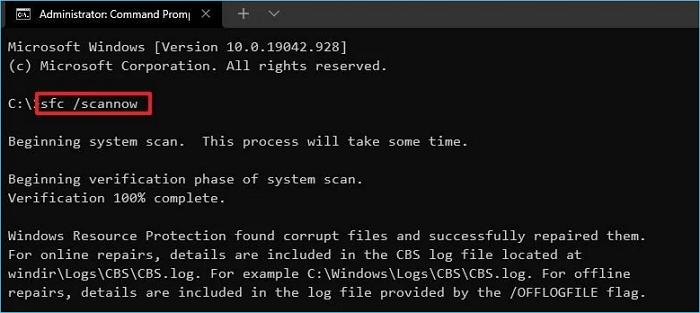
Step 5. Wait for the scanning process to complete and follow the instruction to repair the damaged files.
Fix 6. Update Your Windows Drivers
If one or some drivers are outdated or missed, it will also cause a Windows 7 black screen with a cursor. To solve the issue, you need to update or reinstall drivers, which can be done by following the steps below.
Step 1. To enter Safe Mode, press and hold the Windows key and the Shift key on your keyboard. Then, click on the Restart button. Keep holding the Windows key and the Shift key until the Windows logo appears and the computer starts to boot.
Step 2. To access Device Manager, type "device manager" in the search box, and open it.
Step 3. Browse and find the device you need to update and right-click it.
Step 4. Select "Search automatically for updated driver software" and choose "Update Driver."
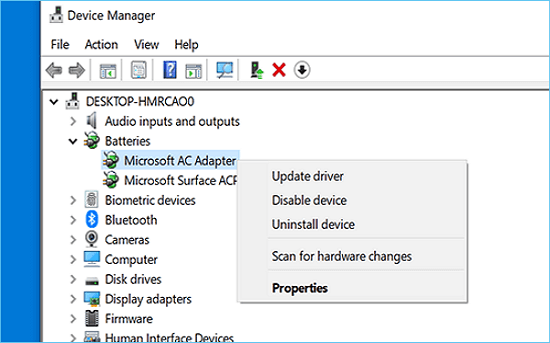
Wait for the update to complete, then check if your Windows screen shows the login screen.
Fix 7. Run Task Manager
To fix the issue of a Windows 7 black screen with cursor, you can also try using the Windows Task Manager to troubleshoot the problem. You can do this by pressing the Ctrl+Shift+Esc keys simultaneously, which will open the Task Manager. From there, click on the "Processes" tab and look for any suspicious or resource-intensive processes that may be causing the issue.
Step 1. Press "Ctrl + Alt + Delete" simultaneously, and elect "Task Manager" from the list of options.
Step 2. Click the "File" menu and select "Run new task."
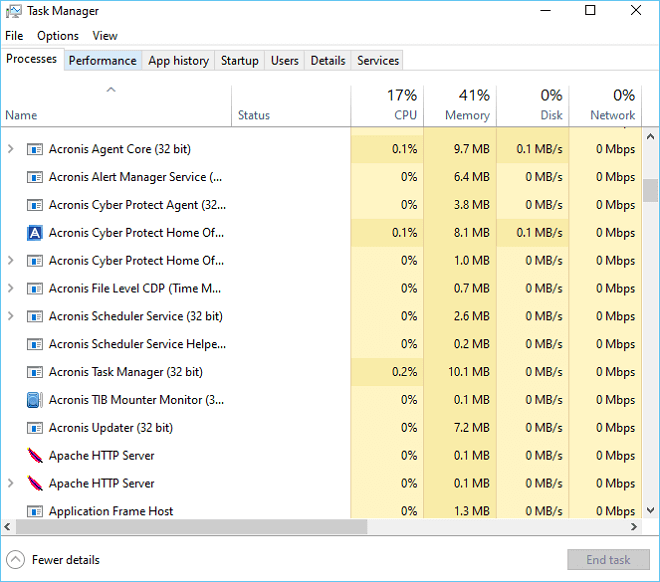
Step 3. Type "explorer.exe" and press Enter.

To resolve the Windows 7 black screen with cursor issue, you can restart the Windows Explorer process. This can be done by pressing `Ctrl + Shift + Esc` to open the Task Manager, then right-clicking on the "Windows Explorer" process and selecting "Restart".
Bonus: Backup Windows 7 Regularly for Easy Restore
Windows 7 support has ended and users will face more technical issues, so it's recommended to upgrade to a newer operating system for a smoother experience.
If you're set on using Windows 7, it's crucial to regularly create a backup to help restore the OS to its previous state.
Qiling Disk Master Pro is a reliable backup and recovery program that can automatically back up files, folders, system, disks, and App data with a few clicks, compatible with Windows 11/10/8/7, and supports creating a bootable emergency USB disk.
Qiling Disk Master offers various types of backup to ensure a complete and safe backup of your Windows 7. To prevent issues like a black screen, it's recommended to perform a full backup after resolving the problem. This will help prevent data loss and ensure a smooth recovery process.
Download and use it to back up your Windows 7 system; Qiling will never let you down.
Step 1. On the main page, click "Select backup contents".

Step 2. Among the four available categories, click System backup.

Step 3. Qiling Disk Master will automatically select your system partition, requiring only a selection of the backup destination.

Step 4. You can save the backup file to either a local drive on your computer or a Network-Attached Storage (NAS) device, giving you flexibility in choosing where to store your backups.

Step 5. After completing the backup process, you can check the backup status, recover, open, or delete the backup by right-clicking on the backup task on the left panel.

Sum Up
A Windows 7 black screen with a cursor issue can be frustrating, but the steps below can help. Try one of the 7 working solutions we've provided to fix the issue and get back to work efficiently.
To prevent issues with Windows 7, it's recommended to create a backup of the operating system. This can be done using Qiling Disk Master, which helps safeguard your Windows system and ensures a trouble-free experience.
FAQs on Windows 7 Balck Screen with Cursor
1. Why is my Windows screen black, but I only see the cursor?
A black screen with a cursor on Windows can be caused by a variety of factors, including corrupted system files, outdated or missing drivers, and incompatible external hard drives, among others.
2. How do I fix a black screen with a cursor on HP?
If you're experiencing a black screen with a cursor on your HP computer, try restarting it in safe mode. Press and hold the power button until it turns off, then press the button again to turn it back on.
- Update drivers
- Disconnect all external devices
- Fix corrupted system files
- Boot into the Safe Mode
- Perform a system restore
3. Does resetting the PC fix the black screen with the cursor?
Resetting the PC can be a helpful solution to fix almost black screen issues, but it's not a one-size-fits-all solution. To effectively address the problem, it's essential to identify the specific causes and apply the corresponding method to fix it.
Related Articles
- 2 Ways to Force Update Windows 10 to the Latest Build
- How to Remove Active Flag From Partition [Efficient Solution]
- What If Error Message -- We Couldn't Find Any Drives Appears? [2023 Fixed]
- How to Change Boot Drive Windows 10? [Updated 2023]
- Xbox One Stuck on Green Screen? Causes & Quick Solustions!
Fix Xbox One stuck on the green screen by checking common causes, restarting the console, updating software, or using reset options. - How to Fix 'It Looks Like You Don't Have Permission to Save Changes to This File' on Windows 11/10
If you're unable to save files and are getting an “It Looks Like You Don't Have Permission to Save Changes to This File” error, it's an easy fix. Simply follow this guide to resolve the issue.
Products
Articles & Tutorials
- Data Recovery
- Data Backup
- File Recovery
- File Backup
- System Backup and Restore
- Disk and Partition Clone
- Technical articles
- Mobile articles
- Disk Master Help
- Windows Data Recovery Tutorials
- Windows Secure Delete Tutorials
- Windows Partition Management Tutorials
- Windows File Backup and Restore Tutorials
- Windows System Backup and Restore Tutorials
- Windows Disk Backup and Restore Tutorials
- Windows Clone Tutorials