How to Create System Restore Point Windows 10/11 (Steps with Pictures)
What Does Creating a System Restore Point Do
When trying to fix a major problem in Windows, start with the system restore point tool.
Windows OS automatically creates restore points before significant events, such as driver or application installations, and allows manual activation. However, using outdated restore points may undo unnecessary changes.

The Windows System Restore tool allows you to revert to previous versions of software, registry settings, and driver configuration through a restore point, which is an inbuilt feature that takes your computer back to an earlier version when changes were made.
To undo troubleshooting and revert to an earlier Windows 10/11 operating system version, you can use the System Restore tool. There are two methods to create a system restore point, which can take around 30 minutes to reverse changes using the first method. Alternatively, you can use the second method for quick and easy results.
Can System Restore Points be Created Manually
Windows computers have two options to create system restore points: automatic initial restore points and manual restore points, allowing users to roll back the operating system to an earlier functional state.
Creating restore points on a regular basis is a good practice when the operating system is stable and functioning properly. This allows for a quick recovery in case of a system failure or other issues.
To manually create a restore point, follow the steps in the third and fourth parts of this article.
How to Create a System Restore Point on Windows 10/11
Windows operating system creates a restore point automatically at significant events like installing updates or unexpected crashes, and also allows manual creation of restore points to recover the OS. To create a system restore point, you can follow two different methods: one for Windows 10 and another for Windows 11. The detailed guide for both methods will explain how to manually create a restore point and recover the OS when needed.
Step 1. Go to the Search bar, type "System restore point", and click to open the app.
Step 2. Click on "Configure".
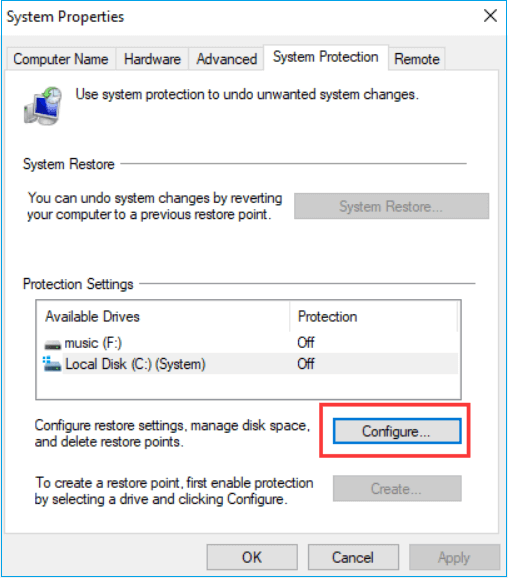
Step 3. Select "Turn on system protection".
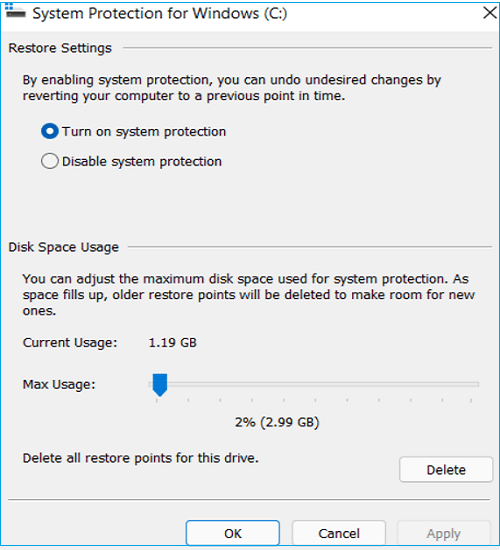
Step 4. Select the desired disk space usage and click on "Apply" followed by "OK".
- Notice:
- Keep your hard disk/SSD drive usage below 10% by allocating less than 2-3% of its total capacity.
Step 5. After selecting your "Windows drive", click on "Create".
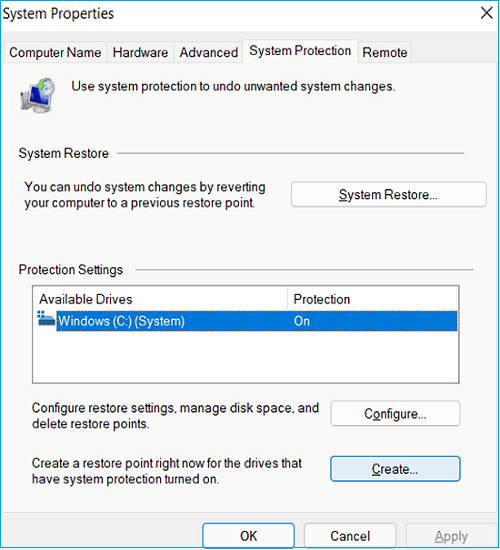
Step 6. The system restore point is called "Before installing new software" and it is created. Now you can install the new software.
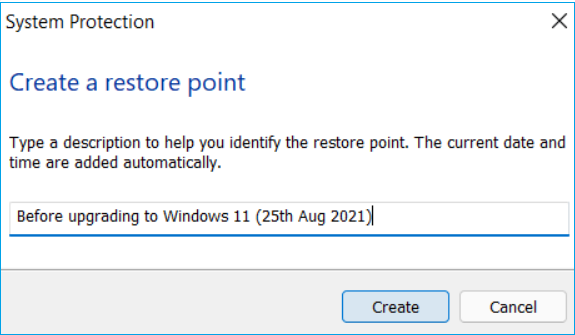
Your system restore point has been created successfully, taking time proportional to the size of applications, programs, and files on the C drive.
How to Create System Point with Windows Backup Software
The in-built Windows system restore functionality is limited in its ability to restore files, such as images and documents, and can also lead to data loss due to errors. Therefore, a more advanced solution is needed to protect the computer OS from losing any files.
Qiling Backup Home is an efficient and easy-to-use backup tool with multiple additional functionalities, allowing for the restoration of programs, files, and settings in case of a computer crash, and providing the ability to save restore points in external backup drives or cloud drives for access anywhere.
- Complete and effortless restoration of OS images.
- Back up Windows 10/11 OS and create an image point.
- Local and Cloud backup and recovery.
- Disk/Partition Backup and Recovery on Windows.
- Clone and transfer Windows operating system.
Qiling Backup is the most suitable and cutting-edge backup software to back up any data with just a few clicks, eliminating the hassle of unexpected system failures, data errors, and manually creating restore points in your Windows operating system.
To back up the Windows system using Qiling Backup software, follow these complete steps:
Step 1. On the main page, click the "System backup" button to initiate the backup task.

Step 2. Qiling Backup will automatically select your system partition, so you just need to choose where to save the backup.

Step 3. You can save the backup file on either your local drive or a network-attached storage (NAS) device.

Step 4. After completing the backup process, you can view the backup status, restore, access, or remove the backup by clicking the "Advance" button in the backup task on the list.

How to Restore a System Restore Point in Windows 10/11
System Restore is a Windows feature that allows users to undo system changes without affecting personal files, such as emails, documents, or photos, and can be used in all versions of Windows operating systems with the help of Qiling system restore software.
Follow the given steps to do so:
To perform system recovery on a non-bootable machine, try to boot the computer through the recovery mode, which can be accessed by pressing the F8 key or the Shift key while booting. This allows you to access the recovery console, from which you can run system recovery tools.Qiling Backup emergency disk.
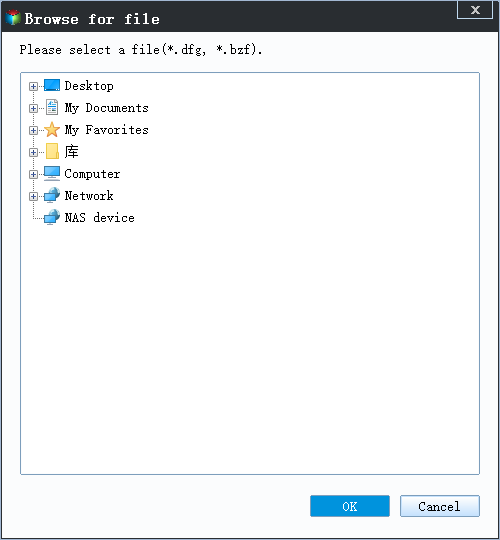
Step 1. Launch Qiling Backup, click "Browse to Recover".

Step 2. To access your backup destination, select the system backup file you need, which is typically a .fvd file created by Qiling Backup.
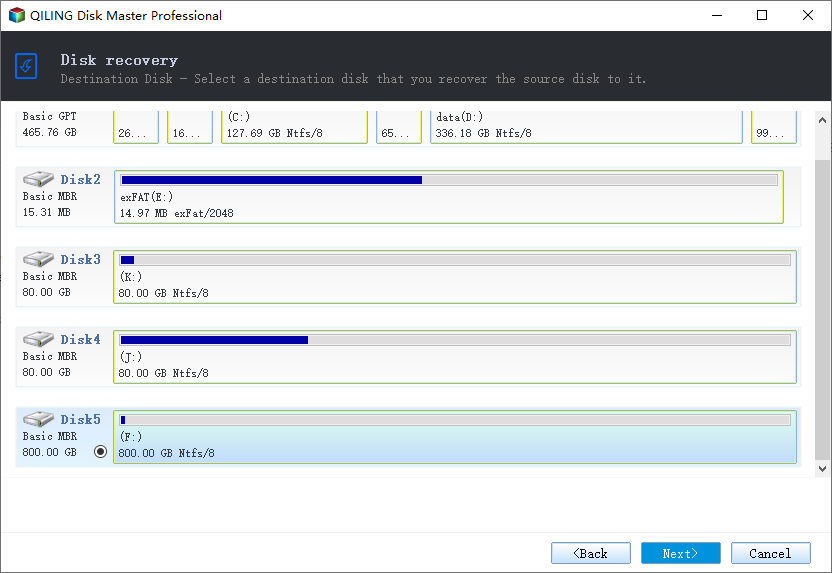
Step 3. Ensure that the recovery disk has the same partition style as the source disk to facilitate a smooth cloning or imaging process.
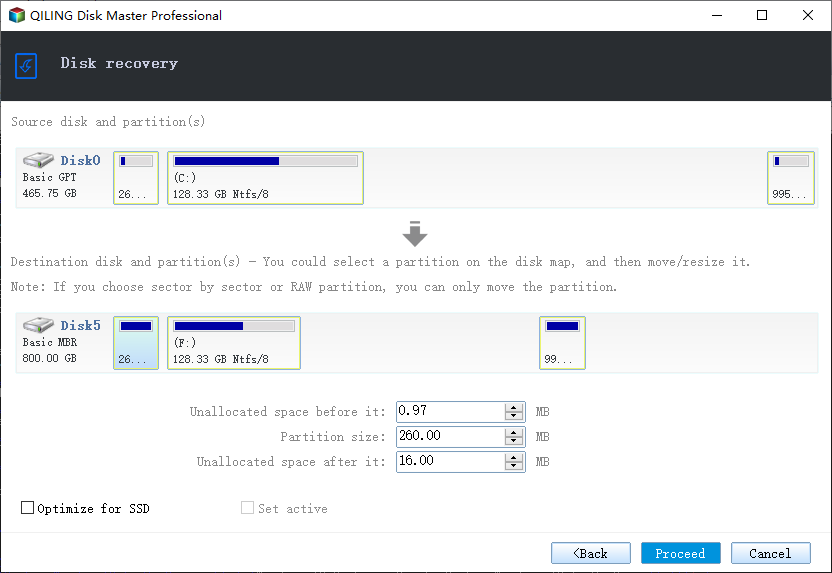
Step 4. You can customize the disk layout according to your needs, then click "Proceed" to start system backup recovery.
Create System Restore Point FAQs
If you have additional queries about creating System Restore Point, please check these Frequently Asked Questions.
1. When should I create a system restore point?
To avoid data loss due to unexpected Windows errors, it's recommended to regularly create a restore point using the manual settings. This ensures that you have a backup in case something goes wrong.
2. Does Windows 10 automatically create Restore points?
Windows Operating System automatically creates Restore points before critical events, such as updating Windows or installing a new driver or software, allowing users to easily revert back to a previous state if something goes wrong during the process.
3. How do I create a system restore point automatically?
System Restore is a built-in enable system restore points in Windows, type "system restore" in the search bar and click on "Create a restore point" when it appears. Then, in the System Protection tab, click "Configure" and select "Turn on system protection". Choose your Windows drive and click "Create" to create a restore point with a convenient name.
4. How do I restore Windows from a restore point?
To fix the issue, open System Restore, select the "Choose a different restore point" option, and choose any available restore point from the list. Clicking next may take around 10-30 minutes, so be patient.
Conclusion
Windows automatically creates Restore points, which can be used to restore the OS without affecting other files.
To prevent data failure, using Qiling Backup is the best approach. This tool helps Windows users control and prevent any type of data loss, including operating system and personal file failures.
Related Articles
- Seagate Backup Plus Software Downloads and Explanation [perfect tips]
- What's The Best Way to Backup A Nas? We Compared 3 Free Ways
- Top 10 Free Features in Qiling Backup
- All You Need to Know About Windows 11 Backup and Restore (Windows 7)
- 2 Easy Ways to Transfer Disk Image to a New Hard Drive
Are you in need of transferring disk image to a new hard drive? The best free hard drive image software offers you two efficient solutions. Read this article patiently to find out. - Unable to Mount Clonezilla Image to Restore Single File
How to mount and explore Clonezilla image to solve unable to mount Clonezilla image to restore single files in Windows? Get the 3 solutions below.
Products
Articles & Tutorials
- Data Recovery
- Data Backup
- File Recovery
- File Backup
- System Backup and Restore
- Disk and Partition Clone
- Technical articles
- Mobile articles
- Disk Master Help
- Windows Data Recovery Tutorials
- Windows Secure Delete Tutorials
- Windows Partition Management Tutorials
- Windows File Backup and Restore Tutorials
- Windows System Backup and Restore Tutorials
- Windows Disk Backup and Restore Tutorials
- Windows Clone Tutorials