How to Change Boot Drive Windows 10? [Updated 2024]
If you need to change the boot drive on your Windows 10 computer, don't worry if you're a newbie - this guide will walk you through the process. You can change the boot drive using the recovery tool and BIOS settings, making it a relatively straightforward process.
A boot drive, also known as a system drive, is the primary drive where your operating system and essential programs are installed. It's usually the drive that loads when you start your computer.
🔗Further reading: To change the primary hard drive in Windows 10, you can follow these steps: First, open the Start menu and click on Settings. Then, click on System and select Storage.
What Is A Boot Drive?
A boot drive, typically a hard disk, contains the computer's operating system and is used to start the computer, similar to a CD-ROM drive, USB flash disk, floppy disc drive, or DVD drive.
The operating system is pre-You may need to change the boot drive in your Windows computer if you've installed a new hard drive or SSD and want to use it as the primary boot drive, or if your old hard drive is failing and you need to replace it. In either case, you'll need to configure the boot order in your computer's BIOS or UEFI settings to point to the new drive, and then reinstall Windows on the new drive. This process is known as a clean install, and it will erase all data on the old drive. Alternatively, you can also clone the old drive to the new one using disk imaging software, which will preserve all data and settings. However, if your old drive is beyond repair, you may need to perform a clean install.
- Windows Installation: To install a new operating system on a formatted drive, you'll need to make the drive bootable by copying the Windows installer to it and selecting it as the boot drive to initiate the installation process.
- Upgrade HDD (Hard Disk Drive) to SSD (Solid State Drive): Upgrading to a new SSD (solid-state drive) can significantly improve your computer's performance, but to fully utilize its benefits, you need to move the boot drive into the SSD. This means relocating the operating system, programs, and other essential files from the traditional hard drive (HDD) to the new SSD.
- Need a Recovery Drive: If your hard drive is damaged or failing, you can use a new disk to recover your data using Windows' built-in tool. This can help get your computer up and running, even if it won't start on its own. To do this, you'll need to replace the old hard drive with a new one, and then use the Windows tool to recover your data without any loss.
- Operate Bootable Antivirus: The only way to fix a system taken over by malware or a virus is to use a bootable antivirus stored on a hard drive or flash drive.
Regardless of the reason for changing the boot drive, we're here to help. To change the boot drive in Windows 10, follow the methods and steps provided to ensure a smooth transition.
How to Change Boot Drive Windows 10?
There are three easy ways to change the boot drive: using a professional boot tool, Advanced Options, or System Configuration. To do this, follow a step-by-step guide through these methods.
- Method 1. Change the Boot Drive via a Third-Party Tool
- Method 2. Change the Boot Drive via Advanced Options
- Method 3. Change the Boot Drive via System Configuration
Method 1. Change the Boot Drive via a Third-Party Tool
If you're not familiar with Windows operations, a third-party smart tool called Qiling Disk Master can make changing the boot drive under UEFI easy. It offers a quick and simple operation, even for those new to changing boot drives in Windows 10.
Step 1. Launch Qiling Disk Master on your computer and navigate to the "Fix Boot" in "Tools" section.

Step 2. Select the drive that you want to fix boot.

Step 3.To fix the issue where your computer won't boot from the hard drive, you can try resetting the UEFI settings to their default values. This can be done by accessing the UEFI settings, which can usually be done by pressing a specific key during the boot process, such as F2, F12, or Del. Once in the UEFI settings, navigate to the "Boot" or "Boot Order" section and set the hard drive as the first boot device.
Note:If you hit the "Reboot" button after the drive, the OS can boot from this disk at the next reboot.
Qiling Disk Master is a Windows boot repair tool that offers advanced features such as repairing the boot drive, fixing the computer's blue screen, and other issues, making it a useful tool to have in case of errors.
Method 2. Change the Boot Drive via Advanced Options
To change the boot drive, enter the UEFI firmware via advanced options, and follow these steps:
Step 1: To explore the settings, click on the gear icon located on the left side of the Windows screen.
Step 2: Click the "Update & Security" option.
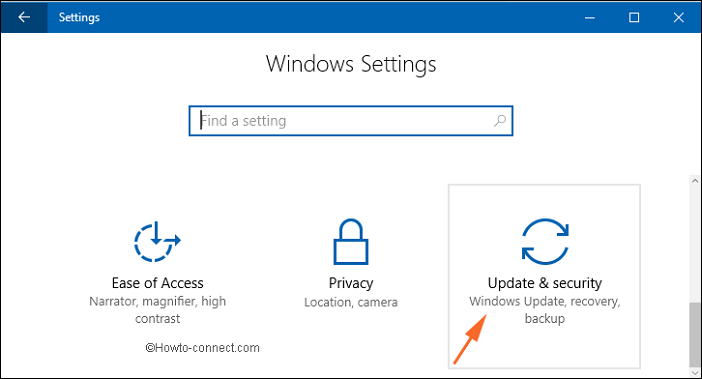
Step 3: To restart your device, select "Recovery" from the left side menu and tap "Restart Now."
Step 4: Select the Troubleshoot option, then click "Advanced Options."
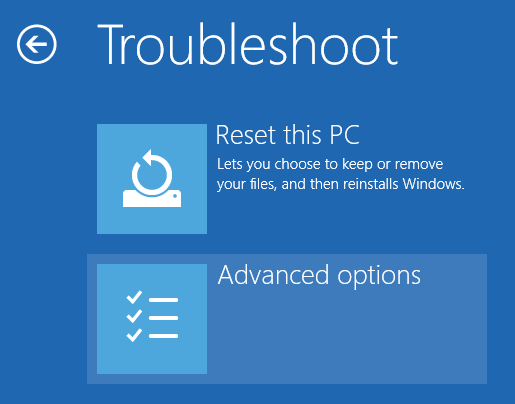
Step 5. In the end, choose "UEFI Firmware Settings" to make changes.
Step 6. The computer will restart and then take you to the Firmware settings.
Step 7. To switch to the Boot Tab, select it from the list on the left-hand side of the Disk Management window. Then, select your desired boot drive from the list and move it to the top by clicking and dragging it.
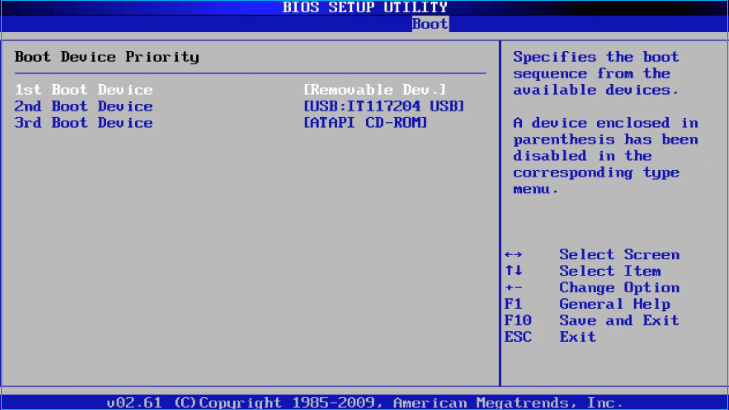
Note: To change the boot order, use the arrow keys or the + and - buttons to navigate and select the desired boot order.
Step 8. Press F10 to Save and Exit.
Method 3. Change the Boot Drive via System Configuration
To change your boost drive, you can use the "diskpart" command in System Configuration, or access the BIOS settings or UEFI firmware by pressing a compatible function key from F1 to F12.
Note: To access the BIOS settings, restart your computer and press the corresponding Fn key, which varies depending on the computer or laptop model. This will log you into the BIOS settings, where you can navigate through the steps to make the necessary changes.
Step 1. Press the correct function key to access the BIOS Setup
Step 2. Hit Enter to access the Boot submenu.
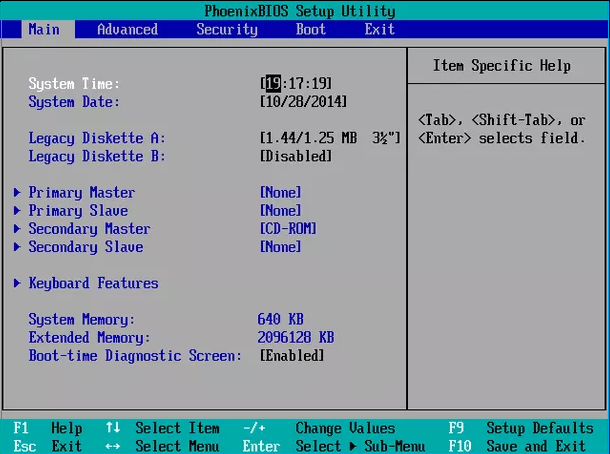
Note: Most BIOS utilities have a similar layout, with menu options listed at the top, hardware settings in the middle, and BIOS modification options at the bottom of the screen.
Step 3. To change the Boot order, use the Arrow key to move the drive to the first position, and use the + and - keys to move it up or down.
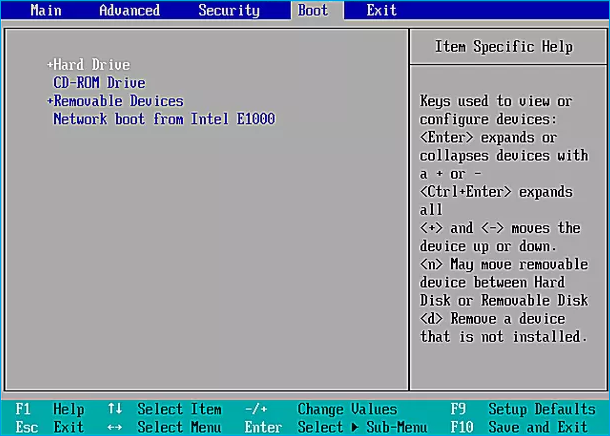
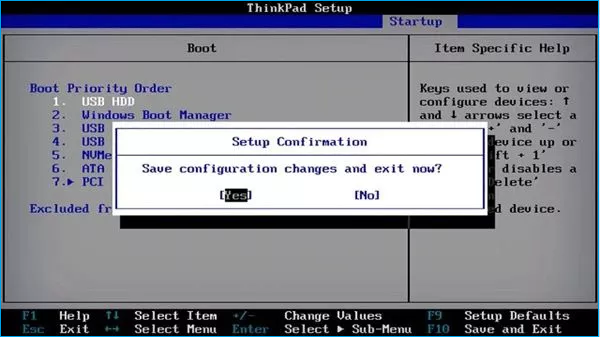
Step 4. Change the Boot order to prioritize the USB drive, and press the F10 key to choose "Save and Exit."
Step 5. Select "Yes" to confirm your changes and start your computer.
Concluding Thoughts
Changing your boot drive can bring numerous advantages to your computer system, making it more efficient and functional. If you're unfamiliar with the process, the steps below can help. We've provided essential information on how to change the Boot Drive in Windows 10, and you can choose from the available methods. Simply follow each step correctly to complete the process.
FAQs about Changing Boot Drive Windows 10
Follow the FAQ section for additional queries about how to change boot Drive Windows 10.
1. Why I cannot use SSD to boot?
To resolve the issue, connect your SSD, restart your computer, and press the correct function key to access the BIOS menu. Navigate to the boot order settings using the + and - keys, select the SSD as the primary boot device, and press F10 to save and exit the BIOS settings. This should allow you to boot from the SSD.
2. How do I fix no bootable devices found?
To resolve the issue, reconnect the device and restart your computer. After the restart, press the relevant key (Esc, Del, or F1...F12) to open the BIOS settings. Once in the BIOS settings, navigate to the boot tab and change the boot order by using the Arrow key to place the hard drive in the first position.
3. Does the boot drive have to be a C drive?
The computer system typically uses the C drive as the boot drive, but this can be altered by modifying the BIOS settings.
Related Articles
- Windows 11 White Screen? Top 9 Ways to Fix It!
- How to Factory Reset PS4 [2024 Complete Guide]
- What Is Microsoft Safety Scanner? How to Download and Use It? [Updated in 2024]
- Checksum Error in WinRAR? How to Fix the Checksum Error (2023)
If you're experiencing a Checksum error in WinRAR, you can try repairing and recovering incomplete or partially corrupt files using professional recovery software. This can help you recover files that were not fully downloaded or were damaged during the download process. - How to Solve Screen Freezes but PC Keeps Running (2024 Answers)
If your screen freezes but your PC continues to run, it's a common issue that can be easily resolved. By applying a few simple fixes, you can identify and address the problem, ensuring your computer runs smoothly again. - What Happens If an SD Card Is Corrupted [Full Guide on 10 Fixes]
This page explains what happens if an SD card is corrupted and provides ten full guides on how to fix SD card corruption.
Products
Articles & Tutorials
- Data Recovery
- Data Backup
- File Recovery
- File Backup
- System Backup and Restore
- Disk and Partition Clone
- Technical articles
- Mobile articles
- Disk Master Help
- Windows Data Recovery Tutorials
- Windows Secure Delete Tutorials
- Windows Partition Management Tutorials
- Windows File Backup and Restore Tutorials
- Windows System Backup and Restore Tutorials
- Windows Disk Backup and Restore Tutorials
- Windows Clone Tutorials