What Happens If an SD Card Is Corrupted [Full Guide on 10 Fixes]
SD card corruption occurs when the card's file system becomes damaged, causing it to malfunction and lose access to its stored data. This can happen due to various reasons such as physical damage, software glitches, or improper handling of the card. As a result, users may encounter errors, data loss, or even be unable to access their files. To fix corrupted SD cards, users often need to use specialized software or take their card to a professional for repair or data recovery.
SD card corruption can often be prevented by understanding its causes, and it can also be recovered. This post delves into the details of SD card corruption, including its causes and how to fix it, providing a comprehensive guide to help users navigate this issue.
What Happens If an SD Card Is Corrupted
A corrupted SD card can manifest in several ways, and being able to identify these signs early on can make fixing the problem easier. Your SD card may be corrupted if you notice any unusual behavior, such as being unable to read or write files, experiencing frequent crashes, or encountering errors when trying to access or format the card. Additionally, physical damage to the card, such as cracks or water damage, can also indicate corruption. In some cases, the card may not be recognized by your device at all, or you may receive error messages when trying to use it.
SD card not detected: The "No SD card detected" message or your device not reading your SD card are two of the most typical indications of SD card corruption.
Read/write issues: When your device fails to read your SD card or you are unable to transfer data from an SD card, it is most likely due to SD card corruption, which can be caused by a variety of factors, including physical damage, software issues, or improper formatting. This corruption can lead to data loss and inaccessibility, making it essential to take prompt action to recover the data and restore the SD card's functionality.
Connection issues: If you're unable to connect your SD card to other devices, it's likely due to corruption or an issue with the SD card pin, rather than the card itself being damaged.
Windows format error: A Windows format error on an SD card can indicate corruption, requiring the card to be formatted before use.
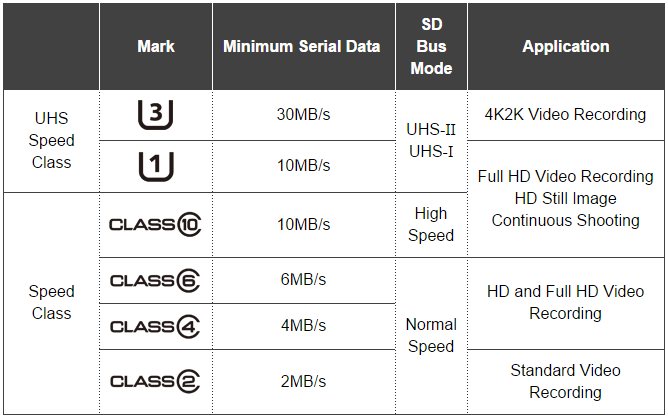
Slow performance: If your SD card is performing very slowly while transferring files or doing anything else, it's likely that the card is corrupted.
Your SD card may be slow due to various reasons such as old or low-capacity cards, physical damage, or software issues. Old cards may not be able to keep up with the demands of newer devices, while low-capacity cards may struggle to handle large files.
In this article, Qiling will explain in detail the reasons why the SD card slows down, providing you with the necessary knowledge to fix and prevent this problem.
SD card displays as RAW: When you encounter a RAW SD card, it means the files on it are unreadable by your operating system, indicating that the SD card is corrupted.
SD card suddenly shows empty: Your SD card may sometimes appear suddenly empty on your smartphone, which is most likely a sign that it is corrupt.
SD card freezes or stuck: A corrupted SD card may also cause the device to freeze up frequently, especially when it's being used regularly.
SD card won't load pictures: Images on an SD card are more prone to file corruption, so if many images show file errors, it may indicate that the SD card has become corrupted.
What Causes SD Card Corruption
SD card corruption can be caused by several factors, including improper handling, physical damage, power surges, software glitches, and virus infections. Being aware of these variables can help prevent SD card corruption and ensure the longevity of your memory storage device.
- Accumulated bad sectors: When a small cluster of data on your SD card becomes inaccessible, it is marked as a bad sector. If multiple bad sectors accumulate, the entire SD card becomes corrupted.
- File system error: An SD card may become corrupted due to improper shutdown, incorrect ejection, or irregular use during write operations, leading to potential data loss.
- Malware: File corruption can occur due to various reasons, including physical damage to the storage device, software issues, or malware attacks. Malware can also cause damage, making the affected data unreadable by the operating system, which can result in corruption of files stored on the device.
- Manufacturing defects: SD card corruption can sometimes be due to an issue during the manufacturing process of the SD card, resulting in corruption on the first use of the SanDisk card.
- Physical damage: Physical damage to an SD card can cause corruption, so it's essential to handle it carefully to prevent damage.
How to Fix SD Card Corruption Without Formatting - Ten Ways
SD card corruption can be frustrating for users, but there are ways to fix it without formatting. To resolve the issue, try using one of the ten efficient methods, which include the methods below.
- Fix 1. Check Bad Sectors
- Fix 2. Check File System Error
- Fix 3. Change a Card Reader
- Fix 4. Try CHKDSK Command
- Fix 5. Try to Use an SD Card on Another PC
- Fix 6. Assign a New Drive Letter
- Fix 7. Reinstall SD Card Drivers
- Fix 8. Use Windows Repair Tool
- Fix 9. Use the Diskpart Command
- Fix 10. Ask SD Card Manufacturer for Help
Well, now let's start with the first fix and check the bad sectors on the SD card.
Fix 1. Check Bad Sectors
A bad sector on an SD card is an area that's neither readable nor writable, contributing to SD card corruption. To identify bad sectors, users can utilize software like Qiling Disk Master Professional, which has been trusted by millions.
The Qiling Disk Master will perform a thorough surface inspection on your SD card, identify and list the corrupted sectors, and then assist in repairing them to resolve the SD card corruption issue.
These steps will walk you through:
Step 1. Open Qiling Disk Master, right-click the target disk and select "Surface Test" to initiate the surface test.
Step 2. The operation will mark all bad sectors as red immediately.
Fix 2. Check File System Error
Checking for file system errors or partition errors on the SD card is another thing you can do to fix SD card corruption; the simplest way to do this is with Qiling Disk Master.
Qiling Disk Master offers a reliable method for managing storage devices such as SD cards. It can help identify system errors on the card and automatically run repairs to address them, potentially resolving SD card corruption issues.
To fix the issue, simply download the tool, run it, select your SD card, and initiate the file system check. This straightforward process should resolve the problem.
Fix 3. Change a Card Reader
Your card reader may be the cause of the SD card issue you're experiencing. Try using different card readers, or even a USB card reader, to rule out this possibility, especially if you've used an SD card reader before with your computer.
If you're having trouble with your SD card, try inserting it into different devices, such as a different computer or a camera, to see if the problem persists. You can also try using a different card reader or a different port on your computer to rule out any issues with the card reader or the computer's port. This will help you determine whether the problem is with the SD card, the card reader, or the computer's port.
Fix 4. Try CHKDSK Command
Using the CHKDSK command is another method for repairing SD card corruption without formatting. This command-line tool examines disk space and disk use to generate a status report detailing the file system errors that were discovered and repairing them.
Here is how to use the CHKDSK command:
Step 1. Connect the SD card to your computer.
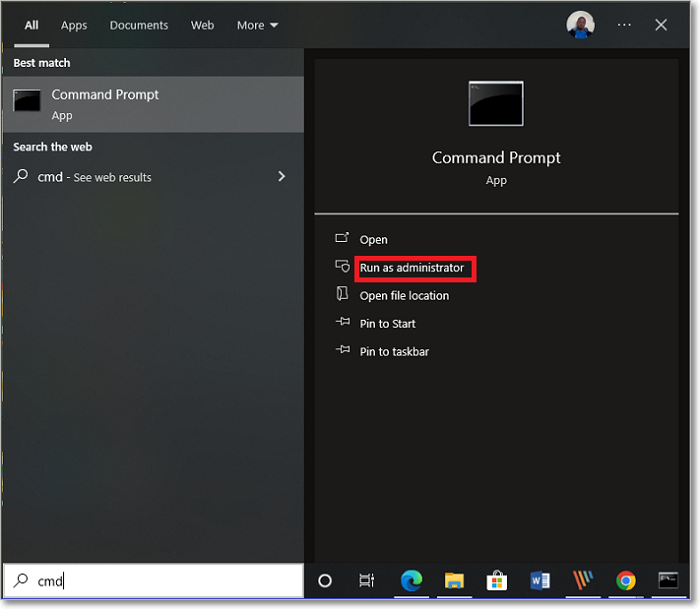
Step 2. To open the Command Prompt with administrator privileges, press the Windows key + A to open the Windows Search box, type "cmd" in the box, and click on "Run as administrator" under the Command Prompt result.
Step 3. To run the check on your SD card, go to the command prompt, type the command "chkdsk f: /f" (replacing "f" with the exact drive letter of your SD card), and hit Enter. If you want to be prompted for confirmation, you can remove the "/f" option. Keep in mind that running the check on an SD card can take a long time, depending on the size of the SD card.
chkdsk f: /r/f
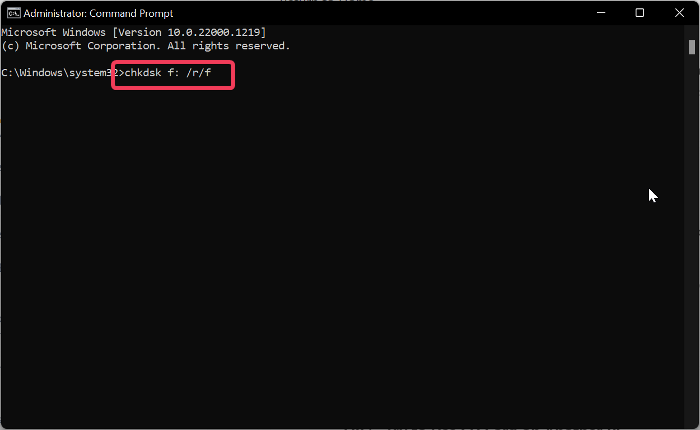
Step 4. Wait patiently for the utility to run, and the SD card issue should be resolved afterward.
Fix 5. Try to Use an SD Card on Another PC
If the SD card corruption issues persist even when used on another PC, it's likely that the problem lies with the SD card itself. However, if the issues disappear on another PC, it's possible that the problem is with your current PC, and you may need to troubleshoot or replace your PC's hardware or software.
If you're still experiencing issues, try using a friend's computer to rule out any problems with your SD card. If you're confident that the card is in good condition, the issue is likely with your Windows computer, so you'll need to troubleshoot that instead.
Fix 6. Assign a New Drive Letter
The issue of drive letter conflict with an SD card may cause corruption signs and result in problems with the card, which may be why you are experiencing this issue.
Assigning a new drive letter to the SD card can help resolve the issue of it not being recognized or being assigned a drive letter. To do this, go to the Disk Management tool in the Windows Control Panel, select the SD card, and assign a new drive letter to it.
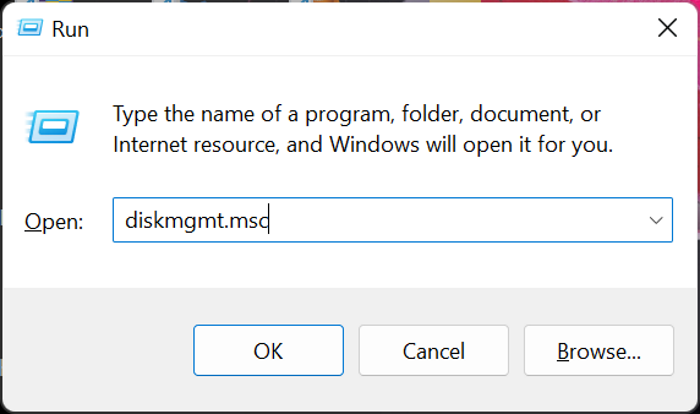
Step 1. Press Windows + R to open the Run Command box.
Step 2. To open the Disk Management window, type "diskmgmt.msc" in the box and press Enter.
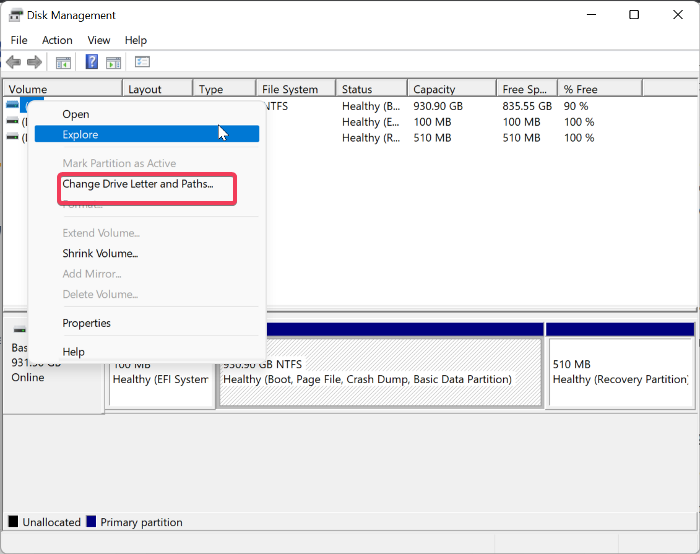
Step 3. Right-click on your SD card and select Change Drive Letter and Path.
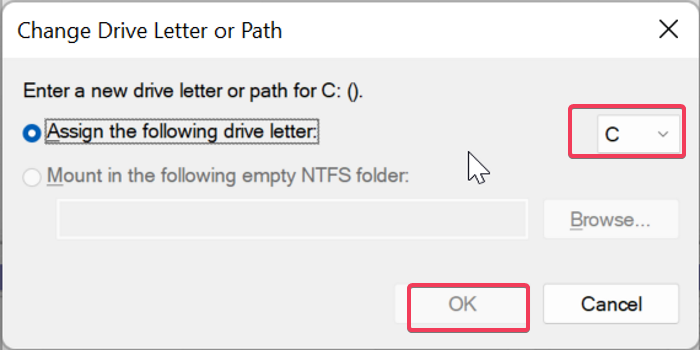
Step 4. On the resulting dialogue box, tap on Change.
Step 5. Select a new drive letter and click OK to save the changes.
You may also like:
Fix 7. Reinstall SD Card Drivers
When you connect an SD card to your computer, Windows may have trouble installing the updated driver, which can cause the SD card to malfunction.
To resolve the issue, follow these steps to manually reinstall the SD card driver:
Step 1. Right-click the Start menu and select Device Manager.
Step 2. To access the Portable Devices section on the Device Manager window, navigate to it and double-click it.
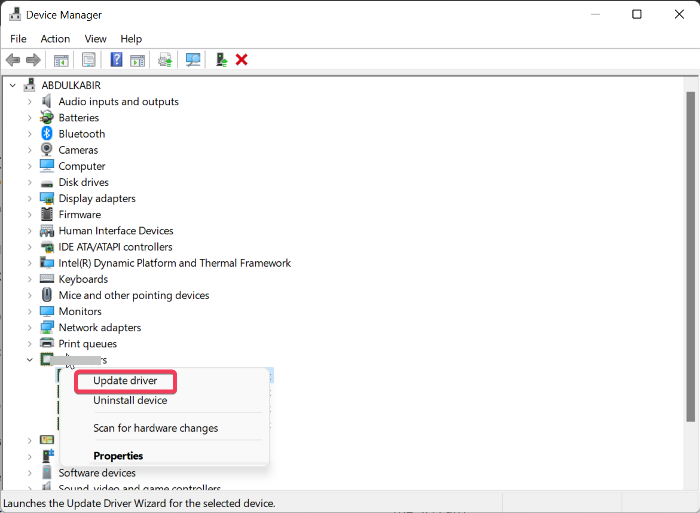
Step 3. Right-click on the SD card option and select Update driver.
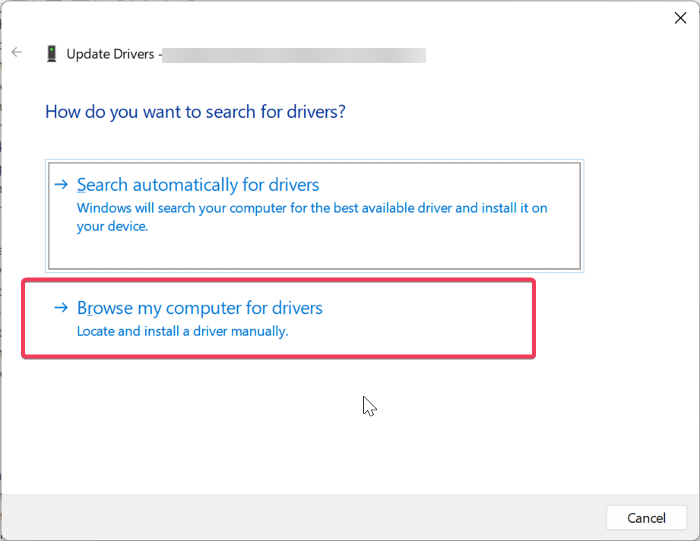
Step 4. Select Browse my computer for driver software and choose an updated driver for the SD card.
Step 5. Follow the on-screen prompts to finish the process.
Fix 8. Use Windows Repair Tool
The Windows Repair Tool is a built-in feature on Windows PCs that can scan drives for errors and corruption, allowing you to repair SD cards without formatting them.
To fix SD card corruption using the Windows Repair Tool, you can manually run the tool to diagnose and repair issues with your SD card. Start by booting your computer in Safe Mode and then run the Windows Repair Tool.
Step 1. Press Windows + S, type this PC in the search box, and click on This PC.
Step 2. Right-click on your SD card and select Properties.
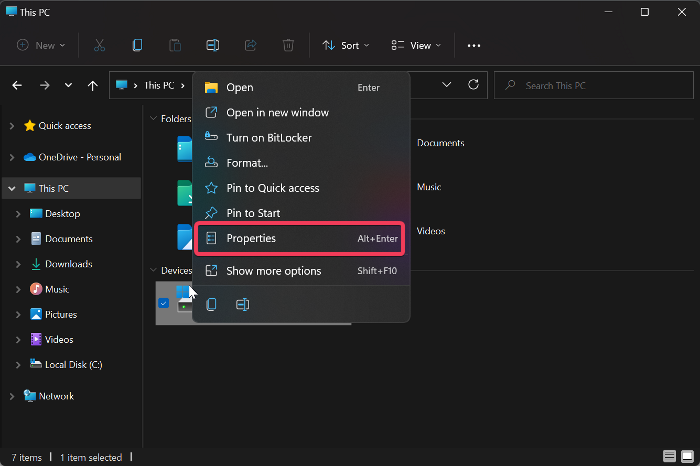
Step 3. On the resulting dialogue box, switch to the "Tools" tab and select "Check".
Step 4. Click on Scan and repair drive.
Afterward, wait till the process finishes, and your SD card should be repaired.
Fix 9. Use the Diskpart Command
The Diskpart Command can also be used to fix a corrupted SD card, as it will update the status of your SD card and repair any errors on it. This can be a useful tool for resolving issues with your SD card.
To repair a corrupted SD card with Diskpart Command:
Step 1. Plug the faulty SD into your computer.
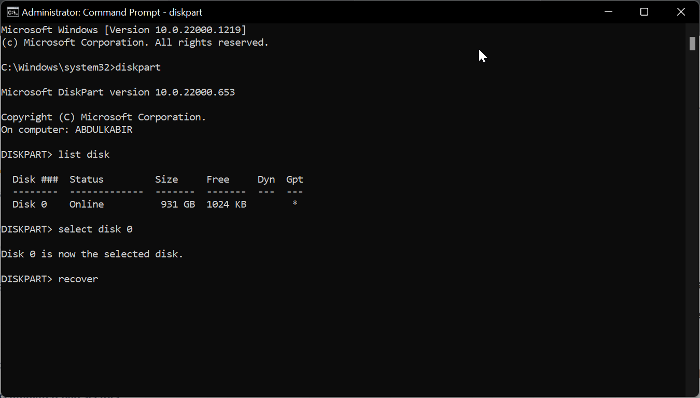
Step 2. To open the Command Prompt as an administrator, press the Windows key + S, type "cmd", and click on "Run as administrator" from the search results.
Step 3. Type diskpart in Command Prompt and press Enter.
Step 4. Afterward, type list disk and press Enter.
Step 5. select disk the number assigned to your SD card and hit Enter.
Step 6. Now, type recover and press Enter.
To resolve errors on your SD card, you can try refreshing it by removing it from your device, waiting for a few seconds, and then reinserting it. This process can help to clear any temporary errors and refresh the card, potentially resolving issues such as corrupted files or system crashes.
Fix 10. Ask SD Card Manufacturer for Help
If the solutions above don't work, you can try contacting the manufacturer of your SD card for assistance, as the issue may be a manufacturing defect. They can provide guidance on how to resolve the problem.
You can visit the manufacturer's website and use their Contact Us menu to reach out to them.
Conclusion
The most common solution for SD card corruption is to format the SD card, but there are other ways to repair SD card corruption without formatting, which can be used if the SD card becomes corrupted.
FAQs About What Happens If an SD Card Is Corrupted
If you're experiencing issues with your SD card, you might find the answers to your questions about SD card corruption here. Some common FAQs about SD card corruption include questions about what causes corruption, how to prevent it, and what to do if your card becomes corrupted.
1. How do I uncorrupt an SD card on Android?
Here are the steps to fix a corrupted SD card on Android:
Back up your data in another storage:
To avoid losing your data, back up the file to another storage device, such as a computer or another SD card, before attempting to fix the issue.
Format the SD card on your Android phone:
Here are the steps to format an SD card on Android:
Step 1. Go to Settings on your Android phone and
Step 2. To access the storage settings, go to the Settings page and click on the "Storage" option.
Step 3. On the resulting page, find the "Format SD" card option and click on it.
Step 4. Follow the on-screen prompt to initiate the process and wait for the SD card to be formatted.
If this method doesn't fix this issue, you can try using the other methods discussed in this article.
2. Why are my files on the SD card corrupted?
SD card corruption can be caused by physical damage, viruses, accumulated bad sectors, and file system errors, among other factors.
3. How do I know if my SD card is corrupted?
If you're experiencing issues with your SD card, such as a "no SD detected" error, read/write problems, slow performance, or freezing, it's likely that your SD card is faulty. In such cases, you can try to resolve the issue by following the troubleshooting guidelines provided in this article.
Related Articles
- How to Fix Mac Won't Boot from USB | Detailed Tutorial for Mac
- How to Format SD Card on GoPro [Quick Solutions]
- Find / Change Thunderbird Storage Location (Step-by-Step Guide)
- External Hard Drive Lifespan: How to Prolong It [5 Ways]
- [3 Easy Ways] How to Backup Google Photos to Hard Drive
Do you wonder how to backup Google Photos to hard drive? If yes,this article will share 3 ways to help you back up photos from Google Photos to an external hard drive. - [Detailed Guides] How to Backup WeChat in 5 Ways
To avoid losing WeChat chat history or files due to unexpected disasters, you can use one of the 5 backup methods we've outlined. With the increasing amount of information on WeChat, backing up your data is a wise precaution to take.
Products
Articles & Tutorials
- Data Recovery
- Data Backup
- File Recovery
- File Backup
- System Backup and Restore
- Disk and Partition Clone
- Technical articles
- Mobile articles
- Disk Master Help
- Windows Data Recovery Tutorials
- Windows Secure Delete Tutorials
- Windows Partition Management Tutorials
- Windows File Backup and Restore Tutorials
- Windows System Backup and Restore Tutorials
- Windows Disk Backup and Restore Tutorials
- Windows Clone Tutorials