How to Format SD Card on GoPro [Quick Solutions]
Formatting the SD card is a crucial feature of GoPro cameras, allowing users to free up space and improve the performance of their device. This is particularly important for GoPro users, as a good SD card is essential for capturing high-quality footage and photos. By formatting the SD card, users can ensure that their camera is running at its best, making it ideal for capturing life's most memorable moments.
If you need to learn how to format an SD card on your GoPro, this guide will provide you with the best help. You can also consider using one of the best GoPro built-in formatting tool alternatives to help you solve more formatting problems.
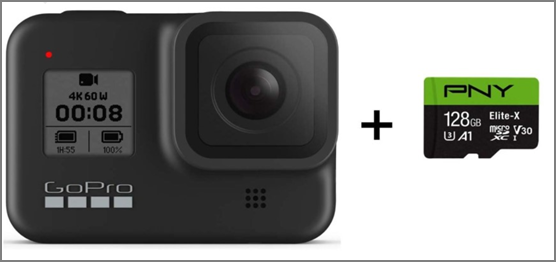
What Format Does GoPro SD Card Use?
The GoPro SD card uses the FAT32 file system format. To format the SD card on a GoPro, follow these steps: 1.
GoPro SD cards should be formatted to FAT32 for sizes up to 32GB and exFAT for sizes 64GB and larger, as NTFS is not suitable for them. This is ideal for storing files or game disks larger than 4GB.
Before formatting your SD card, make sure to find the correct GoPro SD card format to avoid corruption or other issues. You can click the link below to learn more about the differences between the three formats.
To format a GoPro SD card, first choose the suitable format for your GoPro, and then follow the steps to format the SD card on your GoPro.
How to Format SD Card on GoPro?
The GoPro camera has a built-If you're in an emergency situation and need to format your SD card immediately, you can use a tool specifically designed for this purpose. GoPro, for example, offers various models such as Hero 3, Hero 4, Hero 5, and Hero 8, among others. If you're unsure about how to format an SD card on your GoPro, follow the step-by-step instructions provided to ensure a smooth and successful formatting process.
For GoPro Hero 4 and Lower
To format the SD card on your GoPro Hero 2, Hero 3, or Hero 4, insert the card into your computer and format it using the built-in disk formatting tool. Then, insert the card into your GoPro, turn it on, and go to the settings menu to select "Format SD Card.
Step 1. Insert the SD card into the GoPro.
Step 2. To access the settings menu on your GoPro Hero, turn on the camera and press the Front Mode button repeatedly until the "Settings" option appears on the screen.
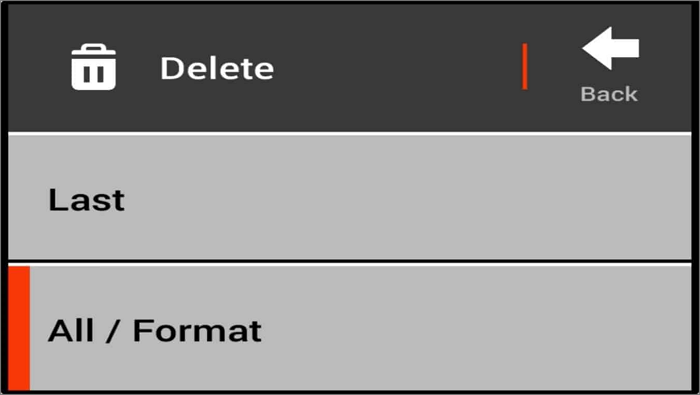
Step 3. Continue pressing Mode and click on the trash can icon.
Step 4. To format the SD card on the GoPro, select "ALL/FORMAT" and click "DELETE".
For GoPro Hero 5 and Higher
If you're using a higher version of GoPro Hero, such as the GoPro Hero 8 or GoPro Hero 9, you'll need to follow these steps.
Step 1. Insert the SD card into the GoPro.
Step 2. Open GoPro Hero and swipe down.
Step 3. Select "Preference."
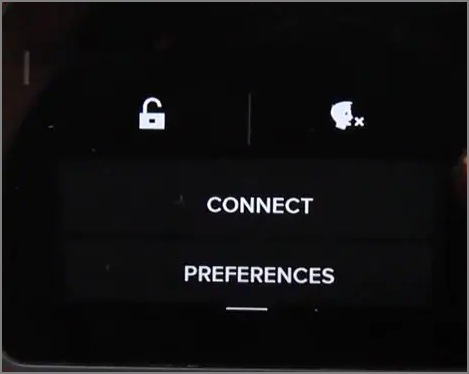
Step 4. Scroll down to select "Format SD Card."
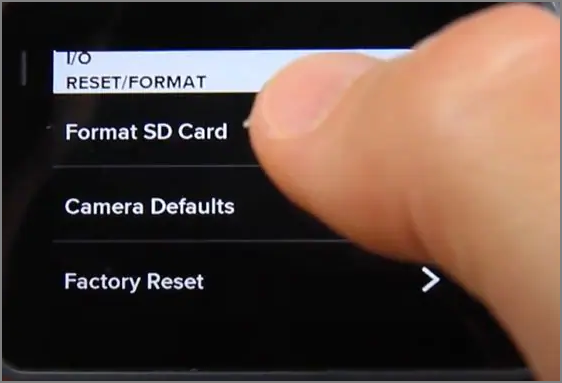
Step 5. To complete the formatting of the SD card on the GoPro, select the "DELETE" or "FORMAT" option.
To format the SD card on GoPro, insert the card into the camera, go to the settings menu, select "SD Card" or "Memory," and choose "Format." However, if the card is write-protected or has bad sectors, this method may not work. In such cases, using a computer to format the card is recommended. On Windows, you can format the SD card using the built-in Disk Management tool or a third-party software like Qiling Partition Master. This will ensure a safe and complete format of the card.
Bonus Tip: How to Format SD Card for GoPro on Windows
To format an SD card for your GoPro on Windows, you can use a professional disk management tool like Qiling Partition Master Free, which is a free and powerful tool that can format your GoPro SD card. This tool offers more features and flexibility compared to GoPro's built-in formatting tool, making it a convenient option for managing your SD card.
| Comparison | Qiling Partition Master | GoPro Built-in Tool |
|---|---|---|
| Pros |
|
|
| Cons |
|
|
Qiling Partition Master is a free and user-friendly tool that offers comprehensive features to format SD cards for GoPro, making it a convenient option.
Step 1. To format your SD card, locate it and right-click on the partition you want to format, then select the "Format" option.

Step 2. Set a new partition label, file system (NTFS, FAT32, EXT2, EXT3, EXT4, exFAT), and cluster size to the selected partition, then click Proceed.

Step 3. To start formatting your SD card, click "Yes" on the pop-up window that appears. This will initiate the formatting process, allowing you to reuse the card for storing data.
You May Also Like:
If the SD card is not showing up on Windows 10, it could be due to a corrupted SD card or a damaged file system. Qiling Partition Master can help fix this issue, and also check the disk's health state, fix bad sectors, and repair corrupted disks.
Conclusion
Formatting an SD card for your GoPro can be done in different ways depending on your camera model. For GoPro Hero 4 and lower, you can format the SD card using the camera's built-in formatting feature, while for GoPro Hero 5 and higher, you can use the camera's built-in formatting feature or a third-party tool like Qiling Partition Master on Windows, which can quickly format SD cards and provide additional repair and protection features.
FAQs About How to Format SD Card on GoPro
Here are some more frequently asked questions about GoPro and SD cards. I hope they can help you.
1. Do you have to format SD card for GoPro?
The device does not have an SD card, so you'll need to purchase one and format it to free up storage space and store data.
2. What does it mean to format an SD card for GoPro?
To format an SD card for a GoPro, you need to initialize it and free its space for use on the GoPro. This process erases all data on the card and prepares it for capturing new photos and videos.
3. How do I format my SD card on my GoPro hero 9?
You can follow the steps below to format your SD card on GoPro Hero 9.
Step 1. Open GoPro Hero 9 and wipe down to choose "Preferences."
Step 2. Scroll down to Reset.
Step 3. Select "Format SD Card."
Related Articles
- [Fixed] CHKDSK Stuck at 10%, 11%, 12%, 100% in Windows 10/8/7
- 4 Ways to Fix Windows System Backup Failed in Preparing the Backup Image
- How to Open Dmg Files on Mac Ventura/Monterey/Big Sur/Catalina [4 Fixes]
- Fixed: CHKDSK Failed to Transfer Logged Messages to the Event Log with Status 50
- How to Find Chrome Account and Password
If you are thinking how to find a chrome account and password, then this article is for you. We will discuss about two different ways through which we can find a chrome account and password. - [Easy to Follow] How to Find CorelDRAW Serial Number?
If you're looking for a CorelDraw serial number, we can help you find it easily. We'll guide you through the simple steps to obtain the serial number, so you can access the full features of CorelDraw. For more information, please read on!
Products
Articles & Tutorials
- Data Recovery
- Data Backup
- File Recovery
- File Backup
- System Backup and Restore
- Disk and Partition Clone
- Technical articles
- Mobile articles
- Disk Master Help
- Windows Data Recovery Tutorials
- Windows Secure Delete Tutorials
- Windows Partition Management Tutorials
- Windows File Backup and Restore Tutorials
- Windows System Backup and Restore Tutorials
- Windows Disk Backup and Restore Tutorials
- Windows Clone Tutorials