Why Format SD Card: Full Guide on the Main Reasons
Formatting an SD card, also known as reformatting, is the process of erasing all data on the card and restoring it to its original factory settings. This is done to prepare the card for use with a new device or to remove any corrupted data that may be causing problems. There are several reasons why someone might need to format an SD card, including:
What Does Formatting SD Card Mean?
Formatting an SD card means erasing all the data on the card, including files, folders, and any other information stored on it. This process will completely wipe the card clean, making it ready for use with a new device or operating system. When you format an SD card, you are essentially giving it a fresh start, allowing you to store new data without any remnants of the previous content. So, to answer your question, yes, formatting an SD card will delete all the data on the card.
Formatting an SD card means erasing all files, including internal ones, and assigning a new file system to the device, making it reusable for saving new files.
Formatting an SD card is necessary to prepare it for use in a device, such as a camera or smartphone. When a new SD card is purchased, it may contain leftover data from the manufacturing process, which can interfere with the card's performance. Formatting the card erases all data and prepares it for use by the device, ensuring that it functions optimally.
Why Format SD Card: 3 Main Purposes
Formatting SD cards is a necessary task that should be performed regularly. This process is important for various reasons, including maintaining the integrity of the data stored on the card, ensuring compatibility with different devices, and preventing potential errors or issues that can arise from outdated file systems. By formatting the SD card, users can restore its original condition, making it ready for use in new devices or applications.
- Change the file system of your SD card
- Fix corrupted SD card
- Erase data to get space
If you need to change the file system format of your SD card or fix a corrupted one, you can try formatting it. This will rewrite the file system, potentially resolving any issues.
The SD card is not showing up on your device, but you can try to fix it by checking if it's properly inserted, restarting your device, or using a card reader. If none of these solutions work, you can try formatting the SD card or contacting the manufacturer for further assistance.

SD Card Not Detected Windows 11/10
This post covers 9 approaches to solve the SD card not detected or SD card not showing up problem in Windows 11/10, providing a comprehensive solution to this common issue.
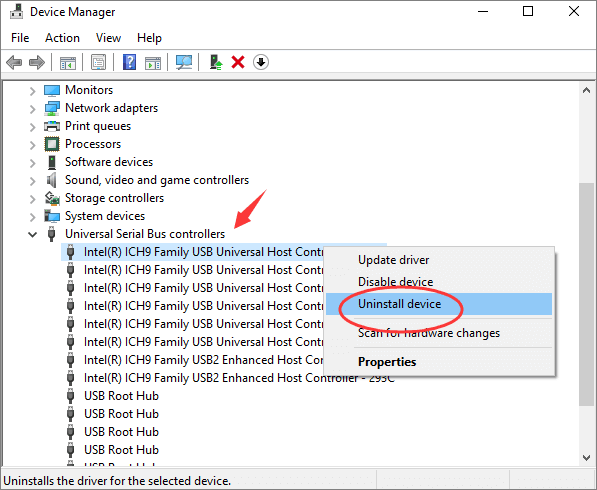
You'll need to format an SD card in various situations, including when you first insert it into your device and it's not recognized, after transferring large files and the card becomes slow, or when you're switching to a new device and want to erase all data on the old card. Additionally, formatting an SD card may be necessary if you're experiencing issues with corrupted files, errors, or if you want to start fresh with a new set of files. It's also a good idea to format an SD card periodically to maintain its performance and prevent data loss.
- Your SD card gets full easily without storing large files.
- You have not formatted your SD card for a long while.
- The SD card is new.
Well, we have learned when to format an SD card. Do you know how to format an SD card? I will elaborate on this question in the next part.
Note: Before formatting your SD card, ensure you've backed up any important data you want to preserve. You can find a resource to guide you through the process of backing up your SD card. Once you've backed up your data, you can proceed with formatting the SD card.
How to Backup SD Card Before Formatting [2026 Updated]
It's a good idea to backup your SD card data before formatting it to prevent losing any important files.
How to Format an SD Card in Windows - 2 Ways
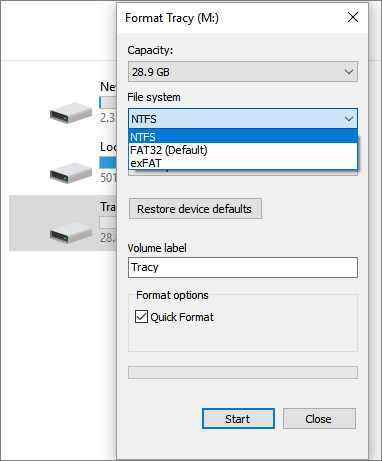
To format an SD card on Windows, you can follow these steps: Open File Explorer, right-click on the SD card drive, and select "Format." Alternatively, you can open the Disk Management console, right-click on the SD card drive, and select "Format." In both cases, you will be prompted to choose a file system and allocation unit size, and to confirm that you want to format the drive. Once you have completed these steps, the SD card will be formatted and ready for use.
Method 1. Format an SD Card Using Third-Party Tool
Qiling Partition Master Free is a professional Windows format tool that supports most Windows versions, including Windows 11/10/8/8.1 and Windows 7. It allows users to format SD cards with ease, making it a useful download for those who need to format an SD card.
Now, let's see how to use it to format an SD card.
Step 1. To format a partition on an external hard drive, USB, or SD card, launch Qiling Partition Master, right-click the partition you want to format, and select the "Format" option from the context menu.

Step 2. Assign a new partition label, file system (NTFS, FAT32, EXT2, EXT3, EXT4, exFAT), and cluster size to the selected partition, then proceed.

Step 3. To start formatting your external hard drive/USB/SD card, click "Yes" in the Warning window.
Is Qiling Partition Master only a format tool? No!
What Can Qiling Partition Master Do?
Besides formatting an SD card, it still owns many other features. You can see from the list below:
- Convert FAT32 to NTFS
- Check file system error
- Clone system and partitions
- Copy OS and data to another HDD or SSD
- Manage, resize, delete, and create partitions
This software can be very helpful, especially for those who are not computer experts. It can make the format process much easier, and downloading it is a great option if you want to take advantage of its features.
You can also use Disk Management to format an SD card, in addition to the professional tool. Let's continue to learn.
Method 2. Format SD Card Using Disk Management
To format an SD card using Disk Management in Windows, follow these steps: Open Disk Management by searching for it in the Start menu, select the SD card from the list, right-click on it, and choose "Format". In the Format dialog box, choose the file system (FAT32 or exFAT), allocate a cluster size, and optionally add a volume label. Once you've set the options, click "OK" to start the formatting process.
Step 1. Click "This PC" and find "Disk Management".
Step 2. Select your targeted SD card and click on "Format".
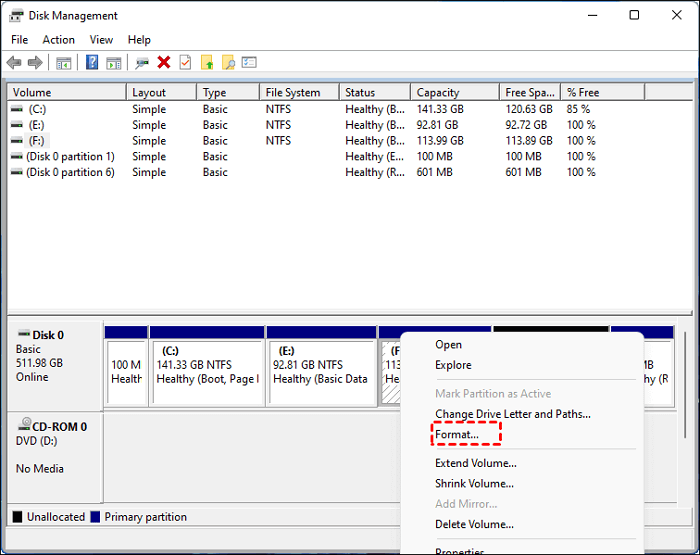
Step 3. Choose the "Perform a quick format" option.
Step 4. Once you've made your selection, click "OK" to save the file in the chosen format.
You can format an SD card in Windows using the built-in Disk Management tool or by using a third-party software like Qiling Disk Master. To format using Disk Management, open the tool, select the SD card, and click "Format" to initialize it. If you encounter problems such as the SD card being write-protected or not recognized, you can try using Qiling Disk Master to format it.
Why Format SD Card: Conclusion
The article provides a detailed introduction to the reasons why SD cards need to be formatted, and offers two safe ways to format an SD card. If you still have questions about formatting an SD card, the next part can help.
FAQs About Why Format SD Card
If you're wondering why format SD cards, you're not alone. Formatting an SD card is an essential process that helps to erase all data on the card, making it ready for new content. This is especially important when you're transferring files from an old device or card to a new one, or when you're giving a card to someone else.
1. What happens if you do not format an SD card?
Formatting your SD card can resolve issues such as thousands of files appearing, deleting files not freeing up space, and file corruption. It can also help recover lost data. However, formatting will erase all data on the card, so it's essential to back up your files before doing so. If you're experiencing these problems, formatting your SD card may be the best solution.
2. When should you format an SD card?
If your SD card is not working properly, you may need to format it. This can be the case if you're experiencing issues such as the card being undetectable by your device, being unable to transfer files, or having errors when trying to access the card.
- SD card gets full for no reason.
- You're going to start a new project.
- You have not formatted the SD card for a long time.
3. Do you need to format a brand-new SD card?
To use an SD card on any device, it's essential to format it first, which helps prevent any unpredictable issues that may arise from using an unformatted card.
Related Articles
- C Drive VS D Drive: What Are the Main Differences?
- [Detailed Info] How to Upgrade to macOS Ventura Without Losing Data
- What Does Format Disk Mean? [Most Detailed Answer 2022]
- How to Repair Your Drive in Windows 10 Without Losing Your Data
- Google Drive for Desktop VS Backup and Sync [What's the Differences]
Compare Google Drive for desktop and Backup and Sync. Learn differences in file syncing, cloud backup, and Google Drive management. - Hades 2 Save File Location & Config File Location on PC/Steam/Xbox
If you're having trouble finding your Hades 2 save file location, this article is for you. we will guide you through different methods to locate your game saves and config files on PC, Steam, or Xbox, including how to back up your game saves using Qiling Disk Master. - [FIXED] How to Fix Hogwarts Legacy AutoSave Not Working
If you're experiencing issues with the Hogwarts Legacy autosave not working, you can try resolving the problem and recovering any disappeared game data. To fix the issue, you can refer to the article for guidance. - How Many Pictures Can a 32GB SD Card Hold [Full Info]
A 32GB SD card can hold approximately 9,000 to 10,000 high-quality photos, depending on the camera's resolution and file format. The storage capacity of an SD card is affected by factors such as image resolution, file format, and compression level.
Products
Articles & Tutorials
- Data Recovery
- Data Backup
- File Recovery
- File Backup
- System Backup and Restore
- Disk and Partition Clone
- Technical articles
- Mobile articles
- Disk Master Help
- Windows Data Recovery Tutorials
- Windows Secure Delete Tutorials
- Windows Partition Management Tutorials
- Windows File Backup and Restore Tutorials
- Windows System Backup and Restore Tutorials
- Windows Disk Backup and Restore Tutorials
- Windows Clone Tutorials