[FIXED] How to Fix Hogwarts Legacy AutoSave Not Working
Quick Navigation to fix the Hogwarts Legacy autosave not working issue:
| Workable Solutions | Step-by-step Troubleshooting |
|---|---|
| Fix 1. Manually Restore the Save | If the autosave is not working, you should stop gaming at once and go to check and...Full steps |
| Fix 2. Delete Corrupted Save File | You should delete the stored file and ensure it is reconfigured to fix its corruption...Full steps |
| Fix 3. Verify Game Files on Steam | You can use Steam's Check Integrity of game files option. This is how...Full steps |
| Fix 4. Run as an Administrator | Completing the process, you can check if the problem persists by running the game via Steam...Full steps |
You're experiencing frustration with the autosave feature in a game, where it's not updating as you progress, causing you to lose progress and having to manually save, which is making the game less enjoyable.
The much-The highly anticipated video game Hogwarts Legacy fully immerses players in the wizarding world of Harry Potter, receiving positive feedback from players upon its release on February 10th, 2023.
If you're experiencing issues with your Hogwarts Legacy autosave not working, you're not alone. Fortunately, there's a step-by-step solution outlined in this article to help resolve the game's save problem, so you can get back to exploring the wizarding world without worrying about losing your progress.
Hogwarts Legacy AutoSave Not Working: Fixed in 4 Ways
Nothing is worse than working tirelessly on a game for 10, 20, or even 30 hours to have it vanish. Hopefully, these solutions some players offer may help you if the Hogwarts Legacy is not saving your process.
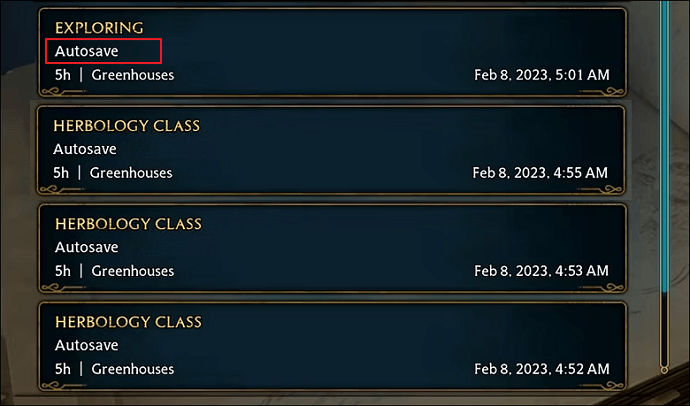
Fix 1. Manually Restore and Save the Progress on the PC
If the autosave is not working, stop gaming immediately and manually restore the feature to ensure your game progress is synchronized with the files on your PC.
To solve the Hogwarts Legacy autosave not working problem, try manually saving your game by going to the main menu, selecting "Save" or "Save All", and then closing the game. If that doesn't work, try deleting the autosave file in the game's save directory. You can also try resetting the game's autosave system by deleting the "autosave" folder in the save directory.
- First, back up the old save in case, you lost all the savings.
- Second, create a new save by starting a new game, and replace the new file with the previously renamed one.
- Finally, start the game to see if you have recovered Hogwarts Legacy lost progress.
To resolve the issue of the Hogwarts Legacy autosave not working or not saving, follow these steps: First, make sure to save your game manually by clicking the save button, especially before exiting the game. If you're still experiencing issues, try checking your game's save directory and deleting any corrupted save files.
Step 1. To find your Hogwarts Legacy saves folder, open Windows File Explorer and navigate to the path "C:\Users\YourUsername\AppData\Local\HogwartsLegacy\Saves" or press Windows+R, copy and paste the path into the search bar, and press Enter. Alternatively, you can type "C:\Users\YourUsername\AppData\Local\HogwartsLegacy\Saves" into the address bar at the top of File Explorer.
C:/Users/Your Username/AppData/Local/Hogwarts Legacy/Saved/SaveGames
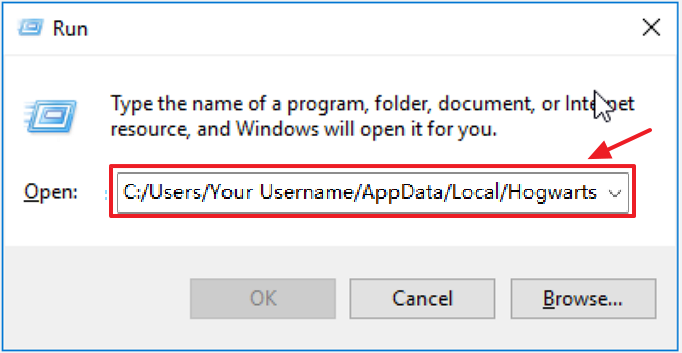
Step 2. After creating a backup of the SaveGames folder on a different disk or hard drive, remove all files related to "HL-xx-xx" from the original SaveGames folder.
Step 3. Restart the game with a new character and see if the autosave feature appears.
Step 4. After quitting the game, look in the Hogwarts Legacy saves folder for the new save files with the names "HL-00-11" or "HL-00-12." Copy the most recent save from the backup folder and paste it into the SaveGames folder.
Step 5. To rename the previous save file to match the new save's name, and then overwrite it, you can follow these steps: 1) Open the save file from the previous save, 2) Rename the file to match the name of the new save, 3) Save the file with the new name, and 4) Overwrite the old save file with the new one. This process ensures that the new save file has the same name as the previous one, effectively replacing it.
Step 6. To continue playing, simply launch the game and choose the "load game" option from the main menu to restore your previous save.
The new update may remove all saved data, including AppData, for some users, rendering the workaround useless, and players should visit the linked page for solutions to recover lost saves in Hogwarts Legacy.
Fix 2. Delete the Corrupted Save File of Hogwarts Legacy
If your save file is corrupt, it may cause issues with saving your in-game progress. To fix this, you should delete the stored file and let the game reconfigure a new one. This will help resolve the corruption and ensure you can save your progress again.
To resolve the issue of Hogwarts Legacy autosave not working, launch the game, go to the main menu, and select the "Save" option to choose the save file you wish to modify. Navigate to the "Save File" section in the game's settings, toggle the "Enable Autosave" option to the "On" position, and save the changes.
Step 1. To open the "Run" dialog box, you can either type "Run" into the search box at the bottom left corner of the screen, or you can use the shortcut Windows+R. This will open the "Run" dialog box, allowing you to type in commands or paths to run programs, open files, or access system settings.
Step 2. In the screen that appears, type "%localappdata%" and hit enter.
Step 3. Let's open the "Hogwarts Legacy" and "Saved" folders.
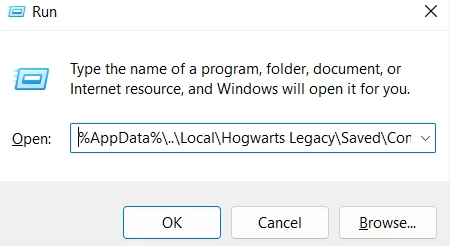
Step 4. The "Config" and "SaveGames" folders should be backed up and then completely removed from the folder.
After making a backup, delete the "Logs" folder, launch the game, and check if the issue persists.
Fix 3. Verify Your Game Files on Steam
Steam is a popular gaming platform where users can download well-known games such as Half-Life, Counter-Strike, Left 4 Dead, and Dota.

To resolve the issue of Hogwarts Legacy autosave not working, you can use Steam's Check integrity of game files option. This feature allows you to verify the integrity of your game files, which can help resolve issues with autosave functionality. To do this, simply launch Steam, navigate to the Hogwarts Legacy game page, and click on the "Check integrity of game files" button.
Step 1. Open Steam, then select the top tab labeled "Library."
Step 2. To troubleshoot the issue with the game, select "Properties" from the context menu by right-clicking on the game that's not functioning correctly.
Step 3. Using the left panel, select "Local Files".
Step 4. Choose the option to "check the game files' integrity".
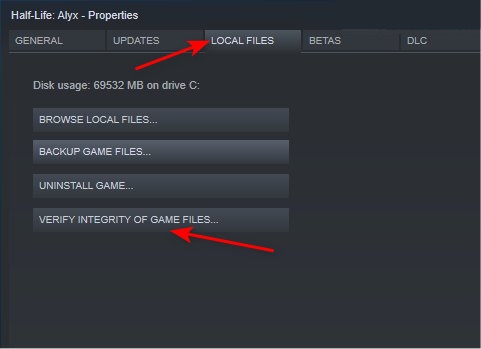
Steam will scan the game files, compare them to the originals on its servers, and automatically download any missing essential files to the game's destination folder.
Fix 4. Run the Game Hogwarts Legacy as an Administrator
You can resolve issues like autosave not working by running the game as an administrator.
Step 1. To access the "Properties" option, perform right-click on Steam.
Step 2. The "Compatibility" option will appear when you click it.
Step 3. To install the software, select the "Run this software as an administrator" option and click "Apply."
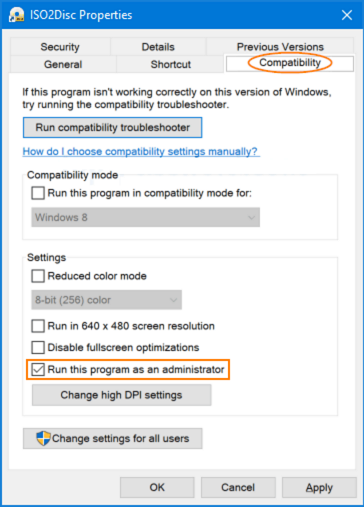
To set up the Hogwarts Legacy game as administrators, we will follow the procedure outlined earlier. This includes installing the game, creating a new save file, and configuring the game settings to our liking.
Step 1. The Hogwarts Legacy game folder can be accessed.
Step 2. To open the "Properties" menu, right-click on the "HogwartsLegacy.exe" application in the folder.
Step 3. The "Compatibility" option will appear when you click it.
Step 4. After selecting the "Run this program as an administrator" option, press "Apply" to apply the changes.
After running the game through Steam, you can verify if the problem persists. The Steam process may help identify if the issue is resolved or not.
How to Recover Lost Save Data in Hogwarts Legacy
If you're experiencing the "Hogwarts Legacy autosave not working" issue, you may lose some or all of your game saves and data. Don't worry, there's a solution to recover the lost data.
Data recovery software is the most suggested method for recovering lost game progress, making it easy to get back lost progress in Hogwarts Legacy, whether or not a backup of the game exists.
A robust and user-Deep Data Recovery is a user-friendly data recovery program that can help recover lost data from any medium or storage device, even if data has been unintentionally deleted or a storage device has been formatted. It has several benefits when it comes to data recovery.
- It can recover lost PC game data, including popular titles such as CSGO, PUBG, Elden Ring, and Monster Hunter.
- The program can recover deleted game data from a variety of storage devices, including hard drives, SD cards, USB flash drives, and pen drives.
- This software can run on Windows 11, 10, 8, 7, and macOS 13.0 to OS X 10.9.
- Users can enjoy a convenient interface and features like deep scan mode.
Download and follow the steps; you can retrieve your game data with ease:
Note: To increase the chances of successful data recovery, install Qiling data recovery software on a different disk from the one where the files were lost.
Step 1.To recover lost data, launch Deep Data Recovery on your Windows computer, select the affected disk partition or storage location, and click "Scan" to initiate the recovery process.

Step 2. This recovery software will start scanning the disk to find all lost and deleted files, and after the scan completes, you can filter the results to specify the type of lost files you're looking for.

Step 3.To recover lost Windows files, you can preview the scanned files by double-clicking on them. Then, select the target data you want to recover and click the "Recover" button to save them to a safe spot, such as another location on your PC or an external storage device.

If you're unable to recover your game data after trying various methods, don't give up hope. Instead, consider reaching out to a professional data recovery service, such as Qiling, for assistance.
Consult with Qiling data recovery experts for a one-on-one manual recovery service, which includes a free diagnosis, followed by the offering of various services.
- To repair a corrupted RAID structure, unbootable Windows OS, and corrupted virtual disk file, you can try the following steps: First, boot from a Windows installation media and select the "Repair your computer" option. Then, navigate to the "Troubleshoot" section and select "Advanced options" > "Command Prompt".
- Recover/repair lost partition and re-partitioned drive
- Unformat hard drive and repair RAW drive (Bitlocker encrypted drive)
- Fix disks that become GPT-protected partitions
Final Words
With any luck, you can fix the Hogwarts Legacy autosave not working issue and recover lost progress in Hogwarts Legacy using Qiling data recovery software, which can quickly restore lost or deleted game data, even without a backup. This is the best method for recovering lost game data.
Hogwarts Legacy AutoSave Not Working FAQs
If you've learned how to fix Hogwarts Legacy autosave issues, you might still have some questions about it. You can try searching here for answers.
1. How to find Hogwarts Legacy save file?
You can find the saved file by navigating to:
The path to the saved games in the Hogwarts Legacy game is: Local Disk (C:) > Users > Your Username > AppData > Local > Hogwarts Legacy > Saved > SaveGames.
2. Can Hogwarts Legacy auto-save work?
The game's Auto Save feature automatically stores your progress, but be aware that there are only 5 files available, meaning the new autosave slot will replace the previous one.
3. How to recover Hogwarts Legacy lost saves on Xbox?
To restore lost Hogwarts Legacy game save data on Xbox, you can access Xbox 360 cloud saves. This feature allows you to retrieve previously saved game data from your Xbox account, which may contain the lost Hogwarts Legacy save.
- On your controller, press the 'Guide' button.
- Select 'Games & Apps,' - 'Active Downloads,'.
- Choose the game save so that Hogwarts Legacy can be started with the correct progress.
Related Articles
- How to Turn On FileVault on Mac [with Video Tutorial]
- [FIXED] Bluetooth Disappeared Windows 10 Issue
- [Fixed] Ubuntu Format Disk: How to Format Disk on Ubuntu
- How to Install macOS Monterey | macOS 12 Clean Install
- Free Download Windows 8/8.1 (ISO File) for 32-Bit/64-Bit PCs
Free Windows 8/8.1 ISO download for 32-bit and 64-bit PCs. Step-by-step guide with pictures to download, burn to DVD, and install Windows 8. Plus data recovery tips after installation. - What Is DRAM Memory? Dynamic Random-Access Memory Explained
This article provides a comprehensive guide to DRAM, covering its basic operations and comparing it to SRAM.
Products
Articles & Tutorials
- Data Recovery
- Data Backup
- File Recovery
- File Backup
- System Backup and Restore
- Disk and Partition Clone
- Technical articles
- Mobile articles
- Disk Master Help
- Windows Data Recovery Tutorials
- Windows Secure Delete Tutorials
- Windows Partition Management Tutorials
- Windows File Backup and Restore Tutorials
- Windows System Backup and Restore Tutorials
- Windows Disk Backup and Restore Tutorials
- Windows Clone Tutorials