[FIXED] Bluetooth Disappeared Windows 10 Issue
Many Windows 10 users have reported experiencing Bluetooth issues after upgrading, with problems including being unable to connect headphones or microphones, not finding the Bluetooth icon, and in some cases, Bluetooth being missing from the device manager.
If your Bluetooth settings are missing in Windows 10, you can try reinstalling the Bluetooth drivers, checking the Device Manager for any issues, and ensuring that Bluetooth is enabled in the Settings app. You can also try restarting your computer and Bluetooth device, and checking for any software updates that may resolve the issue. Additionally, you can try using the Bluetooth troubleshooter in the Settings app to resolve any issues. If none of these solutions work, you may need to consider reinstalling Windows 10 or seeking further assistance from a technical support specialist.
How to Fix Bluetooth Disappeared Windows 10 Issue
To resolve the issue, you can try figuring out the problem, reenabling a few Windows services, resetting the driver, checking on the hardware, or restarting your Windows PC.
Identify The Problem Device
Before taking any technical steps, it's crucial to identify the source of the Bluetooth issue. Check if the problem is device-specific or if it's affecting all devices. If it's just one device, try removing it from pairing and adding it again. This simple troubleshooting step can often resolve the issue without needing further technical intervention.
If you're having trouble seeing the Bluetooth icon on your system tray, it's possible that the icon is hidden due to taskbar settings. To resolve this, you can try adjusting the taskbar settings to make sure the Bluetooth icon is visible. This can be done by right-clicking on the taskbar, selecting "Taskbar settings," and ensuring that the "Show system icons" option is enabled, which should include the Bluetooth icon. If this doesn't work, you can also try restarting your computer or checking the Bluetooth settings in the Control Panel to ensure it's turned on.
Step 1: To launch the search bar, press the Windows and S keys simultaneously. In the search box, type "Bluetooth" and press Enter. This will open the Bluetooth settings.
Step 2: The user selected Bluetooth and other device settings from a list of outcomes, and then chose Bluetooth and other devices from the following box.
Step 3: To access Bluetooth options, click on "More Bluetooth options" under "Related Settings" in the right-hand pane.
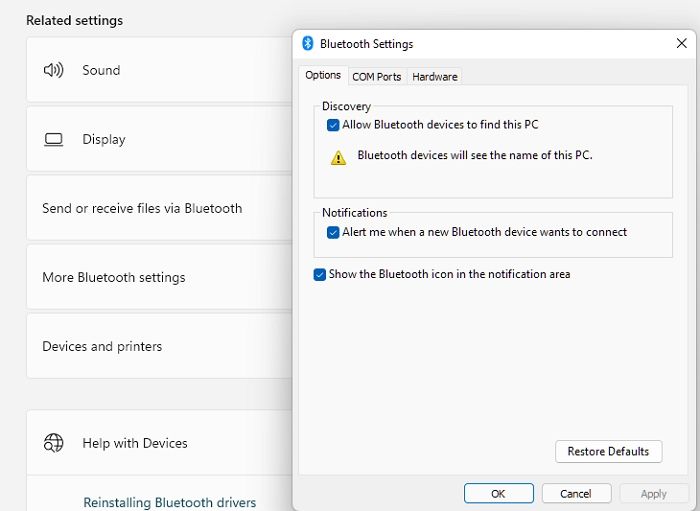
Step 4: To show the Bluetooth icon in the notification area, go to the Bluetooth Settings window, check the box next to the "Show the Bluetooth icon in the notification area" option, and press Apply > OK.
Step 5: To troubleshoot the Bluetooth issue, close all the Windows and check to see if the Bluetooth symbol has now shown in the taskbar notification area.
Re-enable Windows Services
The Bluetooth Support Service allows remote Bluetooth device discovery and pairing, but stopping or disabling it may interfere with existing Bluetooth devices and prevent new connections.
The WLAN AutoConfig service is required to configure, connect to, and disconnect from a wireless local area network, and also allows the computer to act as a wireless access point for other devices to connect to. It can be stopped or disabled to prevent access to WLAN devices on the computer.
Step 1: Open Run prompt using Win + R
Step 2: To open the Services window, type services.msc and press the Enter key.
Step 3: The WLAN AutoConfig and Bluetooth Support Service services were located and opened.
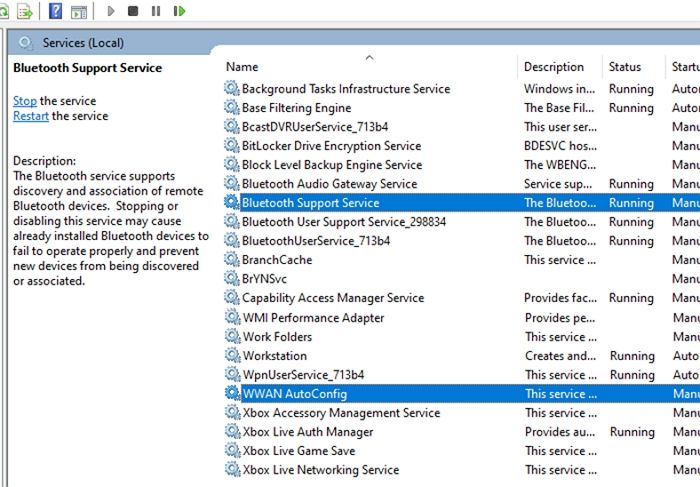
Step 4: Click the Stop button and then the Start button to re-enable.
Reopen The Hardware
Step 1: To access the Control Panel on Windows, simply type "Control Panel" in the search bar and double-click on the result that appears. This will open the Control Panel window, allowing you to access various settings and tools to manage your computer.
Step 2: Type "Network and Sharing Center" in the search bar and click on it.
Step 3: Right-click on the Bluetooth hardware and choose to disable it, then click Yes to confirm the UAC prompt.
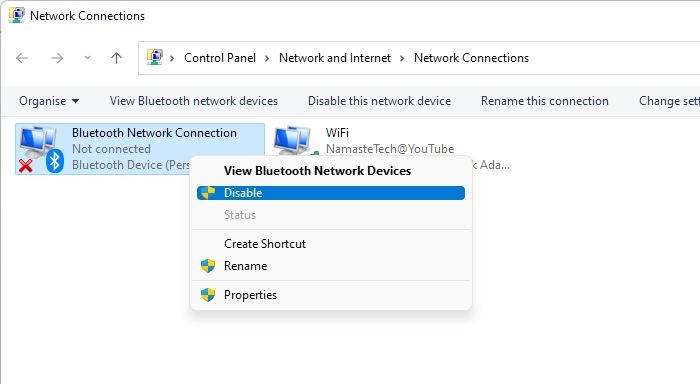
Step 4: Restarting the computer and then enabling it to see if it returns to normal may resolve the issue. This process can help clear any temporary glitches or bugs that may be causing the problem.
Reset Your Drivers
To reset the driver, uninstall the device and let Windows figure out the hardware, then install the driver if available or let Windows automatically download and install it.
Step 1: To open Device Manager, press the Windows key + X on your keyboard, and then select "Device Manager" from the menu that appears. Alternatively, you can also type "Device Manager" in the search bar on your taskbar and click on the result to open it.
Step 2: To uninstall Bluetooth, expand the Bluetooth section, right-click on the hardware, and choose to uninstall it. This action will remove the Bluetooth driver and software from your system, and may also remove any paired devices and their settings. If you want
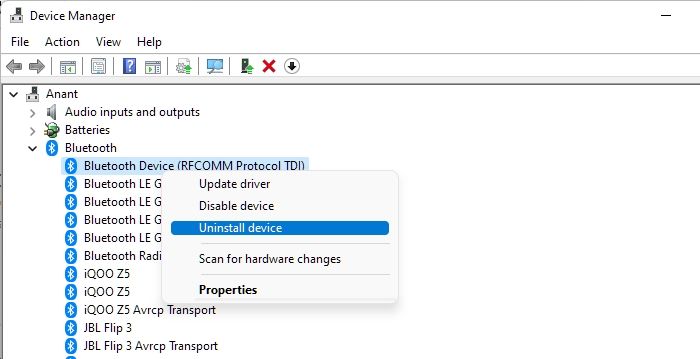
Step 3: You can restart the PC and return to the Device manager. If you notice the Bluetooth device, check if the issue is resolved.
Step 4: If the issue persists, try scanning for hardware changes by clicking on the Action menu and selecting Scan for hardware changes. This will automatically find the device and install the necessary driver. If the problem still exists after this, you may want to consider reinstalling the driver or seeking further assistance.
Restarting Your Computer
Restarting Windows can resolve a lot of issues, and it's recommended to do it right away when you have problems, especially if basic troubleshooting isn't helping. This can help clear any errors, including a stuck Bluetooth device.
We will recommend avoiding a shutdown and restarting the PC.
Step 1: Open the Start menu, and choose the Power button.
Step 2: Select Restart to reboot the Windows 10 device.
Once you've logged back into your account, verify that you can connect with the devices and that they're functioning as intended.
Conclusion
If you're experiencing Bluetooth device problems after updating your system, consider resetting your Bluetooth device or uninstalling and reinstalling the Bluetooth driver. You can also try restarting your system in safe mode, disabling any recently installed updates, or running a System File Checker (SFC) scan to resolve the issue. If these solutions don't work, you can try resetting your Bluetooth device or uninstalling and reinstalling the Bluetooth driver.
To resolve Bluetooth issues on Windows 10, you can run the Windows 10 Bluetooth troubleshooter, which will automatically run a script from the Windows team to resolve the issue. Alternatively, you can check if there is a hardware problem by adding a USB-Bluetooth adapter and seeing if it works. If it does, it indicates that the issue lies with the hardware, not Windows.
To connect to the OEM, ensure Bluetooth is enabled on your motherboard. If it's an adapter, contact tech support for assistance.
Related Articles
- Best Free SyncToy Alternative Software for Windows 10/8/7
- [Step-by-step Guide] How to Enable and Disable Secure Boot
- Brand New Ways to Reset/Erase Mac M1/M2 [Safe & Sound]
- (Solved!) How to Backup Gmail Emails with Attachments for Windows 11/10/8/7
- 5 Best S3 Backup Software [Can't Miss]
Amazon S3 backup software is a must-have for many users, but choosing the best one can be overwhelming. - How to Solve Samsung Smart TV USB Not Working [Updated 2023]
If your Samsung Smart TV is not connecting to your USB device, this article provides solutions to help you troubleshoot the issue and play MP4 and other files on your TV. - Fix Windows 11 Bluetooth Not Working (2026 Guide)
Products
Articles & Tutorials
- Data Recovery
- Data Backup
- File Recovery
- File Backup
- System Backup and Restore
- Disk and Partition Clone
- Technical articles
- Mobile articles
- Disk Master Help
- Windows Data Recovery Tutorials
- Windows Secure Delete Tutorials
- Windows Partition Management Tutorials
- Windows File Backup and Restore Tutorials
- Windows System Backup and Restore Tutorials
- Windows Disk Backup and Restore Tutorials
- Windows Clone Tutorials