(Solved!) How to Backup Gmail Emails with Attachments for Windows 11/10/8/7
Looking for a way to save your precious emails in Gmail? Let's find out how.
Gmail has over 1.5 billion active users worldwide, making it one of the most widely used platforms globally, and when combined with the number of Android users who require a Google account, the total number of users is significantly higher.
To backup Gmail emails with attachments, you can use the built-in feature in Gmail, Google Takeout, or third-party services like Backupify or Spanning Cloud Apps. Google Takeout allows you to download all your Gmail data, including emails, contacts, and attachments, in a single zip file. Backupify and Spanning Cloud Apps offer more advanced features, such as automated backups and the ability to search and restore specific emails. Additionally, you can also use a third-party email client like Microsoft Outlook or Mozilla Thunderbird to connect to your Gmail account and download emails and attachments. It's essential to note that backing up your Gmail data will not automatically save any new emails or attachments you receive after the backup is taken.
Why Need to Backup Gmail Emails with Attachments
Gmail is one of the most widely used email platforms, offering a secure and safe login and authentication system, making it a popular choice among Android mobile phone users.
Gmail is widely used in workplaces and academies, with its work suite featuring programs like Google Drive, Docs, and Sheets, allowing users to efficiently save and access files through emails.
Backing up Gmail emails with attachments is crucial, offering several benefits, including the ability to access your emails even if your account is compromised, protecting your important documents and files, and ensuring that your email history is preserved in case you need to refer to it in the future.
- Free up your storage and secure important emails.
- Make room for more safety and create newer files.
- Save important files for better security.
- Access your Gmail emails at any moment.
- Access your Gmail emails from any place.
To secure your Gmail emails and attachments, you can enable encryption, which provides benefits such as added protection against hacking and unauthorized access. This also frees up space for more emails and better storage, enhancing your overall Gmail experience.
3 Methods to Backup Gmail Emails with Attachments
To back up Gmail emails with attachments, you can try a few methods that have been tested and proven effective. We'll provide a step-by-step guide for each approach, so you can easily follow along. Let's get started!
- Method 1: Backup Gmail Emails with Attachments via Google Takeout Tool
- Method 2: Save Gmail Emails as PDFs to Backup Gmail Emails
- Method 3: Backup Gmail Emails Attachments Using MS Outlook
Method 1: Backup Gmail Emails with Attachments via Google Takeout Tool
You can download your entire Google suite and settings by heading to Google Takeout, also known as Download Your Data, a project presented by Google Data Liberation Front.
You can export your Gmail data into a downloadable archive file, or make a singular selection to download specific emails and attachments from your account. To do the latter, follow these steps:
Step 1. Head to Google Takeout.
Step 2. Sign into your Google account.
Step 3. Head into the "Select data to include."
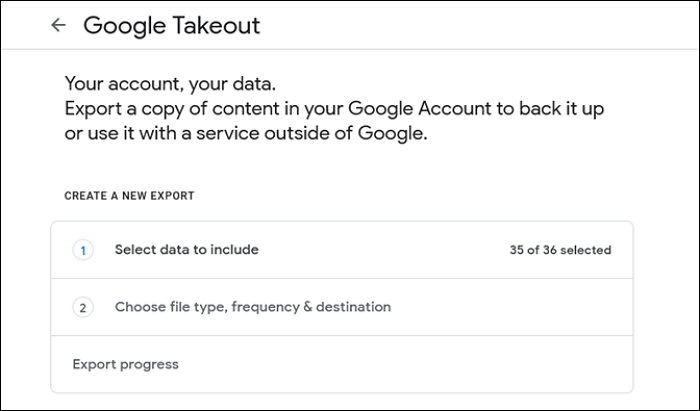
Step 4. Here are the things you need to pick: Google Drive data, Emails, etc.
Step 5. The first step in the process is to click on the "Next Step" button once you have scrolled down to the end of the page. This action will proceed you to the next step in the process.
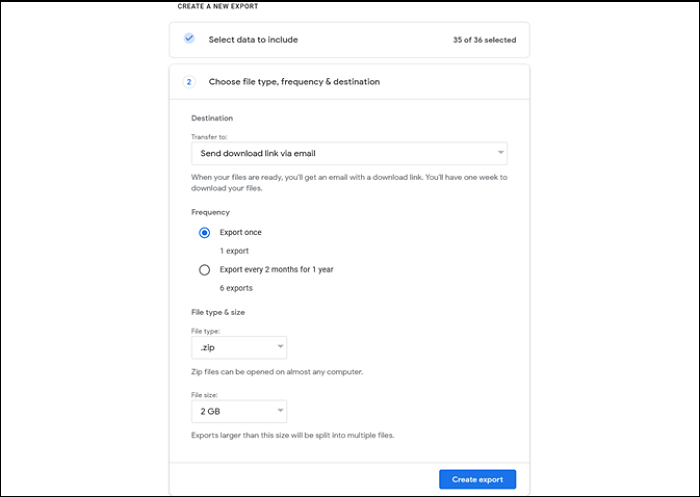
Step 6. Select file type as ".Zip" under File type & size.
Step 7. Pick the minimum file size under the file size.
Step 8. Select export one.
Step 9. Then click "Create export."
Step 10. Done.
The script will start creating your zip file, which may take a couple of minutes to complete. Once finished, you'll receive a link to download your data, which you can find in your Inbox. Be patient and look for the downloadable link for the archive file.
Method 2: Save Gmail Emails as PDFs to Backup Gmail Emails
To save selective emails, use the "Save As" feature in the email client. This will allow you to save only the emails you want, rather than downloading a large archive file. To do this, select the emails you want to save, right-click on them, and choose "Save As". You can then choose the location and file format for the saved emails. This method is a bit more time-consuming, but it gives you more control over which emails are saved.
Step 1. Head into your Gmail inbox.
Step 2. Pick the email that you wish to save and open it.
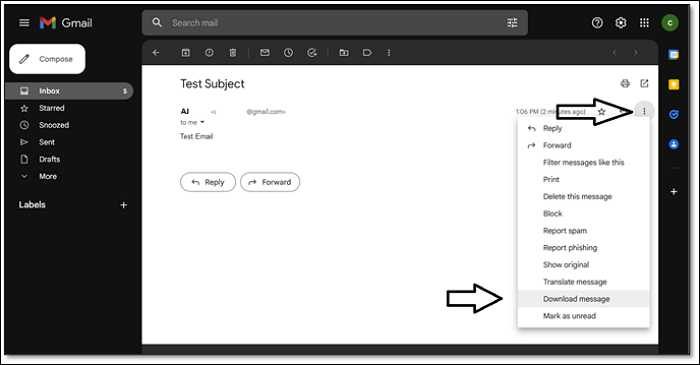
Step 3. On the top-right corner, click on the drop-down menu.
Step 4. In the menu, find and click Download message.
Step 5. Done.
This method saves the email on your computer, so check the download folder after the process is complete to find the email's file.
Method 3: Backup Gmail Emails Attachments Using MS Outlook
To save your emails using Gmail in MS Outlook, you can sign in to your Gmail account and turn on the settings to allow MS Outlook to access your emails. This involves going to your Gmail account, clicking on the gear icon, selecting "See all settings", then clicking on the "Forwarding and POP/IMAP" tab, and finally enabling the IMAP option. This will allow MS Outlook to access your Gmail emails and sync them with your PC. Once you've enabled IMAP, you can close your browser and open MS Outlook, where you can sign in to your Gmail account and access your emails directly from the MS Outlook interface.
Step 1. Click on the settings cogwheel in the top-right corner.
Step 2. Head into See All Settings.
Step 3. Switch to the "Forwarding and Pop/IMAP" tab.
Step 4. Click the "Enable IMAP" button under the "IMAP Access" section in the list to enable IMAP.
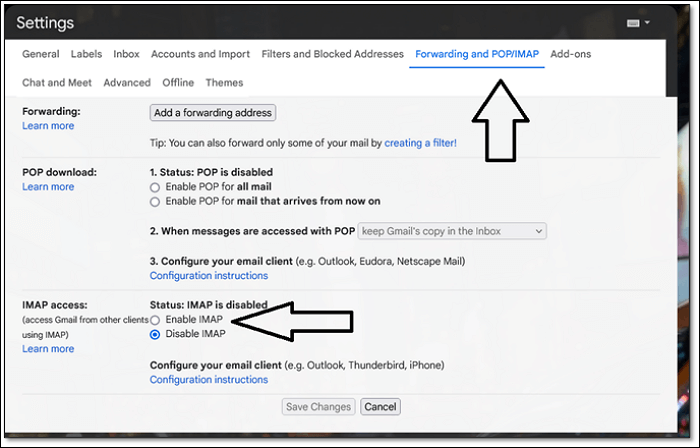
Step 5. Save changes.
Step 6. Done.
To connect your Gmail account to MS Outlook, follow these steps: First, open MS Outlook and click on "File" then "Add Account." Select "Manual setup or additional server types" and choose "POP or IMAP." Enter your Gmail account information, including your email address and password. Then, click on "Next" and follow the prompts to complete the setup process.
Step 7. Open MS Outlook.
Step 8. Head into options and click on Open & Export.
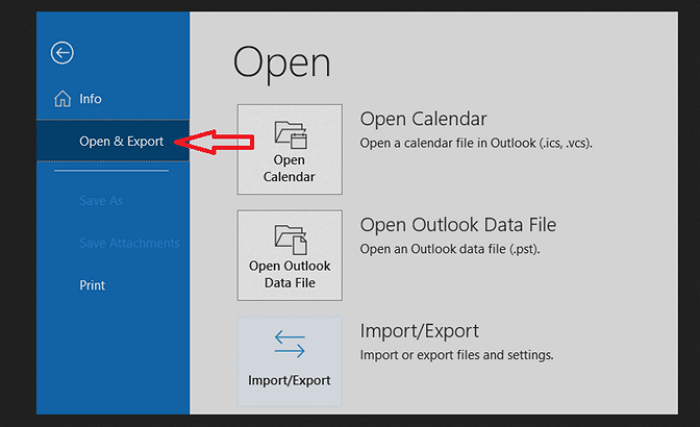
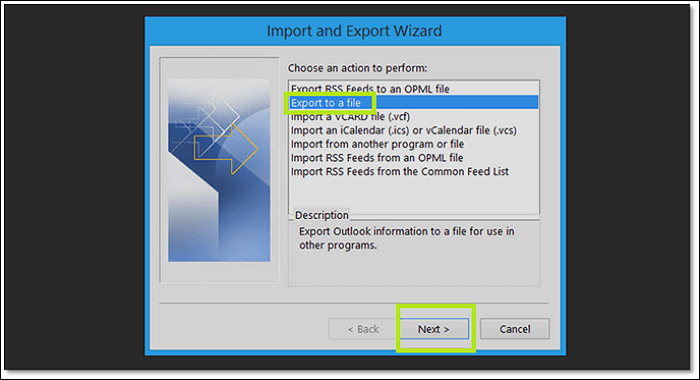
Step 9. To export your data to a file, click on the "Export to a file" option in the list, then click on the "Next" button.
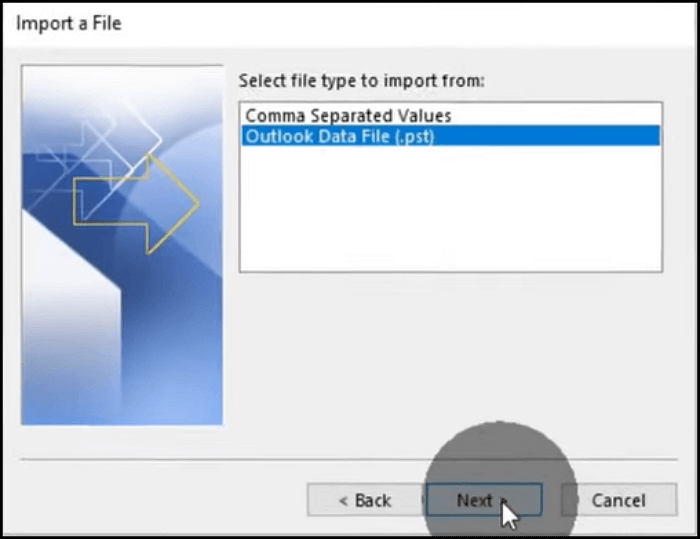
Step 10. Click on "Outlook Data File (.pst)" and click next.
Step 11. In the next window, select your Gmail email and check the "Include subfolders" option.
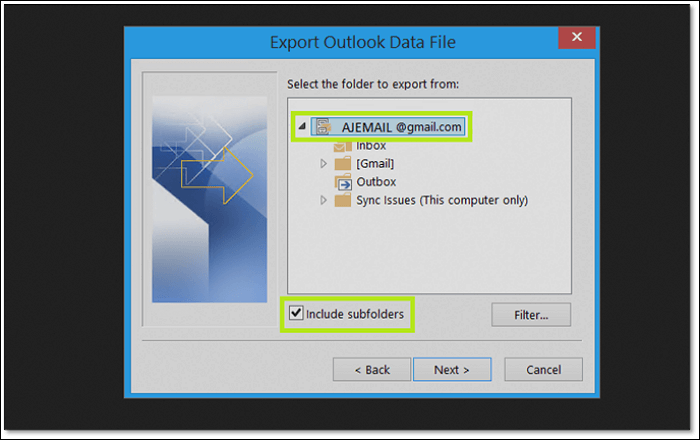
Step 12. Browse where you wish to save the file.
Step 13. Done.
To save Gmail emails as a PST file on your computer, you can use the Outlook app to download them. First, open the Outlook app and go to the "File" menu, then select "Add Account" and choose "Manual setup or additional server types." Next, select "POP or IMAP" and enter your Gmail account details.
Backing up Gmail Emails with Attachments Using Third-Party Software
You can save time and preserve your emails with attachments by using professional third-party software like Qiling Backup, which allows you to log in to your Gmail account in Outlook and create a backup of your Gmail emails with attachments. This method is efficient and secure, making Qiling Backup one of the best options available for backing up your Outlook emails.
Qiling Backup Home is a popular backup tool for Windows that allows users to back up Outlook emails and create various types of backups, securing multiple file types beyond just emails.
- It allows you to create a system backup to cloud storage;
- The service offers a free 250GB cloud storage, allowing users to save all their emails and other files without worrying about storage space.
- This tool allows for a seamless system transfer by cloning or imaging your system, making it easy to set up a new device with the same configuration and data.
To save your emails, you need a tool that can help you back up your Gmail emails in MS Outlook. This tool will create an extensive backup of your emails, saving you the hassle of saving each file individually. By logging into MS Outlook and using this tool, you can efficiently and quickly save your files, making the process much easier.
To back up Outlook emails, start by opening Outlook and navigating to the "File" tab. From there, select "Options" and then click on "Save Options" to save the current configuration.
Step 1. To start the backup process, launch Qiling Backup on your computer and select the File Backup option from the home screen.

Step 3. To make a backup of your Microsoft Outlook database, navigate to the database folder, select the mailbox addresses you want to back up (e.g. mails, contacts, or calendars), and proceed with the backup process.

Step 4. To save the Outlook backup, you'll need to select a location on your computer where you want to save the file. This can be a folder on your desktop, documents, or any other location you prefer.

Step 5. The backup location can be another local drive, an external hard drive, network, cloud, or NAS, with external physical drives or cloud being recommended for preserving backup files.

Step 6. The software provides customization options, such as setting an automatic backup schedule for daily, weekly, monthly, or event-based backups. Users can also choose to make differential and incremental backups. To initiate the backup process, click "Proceed," and the completed task will be displayed in a card-style format on the left side.

The Bottom Line
To backup Gmail emails with attachments, you can use the methods mentioned earlier to save your entire inbox or individual emails. However, it's recommended to use a professional tool like Qiling Backup for regular and extensive backups, as it provides a secure way to save your files. This tool can also be used for other backup tasks, making it a convenient option for managing your email attachments.
FAQs on How to Backup Gmail Emails with Attachments
1: Can you back up Gmail emails to a hard drive?
You can back up your Gmail emails to your hard drive using two methods. Either download an archivable file or use a professional tool to back up your Gmail in the form of a PST file, allowing you to save your emails locally.
2: How do I bulk download attachments?
You can use Google's Takeout to archive all your attachments into a single file, and then choose to save them before downloading them.
3: Where is Gmail offline data stored?
Offline data in Gmail is typically saved in the Outbox or Draft folder, while in Outlook, it's saved as a draft.
4: Why I cannot download attachments from Gmail?
If attachments aren't downloading from Gmail, it might be due to an outdated browser. Trying to sign out and then sign back in can also resolve the issue for many users.
Related Articles
- 6 Ways to Fix System Restore Is Initializing in Windows 11/10
- Use CHKDSK to Fix the Selected Volume Corruption Problem in Windows 10
- Solved: What Is Taking Up Space on My Hard Drive in Windows 10/8/7
- What Is Ubuntu Format Disk Command Line? How to Use It [Your 2022 Fresh Guide]
- Discord Hardware Acceleration: Everything You Need to Know
Learn what Discord hardware acceleration does, when to turn it on or off, and how it affects performance, lag, and streaming. - HD Video Repair Utility Free Download for Windows and Mac: MP4 MOV Full Repair
Download the top 1 HD video repair utility for Windows and Mac for free to easily fix corrupted MP4 and MOV video files with simple steps.
Products
Articles & Tutorials
- Data Recovery
- Data Backup
- File Recovery
- File Backup
- System Backup and Restore
- Disk and Partition Clone
- Technical articles
- Mobile articles
- Disk Master Help
- Windows Data Recovery Tutorials
- Windows Secure Delete Tutorials
- Windows Partition Management Tutorials
- Windows File Backup and Restore Tutorials
- Windows System Backup and Restore Tutorials
- Windows Disk Backup and Restore Tutorials
- Windows Clone Tutorials