6 Ways to Fix System Restore Is Initializing in Windows 11/10
System Restore Is Initializing
Windows 10 System Restore is a valuable repair and recovery tool that allows users to restore system files, registries, drivers, and software to a previous state and settings, helping to solve many computer problems.
Windows System Restore can sometimes get stuck, taking more than 2 hours to progress, and displaying a "System Restore is initializing..." message, causing frustration for many users.
Dealing with the "System Restore is initializing" error can be frustrating. However, with the right approach, you can resolve the issue. We've identified six effective methods to help you fix this problem, and they're easy to follow. By implementing these steps, you can get back to using System Restore without any further issues.
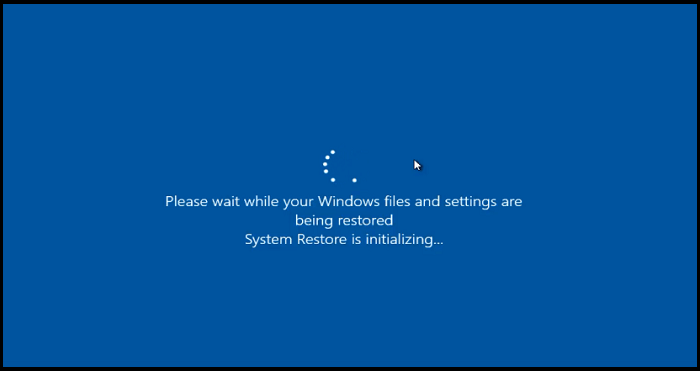
Why Does System Restore Stuck On Initializing
System Restore may get stuck or get stuck initializing due to damaged system files, issues with disk sectors, or conflicts with other applications or software.
Damaged System Files
A system file is critical to the functioning of the Operating System, and when it becomes damaged or corrupted, it can cause the System to freeze or become unresponsive. In Windows 11/10, corrupted system files can prevent the System Restore process from working, making it essential to repair them promptly to prevent further system instability.
Bad Sectors
When bad sectors appear on a hard disk, the entire disk may become faulty, resulting in data loss from those sectors, but the rest of the disk remains usable. This can happen when using System Restore to backup files, increasing the risk of failure or error due to data loss. To efficiently and appropriately address this issue, it's essential to consider how to repair bad sectors.
Problematic Restore Point
System restore points can help roll back to a previous Windows state in case of a crash or accident, but sometimes they may be missing or damaged, causing System Restore to get stuck with an "initializing" error.
Temporary Issues with Your Disk
The issue of System Restore initializing due to lack of disk space can be resolved by ensuring the backup drive has sufficient space for System Restore points, ideally around 5% of its total capacity, allowing for the automatic deletion of old restore points to make room for new ones.
If System Restore isn't working, there are a few methods you can try to fix the issue so you can restore your files. To start, you can try running System Restore in Safe Mode, which can help resolve issues that prevent the feature from working normally. Alternatively, you can try running System Restore from the Windows Recovery Environment, which can provide a clean environment to run the feature.
6 Ways to Fix System Restore Is Initializing Windows 11/10
When you get a "System Restore is initializing" error message, try waiting patiently for a while as it may take some time due to the large amount of data and files on your computer. If the issue persists, consider trying alternative methods to resolve the problem.
- Method 1. Boot System into Safe Mode
- Method 2. Run System Restore Through Command Prompt
- Method 3. Run Startup Repair to Fix System Restore Stuck
- Method 4. Use the System File Checker (SFC)
- Method 5. Perform a Clean Boot
- Method 6. Try Another Restore Point
Method 1. Boot System into Safe Mode
If your Windows continues to show the screen of System Restore is initializing, you can boot your system into Safe Mode. To do this, you will need installation media, such as a USB drive or CD/DVD, to prepare your system for Safe Mode.
Step 1. After inserting your Windows installation media, then restart your computer.
Step 2. On the "Install Windows" screen, click "Repair your computer".
Step 3. On the "Choose an option" screen, select Troubleshoot, then Advanced options, click Startup Settings, and restart.
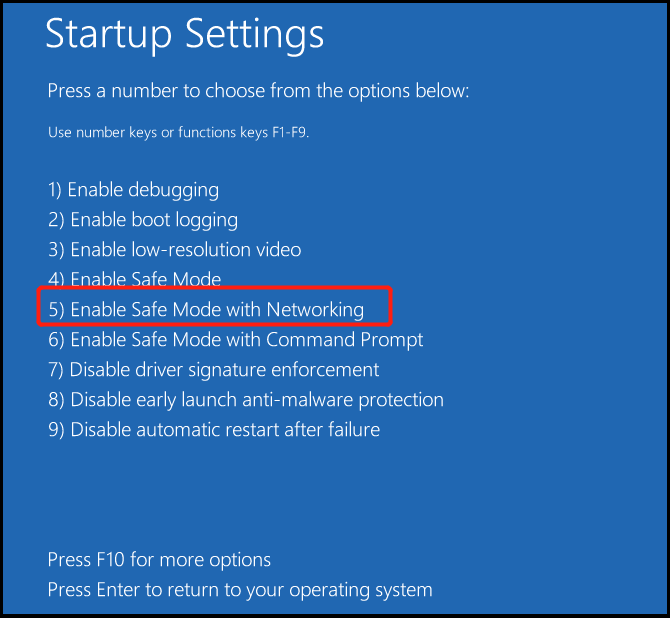
Step 4. When your computer restarts, you can press F5 to restart your PC in Safe Mode.
Method 2. Run System Restore Through Command Prompt
This method may be more effective in fixing the issue of Windows 10 System Restore stuck. You can try it:
Step 1. Boot your computer from installation media as mentioned above.
Step 2. On the "Install Windows" screen, select Repair your computer.
Step 3. On the "Choose an option" screen, select "Troubleshoot", then "Advanced options", followed by "Startup Settings" and finally "Restart".
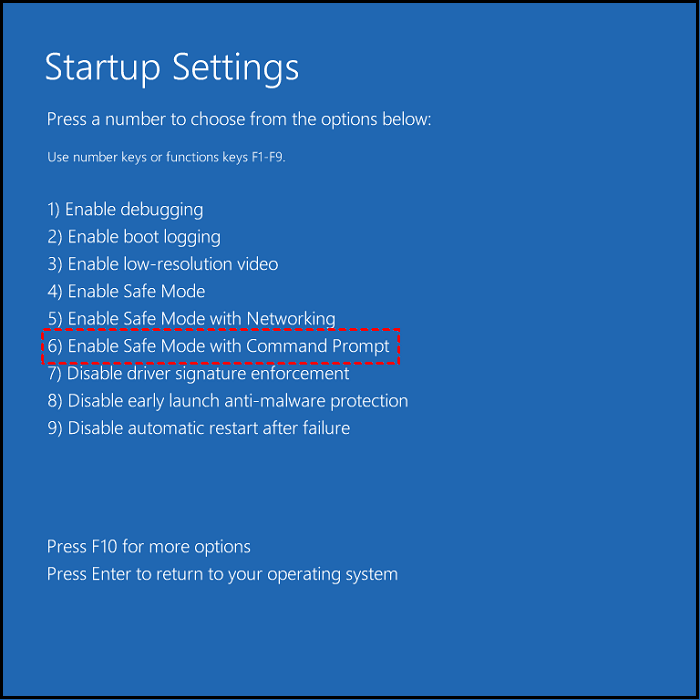
Step 4. After your PC restarts, press F6 to restart your PC in Safe Mode with Command Prompt.
Step 5. When your computer boots again, tap the search button in the taskbar and type "cmd". Right-click on the cmd and select "Run as administrator".
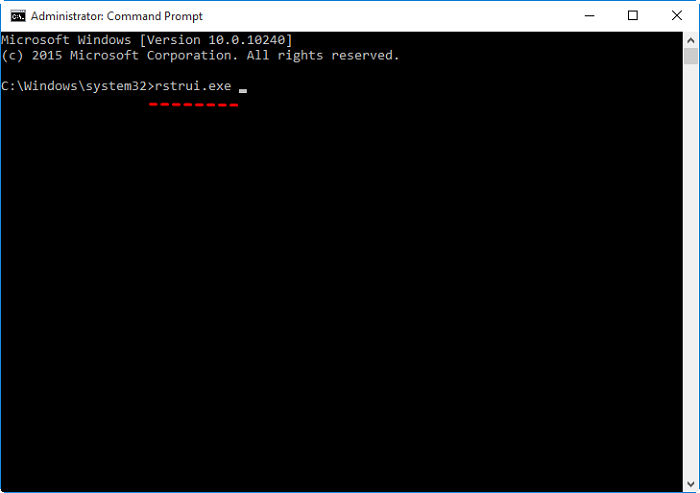
Step 6. To restore your computer to a previous state using Command Prompt, type 'rstrui.exe' and press Enter, then follow the System Restore wizard to select a restore point from the list.
Method 3. Run Startup Repair to Fix System Restore Stuck
The computer gets stuck trying to recover the system after a forced shutdown, possibly due to a damaged boot manager. To fix this, start the repair process.
Step 1. Restart your system, and you'll see the "Choose an option" screen.
Step 2. From the "Choose an option", choose "Troubleshoot".
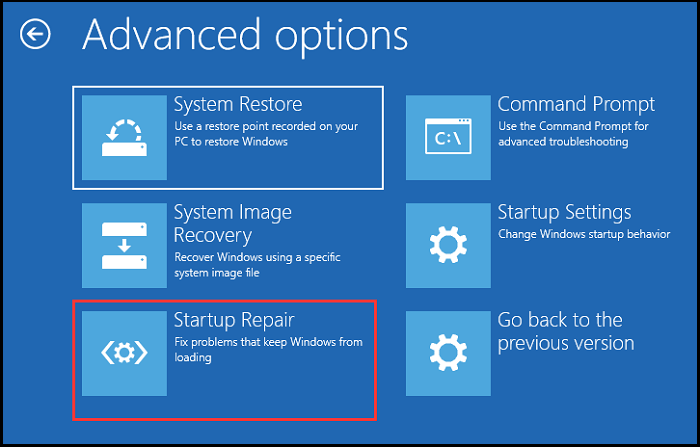
Step 3. Run the startup repair automatically by selecting "Advanced options" and clicking "Startup repair".
Method 4. Use the System File Checker (SFC)
The System File Checker (SFC) is a tool that helps solve system file problems by scanning and replacing corrupted system files. To use it, you can follow these steps:
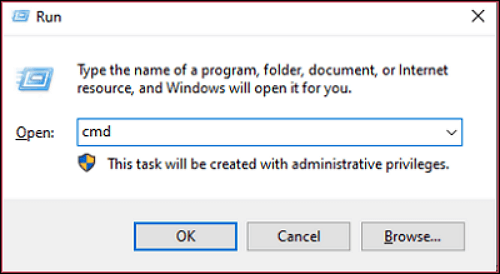
Step 1. To open a Command Prompt window as Administrator, press Windows key + R to open the Run dialog box, type "cmd" and press Enter. This will open a Command Prompt window with elevated privileges.
Step 2. In the Command Prompt, type SFC /scannow, then press Enter.
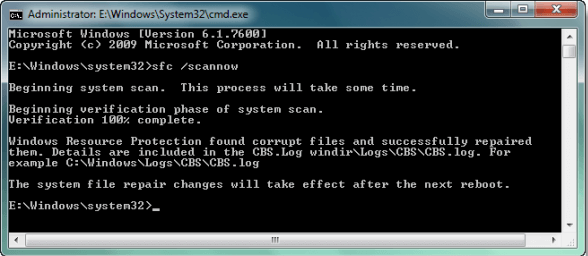
Step 3. System Restore will scan your system to find corrupted files and repair them, and then you can try to rerun System Restore after it's finished.
Method 5. Perform a Clean Boot
Performing a clean boot on your Windows allows you to boot with a few drivers and startup programs. To do this, follow the guide.
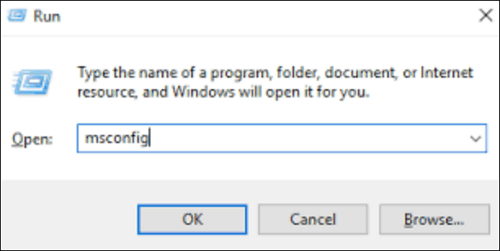
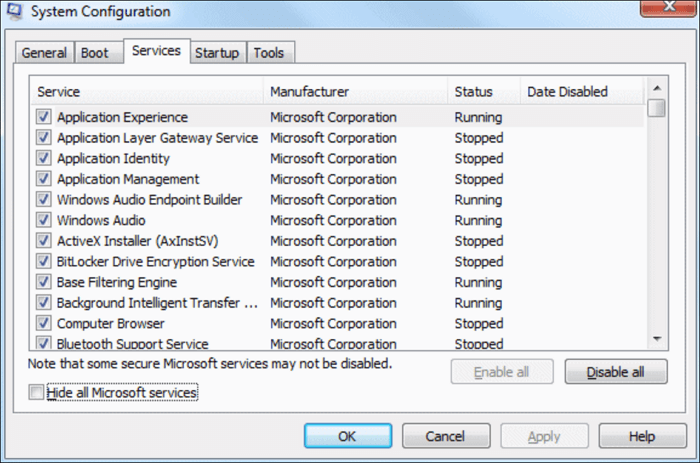
Step 1. To access the System Configuration Utility, open the Run dialog box by pressing the Windows key + R, then type "MSConfig" and press Enter.
Step 2. Go to the "Services" tab, check the box that says "Hide all Microsoft services" to disable all Microsoft services, so they don't interfere with System Restore.
Step 3. To disable all non-Microsoft services, click on the "Disable all" button.
Step 4. Go to the "Startup" option and tap on the "Open Task Manager" button.
Step 5. To disable all startup items in the Task Manager, go to the "Startup" tab, select each item one by one, and click the "Disable" button. This will prevent the items from running automatically when you start your computer.
Step 6. Close Task Manager and finally click on the "OK" button.
Step 7. Restart your computer and try using System Restore again.
Method 6. Try Another Restore Point
If your System Restore is stuck on the page "System Restore is initializing", you can select another restore point and proceed with the process.
Step 1. To access the System and Security settings, open the Control Panel and navigate to the System and Security section.
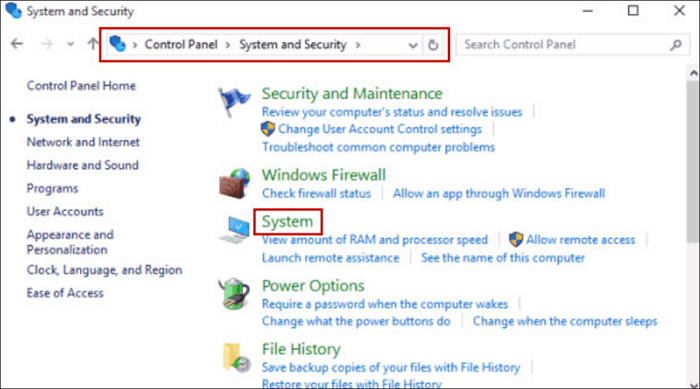
Step 2. To access System Protection, click on the "System" option in the Start menu, then select "System Protection" from the left-hand side menu.
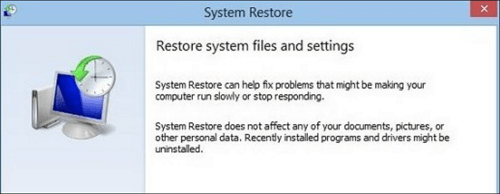
Step 3. To restore your computer to its previous state, click on the "System Restore" button, and then follow the on-screen instructions to complete the process.
Step 4. If the issue persists after selecting a different restore point, it's likely that the problem lies elsewhere. In this case, you can try to create a new restore point and see if that resolves the issue.
Conclusion
System Restore is initializing is a common issue that occurs when users attempt to recover their files and system using the System Restore feature in Windows. It is not a major problem, but rather a temporary glitch that can be resolved.
If you're experiencing issues with your computer and want to try some alternative solutions, you can follow the 6 methods mentioned earlier. However, these methods don't provide a long-term fix for protecting your computer. To ensure your computer and data are secure, it's essential to frequently back up Windows 10/11 and your essential files and data.
System Restore Is Initializing FAQs
Here are the related questions and answers in one paragraph:
1. How long should System Restore initializing take?
If System Restore takes longer than expected, it may become stuck, and you may need to take measures to fix the issue. This can happen if the process takes more than 45 minutes to complete. In such cases, you may need to intervene to resolve the problem.
2. What happens if I interrupt System Restore Windows 10?
If you interrupt System Restore on Windows 10, it can cause serious problems. The process will likely suggest not to manually stop it, as this can result in incomplete system file or registry backups. If you do interrupt it, your System Restore may get stuck and take a long time to boot.
3. What happens if System Restore is stuck?
If you've been waiting a long time for a System restore operation to complete, you can force the System to restart. This might cause the System to fail to start, but if that happens, you can interrupt the boot process three times, and Windows 10 will automatically start fixing it.
4. How to fix System Restore is restoring the registry?
Windows users may encounter a situation where System Restore gets stuck on "System Restore is restoring the registry" for a long time. To fix this issue, there are some measures that can be taken.
1. Perform System Restore to An Errorless Point
2. Update the Drivers in Safe Mode
3. Run Some Commands to Perform Advanced Troubleshooting
Related Articles
- [NEW] Fix USB Accessories Disabled on macOS 13 Ventura Effectively in Seven Ways
- Break Windows 10 Roll Back Limit - Roll Back to Windows 7/8 after 30 Days
- Full Guide to Fix Windows 10 Slow Boot After Update
- How to Reinstall Windows 10 Without CD (3 Ways)
- What Is Direct Memory Access and How to Enable DMA On Your Own
Ever wondered what direct memory access is and how it works? This post explains everything you need to know. - How Do I Disable OneDrive in Windows 10? Your Complete Guide
Learn how to disable, unlink, or remove OneDrive in Windows 10/8/7 using 5 reliable methods. Also covers how to recover lost OneDrive files and find the best OneDrive alternative.
Products
Articles & Tutorials
- Data Recovery
- Data Backup
- File Recovery
- File Backup
- System Backup and Restore
- Disk and Partition Clone
- Technical articles
- Mobile articles
- Disk Master Help
- Windows Data Recovery Tutorials
- Windows Secure Delete Tutorials
- Windows Partition Management Tutorials
- Windows File Backup and Restore Tutorials
- Windows System Backup and Restore Tutorials
- Windows Disk Backup and Restore Tutorials
- Windows Clone Tutorials