[NEW] Fix USB Accessories Disabled on macOS 13 Ventura Effectively in Seven Ways
Why USB Accessories Disabled on macOS 13
macOS 13 Ventura, released in October 2022, has been plagued by issues, including problems with USB-C hubs, such as the Dough Spectrum ES07D03, which stopped working for some users after installing the new operating system. Many users have reported various bugs and issues on Apple's Community forum.
When connecting a USB device to your Mac with macOS Ventura, a "USB Accessories Disabled" error may occur, causing your USB flash drive not to show up on your Mac. However, don't worry, as there are seven proven solutions to resolve this issue, and you can try each plan and check your USB connection every time. These tips include checking the USB connection, restarting your Mac, disabling and re-enabling the USB port, updating your macOS, and more. You can try each solution and verify your USB connection each time to resolve the problem.
- Fix 1. Check USB Port and Cable on Mac, MacBook
- Fix 2. Use USB-C or Powered USB Hub to Fix the Power Problem
- Fix 3. Restart Your Mac or Reconnect Your USB
- Fix 4. Unplug Unnecessary USB Devices on macOS 13
- Fix 5. Reset SMC, NVRAM/PRAM to Fix USB Accessory Needs Power
- Fix 6. Update Driver and Firmware to Solve USB Accessories Disabled
- Fix 7. Check and Clean Malware or Virus on Mac/MacBook
The error "USB Accessories Disabled on macOS 13" occurs when Mac devices lack sufficient power to enable USB devices, caused by various reasons such as insufficient power supply, outdated software, or hardware issues.
- Your Mac needs more power to enable a USB drive, and you need to charge your Mac.
- The USB drive or the cable is damaged.
- You should update your driver and firmware.
- Too many USB devices are connected to your Mac.
- If you're experiencing a virus attack or dealing with malware on macOS 13, follow these steps to resolve the issue: Run a full scan with the built-in Security app, which includes XProtect to detect and remove malware. If the issue persists, try booting in Safe Mode and then running a scan.
- Your USB device, like the camera, is not turning on.

Fix 1. Check USB Port and Cable on Mac, MacBook
You can use a broken cable to connect your USB drive, but you'll need to replace it with a new one to continue using the device. Alternatively, you can simply change the cable and reconnect the USB device.
If your USB drive isn't working on your Mac, the problem might be with the drive itself, not just your Mac. You can test this by plugging the drive into another Mac to see if it works there. This can help determine if the issue is with the drive or your Mac.
The USB port on your Mac may be disabled or broken, and it's easy to check with other USB flash drives.
Fix 2. Use USB-C or Powered USB Hub to Fix the Power Problem
To solve the power problem on macOS Ventura and fix the USB accessories disabled error, simply use a USB-C or powered USB hub to directly connect your Mac with macOS Ventura, or charge your Mac with enough power and reconnect the USB device.
Fix 3. Restart Your Mac or Reconnect Your USB
To resolve the issue of USB accessories being disabled on macOS 13, you can try removing the USB device and reconnecting it, rather than restarting your Mac, to see if the problem is resolved.
How to Restart Your Mac
Method 1. To shut down your Mac, click the Apple icon, select "Shut Down" from the dropdown menu, and then press the power button to turn it back on.
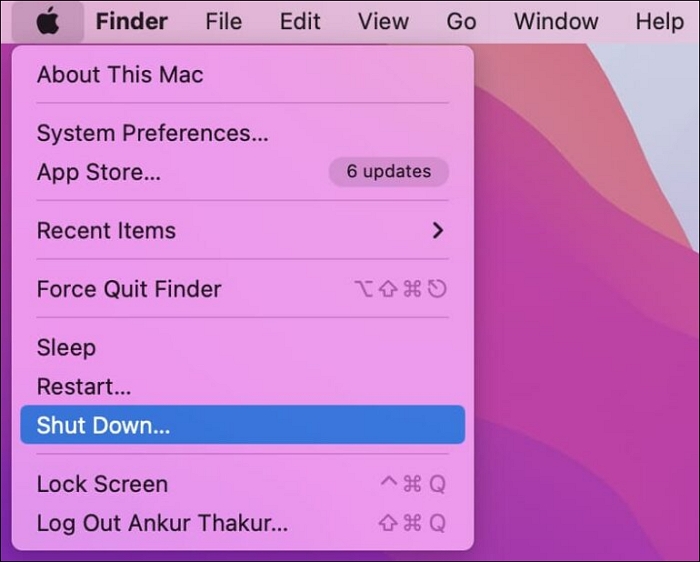
Method 2. Click the Apple icon, then choose "Restart" to restart your Mac automatically.
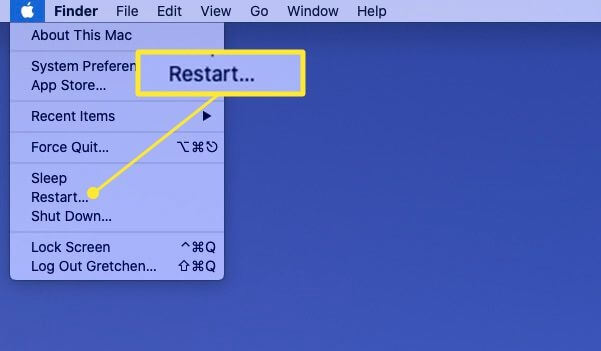
Fix 4. Unplug Unnecessary USB Devices on macOS 13
On macOS Ventura, a "USB Accessories Disabled" error may appear if you're using too many USB devices at once, such as cameras, a USB keyboard, a USB mouse, and other accessories simultaneously. This issue can occur when the operating system is unable to handle the excessive USB connections, prompting the warning message.
Unplugging unnecessary USB devices can help resolve the issue.
Fix 5. Reset SMC, NVRAM/PRAM to Fix USB Accessory Needs Power
If the methods aren't working, try resetting the System Management Controller (SMC) on a Mac or MacBook Pro. This can be done in different ways depending on the specific Mac or MacBook model, and you can find a detailed tutorial by clicking the link.
Resetting NVRAM/PRAM can resolve various Mac issues, including bootable problems, undetected devices, and other problems. Click the link to access a comprehensive guide.
Fix 6. Update Driver and Firmware to Solve USB Accessories Disabled
When your Mac driver and firmware need updating, it will display a "USB Accessories Disabled" warning. To resolve this, visit the manufacturer's website to update your driver, and you can directly update the firmware on your Mac.
Update Firmware on macOS Ventura
Step 1. Open the Apple menu on macOS Ventura.
Step 2. Click "System Settings".
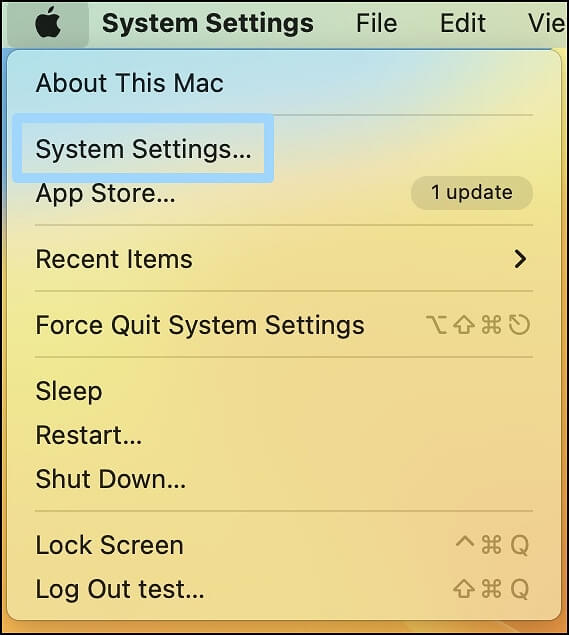
Step 3. Click "General" in the sidebar, and then click "Software Update".
Fix 7. Check and Clean Malware or Virus on Mac/MacBook
Malware and viruses can cause USB accessories to be disabled on macOS 13. To resolve this issue, simply download an antivirus tool and use it to clean out all the malware and viruses, which should restore functionality to your USB accessories.
Formatting your Mac to remove viruses can be a risk, as it may result in data loss if you don't have a backup. If you're unsure, you can click the link to learn how to format your MacBook Pro or Mac.
Bonus Tip: Recover Data from USB Flash Drives on macOS Ventura
If you're experiencing issues with USB accessories being disabled on your Mac, there are seven possible solutions. However, some of these methods may result in data loss from USB flash drives or your local Mac, such as formatting your Mac or updating its software. Additionally, repeatedly reconnecting USB flash drives can lead to accidental data loss.
Yes, Mac USB flash drive recovery is possible. You can recover lost data from USB flash drives using Deep Data Recovery for Mac.
- You can recover lost files from formatted USB drives, hard disks, local Mac or MacBook, NAS, and other storage devices.
- You can recover files from USB drives, which can contain a variety of file types such as graphics, documents, music, and videos.
- If your files are damaged or corrupted, this recovery tool can help you fix them, and it can also retrieve and repair deleted files from USB flash drives.
I'm excited to show you how simple it is to recover lost data from a USB flash drive using Deep Data Recovery for Mac.
Step 1. Select file types and click "USB/SD Scan" to start
To recover data from your USB flash drive on a Mac, first connect the drive to your computer. Then, launch Deep Data Recovery for Mac, select the file types you want to recover, and click "USB/SD Scan" to begin the process.

Note: You can choose different search modes based on where and why the data was lost.
Step 2. Connect your USB drive to your Mac
To recover lost files from a flash drive, select the drive and click "Search for lost files" to initiate a scan. This will allow the software to search for any recoverable data on the drive.

Step 3. Find lost data on the USB drive
After scanning, all files will be displayed in the left panel of the scan results.

Step 4. Recover data from flash drive
Select the recoverable files and click the "Recover" button, avoiding saving them on the USB drive to prevent data overwriting.
USB Accessories Disabled on macOS 13 FAQs
macOS 13 Ventura has disabled the use of USB accessories by default, which may cause issues with certain devices or functionality. To resolve this, you can enable USB accessories in System Preferences.
How do I enable USB accessories disabled on the Mac nothing plugin?
After reading this passage, you'll learn seven different ways to resolve the issue of USB accessories being disabled on macOS 13. The passage will provide step-by-step instructions and solutions to troubleshoot and fix this problem, ensuring that your USB devices function properly on your Mac.
- 1. Check USB Port and Cable on Mac, MacBook
- 2. Use USB-C or Powered USB Hub
- 3. Restart Your Mac or Reconnect Your USB
- 4. Unplug Unnecessary USB Devices on macOS 13
- 5. Reset SMC, NVRAM
- 6. Update Driver and Firmware
- 7. Check and Clean Malware or Virus
Can I Recover Data from USB Pen Drive on macOS 13?
The easiest way to recover data from USB pen drives on macOS 13 is by applying USB data recovery software – Deep Data Recovery for Mac.
- 1. Visit Qiling official website and download recovery software.
- 2. Launch Deep Data Recovery for Mac.
- 3. Scan the USB pen drives and find the lost files.
- 4. Preview the lost files from USB pen drives.
- 5. Recover lost files by clicking the recover button.
How can I reset my USB ports on macOS Ventura?
To reset a Mac, go to the Apple menu, shut down the computer, then turn it back on while holding the Command + Option + P + R keys. Release the keys when you hear the startup sound.
Why is my USB not showing up on my Mac?
It's not a usual thing and can be caused by damage to the USB port, corruption of the USB flash drive, or the presence of viruses or malware.
To resolve the issue, you can try adjusting the Mac's USB settings, repairing any corrupted or damaged USB flash drives, and repairing the macOS base system. This should help resolve the problem and allow you to use your USB devices as intended.
Related Articles
- How to Fix WindowServer High CPU on Mac [macOS Ventura/Monterey/Big Sur]
- Fix 'Can't Find the Specified File' Error When Rename/Move Folder in Windows 10/8/7
- How to Fix Mac Flashes Folder with Question Mark on Startup? [macOS 13/12/11 Applicable]
- Fix Invalid Partition Table Error in Windows 10/8/7
- How to Change Partition to Primary Using Diskpart
A primary partition is a partition on your hard drive or an SSD that contains Windows operating system and all the other important files and data. This article teaches you how to change partition to primary using Diskpart and provides a quick and easier way for you to change partition to primary. - How to Change Time and Date on Windows 10/11
Learn how to change time and date on Windows 10 or 11. Adjust time zone, sync internet time, and fix incorrect system clock.
Products
Articles & Tutorials
- Data Recovery
- Data Backup
- File Recovery
- File Backup
- System Backup and Restore
- Disk and Partition Clone
- Technical articles
- Mobile articles
- Disk Master Help
- Windows Data Recovery Tutorials
- Windows Secure Delete Tutorials
- Windows Partition Management Tutorials
- Windows File Backup and Restore Tutorials
- Windows System Backup and Restore Tutorials
- Windows Disk Backup and Restore Tutorials
- Windows Clone Tutorials