Mac USB Recovery: Recover Deleted Files from USB Flash Drive
Also Applies To: Macs, External Hard Drives, Memory Cards, SD Cards, Digital Cameras, and Other Compatible Storage Devices
Compatible With: macOS 10.14 (Mojave) - Mac OS X 10.9
Overview of Mac USB Recovery
Data loss can occur unexpectedly due to various factors, such as accidental deletion, formatting, or virus attacks, resulting in the loss of all files on a USB flash drive. For Mac users, recovering lost or deleted files from a USB drive can be a challenging task. However, with the help of powerful Mac data recovery software, such as Deep Data Recovery, it is possible to recover USB files on a Mac in a simple and straightforward manner.
Why You Should Choose Qiling USB Recovery Software for Mac
To safely and successfully recover lost or deleted files from a USB drive on a Mac, a reliable data recovery software tool is needed. Deep Data Recovery is our top pick among numerous Mac file recovery tools, offering a solution for USB recovery on Mac.
- In tough data loss situations such as system crashes, partition or disk formatting, and external storage device failure, it helps to recover over 200+ file types, providing a reliable solution for retrieving lost data.
- Data Rescue is a software that enables the recovery of lost files from various devices, including Macs, conventional hard drives, digital cameras, and external storage devices.
- It allows users to recover deleted files to a local drive, a connected storage device, or cloud storage, providing a convenient and secure way to retrieve lost data.
- It enables creating a bootable USB drive to recover data when a Mac won't boot.
This data recovery tool has a high success rate of around 98% in recovering files from a USB drive. It can also help recover lost data from various situations, such as recovering deleted files after emptying the Trash Bin, getting back lost data from a formatted partition, and recovering deleted files from an APFS partition.
How to Recover Files from USB on Mac
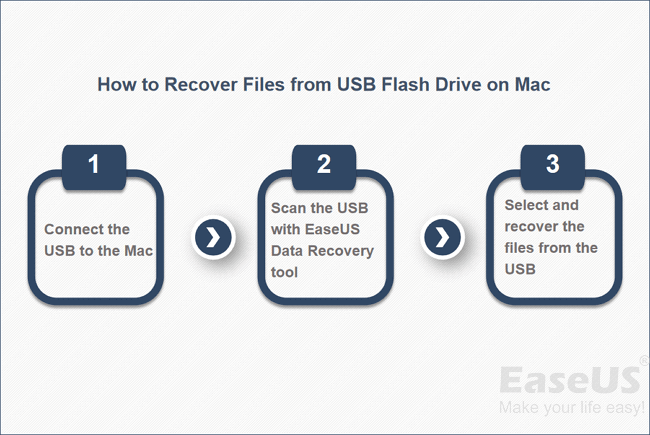
To recover deleted files from your USB on a Mac, you can use Qiling USB recovery software. The process is straightforward, requiring only simple steps to get back your data quickly.
Step 1. Connect your USB flash drive to your Mac, launch Deep Data Recovery for Mac, select file types, and click "USB/SD Scan" to begin the process.

Note: You can choose different search modes based on where and why the data was lost.
Step 2. To recover lost files from a flash drive, select it and click "Scan" to initiate the file search process.

Step 3. After scanning, all files will be displayed in the left panel of the scan results.

Step 4. Select the files you want to recover and click the "Recover" button, but avoid saving the recoverable files to the USB drive itself to prevent data overwriting.
If you've lost important data on a storage device like a hard drive, memory card, SD card, or digital camera, I recommend trying Deep Data Recovery for Mac. This software offers full solutions for Mac hard drive recovery, external storage device recovery, and more, making it suitable for various data recovery scenarios, including recovering lost files from a formatted USB flash drive. Its user-friendly interface makes it accessible to all levels of Mac users, so give it a try.
Related Articles
- 2022 Fixed: Time Machine Won't Complete First Backup
- Recover Lost Mac Data with iMac Data Recovery Utility
- How to Recover Previous Version of Files/Document on Mac [5 Ways]
- How Do I Fix External Hard Drive Not Showing Up on Mac (Big Sur)? Here Is The Guide
- How to Recover Files after Reset Windows 10
If you've performed a factory reset on your Windows 10 device and lost important files, you can recover them. This article provides guidance on how to recover files after a Windows 10 reset, helping you prevent data loss and get back to your normal workflow. - How to Recover Files after Shutdown
To recover files after a computer shutdown, simply install data recovery software, use it to scan your computer for lost files, preview the recovered files, and then recover them.
Products
Articles & Tutorials
- Data Recovery
- Data Backup
- File Recovery
- File Backup
- System Backup and Restore
- Disk and Partition Clone
- Technical articles
- Mobile articles
- Disk Master Help
- Windows Data Recovery Tutorials
- Windows Secure Delete Tutorials
- Windows Partition Management Tutorials
- Windows File Backup and Restore Tutorials
- Windows System Backup and Restore Tutorials
- Windows Disk Backup and Restore Tutorials
- Windows Clone Tutorials