How to Change Partition to Primary Using Diskpart
A primary partition is a partition on your hard drive or SSD that contains Windows OS and all other important files and data. The BIOS or UEFI only recognizes this partition, and only this partition can be set as active.
To change a partition to primary using Diskpart, follow these steps. However, if you're looking for a more efficient alternative, there are other methods available. Diskpart is a built-in tool that allows you to manage your disk partitions, but it may not be the most user-friendly option.
How to Change Partition to Primary Using Diskpart
Diskpart is a disk configuration and management tool for hard disk drives (HDDs) and solid-state drives (SSDs). It's easily accessible and user-friendly, allowing you to get started by simply opening the command prompt and typing the 'diskpart' command.
Users can use Diskpart to convert file systems, such as changing NTFS to FAT32 or vice versa, and also change to exFAT or any other file system. Additionally, it can change the disk type from logical to primary and vice versa.
To change a partition to primary using Diskpart, follow these steps: Open the Command Prompt as an administrator and type "Diskpart" to open the Diskpart utility. Type "list disk" to see a list of all disks, including the one you want to change.
Step 1. Click on the "Windows" icon and search for "cmd."
Step 2. Click on "Run as administrator."
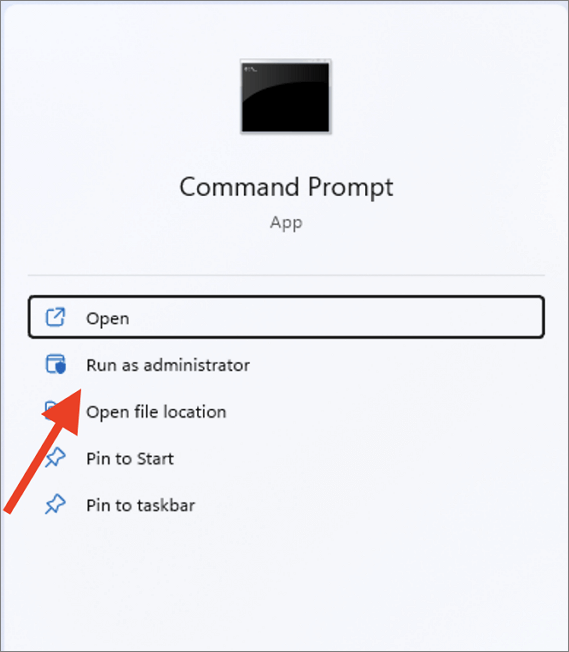
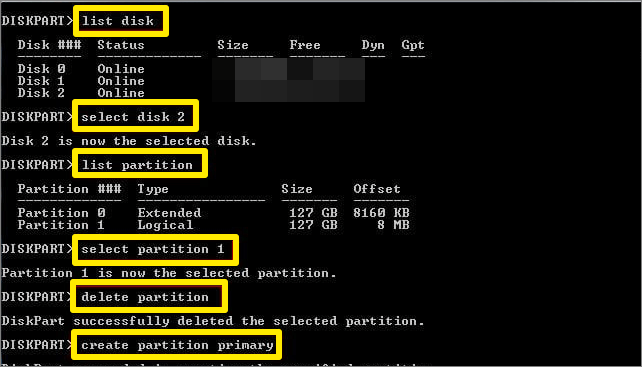
Step 3. Now, enter the following commands and press the "Enter" key after each command.
list disk
Select disk Y (Replace "Y" with the disk number of the disk that you want to change to the primary partition)
list partition
Select partition J (Replace the "J" with the partition number of the logical partition that you want to convert to the primary partition)
delete partition
create partition primary
Changing the partition to primary using Diskpart can result in the loss of all files on the drive, but this can be avoided by taking alternative steps.
Change Partition to Primary Using Diskpart Alternative
When converting a partition to primary using traditional methods like diskpart, the entire hard disk is wiped clean. However, third-party programs like Qiling Disk Master can convert logical partitions to primary without data loss.
If you want to change a primary partition to a logical one, you can do that with Qiling Disk Master, which also makes creating, extending, and deleting a partition easier. The software is a great alternative to Diskpart, offering a range of features that make partition management simple.
| Comparison | Qiling Disk Master | Diskpart |
|---|---|---|
| Difficulty | Very easy to use | Can be a bit difficult to use if not already accustomed |
| Interface | Simple to use interface | Simple interface |
| Suitable Users | People of all ages | Users who have some computer knowledge |
| Data Protection | Files are not deleted | Files will be deleted |
Qiling Disk Master is a tool that makes it easy to change a partition to primary, preventing data loss and making the process simple and quick, allowing users to successfully change partition to primary in just a few clicks.
Step 1. To fix the issue, download and run Qiling Disk Master, then navigate to the Partition Manager.
Step 2. To convert a partition to a different type, right-click on the partition you want to convert and select the option to change the MBR partition. From the available options, choose the "Convert" option.
- 1. To Primary partition
- 2. To Logical partition
Step 3. Waiting to begin the conversion.
Qiling Disk Master is a comprehensive tool, except for changing partitions. It also features other functionalities.
- Convert MBR to GPT
- Convert basic to dynamic
- Convert NTFS to FAT32
- Hide/unhide partitions
Conclusion
Changing a partition to primary using Diskpart is a straightforward process, but it's essential to note that it will delete all content on the drive. However, an alternative method using Qiling Disk Master can achieve the same result without deleting any files. This approach is particularly useful, as it also comes with additional features that can be beneficial in the future.
FAQ of Change Partition to Primary Diskpart
Here are the answers to some frequently asked questions about changing the partition to a primary partition.
1. How do I change my partition to primary?
You can use Qiling Disk Master to change a partition to a primary partition without losing data, allowing you to modify partition types without risking data loss.
Step 1. To convert a partition to a different file system, follow these steps: Open Qiling Disk Master, right-click on the partition you want to convert, and select the appropriate option from the context menu to change the file system.
Step 2. Select "Advanced" and convert the logical partition to primary partition.
2. How do I create a partition primary in DISKPART?
To create a primary partition using Diskpart, follow these steps: Open Command Prompt as Administrator, type `diskpart` and press Enter, then type `list disk` to see the list of available disks, select the disk you want to create a partition on by typing `select disk #`, where # is the number of the disk, then type `clean` to clear the disk, type `convert gpt` to convert the disk to GPT partition style, type `create partition primary` to create a primary partition, type `format fs=ntfs label="Partition Label"` to format the partition, and finally type `exit` to exit Diskpart.
Step 1. Open "Command Prompt" as administrator, type "Diskpart" and press Enter.
Step 2. Type the following command and hit Enter:
- list disk
- select disk 1
- create partition primary size=20000
- assign letter=E
3. How do I change a partition from dynamic to primary?
To change a partition from dynamic to primary using Qiling Disk Master, follow these steps:
Step 1. Open the command prompt as an administrator.
Step 2. Type "Diskpart" and press the "Enter" key.
Step 3. Type the following commands and press Enter:
- list disk
- select disk 1
- select volume 1
- delete volume
- convert basic
Related Articles
- How to Factory Reset Mac Mini M1[with Video Tutorial]
- PC Not Working Properly? Try A Fresh Install Windows 10
- Format FS=FAT32 Quick: Full and Comprehensive Guide on Use It
- (Solved!) How to Backup Gmail Emails to Another Gmail Account
- Should I Install Steam on SSD? 2023 Full Guide Here!
This article provides guidance on whether to install Steam on an SSD or HDD, and tips on improving Steam's SSD performance. - Show Hidden Partition Using Command Prompt [100% Working Solutions]
Show a hidden partition with Command Prompt or Qiling Partition Master, and manage hidden disk partitions more easily.
Products
Articles & Tutorials
- Data Recovery
- Data Backup
- File Recovery
- File Backup
- System Backup and Restore
- Disk and Partition Clone
- Technical articles
- Mobile articles
- Disk Master Help
- Windows Data Recovery Tutorials
- Windows Secure Delete Tutorials
- Windows Partition Management Tutorials
- Windows File Backup and Restore Tutorials
- Windows System Backup and Restore Tutorials
- Windows Disk Backup and Restore Tutorials
- Windows Clone Tutorials