PC Not Working Properly? Try a Fresh Install of Windows 10
When setting up a new computer or installing an application for the first time, the option "fresh install" appears on the installation interface. Familiar to those who've installed a recent iteration of Windows from Microsoft in the last five years, the process is exemplified by Windows 10. Performing a fresh install of Windows 10, for instance, involves understanding the characteristics of this process.
Introduction
People often use the term "fresh install" to describe the process of installing a software application or operating system from scratch, without any pre-existing files or settings. This approach allows users to start with a clean slate, free from any potential conflicts or issues that may have arisen from a previous installation.
What does fresh install Windows 10 mean?
A fresh install of an operating system or application refers to the process of setting it up for the first time on a new computer. In the case of Windows 10, a fresh install involves removing any prior versions of Windows on the computer, and the new OS is the only thing on the hard drive. During installation, the hard drive is formatted and all existing data and user files are erased.
The alternative of fresh install Windows 10
After installing Windows 10, a corresponding process is system upgrading, which updates the existing OS or application with new features, while keeping the same system intact.
A fresh install of Windows is different from an upgrade, where users can choose between the two options at the start of the installation process, allowing them to start with a clean slate or upgrade their existing system.
When A Fresh Install Windows 10 is Required
Fresh installing Windows 10 can be a good idea in various situations. You might want to repurpose an old device that's still usable, or upgrade to a solid-state drive to extend the life of the old one. Other reasons for a fresh install include upgrading to a new device, resolving system issues, or simply wanting a clean start with a new operating system. Whether it's for practical or personal reasons, a fresh install of Windows 10 can be a great way to breathe new life into an old device or start fresh with a new one.
1. Important data corruption
Due to damaged or corrupted data or files, system updating is not possible, and a clean install may be the only option for users to restore their computer.
2. Operating System error
A fresh install of Windows 10 is necessary when a system stops working and troubleshooting has failed, but it erases all data on the primary hard drive partition.
3. Better performance of PC
A fresh install of Windows 10 can improve the performance and speed of your device, which may not be achieved through an in-place upgrade, especially for systems that have been running the same version for a long time.

How to Perform A Fresh Install Windows 10
The process of installing Windows 10 on a PC involves two parts. First, you need to download the latest Windows 10 image from Microsoft and create a bootable flash drive. Once you have the bootable drive, you can use it to install Windows 10 on your PC.
1. Download the Windows 10 image from Microsoft
To download Windows 10 on a Windows 10 PC, start by downloading the Media Creation Tool from Microsoft, which will help you download the latest Windows 10 image and convert it into an installable USB drive. This process is quick and straightforward.
2. Fresh install Windows 10 from the USB flash drive
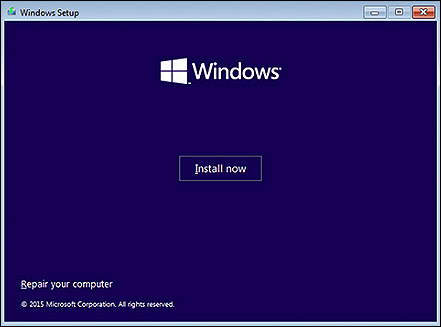
After using the Media Creation Tool, you'll need to connect the USB drive to a PC running a fresh install of Windows 10. To run the installer, simply plug the USB drive into the PC and let it boot from the drive.
3. Complete Windows 10 installation
You will be taken through each stage of the installation process as soon as your computer boots into the Windows 10 installer. This includes deciding where to install Windows 10, and the installation procedure will take some time, so be patient if it seems to be taking a while.
Final Thoughts
Performing a fresh install of Windows 10 is a relatively straightforward process, but it does require some time. It's a key step in building a new PC, updating internal drives, and even repairing slow or damaged devices.
FAQs
1. What is the difference between resetting or fresh installing Windows 10?
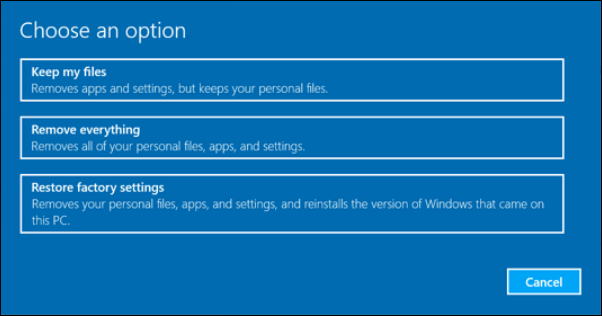
Performing a fresh install of Windows 10 is different from using the reset button, which only factory resets your computer. A fresh install uses a Microsoft factory-fresh image, making it a good option if your main issue is slowness, allowing you to learn how to speed up your computer before completing the install.
2. What should you pay attention to when you start a fresh install?
Ensure you have a valid Windows 10 license before installing a fresh copy of Windows 10. Once your computer is connected to the internet, previously activated rights will be restored.
Before a fresh install, it's crucial to back up all data and files to an external hard drive, another PC, or a cloud site to prevent accidental loss of existing data, which will be destroyed during the installation process.
Related Articles
- Quick Fix External Hard Drive Access Denied Error
- How to Free Up Space on SSD in Windows 10/8/7
- How to Safely Format Toshiba Hard Drive for Mac with a few Clicks
- How to Turn Off Xbox Controller on PC
- Best Windows Key Finder for Windows 11/10: Which Key Finder Is Best - Qiling
Find the best Windows key finder for Windows 11/10. Compare top product key finders including Qiling Key Finder, Belarc Advisor, and more to recover your serial numbers. - How to Check Your PC's CPU Temperature [2 Methods]
When computers overheat, it is typically due to the CPU being too hot, If you begin to notice that your computer is hotter than normal, you will want to know how to check your CPU temperature.
Products
Articles & Tutorials
- Data Recovery
- Data Backup
- File Recovery
- File Backup
- System Backup and Restore
- Disk and Partition Clone
- Technical articles
- Mobile articles
- Disk Master Help
- Windows Data Recovery Tutorials
- Windows Secure Delete Tutorials
- Windows Partition Management Tutorials
- Windows File Backup and Restore Tutorials
- Windows System Backup and Restore Tutorials
- Windows Disk Backup and Restore Tutorials
- Windows Clone Tutorials