Quick Fix External Hard Drive Access Denied Error
The external hard drive becomes inaccessible, access denied, help!
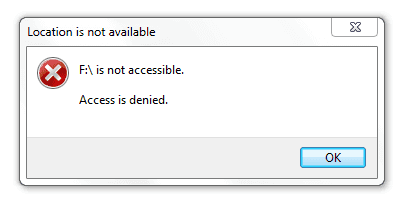
"Get an error message when I tried to open my external hard drive in Windows 10 PC, telling me that 'Location is not available. G:\ (my external hard drive) is not accessible. Access is denied'.
Have you ever met such a problem? I tried to connect the drive to my old Windows 7 PC, still got no access to the drive. If you have any methods that can help me open the drive and get saved data back, please help! Thanks."
If your external hard drive is causing errors, it's likely due to several reasons, and you're not alone if you're seeing an "Access Denied" message. This issue is common and easily solvable. If you're experiencing this problem with your external hard drive, don't worry, and follow the quick fix guide to resolve the issue in Windows 10, 8, or 7.
Quick fix 'Access Denied' error on the external hard drive
If your external hard drive, USB drive, or SD card becomes inaccessible, don't immediately format it to avoid losing data. Instead, try these quick fixes to repair and recover your device.
1. To resolve the 'Access Denied' error on the external hard drive, run the built-in Error Checking tool in Windows. This tool can help identify and fix any issues that might be causing the error.
- Connect the inaccessible external hard drive with Windows 10/8/7 PC;
- To access an inaccessible external hard drive, open "This PC" or "My Computer", right-click on the external hard drive, and select "Properties".
- Click Tools > Click Check/Check Now.
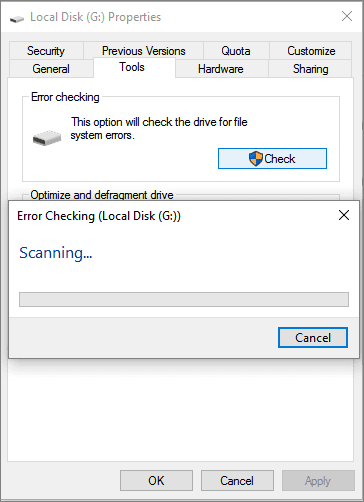
You can view the saved data on your external hard drive once the error checking process is complete.
2. To resolve the 'Access Denied' issue when trying to access an external hard drive, you can try running the Command Prompt as an administrator and using the 'takeown' command to take ownership of the drive. You can also check the drive's properties and look for any permissions that may be restricting access.
Connect your external hard drive to a Windows PC, and then follow the steps to access your drive:
For Windows 10/8 users:
1. To access an inaccessible external hard drive, open "This PC" and right-click on the external hard drive. From the context menu, select "Properties".
2. Go to Security > Click on Edit.
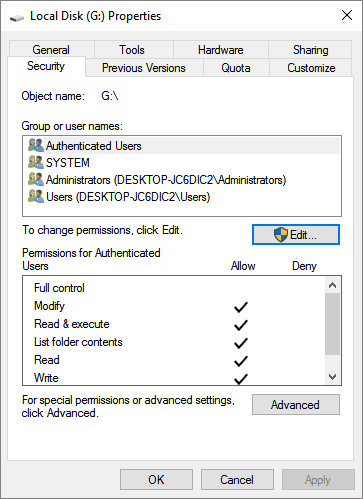
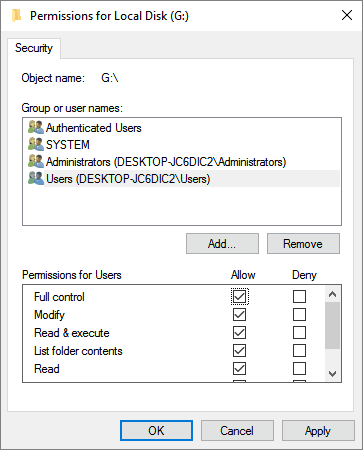
3. Click your username under Group or username.
4. Check all boxes under Allow column > OK > Apply;
For Windows 7 users:
1. Right-click on the inaccessible hard drive > Click Properties.
2. To edit the owner of a file, go to the Security tab, click Advanced, and then click Edit on the Owner tab.
3. To change the ownership of a specific account, click on your name under the "Group or username" section. This will allow you to modify the ownership of the desired account.
* Run the command "sudo chown" to assign ownership to the external hard drive.
Fix inaccessible external hard drive with 'Access Denied' error
If the above quick fixes didn't work, don't worry and just follow below two steps to make your inaccessible external hard drive accessible again. You can try using a different USB port on your computer, or try using the external hard drive on a different computer to see if it's the drive itself that's the problem.
#1. Repair bad sectors on the inaccessible external hard drive
External hard drive failures to open in Windows can be caused by bad sectors. To resolve this issue, you can repair bad sectors by using powerful partition manager software in just 3 simple steps.
Qiling partition manager software can help resolve issues with bad sectors on an external hard drive using its Check partition feature. To fix the problem, you can download Qiling for free and follow its instructions to repair the bad sectors on your external hard drive.
#2. Change drive letter and format to repair the inaccessible external hard drive
Change inaccessible external hard drive letter:
1. Right-click on This PC/My Computer > Select Manage;
2. Go Disk Management > Find your external hard drive and right-click it by choosing Change Drive Letter and Path...
3. Assign the drive with a new letter that doesn't exist on your PC and mark the Partition as Active > Click OK.
Then restart the PC and your external hard drive will show up and work again.
If the drive is still inaccessible, you can use powerful data recovery software to restore data from the drive before formatting it directly. This can help prevent data loss.
Format and reset inaccessible external hard drives:
1. Connect the inaccessible external hard drive to your PC and open the Disk Management utility on your computer.
2. Find and right-click on inaccessible drive > Select Format volume...
3. Rename and reset the drive to NTFS.
Save all changes and restart the PC. There, you shall be able to use the external hard drive again now.
Extra Tip: Restore lost data from inaccessible external hard drive
You can recover your lost data from an inaccessible external hard drive or one that's been formatted without restoring saved data by using professional hard drive data recovery software like Deep Data Recovery, which can recover your data in 3 simple steps.
If the external drive opens in Explorer but a file-backup task reports Access Denied, use the backup permission checklist to locate the denied source or destination.
Related Articles
- Fixes for Bad System Config Info Error in Windows 10/8/7
- How to Recover Your Deleted Firefox Browsing History
- HP Laptop Slow Startup Fixes for HP Laptop Taking Forever to Restart
- Free PDF Editor - Top 6 Best Free PDF Editors 2020 Update
- Top 5 Best Free Registry Backup Software [Updated 2024]
You can easily create a backup of the Windows registry using free registry backup software. There are several options available, including a comprehensive solution, that can be downloaded to your Windows computer to back up your registry. - Top 10 Best Gmail Backup Tools in 2024 (Free & Paid)
This post provides an overview of the 10 best Gmail backup tools, highlighting their features and details to help you choose the one that best meets your needs.
Products
Articles & Tutorials
- Data Recovery
- Data Backup
- File Recovery
- File Backup
- System Backup and Restore
- Disk and Partition Clone
- Technical articles
- Mobile articles
- Disk Master Help
- Windows Data Recovery Tutorials
- Windows Secure Delete Tutorials
- Windows Partition Management Tutorials
- Windows File Backup and Restore Tutorials
- Windows System Backup and Restore Tutorials
- Windows Disk Backup and Restore Tutorials
- Windows Clone Tutorials