Fixes for Bad System Config Info Error in Windows 10/8/7
If you're experiencing a Windows boot or startup blue screen error with the "Bad_System_Config_Info" message, don't worry - this article will help you identify the causes and find solutions to fix the issue. The two-part solution will guide you through the reasons behind the bad system config info error in Windows 10, 8, or 7, and provide recommended steps to resolve the problem without any obstacles.
Part 1: Reasons for Bad_System_Config_Info error in Windows 10/8/7
Here are some major reasons that may cause bad system config info error in your PC under Windows 10/8/7: The error can occur due to corrupted system files, incorrect registry entries, or issues with the boot configuration data (BCD) store, which is responsible for loading the operating system. Additionally, problems with the Windows boot manager, faulty hardware, or malware infections can also trigger this error.
- Damaged/corrupted hard disk drive
- Corrupted Windows system files
- Corrupted Windows registry files
- Incorrectly configured corrupted device drivers
- Driver conflict between newly installed hardware
- Damage or corrupted RAM
Don't worry, fixing the bad system config info error and rescuing your computer from it is possible. In the next part, you'll find a solution to this issue that will help you overcome any obstacles.
Part 2: Find solutions to fix Bad_System_Config_Info error in Windows 10/8/7
While Method 1 and Method 2 can be done by ordinary users with the help of partition manager software, Methods 3 to 6 require more attention and should be approached with caution.
You can resolve the bad system config info error in Windows 10/8/7 by selecting one of the solutions provided by Qiling software, which include various fixes, and then restarting your PC.
Qiling Partition Master
If your PC encounters a 'Bad_System_Config_Info' blue screen error, you can try using Qiling Partition Master to fix the issue. This tool can help you resolve the problem with methods such as disk partition management, disk formatting, and disk cloning, among others.
Method 1: Check & repair hard disk corruption errors
If a hard disk drive becomes damaged or corrupted, it may cause a "bad system config info" error. To resolve this issue, you can either manually check and repair the hard disk corruption or use a partition manager software for assistance. This method can be applied to Windows 10, 8, and 7 computers.
Access 1: Manually check and fix the hard disk with CMD
Step 1: To open the Command Prompt, click Start and type "command" in the search bar, then hit "Enter".
Step 2: Click yes and type: chkdsk /f > hit "Enter".
After the onscreen command, you'll need to let the hard disk checking and repairing process complete.
Access 2: Check and repair corrupted/damaged hard disk with partition manager software
Professional partition manager software, Qiling Partition Master, can help you manage your partitions with ease, allowing you to resize, move, merge, split, and delete partitions with a few clicks.
Step 1. Right-click the target partition that has a problem.
Step 2. Choose "Advanced" > "Check File System".
Step 3. The Check File System window should have the "Fix the error on the disk" option checked.
Step 4. Click "Proceed" to check errors on your partition.
If you're unable to boot your computer and the above method to fix the bad system config info error doesn't work, you can try booting your PC with a WinPE bootable disk to restore Windows and resolve the issue. This method can help fix any problems.
Method 2: Use bootable disk
You can resolve the bad system config info error by creating a bootable disk with Qiling Partition Master, a powerful partition manager software. This allows you to reboot Windows into a healthy state, and the disk can be used to troubleshoot and fix the issue. Simply create the bootable disk, reboot your PC, and the problem should be resolved.
Step 1: Create a WinPE bootable disk from another healthy computer which is running the same system as your present PC.
Step 2: Connect the bootable disk USB drive or SD card with your computer and select to boot from the disk.
Step 3: After entering Qiling Partition Master, you can directly perform a disk or partition copy operation to copy partition data into a new storage device. Remember to connect another new drive or storage device to your PC.
Step 4: To resolve the issue, use Qiling Partition Master to check and fix hard drive errors. This tool can help identify and correct any problems with the hard drive, ensuring it operates smoothly and efficiently.
To fix the Windows issue, you can create a new partition and copy all the data to it. Then, you can safely reboot Windows and continue using your computer without worrying about any lost data, as you can restore it from the copied partition data.
Method 3: Fix corrupted Windows Registry by CMD
You can fix corrupted Windows Registry, which may cause "Bad_System_Config_Info" error, by running the following CMD commands on your Windows 10, 8, or 7 PC. 1.
Step 1: Boot from a Windows 10/8/7 USB/DVD and launch "Command Prompt".
Step 2: Type: CD C:\Windows\System32\config > hit "Enter".
Step 3: Follow the commands below one by one and hit "Enter" to rename these files with .old postfix:
ren C:\Windows\System32\config\DEFAULT DEFAULT.old
ren C:\Windows\System32\config\SAM SAM.old
ren C:\Windows\System32\config\SECURITY SECURITY.old
ren C:\Windows\System32\config\SOFTWARE SOFTWARE.old
ren C:\Windows\System32\config\SYSTEM SYSTEM.old
- Type the following commands one by one and hit Enter to copy registry backup files to your current registry folder. And this will help to manually restore your Windows registry:
copy C:\Windows\System32\config\RegBack\DEFAULT C:\Windows\System32\config\
copy C:\Windows\System32\config\RegBack\SAM C:\Windows\System32\config\
copy C:\Windows\System32\config\RegBack\SECURITY C:\Windows\System32\config\
copy C:\Windows\System32\config\RegBack\SYSTEM C:\Windows\System32\config\
copy C:\Windows\System32\config\RegBack\SOFTWARE C:\Windows\System32\config\
Method 4: Update device drivers
- Go to "Device Manager" > Right-Click on the driver you want to update and then click on the "Update driver" option.
You can update your device driver by going to the manufacturer's website, downloading the latest version, and installing it. Alternatively, you can use a driver update tool that will scan your system and update all your drivers automatically. This will ensure that your device is running with the most up-to-date drivers, which can improve its performance and stability.
Method 5: Use last known good configuration
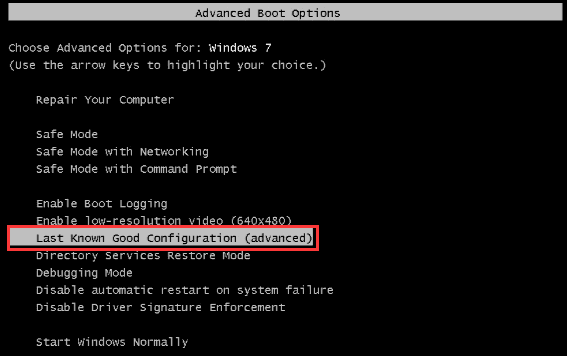
To resolve the "bad system config info" issue in Windows 10, 8, or 7, try restoring from the Last known good configuration from Advanced mode. This can be done by booting in Safe Mode, accessing System Configuration, and selecting the "Last known good configuration" option.
For Windows 10/8 users:
Step 1: To restart your computer, open the "Start" menu and click on "Power", then press and hold the "Shift" key on your keyboard while clicking on "Restart".
Step 2: To troubleshoot, select "Advanced Options" and then click on "Start Up settings".
Step 3: Click on "Restart".
Step 4: After restarting Windows, you'll see a black screen with an advanced boot menu. Choose "Last known good configuration (Advanced)" with the arrow keys and hit "Enter".
For Windows 7/old version users:
Step 1: To restart your PC and access the boot menu, press and hold the "F8" key when it powers up and displays a black screen with white text or the Windows logo.
Step 2: When the advanced boot menu appears on a black screen, select "Last known good configuration (Advanced)" with the arrow keys on your keyboard and hit "Enter".
Method 6: Use Windows Memory Diagnostic to test & repair damaged/corrupted RAM
Step 1: To run a memory diagnostic test on your Windows computer, start by pressing the Windows key + S to open the Search bar. Type "memory diagnostic" and select the "Windows Memory Diagnostic" option from the search results.
Step 2: Click on "Restart now" and check for problems (recommended);
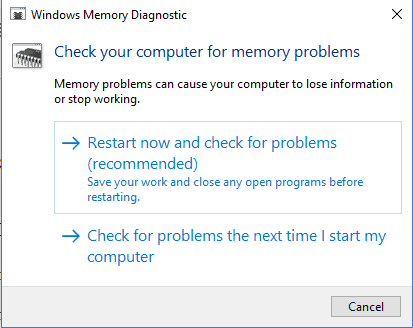
Your PC will automatically restart and run a memory test, which may take a few minutes. If any issues are detected, contact the computer manufacturer for assistance in resolving the bad system config info error.
Related Articles
- Fix Windows 10 Computer Keeps Freezing Randomly
- Windows 10 Creators Green Screen of Death Fix
- [Fixed] Right Click Not Responding or Working on Windows 10
- How to Fix Corrupted Recycle Bin in Windows 10 and Restore Lost Data?
- Know All: Qiling Disk Master Security Zone
A backup of important files can save a lot of users from the angst of losing their data. This article explores various options, including why Qiling Disk Master's Security Zone is the best option. - QuickBooks Unable to Backup Company File - What to Do?
If you're experiencing the QuickBooks unable to backup company file error, you're in a helpful guide. This post will guide you on how to resolve the issue and provide a better way to back up your QuickBooks company file.
Products
Articles & Tutorials
- Data Recovery
- Data Backup
- File Recovery
- File Backup
- System Backup and Restore
- Disk and Partition Clone
- Technical articles
- Mobile articles
- Disk Master Help
- Windows Data Recovery Tutorials
- Windows Secure Delete Tutorials
- Windows Partition Management Tutorials
- Windows File Backup and Restore Tutorials
- Windows System Backup and Restore Tutorials
- Windows Disk Backup and Restore Tutorials
- Windows Clone Tutorials