Top 10 Best Gmail Backup Tools in 2024 (Free & Paid)
If you're looking to back up Gmail emails, there are various tools available to help you achieve that. You can use third-party services like Backupify, Datto, or SambaSave, which offer automated backups of your Gmail data. Alternatively, you can also use the built-in Google Takeout feature, which allows you to export your Gmail emails in a format like CSV or JSON.
Gmail is the primary emailing solution for many users, with over 2.5 billion Android users relying on it due to the necessity of having a Gmail account for Android phone usage.
Besides backing up your Gmail data, Google Drive is also integrated with other Google Workspace programs, allowing access to tools like Google Docs, Sheets, and more.

Despite Google's robust security measures, emails can still get lost in the vastness of Gmail. However, this is often not a result of Google's fault, but rather the user's oversight. It's essential to create a backup, regardless of how secure your device or online storage is, to prevent emails from being lost forever.
Backing up Gmail in its entirety can be a challenge, but there are several tools available to help. In this article, we'll explore the ten best Gmail backup tools that can assist you in backing up your entire Gmail account, including emails, contacts, and more.
Selection Criteria for Gmail Backup Tools
Before discussing the tools, let's consider the selection criteria for choosing a tool. The first aspect to consider is the ability of a program to back up your emails, as some programs may only offer features like calendar synchronization or contact management, but not email backup.
- Backing up a few emails at a time.
- Backing up only single files (one email at a time).
- Securing only your Gmail attachment or draft folders.
To back up your entire Gmail account, including emails in your inbox, sent content, drafts, and custom folders, you'll need a solution that can handle this. This should also take into account a few key considerations, such as.
- How much does it cost?
- Is it compatible with your OS?
- Does it have more cons than pros?
- Do the pros outweigh the cons?
- The tool offers regular backup options, including daily, weekly, and monthly backups. It also allows users to schedule backups to run at specific times or frequencies. The backup process is automated, and users can set up notifications to ensure they're aware of any issues or errors.
When choosing a tool, consider the factors that matter most to your project, such as the type of data you're working with, the level of complexity, and the desired outcome. This will help you pick the right tool for the job, as there are many programs available, each with its own strengths and weaknesses. By keeping these factors in mind, you can make an informed decision and avoid wasting time and resources on the wrong tool.
You May Also Use Outlook?
Top 10 Best Gmail Backup Software (Free & Paid)
We've discussed the importance of backing up your Gmail account, and how to choose the right backup software, but to save you time and hassle, we've selected the top tools for the job, providing you with a list of the best software to use for backing up your Gmail account.
Each one of the top 10 Gmail backup software options has been thoroughly vetted, tested, and approved by experts around the internet, ensuring their reliability and effectiveness.
- Google Takeout
- Dropsuite GSuite Backup
- Spanning GSuite Backup
- Backupify for GSuite
- SpinBackup GSuite Backup
- Qiling Disk Master Free
- Sysinfo Gmail Backup Tool
- SysTools Gmail Backup
- Handy Backup
- BitRecover Gmail Backup Wizard
1. Google Takeout [Convenient Option]
Google's Google Takeout, also called Download Your Data, is a tool that lets you export all your Google data, a project of Google Data Liberation Front that Google thoroughly endorses.
The great thing about this tool is its ability to export all of Google data, including search history, location history, and other activities, providing a comprehensive view of your online presence.
- Emails
- Phone history and contacts
- YouTube and Gmail data (including inbox and custom folders).
- Supports data migration from one device to another.
The Takeout program allows you to download your Google data in the form of a downloadable archive file, making it an ideal tool to shift your data. This archive file can then be used to transport data through an external device or to recover your emails if needed, providing a convenient and secure way to manage your Google data.
Price
- Free (Google account needed)
Pros
- Free up storage on Google Drive by moving the data.
- Make copies of bookmarks and settings.
- Download all your images, videos, and attachments to your computer.
Cons
- Downloaded files aren't always easiest to move to another email.
- Download the files created by you only.
2. Dropsuite GSuite Backup [Safest]
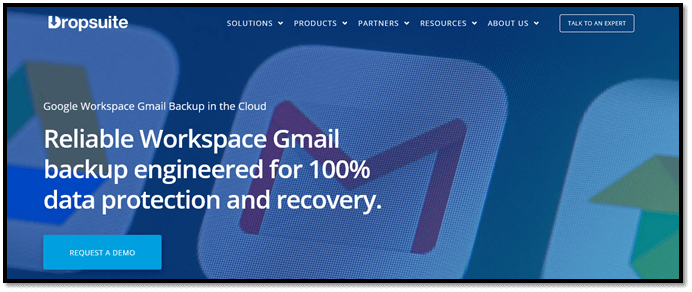
Dropsuite is a provider of backup tools for emails and communication apps, offering a thorough system of backing up emails through their Gmail/GSuite backup utility.
The tool not only allows you to save your Gmail to another device or download it to your computer/cloud storage, but also protects those files. It safeguards your Gmail content from phishing attacks while ensuring that your data is safe, making it a secure solution for managing your online presence.
- Total security with the help of an intriguing dashboard.
- The trademark "1-Click Restore and download".
- Secure cloud storage with your email backups.
The benefits and safety features of this option make it one of the best and safest choices available today, offering a reliable solution for various needs.
Price
- A service that costs $3 per month for backup and $4 for backup and archiving.
Pros
- Safest and most secure option
- Thorough backing up of email
- Save your drive and GSuite contents
- Virus and phishing protection
Cons
- A tad expensive
- It can be a bit complicated for newer users.
3. Spanning GSuite Backup [Most Convenient]
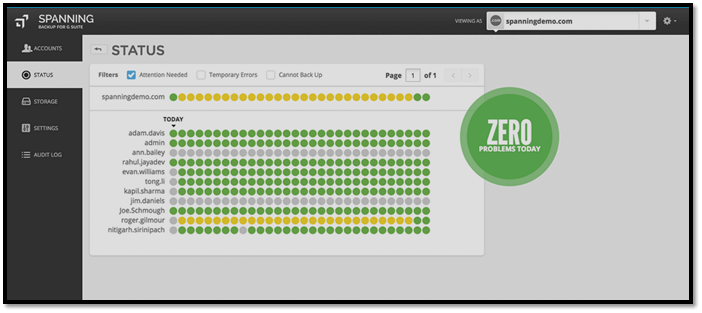
Spanning GSuite backup is a comprehensive solution for personal or professional users, securing not only emails but also all other contents of your Google account. It offers thorough backup options, making it the most convenient option on our list.
The Google Workspace Data Protection is an automated recovery tool that offers numerous benefits, making it an ideal solution for many organizations. Among its advantages are:
- Backup your entire inbox
- Thorough protection of backups
- Save your Google Drive contents
Our cloud-based backup solution is designed to be user-friendly and convenient, making it the perfect tool for individuals and businesses alike. With its automated backup process, you can rest assured that your data is being protected without any manual effort.
Price
- $48 per year
Pros
- Secure and safe
- Thorough protection and backup of Gmail inbox
- Outstanding data protection
Cons
- A bit pricey
- A bit complicated
4. Backupify for GSuite [Best for Personal Use]
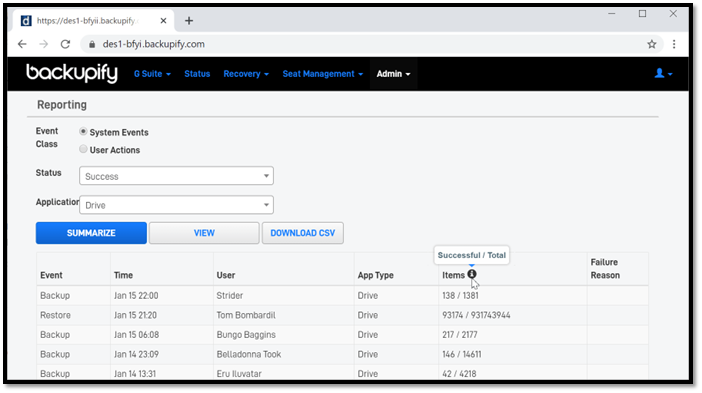
Backupify for GSuite is a good option for Gmail users, offering thorough protection for personal or professional accounts, and being ideal for various scenarios, with a user-centric approach that makes it more lenient towards personal use.
The tool is suitable for recovering accidentally deleted emails and setting up dependable backups, with the added benefit of third-party integrations and ease of use in both backups and restoration.
Price
- Basic $199/user a year
- Enterprise $799/user a year
Pros
- Highly Capable
- Easy to use
- Easier to restore
Cons
- A lot pricier than competitors
5. SpinBackup GSuite Backup [Good for Enterprise]
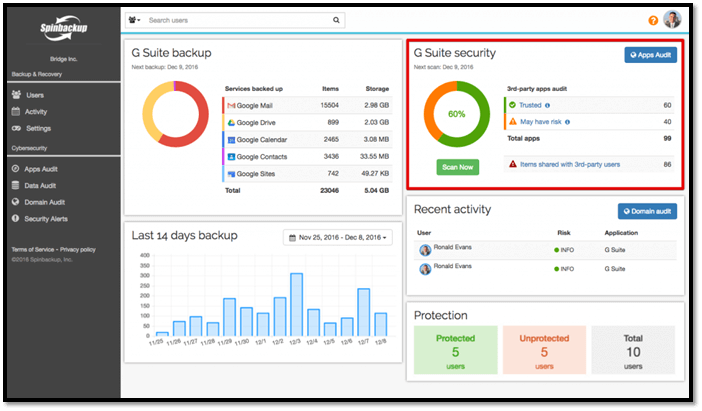
SpinBackup GSuite is a tool that caters to both enterprise and individual users, allowing them to back up their Gmail accounts, whether within an enterprise or personal Gmail. This versatility makes it a convenient choice for both types of users.
The pricing and abilities of the product make it an ideal backup solution for enterprise users, as the difference in cost isn't significant. It can also help backup Gmail, in addition to other services, providing a reliable and efficient way to manage and protect data.
- Drive or shared drives
- Contacts
- Calendars
- Photos (Recovery only)
Price
- $3 per month
- $48 per year
Pros
- Available for a free trial
- Backup individual GSuite components
- Easier recovery than most
- Ideal for enterprises
Cons
- An individual account isn't lucrative.
6. Qiling Disk Master Free [Best for Both]
Qiling Disk Master is widely hailed as the best backup tool available today, and for good reasons, allowing easy saving of Gmail inbox and contents through Outlook, in addition to saving individual or enterprise emails.
This tool is perfect for both individual users and those looking to save multiple emails or move a series of emails. It works wonders for personal use and is also ideal for saving or moving multiple emails at once.
- A free 250GB cloud storage
- Backup Outlook emails from the browser
- Secured password-protection
- Restore cloned files to any system
- Thorough backup options
- Outstanding secure zone (for safety from virus attacks)
- Extensive free usage
This tool is highly recommended due to its ability to be used by multiple users, making it ideal for both personal and shared use, and it is free.
Price
- Free
Pros
- Best backup options
- Extensive free cloud storage
- Easy restoration
- Secure/safety zone option
Cons
- None so far
Steps to backup Gmails
To add a Gmail account to Outlook, sign in with your Gmail account in Outlook first. Next, follow these steps: Go to the "File" tab and select "Add Account". Enter your Gmail account credentials, including your email address and password.
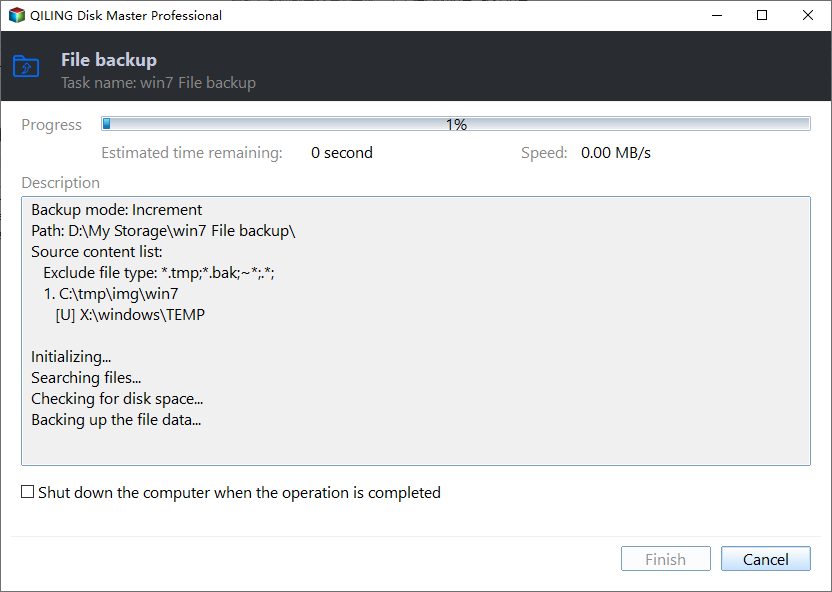
Step 1. Launch Qiling Disk Master on your computer, and click the Backup and recovery tab page.

Step 2. Among the four backup options, click "File backup".

Step 3. To back up Microsoft Outlook emails, contacts, or calendars, find and check the "Microsoft Outlook" option, then select the mailbox addresses you want to make a backup of and click "OK".

Step 4. To save the Outlook backup, you'll need to select a location on your computer where you want to save the backup file. This can be a folder on your desktop, documents, or any other location that suits your needs.

Step 5. The backup location can be another local drive on your computer, an external hard drive, network, cloud, or NAS. For preservation, we recommend using an external physical drive or cloud to store backup files.

Step 6. Customization settings like setting an automatic backup schedule in daily, weekly, monthly, or upon an event, and making a differential and incremental backup are available in the Options button. Click Proceed, and the Outlook backup process will begin, displaying the completed backup task on the left side in a card style.
7. Sysinfo Gmail Backup Tool [Reliability]
Sysinfo Gmail Backup tool is a reliable tool that allows users to save their Gmail emails to their computers, enabling them to download or back up their Gmail content to another device or cloud storage.
The tool has an outdated-looking UI design, but it remains a dependable option and a reliable competitor on the list.
Price
- Single User License $29
- Enterprise License $399
Pros
- Very easy to use
- Reliability
- Offers to save files in various formats
Cons
- Outdated UI design
- Not exactly affordable

8. SysTools Gmail Backup [Good For Small Enterprises]
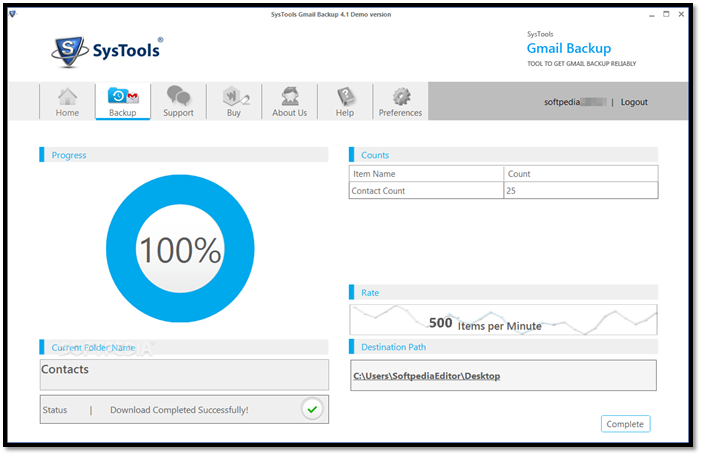
SysTools Gmail Backup is a software that allows users to save their email content by securing it in various file formats, making it ideal for backing up Gmail's contents.
While not as comprehensive as other tools, it's still a good option for smaller businesses or startups, thanks to its 10-in-one user license.
Price
- $50 for 10 user license
Pros
- Convenient to use
- Lucrative for smaller enterprises
- Scheduled backups
Cons
- Windows 10 and 11 only
- The individual version costs $29
9. Handy Backup [For Quick Usage]
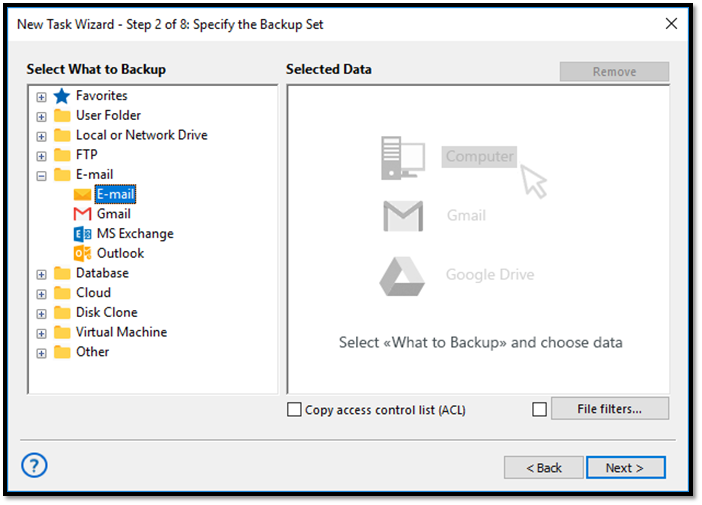
Handy Backup is a free tool that is easy to use and convenient, but it is not suitable for business or enterprise use due to its limitation of backing up one email at a time.
The tool is speedy and offers all features for free, making it a great option. It's also very easy to use, allowing you to save emails to your computer or cloud storage with minimal effort.
Price
- Free
Pros
- Very easy to use
- The one-user approach makes it reliable
- Totally free
Cons
- Not ideal for bulk emails
- Not made for business users
10. BitRecover Gmail Backup Wizard [If Money's Not An Issue]
The final tool on our list is BitRecover Gmail Backup Wizard, which stands out for its relatively affordable price, starting at $29 for basic uses, making it a viable option despite its slightly higher cost compared to other tools on the list.
The product stands out due to its impressive performance, offering unique and exceptional backup options. This makes it a strong contender and one of our top picks, along with nine other ideal tools available today.
Price
- Lite Edition $29
- Pro Edition $49
Pros
- Top-notch security
- High reliability
- Great track record
- Good ratings
Cons
- Not Affordable
- Not ideal for individual users
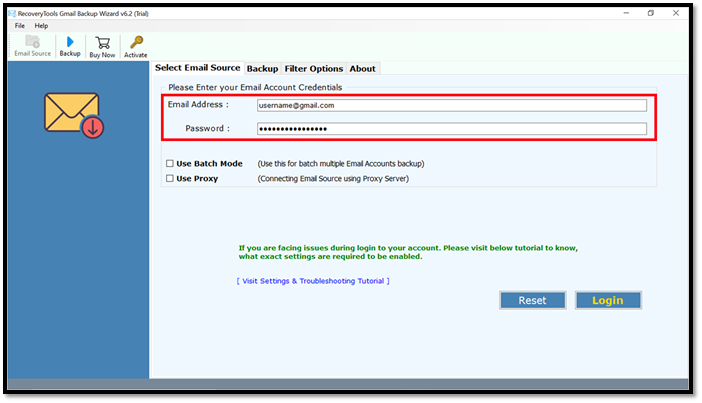
Which Gmail Backup Software Is the Best for Me
Now that we've discussed the best email backup tools available today, let's narrow down the options. While all the tools we've discussed are great, it's essential to consider the criteria we previously discussed - which emphasized the importance of selecting the right tool based on specific needs and preferences.
What's the most important to you?
- Individual backup
- Price
- Operating system/email type support
- Overall rating
To make your decision easier, we've created a table that compares the two options, allowing you to weigh the importance of each factor and choose the one that best suits your needs.
| Tool Name | Price/Month/Year | Operating Systems | Supported Mail Types | Overall Rating |
|---|---|---|---|---|
| Qiling Disk Master Free | Free | Windows & Mac | All | 10/10 |
| Google Takeout | Free | Windows & Mac | All | 9.5/10 |
| Dropsuite GSuite Backup | $3 | Windows & Mac | All | 8.5/10 |
| Spanning GSuite | $48 per year | Windows & Mac | All | 8/10 |
| Backupify For GSuite | $3 | Windows & Mac | All | 8/10 |
The five tools discussed in this article have one clear winner: Google's Takeout and Qiling Disk Master, which stand out as the best option for free. These tools offer a reliable way to transfer data from one device to another, making them ideal for those looking to switch devices or upgrade their hardware. Their user-friendly interfaces and efficient data transfer capabilities make them a top choice among the five tools compared.
- They're for free.
- Their support is outstanding.
- They thoroughly back up your Gmail inbox.
- They easily recover when needed.
Qiling Disk Master For Free is the better option between the two, offering a more comprehensive set of features and a user-friendly interface. It's a free disk management tool that allows users to clone, backup, and restore disks, making it a valuable asset for anyone looking to manage their computer's storage.
Conclusion
Here are some of the best tools you can use today. In this article, we discussed the importance of various tools and their applications, including project management, collaboration, and productivity, among others.
- Backup tools
- Their selection criteria
- The 10 best tools available today
- The one you should use from them
Qiling Disk Master for free stands out as the best option, ideal for individual users, offering the best solution.
Gmail Backup Tools FAQs
Here are a few frequently asked questions and their answers:
1. How do I use the Gmail backup tool?
First, choose the email backup program that you like best from our list, then go to its website to download it. After downloading, follow the instructions to save your emails to another drive, computer, or cloud storage.
2. What is the Gmail backup tool?
A Gmail backup tool allows you to save your inbox and other content on your Google Drive, making it easier to save your files and important information to an external device or cloud storage.
3. How do I save my Gmail emails to an external hard drive?
In Qiling Disk Master, you can export your files to an external drive, allowing you to back up your Gmail using this tool. After backing up your Gmail, follow the on-screen instructions to transfer your emails to your external device.
4. Can I download all of my Gmail emails at once?
You can save your Gmail emails, including attachments, using Google Takeout or a third-party tool like Qiling Disk Master, which allows you to download all your emails at once.
Related Articles
- Windows 10 Backup Not Backing Up All Files [2024 Solutions]
- How to Fix Error Code 0x80070002 in Windows 10/11 Update
- Are There 1TB Free Cloud Storage Available? See What We've Found
- [Fixed 2024] Backup and Sync Not Working in Google Drive
- Is Google Drive Going Away? Get Clear Ideas Here!🥇
- How to Upgrade Processor on Laptop [i5 to i7/i3 to i5/i3 to i7]
Learn how to upgrade a laptop processor from i3 to i5 or i7, what risks to check first, and how to back up data before hardware changes.
Products
Articles & Tutorials
- Data Recovery
- Data Backup
- File Recovery
- File Backup
- System Backup and Restore
- Disk and Partition Clone
- Technical articles
- Mobile articles
- Disk Master Help
- Windows Data Recovery Tutorials
- Windows Secure Delete Tutorials
- Windows Partition Management Tutorials
- Windows File Backup and Restore Tutorials
- Windows System Backup and Restore Tutorials
- Windows Disk Backup and Restore Tutorials
- Windows Clone Tutorials