Top 5 Best Free Registry Backup Software [Updated 2024]
What Is Registry Backup Software and Why Use It?
Here is a one-paragraph summary: The registry backup software is an application that creates a backup of the Windows Registry, a crucial component of a Windows operating system that stores settings for operating system configurations and hardware devices.
The Windows Registry is essential for running a computer as it stores configuration information about hardware and software. Without access to it, you can't operate your computer, making it necessary to backup the Windows Registry. Fortunately, this can be done using free registry backup software.
Top 5 Best Free Registry Backup Software
There are several registry backup software options available, including the five tools below. By learning about these tools, you can gain a deeper understanding of their features and capabilities.
- Top 1. Registrar Registry Manager
- Top 2. Abexo Free Registry Cleaner
- Top 3. RegScrub
- Top 4. O&O RegEditor
- Top 5. Registry Backup Utility
Top 1. Registrar Registry Manager
Available platforms: Windows 10/8.1/8/7/Vista/XP
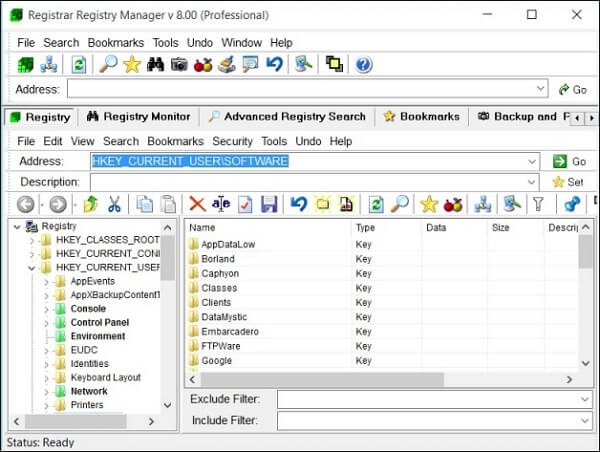
The Registrar Registry Manager is a free software that helps manage your computer's registry. It allows for easy backup of the registry, as well as fast background search and replacement capabilities. Additionally, it features a bookmark editor with categorized bookmarks and key coloring, and the ability to add descriptions to registry keys and values. The software also offers other registry management options, such as defragmentation, comparison, and sharing.
Highlighted Features:
- It has a Command line interface.
- It offers multi-level undo operations for registry changes, allowing you to revert modifications safely.
- It provides a registry defragmenter and a registry monitor, which the system and other programs can access.
- It offers security editors that allow users to set access restrictions on registry keys, ensuring secure access control.
Top 2. Abexo Free Registry Cleaner
Available platforms: Windows/Windows XP
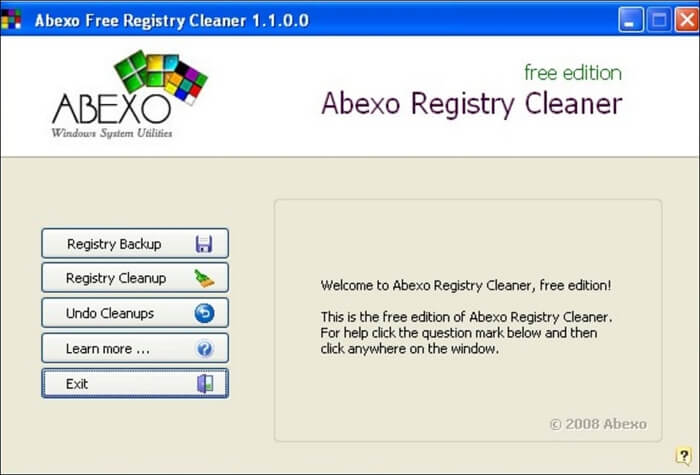
Abexo Free Registry Cleaner is a free registry tool that allows you to create backups and cleanups, with the option to undo cleanups if needed. It can remove unwanted and bad registry files, freeing up space and speeding up your computer's performance. By selecting the registry backup option, you can run a backup before cleaning the registry, and then restore the cleanup if any errors occur.
Highlighted Features:
- It can clean bad registry files and speed up your computer.
- The interface is very neat and easy to understand.
- It can scan and compact registry and restore registry quickly.
Top 3. RegScrub
Available platforms: Windows/Windows XP
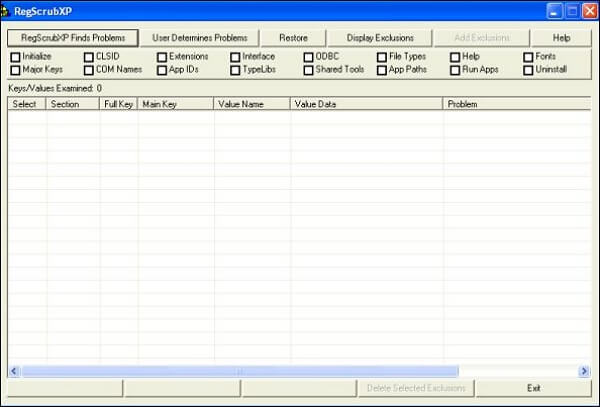
RegScrub is a free registry cleaner and backup tool that scans for errors, creates automatic registry backups, and allows users to manage and restore backups, making it suitable for both novice and experienced users.
Highlighted Features:
- It is relatively easy to use and quite rapid.
- While scanning, it displays a list of all found errors.
- It can provide a report containing all the actions.
Top 4. O&O RegEditor
Available platforms: Windows 10/8.1/ 8/7/Vista
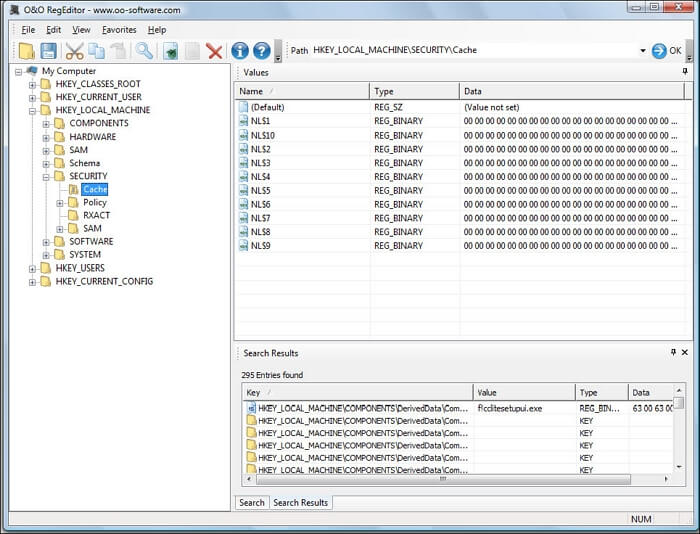
O&O RegEditor is a free Registry editor for Windows that offers the same features as the built-in Registry Editor. With this software, you can easily manage your Windows registry, including creating a registry backup by exporting it to a .REG file in any folder. This feature also allows you to import and restore your registry backup, making it a useful tool for both home users and administrators who need to make registry changes. Overall, O&O RegEditor can make the process of working with the registry faster and more efficient.
Highlighted Features:
- The tool can copy and paste entire keys, sub-keys, and their values, making it a useful resource for users who need to manage and manipulate registry entries.
- The frequently used keys can be preset as favorites.
- It can make accessing a registration database in Windows systems very quick and simple.
Top 5. Registry Backup Utility
Available platforms: Windows Vista/Windows XP
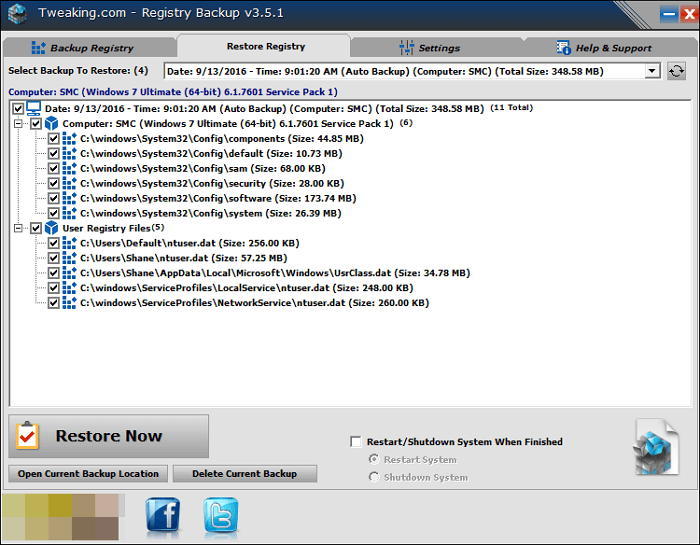
Registry Backup Utility is a simple, standalone backup tool for Windows that requires no installation. Running the program automatically creates a registry backup and saves it on the Desktop. Each time you run the software, it generates a new backup, and you can restore the backup by running the .REG file.
Highlighted Features:
- It requires no installation.
- It creates a backup of your registry files and data quickly and efficiently.
- Users can double-click on the REG file to restore the backup.
A More Comprehensive Solution: Making a Computer System Backup
In addition to the above registry backup tools, you can also create a system image, which contains all information about your computer, including the Windows Registry, to achieve the same effect as registry backup software. This can be done using professional tools like Qiling Disk Master Free, which provides a convenient way to back up your system.
Qiling Disk Master Free is a comprehensive backup utility that offers a range of features, including file backup, SSD image backup, and easy-to-use backup and restore processes. It also provides 250GB of free cloud storage, making it a suitable option for users of all levels, including free, home, and business users.
Guide: how to create a system backup with this software
To create a system backup, you can follow these steps: first, identify the type of backup you need, such as a full system image or a selective backup of specific files and folders; next, choose a backup method, such as using an external hard drive, cloud storage, or a backup software; then, select the data you want to include in the backup, such as system files, user data, and installed programs; after that, configure the backup settings, such as the backup frequency and storage location; and finally, initiate the backup process, which may take some time depending on the amount of data being backed up.
Step 1. Launch Qiling Disk Master on your computer, and click the Backup tab page.

Step 2. To start backing up your Windows operating system, click on the "System backup" option to initiate the backup process.

Step 3. In Windows, the system information and all system-related files and partitions are automatically selected, so no manual selection is required. The next step is to choose a location to save the system image backup by clicking on the designated area.

Step 4. The recommended backup location is an external physical drive or cloud, as they provide a safe and separate place to store system backup files.

Step 5. Customization settings such as enabling an automatic backup schedule are available in the Options button, allowing you to choose daily, weekly, monthly, or event-based backups. You can also select differential and incremental backup options. After making your selections, click Proceed to initiate the Windows system backup process. Once complete, the backup task will be displayed on the left side in a card style.

Final Thoughts
The software mentioned above allows you to create Windows Registry backups, and we highly recommend Qiling Disk Master Free among the six backup tools. This software enables you to perform various backups with minimal effort and helps you follow the 3-2-1 backup rule, ensuring better protection for your computer's data.
FAQs
1. What is stored in the software registry file?
The Windows Registry is a hierarchical database that stores settings for the Windows operating system and applications that utilize it, with the kernel, security accounts manager, device drivers, and user interfaces all relying on it.
2. What is the purpose of a registry?
The Windows registry is a hierarchical database that helps manage and operate your computer, ensuring access to critical resources and allowing vital programs to configure settings. It consists of a structure of keys and values.
3. What are the main types of registry data?
The Windows Registry supports several value types: REG_SZ (string), REG_DWORD (32-bit number), REG_QWORD (64-bit number), REG_BINARY (binary data), and REG_MULTI_SZ (multi-string), among others.
4. What is the difference between a registry and a database?
A database and a registry are two related but distinct concepts. A database is a collection of organized information that allows for easy search and retrieval, whereas a registry is a collection of information or database that receives data from various sources, maintains it over time, and controls access to it.
Related Articles
- Cloud Backup vs. Local Backup - Which One Is Better? Or Both?
- System Image Recovery vs. System Restore in Windows 11/10/8/7
- How Much Space Does a Windows 10 Backup Take | Find Your Answer Here!
- [Steam Tutorial] How to Backup and Restore Steam Game Files
- What is Disk Imaging | See Definition & Learn File Formats & Application
- Can I Upgrade My Laptop Processor | Your Answer Is Here
A laptop's CPU is a remarkable piece of tech. It performs on the same level as many desktop computers while consuming only a quarter of their power. So, is it possible to upgrade the processor on a laptop and take the performance even higher? This article will help you answer this question and more.
Products
Articles & Tutorials
- Data Recovery
- Data Backup
- File Recovery
- File Backup
- System Backup and Restore
- Disk and Partition Clone
- Technical articles
- Mobile articles
- Disk Master Help
- Windows Data Recovery Tutorials
- Windows Secure Delete Tutorials
- Windows Partition Management Tutorials
- Windows File Backup and Restore Tutorials
- Windows System Backup and Restore Tutorials
- Windows Disk Backup and Restore Tutorials
- Windows Clone Tutorials