How Much Space Does a Windows 10 Backup Take | Find Your Answer Here!
The size of space required for Windows 10 backup depends on your specific needs and requirements, making it difficult to give a clear answer. However, to help you determine the size you'll need, we'll explore how to backup storage effectively. By understanding what you need to backup and using methods such as manual backups, system image backups, and file history, you can optimize your storage space and ensure your important files and data are safely backed up. This will help you make the most of your available space and ensure your Windows 10 backup is efficient and effective.
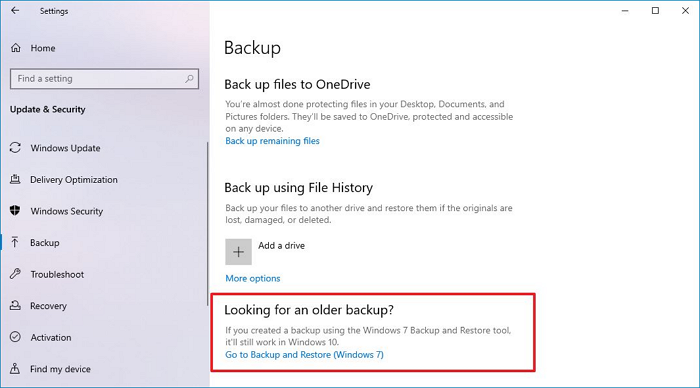
The Space A Windows 10 Computer Needs to Backup
When backing up important data from devices and drives, it's essential to consider the space required. The amount of space needed depends on the type and quantity of data, such as documents, images, music, videos, and even disks. If the prepared space is insufficient, a new one may be needed, making it crucial to estimate the required space based on your online activity, the material you produce, and the files you use.
- All types of files are in one account.
If you have 250GB of files, a good rule of thumb is to double that amount to determine the storage space you'll need, so you would require at least 500GB of storage space.
- The minimum space for backup.
You will need at least 16 GB of free space to create a backup, whether using a USB drive or another disk. This is the minimum required for Windows backups, but note that the recovery drive has limited storage, and personal files and third-party software cannot be backed up.
- The storage of a disk to back up a disk or a partition.
To determine the amount of storage needed for a Windows 10 backup, simply divide the quantity of data required by the amount of disk space available. Typically, you'll need at least 1.5 to 2 times the volume of your PC, so if your computer's volume is 126GB, you'll need around 256GB of space to back it up.
To find the capacity of a disk in your computer, press the Windows logo key + E to open File Explorer, and click on the "This PC" icon to view the disk's storage capacity.
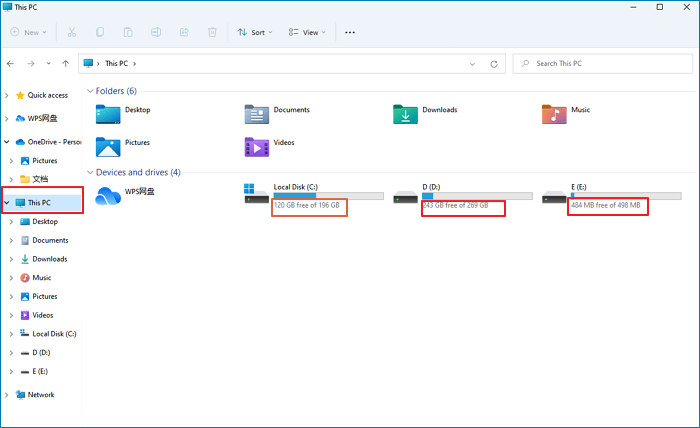
196 GB of space is needed to back up everything on Local Disk(C:).
🚩Further Reading: How to Backup Entire Hard Drive Windows 10
How to Save Disk Space with a Reasonable Backup Method
To store a lot of space, consider using different backup methods such as cloud backup, external hard drives, or tape drives. Each method has its own cost, data retention, performance, and data protection levels, so it's essential to balance these factors to find the best solution for your needs.
- Use A Trustable Application to Save the Space on Your Disk
- Use Cloud Drive to Store your data.
- Using an External Hard Drive is Another Good Choice
- Use USB to Back up Your Data
- Time Machine Can Be Your Other Choice
Use A Trustable Application to Save the Space on Your Disk
Qiling Disk Master is a Windows backup software that can help save disk space and increase backup speed. It offers various functions such as disk partition management, disk clone, and data recovery, making it a good choice for users who need to manage their disk space and backup data efficiently.
- The best way to create backup compression. Compression of backups can help optimize storage space by reducing data size through the elimination of repetitions and redundancies, effectively shrinking the file size through better encoding of its contents.
- Merge split file function. Qiling Disk Master's Merge and Split feature allows you to split large files into smaller ones to save disk space by backing up only needed parts, or combine multiple files into one large file for faster backups.
- Highly supports backup options. You can choose from three options as a backup destination: an external hard drive, manually entering a network share or cloud service path, or using a cloud service. In the picture reserve strategy, you can specify how many days' worth of photos to retain. You can also decide on the backup frequency, choosing daily, weekly, or monthly backups. The premium edition offers more advanced features, including Smart Backup, global restore, clone disk free, and partition, as well as full, incremental, and differential backup options.
- Pros:
- User-friendly
- Hassle-free refund
- An old brand for data backup and recovery
- Multiple different versions (Free, Home, Mac)
- Cons:
- Need to install a third-party application
- Will use an e-mail to register
Use Cloud Drive to Store Your Data.
Many cloud service software, including Alibaba Cloud, Baidu Cloud, Google Drive, and Dropbox, offer data backup services to help users protect their digital files.

- Pros:
- Large memory space
- Free to use
- Back up automatically
- Cons:
- Unsafe ( Others can steal your account)
- Internet Needed
Using an External Hard Drive is Another Good Choice
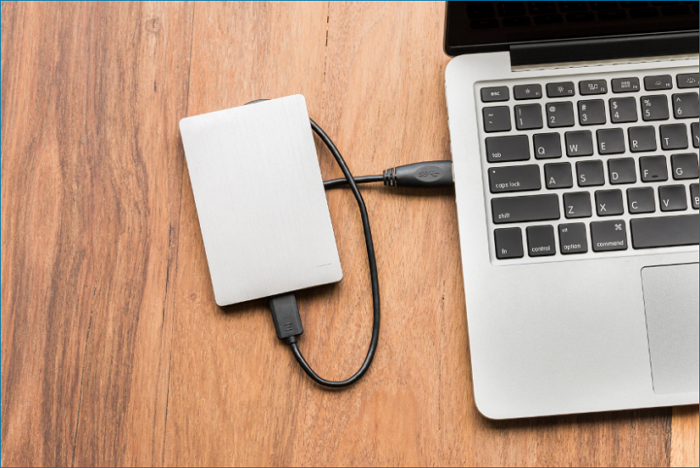
You can use an external hard drive to save space on your computer and store essential files, but choose one that meets your needs, rather than the largest size available.
- Pros:
- No Internet needed
- Easy to carry
- Many size to choose
- Cons:
- Expensive
- Easy to lose or be stolen
Use USB to Back up Your Data
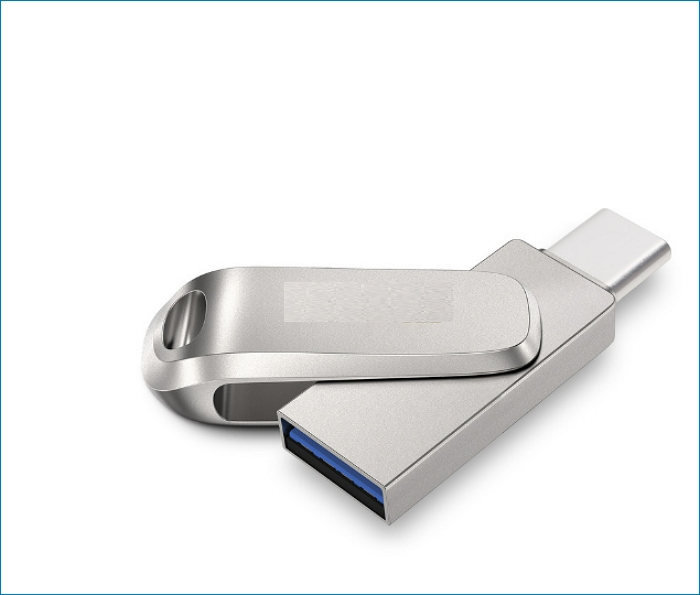
Using a USB stick can also work, allowing us to create a system image of Windows 10 on the USB drive, which can help save space on the computer.
- Pros:
- Small
- Cheap
- Convenient to use
- Cons:
- Not safe enough to store data
- Simple to misplace
Time Machine Can Your Other Choice
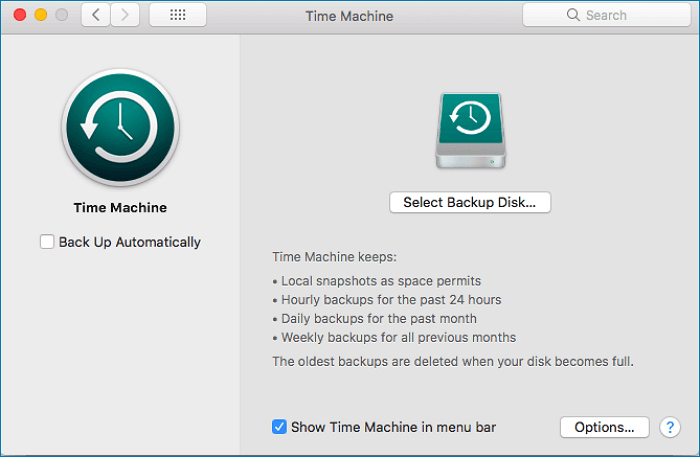
Apple's desktop operating system, macOS, utilizes Time Machine as its backup system, which can also be used with network-attached disks and local storage devices.
- Pros:
- Automatically back up
- Multiple backup frequencies to choose from
- Cons:
- Expensive
- Easy to lose
The Bottom Line
Knowing how much space a Windows 10 backup takes can help you use reasonable backup methods to save disk capacity. I recommend using Qiling Disk Master Pro, which is potent and has a free version that can fulfill many of your needs.
FAQ
1. How large is a Windows 10 backup image?
A system image is a complete snapshot of a computer's hard drive, typically around 500 GB in size, which can be used to create an exact replica of the system on another computer. Qiling Disk Master is a tool that can be used to create a system image for another computer.
2. How many GB does it take to back up a laptop?
For most average users, a drive with 2TB to 4TB of storage is sufficient. However, if you frequently work with large video or Photoshop files, you may need more space. Additionally, professionals may want to consider a high-capacity raid array for added security and backup capabilities.
3. What kind of CD do I need to back up my computer?
To make a backup to a blank CD-R, CD-RW, DVD-R, or another writable disc, you'll need CD/DVD writing software, and every time you want to create a backup, you'll need to put the CD into the computer.
Related Articles
- Qiling Disk Master vs Acronis True Image
- Make a Bootable Backup for Windows 11
- Five Excellent NAS for Small Business Backup 2024
- Backup HDD with Bad Sectors [Detailed Guides]
Learn how to back up an HDD with bad sectors, protect readable data, and reduce the risk of data loss from a failing hard drive. - Troubleshooting of a Failed Hard Drive to SSD Cloning
Cloning a hard drive to an SSD can be problematic, especially when dealing with failed hard drives containing bad sectors. If the cloning software encounters issues, it may terminate the process and display an error message. - Windows 10 Backup Error Code (0x807800C5) – Why & How to Fix
Are you experiencing the Windows 10 backup error code (0x807800C5)? This guide will show you why the error occurs and how to fix it. Moreover, we'll provide an alternative to Backup and Restore, which can help you create a system image with ease.
Products
Articles & Tutorials
- Data Recovery
- Data Backup
- File Recovery
- File Backup
- System Backup and Restore
- Disk and Partition Clone
- Technical articles
- Mobile articles
- Disk Master Help
- Windows Data Recovery Tutorials
- Windows Secure Delete Tutorials
- Windows Partition Management Tutorials
- Windows File Backup and Restore Tutorials
- Windows System Backup and Restore Tutorials
- Windows Disk Backup and Restore Tutorials
- Windows Clone Tutorials