Windows 10 Backup Error Code (0x807800C5) – Why & How to Fix
Windows 10 has a built-in backup feature, but it may encounter errors like code 0x807800C5 when creating a system image, potentially leading to data loss due to viruses or malware.
"Windows 10 Backup Error Code 0x807800C5: The system cannot find the file specified. The backup operation failed to complete.
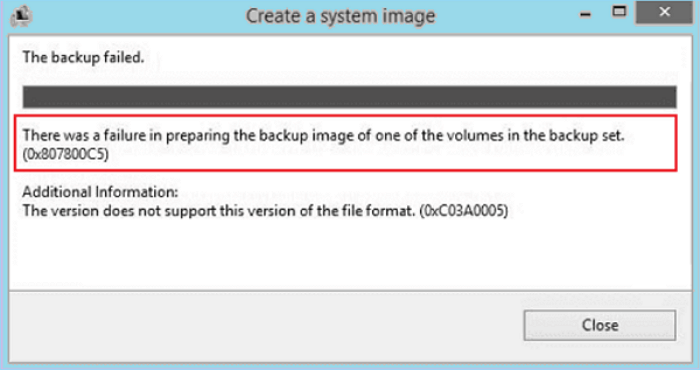
Don't worry if you see this Windows 10 backup error code (0x807800C5). This guide will show you why the error occurs and how to fix it. Moreover, we'll provide an alternative to Backup and Restore, which can help you easily create a system image.
Why the Error Code 0x807800C5 Appears
The Windows 10 backup error code 0x807800C5 is typically caused by duplicate Windows system image backup or file backup tasks, where two or more backup tasks are trying to back up the same Windows image or file.
The backup error can also be caused by a corrupt or damaged Windows system file, or by a third-party program or app running on your computer that is blocking the backup process.
- Tip
- If you don't want to try the solutions one by one, you can jump to the part where we provide a Windows Backup and Restore alternative, making it easier to back up your system, file, disk, or email.
How to Fix Windows 10 Backup Error Code 0x807800C5
Situation 1. Backup and Restore Is Performing Multiple Tasks
Windows Backup and Restore in Windows 7 only allows one backup of the same system or file. If you try to save a second copy, you'll get error code 0x807800C5. To resolve this, consider renaming the WindowsImageBackup folder or removing the existing backup file.
Follow the steps below to rename WindowsImageBackup folder:
Step 1. Find the WindowsImageBackup file on your computer, which is the default name for your system image backup.
Backup and Restore allows you to choose the specific location where you want to put the backup, but you need to remember where you saved the backup folder.
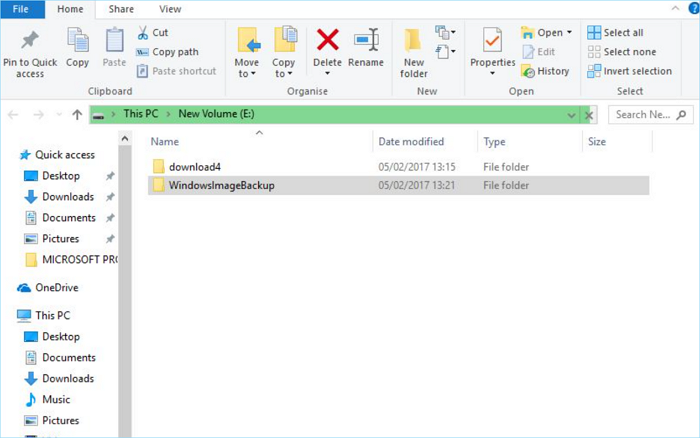
Step 2. Right-click the folder and select "Rename" or delete the previous backup folder.

Step 3. Enter a different name and save it.
Step 4. To create a system image, go to Backup and Restore (Windows 7) and select "Create a system image". Choose a location to save the image, and select the drive you want to back up.
Situation 2. Third-party Programs or Applications Block
You're experiencing an issue likely due to your computer's antivirus, firewall, or other security software. To resolve this, try performing a clean boot, which involves temporarily disabling these programs to see if they're interfering with the system. This can help you identify and potentially resolve the problem.
The steps below show how to do it:
Step 1. Press the Windows key + R keys to open the Run box, and then type "msconfig" in the box and hit Enter.
Step 2. In the System Configuration window, go to the "Services" tab, check the "Hide all Microsoft services" option, and then click "Disable all".
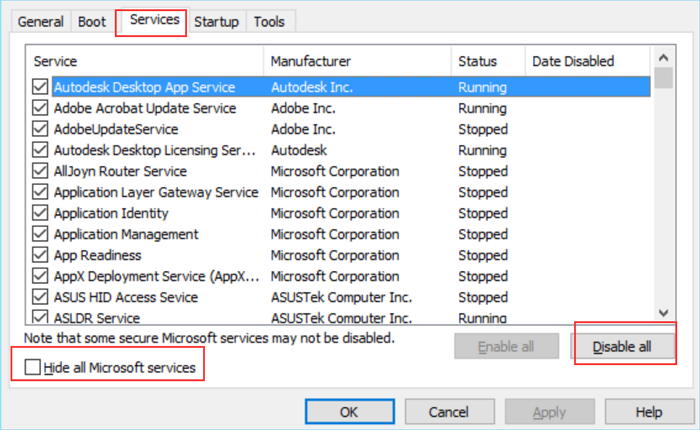
Step 3. Go to the Startup tab, and click Open Task Manager.
Step 4. To disable startup programs in Windows, go to the Task Manager, select each startup item, and click Disable. This will prevent the program from running at startup.
After completing the steps, restart your computer and attempt to back up your system again to see if the error code 0x807800C5 has been resolved.
Windows Backup and Restore Alternative: Create System Image Easier
Microsoft's Backup and Restore tool has several issues, including error code 0x807800C5, backup getting stuck at 97%, and frequent failures, making the backup process difficult.
To make the backup and restore process more accessible, we recommend trying Qiling Disk Master Pro, a better alternative to Windows Backup and Restore, which can help make a system image or file backup with ease and also provides features like disk/partition backup, clone, email backup & recovery, and scheduled backups.
Qiling Disk Master Pro offers an attractive feature of storing backups to multiple targets, including internal and external hard drives, cloud services like Google Drive and OneDrive, Qiling Cloud, NAS, and even Qiling Disk Master's security zone, providing users with various options to safeguard their important data and prevent loss.
Here are the detailed steps to use Qiling Disk Master Pro to back up the system:
Step 1. Launch Qiling Disk Master and choose "Create Backup" on the home page, clicking "Select backup contents" afterwards.

Step 2. Click on the "System backup" option to initiate the backup process.

Step 3. The system partition will be automatically chosen, and you only need to select the location for the installation.

Step 4. You can save the backup file on your local drive, in the cloud, or on a network-attached storage (NAS) device, and also connect an external hard drive to store system backup files.
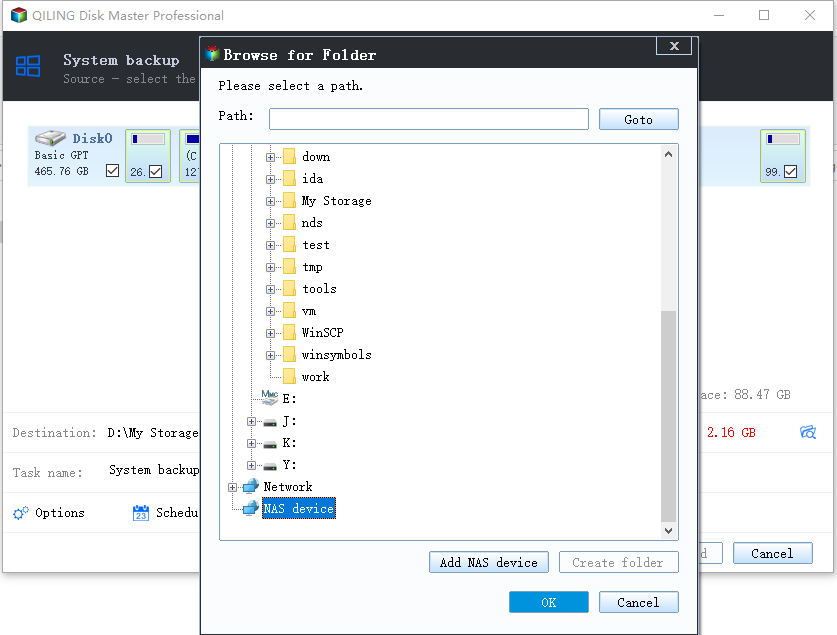
Step 5. You can customize settings in "Options" and then click "Proceed" to start the process.
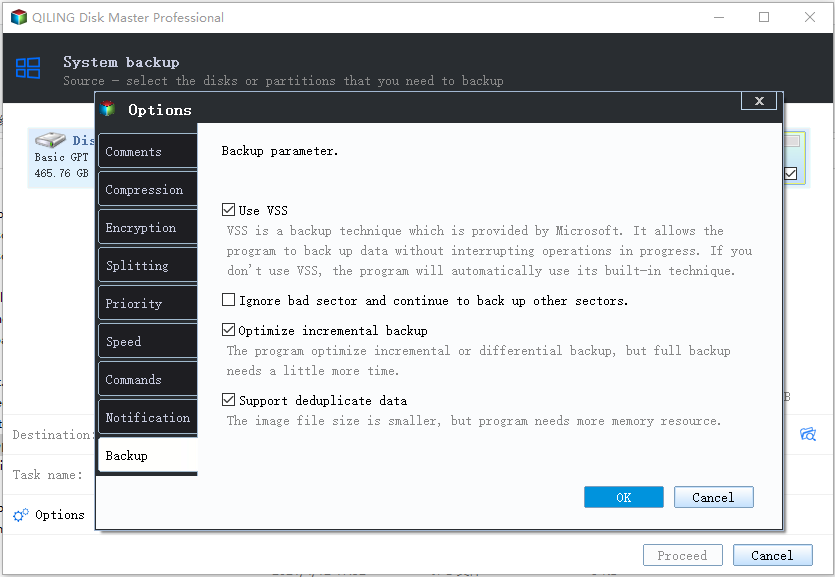
After completing the backup process, you can check the backup status, recover, open, or delete the backup by right-clicking on the backup task on the left.
Final Thoughts
We've identified possible reasons for Windows 10 backup error code 0x807800C5 and provided two methods to resolve the issue. If you're not comfortable with the complex steps, you can try using Qiling Disk Master Pro, a reliable backup solution that can create a system image or file backup, which is a crucial step you shouldn't miss.
FAQ on Windows 10 Backup Error Code 0x807800C5
Why is my Windows 10 backup not working?
There can be several reasons for this issue:
- The backup destination is not available
- You try to back up files from an external drive that has been removed
- Backup is running
- There are system issues, etc.
What is Windows image backup?
Windows image backup creates an exact copy of your hard drive, including the operating system, settings, applications, and user data, allowing you to restore your computer to a previous state if something goes wrong.
Related Articles
- Exclude OneDrive from Antivirus Software Scan
- Top 3 Reasons to Download Qiling Cloning Software for HDD SSD Clone/OS Migration
- Download WinPE Builder for All Windows
- Backup Hard Drive to Cloud [How to] + Feasible Cloud Backup Suggestion
- What is Disk Imaging | See Definition & Learn File Formats & Application
- [2022 Featured Pick] 5 Best Backup Software for Small Business
For small business owners, the best backup tools are those that make it easy to use, and this article aims to help them find the ideal backup software for their needs.
Products
Articles & Tutorials
- Data Recovery
- Data Backup
- File Recovery
- File Backup
- System Backup and Restore
- Disk and Partition Clone
- Technical articles
- Mobile articles
- Disk Master Help
- Windows Data Recovery Tutorials
- Windows Secure Delete Tutorials
- Windows Partition Management Tutorials
- Windows File Backup and Restore Tutorials
- Windows System Backup and Restore Tutorials
- Windows Disk Backup and Restore Tutorials
- Windows Clone Tutorials