Troubleshooting of a Failed Hard Drive to SSD Cloning
Content Navigation:
- What is a Failed Hard Drive & Why Need to Clone It?
- Hard Drive to SSD Cloning Failed with an Error Message
- #1. Troubleshooting: Clone a Failed Hard Drive
- #2. Troubleshooting: Cloning Process Failed
When attempting to clone a failed hard drive to an SSD, two scenarios may arise: the hard drive itself is failed or damaged, or an error message occurs during the cloning process. In this article, we will address both cases, providing solutions to help resolve the issue.
What is a Failed Hard Drive & Why Do You Need to Clone It?
A failed hard drive occurs when a hard disk drive (HDD) malfunctions, preventing access to stored information even with proper computer configuration. Causes include human error, hardware failure, firmware corruption, media damage, heat, water damage, power issues, and accidents.
The HDD is prone to damage due to its physical structure, with components like platters, heads, spindles, and actuators wearing out over time as they rotate and record data. This wear and tear causes the head and platter to gradually degrade, leading to potential damage.
When a hard disk drive fails, it can't access stored information, making it hard to boot the computer. To save the stored information and system data, cloning the failed hard drive is the best option. This way, you can keep the data safe and recover it if needed.
Hard Drive to SSD Cloning Failed with an Error Message? What Happened?
When cloning a hard drive to an SSD using software like Qiling backup, the process may fail with an error message, such as "clone failed" or "Failed to clone the disk". This is often due to issues with the source hard drive, such as bad sectors or file system errors, which prevent the cloning process from completing. Additionally, if the source hard drive is larger than the destination SSD, the cloning software may struggle to resize the cloned partitions, leading to the error message. In both cases, the cloning process is suspended, and the user is left with an incomplete or failed clone.
#1. Troubleshooting: Clone a Failed Hard Drive
Cloning a failed hard drive to prevent data loss requires a sector-by-sector clone, as most failed drives have only a few bad sectors, not a complete failure. This method aims to copy as much data as possible from each sector, minimizing the risk of losing all data on a partition or disk.
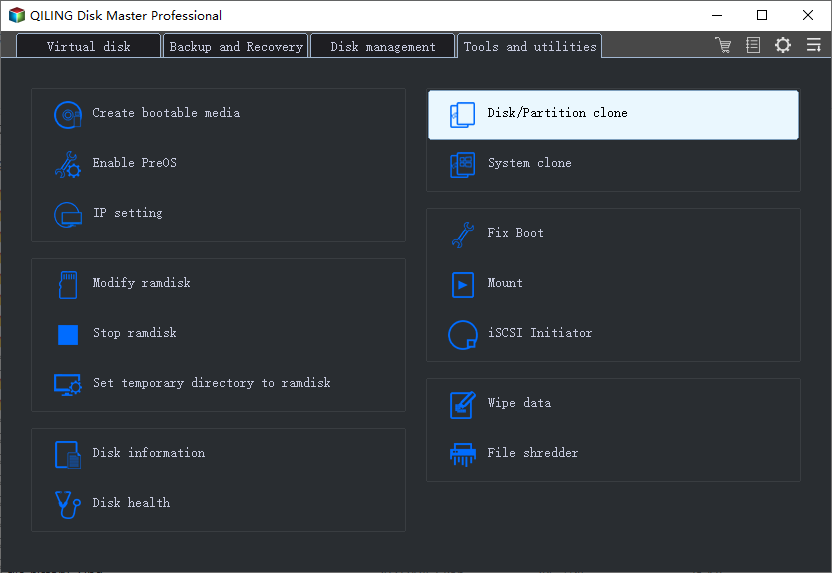
You can use Qiling Backup, an all-in-one clone and backup tool, to clone a failed hard drive. This software has a sector-by-sector clone function, making it suitable for cloning a failed hard drive. To use Qiling Backup, follow these steps:
Step 1.To clone or system clone in Open Qiling Backup, navigate to the "Tools and utilities" page and select the desired function, choosing either Clone or System Clone as needed.
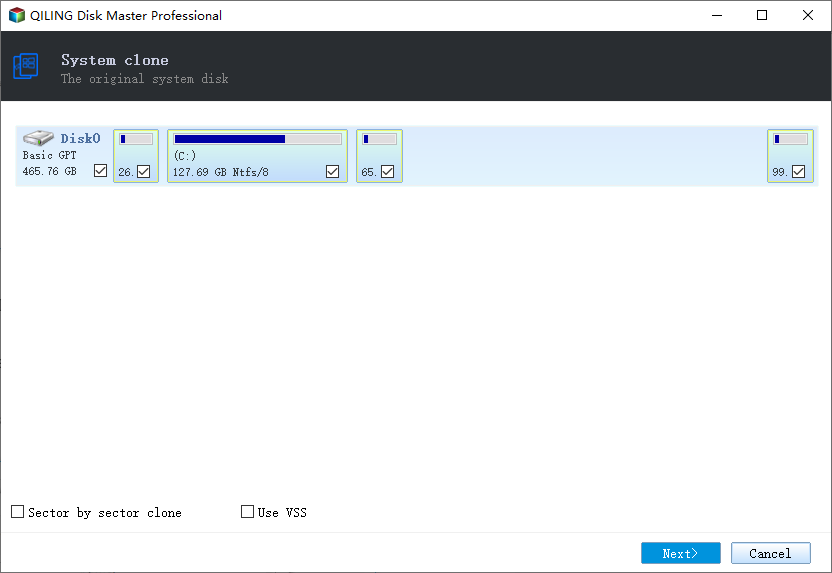
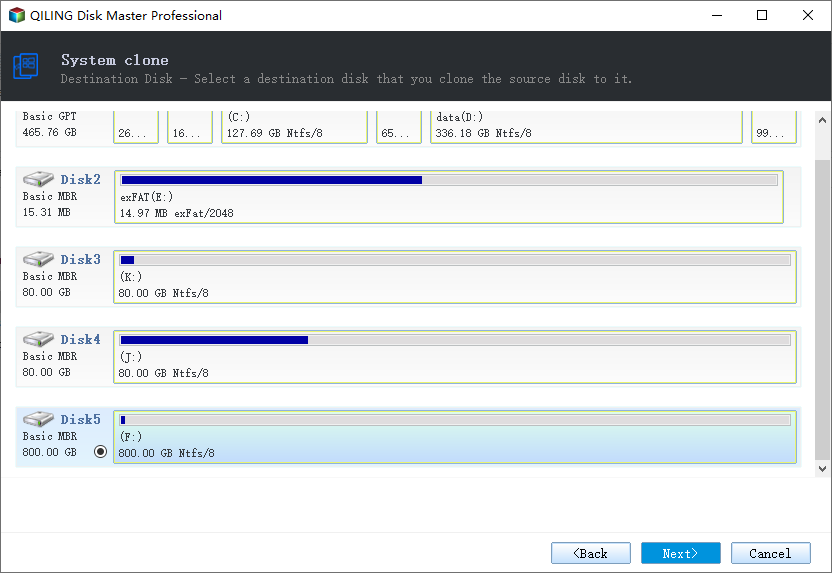
Step 2. Choose the source disk or partition as well as the target disk. (Make sure the space of the target disk is larger than that of the source disk or partition.)
When you click "Next", you will see a warning message. Be aware of the risks of cloning a hard drive and click OK.
Step 3.To clone a disk sector by sector, go to the advanced options and select the "Sector by sector" clone option, which will initiate a sector-level cloning process that mirrors the exact layout of the source disk onto the target disk.
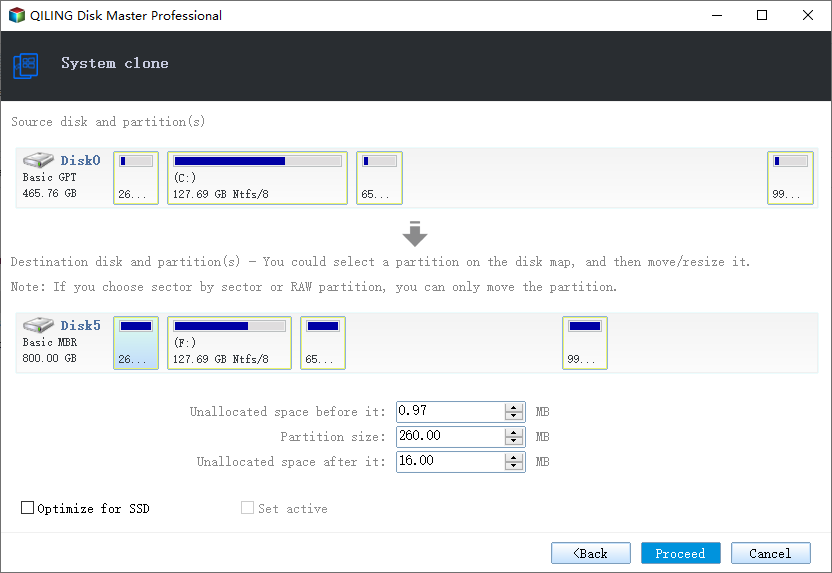
Step 4. Click "Proceed" to start cloning.
#2. Troubleshooting: Macrium Reflect/Acronis True Image Clone Failed
The clone software failed to finish the cloning process due to several reasons, including unequal logical sector sizes between the source and target disks, potential damage to the hard disk, or the software's inability to execute certain operations. To resolve this, you can try checking the solutions provided below.
1. Check Hard Disk Logical Sector Size
To check the sector size of your hard disks, you can follow these steps: First, open the Command Prompt as an administrator. Then, type the command "wmic diskdrive get size" and press Enter. This will display the size of each disk drive in your system. Next, type the command "wmic diskdrive get sectorsize" and press Enter. This will display the sector size of each disk drive in your system. The sector size is usually displayed in bytes.
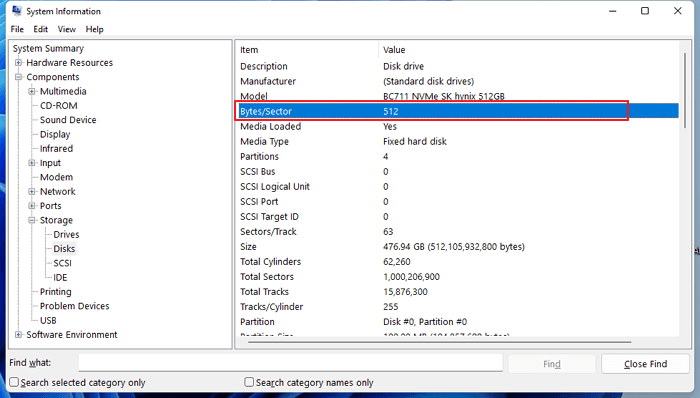
Step 1. To open System Information, press the Windows key + R to open the Run box, type "msinfo32", and press Enter. This will open the System Information window, where you can view detailed information about your computer's hardware and software configuration.
Step 2.To check your desired disks, go to Components > Storage > Disks.
Step 3. The logical sector size of a disk can be viewed by checking the Bytes/Sector value, which shows the number of bytes in each sector, such as 512 bytes per sector.
2. Repair Hard Disk with CHKDSK Command
There is a Windows built-in tool that could help users quickly repair the hard disk. As you can still boot your computer, it means your disk couldn't be badly damaged. So you can use the chkdsk command to try to repair your disk. Here are the steps.
Step 1. To open Command Prompt, press the Windows key + R to open the Run box, type "cmd" and press Enter. This will open the Command Prompt window where you can execute commands and interact with the operating system.
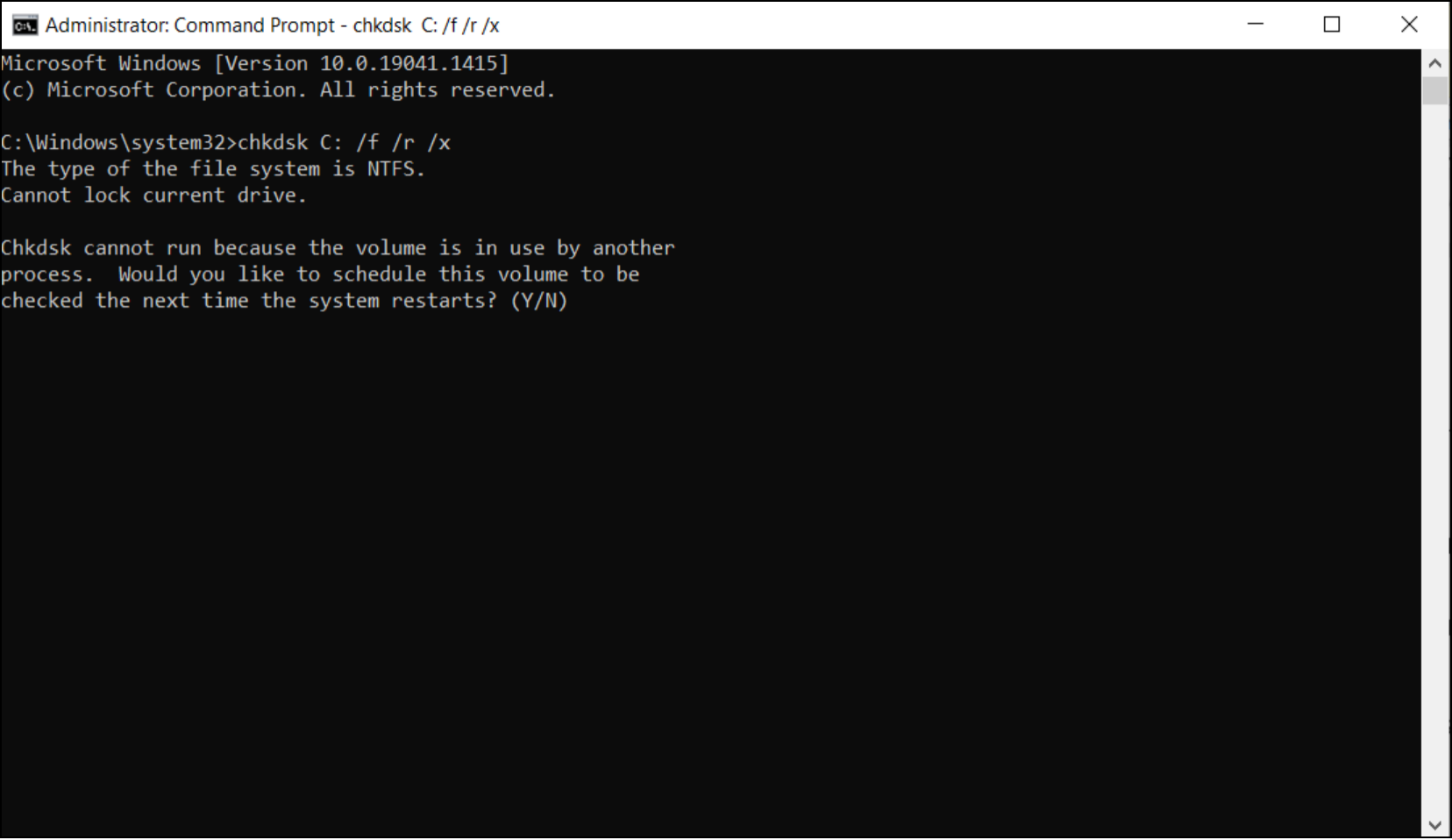
Step 2. To run a disk check on a Windows system, open Command Prompt as an administrator, type the command line "chkdsk c /f /r", replacing "c" with the drive letter of the partition you want to check, and press Enter. This command will scan the disk for errors, fix any issues it finds, and then perform a thorough scan of the disk to ensure its integrity. The "/f" option tells the command to fix any errors it encounters, and the "/r" option tells it to perform a read-only scan to ensure the disk is in a healthy state.
Step 3. Windows will automatically check and fix any disk errors when you press Enter. This process is done to ensure that your disk is in good condition and to prevent any potential issues that may arise from disk errors.
To clone a disk, you'll need to use a disk cloning software or utility. This process typically involves creating a sector-by-sector copy of the original disk, which can take some time depending on the size of the disk.
3. Change Another Cloning Software
If you're sure your hard disk is working fine but still get a clone failed error message, consider switching to another tool. Alternatively, you can use Qiling Backup.
If you've had trouble with disk cloning using other software like Acronis, Macrium Reflect, or Clonezilla, Qiling Disk cloning software is a viable alternative. Its user-friendly interface and robust features make it an attractive option, especially considering the technical support that may be lacking in other brands.
- A 10-year reliable brand with market domination status
- The tool is specialized for disk cloning, enabling sector-by-sector cloning on faulty drives, making it a reliable option for recovering data from problematic storage devices.
- 24x7 online support and remote assistance from experienced IT group
- The system is designed to be user-friendly, with a simple and intuitive wizard guide that helps users avoid making mistakes, making it more efficient and effective.
- Industry experts highly recommend this hard drive cloning software as one of the top five options available, making it a reliable choice for users.
The Bottom Line
To transfer data from a failed hard drive to a safe location, you can clone it to another fully-functional disk using software that supports sector-by-sector cloning, such as Qiling Backup. This can help rescue data from the failed hard drive.
A failed disk cloning process can be caused by several reasons, including an unmatched logical sector size, hard drive bad sectors, or the cloning software crashing. To resolve the issue, you can try checking and repairing your hard disk using the methods mentioned in the article. If these methods don't work, you may need to consider an alternative approach.
For a step-by-step diagnosis of failures before, during, or after cloning, see Why Can You Not Clone a Hard Drive to an SSD?.
Related Articles
- Windows 7 Guide: Create Schedule Backup on Windows 7
- Create Portable Windows 11/10/8/7 USB Drive in 2 Ways
- How to Install Windows 10/8/7 on Multiple Computers at The Same Time | System Deployment Solution
- Fix "Recovery Drive Please Wait" [Step-by-Step Guide]
- How to Backup and Restore 7 Days to Die Save [3 Effective Ways]
7 Days to Die is a popular survival video game and requires regular backups of game saves to safeguard your progress. Here are 3 effective ways how to back up 7 Days To Die to save in 2023 with detailed steps for each method. - 2 Tips | How to Backup Firefox History on Windows 11/10/8/7
Compare two ways to back up Firefox history on a Windows PC.
Products
Articles & Tutorials
- Data Recovery
- Data Backup
- File Recovery
- File Backup
- System Backup and Restore
- Disk and Partition Clone
- Technical articles
- Mobile articles
- Disk Master Help
- Windows Data Recovery Tutorials
- Windows Secure Delete Tutorials
- Windows Partition Management Tutorials
- Windows File Backup and Restore Tutorials
- Windows System Backup and Restore Tutorials
- Windows Disk Backup and Restore Tutorials
- Windows Clone Tutorials