Cloud Backup vs. Local Backup - Which One Is Better? Or Both?
| Workable Solutions | Step-by-step Troubleshooting |
|---|---|
| 1. Cloud Backup VS Local Backup |
1. Advantages and disadvantages of cloud...Full steps 2. Advantages and disadvantages of local...Full steps |
| 2. A Comprehensive Software | Click the "Select backup contents" button to...Full steps |
Cloud backup vs. local backupThe debate between two backup options has been ongoing, and many are unsure which one is more suitable. To help with this decision, we will weigh the pros and cons of each option, providing an in-depth analysis to determine which one is best for you.
You're looking for a way to back up your data in the cloud, but also want a local copy for added protection. That's a great approach to ensure your data is safe and easily accessible. Would you like some suggestions on how to achieve this?Qiling Backup can take you there
What's Cloud Backup?
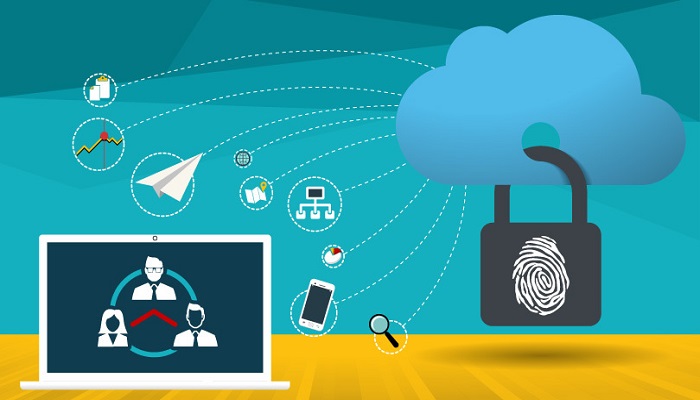
Cloud backup involves storing your data online on a cloud server, such as Google Drive, OneDrive, or Dropbox, where it's accessible at all times. You upload your data to the chosen platform, and it's stored securely, with many offering up to 5 GB of free storage. If your data exceeds this limit, you'll need to pay a monthly fee to continue using their services, which are generally affordable and offer a convenient way to keep your data safe and backed up.
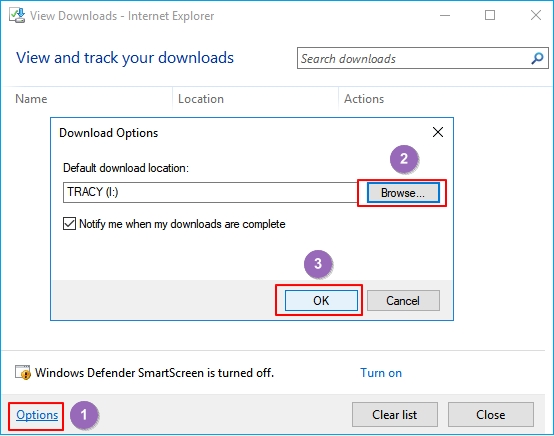
To backup OneDrive to an external hard drive in Windows 10, you can use the built-in Backup and Restore feature. First, connect your external hard drive to your computer and make sure it's formatted to the NTFS file system.
When OneDrive storage space is full, users may consider backing up OneDrive files to an external hard drive to free up space and ensure data safety. This can be done by syncing OneDrive files to the external drive, which can be a convenient and efficient way to manage storage space and protect important files.
Advantages and Disadvantages of Cloud Backup
Cloud backup is a storage option that allows users to back up their data to remote servers over the internet, providing a safe and accessible way to store and recover data in case of loss or damage. However, it also has some limitations, such as relying on internet connectivity and potential security risks.
#Advantages of Cloud Backup#
- Convenience
Creating a cloud backup is a convenient method to back up your data, requiring only login details such as an email and password to create an account on a cloud server and upload your data. With the synchronization feature turned on, your data is automatically backed up, making it an effortless way to safeguard your information.
- Access to cloud everywhere
The biggest advantage of using a cloud server for backup is that the data becomes accessible remotely. This is a significant benefit compared to local backup, which is not always available on demand. Cloud backup is always at hand, no matter where you are, and can be accessed with just a click, making it a convenient and reliable option.
- Economic: less money but more storage space
Cloud backup is a cost-effective option compared to local backup, as it eliminates the need to purchase a hard drive or SSD. Many cloud servers also offer free storage space, such as Google Drive's 15GB, and charge a minimal fee for exceeding the limit. This makes cloud backup a more pocket-friendly choice.
- Security: stay away from disasters, and cyberattacks
Cloud servers are a secure way to back up data, with private clouds being more secure than public ones. While some may disagree, public clouds are not inherently unsafe. Businesses, in particular, should consider cloud backup a must-have to protect against cyber threats and other risks.
- Scalability: upgrade storage space anytime
Cloud servers offer flexibility in storage space, allowing for upgrades without the need for additional external hard drives, and can be customized for large businesses, differentiating them from local backups.
#Disadvantages of Cloud Backup#
- Lack of flexibility
Review your contract to see if you can download your data after it ends, and consider extending the contract to keep your data valid for longer.
- Downloading takes time
You're experiencing a long wait time to download your full backup from the cloud, which can take days to complete.
If your OneDrive is not syncing, look for help during server downtime or internet interruptions.
What's Local Backup?
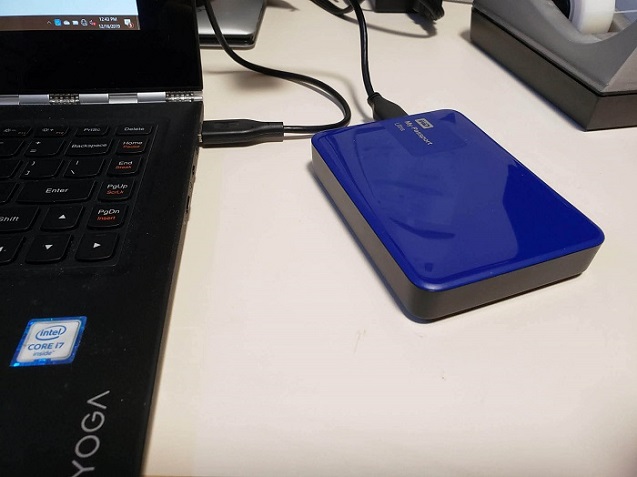
Local backup involves using a local device, such as a flash drive, external hard drive, or CD, to create a backup of your data, offering a popular but also pros and cons-filled solution.
#Advantages of Local Backup#
- Manage the drive yourself
The main benefit of having a local backup is that you have complete control over it, and your data is not exposed to a third-party server, making it more secure.
- Multiple options to choose from
You can choose from various devices such as hard drives, USB flash drives, memory cards, and hard disks to select the one that best suits your backup needs.
#Disadvantages of Local Backup#
- Physical Disasters
Local backups are vulnerable to physical disasters, such as a drive catching fire or rusting, and can be damaged by accidental water spills. They can also be lost or stolen, posing a risk to the integrity of the backed-up data. These physical risks can compromise the effectiveness of a local backup, making it essential to consider additional measures for data protection.
- Device corruption due to improper use, or long time use
Local devices can become outdated and malfunction after a long time, making them unreliable.
- Prone to viruses
They are prone to viruses and malware, can get hacked, and local devices are often easy to hack, making them a major drawback.
- Not scalable
They can run out of space, requiring you to purchase a new device for more storage, and are not upgradable.
Which Is Better? Cloud or Local?
Ultimately, the decision between cloud backup and a physical HDD or SSD depends on your specific needs. While cloud backup is sufficient for individuals looking to back up personal files and photos, businesses and individuals requiring more storage space or wanting an additional layer of security may want to consider investing in both options. This way, you can ensure that your data is safe and secure, whether it's stored online or on a physical device.
Qiling Backup Solution - A Comprehensive Cloud Backup and Local Backup Optionption
To have all your backup needs sorted, we recommend the Qiling Backup solution, which allows you to get this tool to back up your data and is the fastest solution to create a backup.
#Main Backup Features#
- Smart BackupAutomatic backups are performed every half an hour to prevent data loss, eliminating the need for manual backup creation.
- Cloud BackupCloud backup provides a safe backup for all files, offering the best protection and allowing remote access from anywhere in the world with just a click, eliminating the need to carry external disks.
- Local backup featureThe software supports a variety of locations, including physical drives and network/NAS drives, ensuring compatibility and smooth data transfer between devices.
- Different backup optionsThe software provides a range of backup options, allowing users to back up systems, files, and even create a clone of their data using its advanced features.
#Other Useful Features#
- Full/Differential/Incremental Backup
- Disk clone/partition clone
- Outlook email backup & recovery
- Clone system
- Universal Restore
- Image- reserve Strategy
Qiling backup tool is a great tool to safely backup your data, offering extra tools with the business version and affordable pricing. It's likely the most cost-effective tool on the internet, and also offers a free version for those looking for a free backup option. With its user-friendly interface, you can perform all backup tasks from the comfort of your home, and a guide is available to help you backup files using the Qiling backup tool. Overall, it's a convenient and easy-to-use tool that will surely bring ease to your life.
Step 1.To start a backup, click "File backup" on the "Backup and recovery" page.

Step 2.You'll see a list of local and network files. Select the files to back up by expanding the directory.

Step 3.Follow the on-screen instructions to select the desired location for storing the backup.

The Backup Options menu allows you to encrypt the backup with a password, specify the backup schedule, and choose whether or not to start the backup at a certain event in Backup Scheme. This menu offers a range of customizable features that can be tailored to meet specific requirements.

Step 4. Backups can be stored on a local disk, in Qiling's cloud service, or on a network attached storage device (NAS) for safekeeping.

Step 5. Qiling Backup enables users to securely store their data by backing it up to either a third-party cloud drive or the company's own cloud storage service.
To back up your data to a third-party cloud drive, select Local Drive, scroll down to add Cloud Device, and enter your account information.
To use Qiling's cloud storage service, click on Qiling Cloud, create an account using your existing Qiling Account, and then log in to access your cloud storage.
Step 6.To start a backup, click on the Proceed button. Once the backup process is complete, it will appear as a card on the left-hand panel. You can manage the backup job by right-clicking on it.

Related Articles
- Quick & Easy: Fix Cannot Download from Google Drive Problem
- Halo Inifinite Keeps Crashing on PC: Solved by Specialists' 10 Ideas
- How to Make External Hard Drive Bootable in Windows 10/Windows 11
- Fix Windows Error Code 0x0 0x0 in Four Ways
- Backup Options in Windows 10: Which Is The Best Choice?
Explore Windows 10 backup options: Qiling Backup, File History, Backup and Restore (Windows 7), and OneDrive cloud. Compare features and find your best choice. - How to Backup Outlook PST Files [2022 Complete Tutorial]
Do you know what is Outlook PST file and how to back up it? Read this complete 2022 tutorial. We'll explain the definition of Outlook, and show you three methods to backup Outlook PST files step-by-step with ease.
Products
Articles & Tutorials
- Data Recovery
- Data Backup
- File Recovery
- File Backup
- System Backup and Restore
- Disk and Partition Clone
- Technical articles
- Mobile articles
- Disk Master Help
- Windows Data Recovery Tutorials
- Windows Secure Delete Tutorials
- Windows Partition Management Tutorials
- Windows File Backup and Restore Tutorials
- Windows System Backup and Restore Tutorials
- Windows Disk Backup and Restore Tutorials
- Windows Clone Tutorials