Quick & Easy: Fix Cannot Download from Google Drive Problem
| Workable Solutions | Step-by-step Troubleshooting |
|---|---|
| 1. What Does Google Drive Do? | Google Drive is online storage, and it acts as a free cloud-based storage service...Full steps |
| 2. Why Google Drive Cannot Download Files? |
There are many reasons you might be unable to download files from Google Drive...Full steps |
| 3. How to Fix Cannot Download From Google Drive | Fixing the download problem on Google Drive can be done in a few steps, you can try the following 6 methods...Full steps |
| 4. Try the Best Alternative - Qiling Backup | Try Qiling Backup supposing you're tired of Google Drive not working properly...Full steps |
If you're unable to download files from Google Drive, there could be several reasons behind it. One possible cause is that the file is too large to download, or the internet connection is slow. Another reason could be that the file is not shared with you or you don't have the necessary permissions to access it.
Google Drive is the most widely used cloud storage, especially among Android users who make up 70% of the global market. Despite its popularity, users may encounter some issues, but this may not necessarily be Google's fault.
People who are unable to download files from Google Drive face a frustrating problem. Fortunately, there are fixes available, and we'll explore what needs to be done to resolve the issue. A third-party tool like Qiling Backup can also play a crucial role in helping to resolve the problem, and we'll discuss its potential in this context. We'll cover all the fixes, so let's dive in.
What Does Google Drive Do?
Google Drive is a free cloud-based storage service that allows users to store and access their files from various devices, including desktop computers, Android and iOS devices.
Google Drive is the most employed cloud storage with over 36% of the market share, largely due to its availability on Android phones and its accompanying offers, such as Google Suite.
Upon setting up an Android device, users gain access to various Google Drive features, including Sheets and Docs, which enhance productivity and are often used by workplaces and academies as their primary storage option.
Why Google Drive Cannot Download Files?
If you're unable to download files from Google Drive, especially on an Android device, the issue might be due to corrupted cache files of the Google Drive app. A simple solution is to reinstall or update Google Drive, which could resolve the problem.
The error can be caused by signing in with multiple accounts and having no access to the file, or by unnecessary extensions in your browser, or even an "HTTP 403" error due to bad internet.
If you're unable to download from Google Drive, there could be a few reasons behind this issue. It might be due to a poor internet connection, a corrupted file, or issues with your browser or Google Drive account.
- Multiple logins & no access to the file
- Corrupted files on an android device or a malfunctioning app
- Bad internet connection or a corrupted desktop app
- HTTP 403 error, restricted access by Google
- Google Drive's service not working momentarily
Google Drive may be experiencing technical difficulties, causing it to be unavailable. In such cases, users are advised to wait for the service to be restored, which has rarely happened in the past.
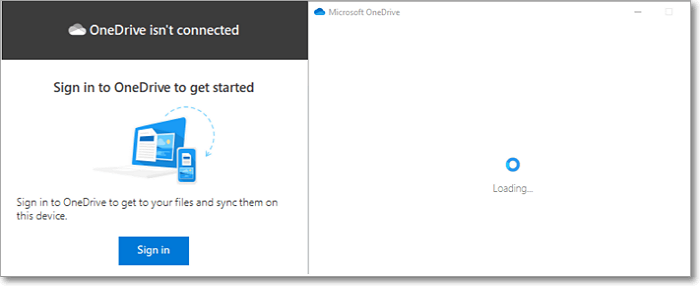
Quick Ways to Fix OneDrive Cannot be Connected
The OneDrive "not connected" issue often arises when you're unable to sign in to your account, and it can be caused by several reasons. To resolve this problem quickly, you can try signing in to your account again, checking your internet connection, and ensuring that your account is active and has the necessary permissions to access OneDrive. If the issue persists, you can also try restarting your device or reinstalling the OneDrive app to see if that resolves the problem.
How to Fix Cannot Download From Google Drive
If you're experiencing a download issue on Google Drive, there are a few common problems that can be fixed with some simple troubleshooting. Try checking your internet connection, clearing your browser cache, or checking for any conflicts with other download managers. If these methods don't work, you can also try checking the file size and format, or reaching out to Google Drive support for further assistance.
1. Recheck Internet Connection
2. Clear The Browser Cache Data
3. Allow Google Chrome Cookies
4. Remove Unnecessary Extensions
5. Switch Or Remove Google Accounts
Method 1. Recheck Internet Connection
To troubleshoot internet connection problems on your computer, start by checking the internet/Wi-Fi icon on the bottom-right of your screen. If it's not showing, try restarting your router or modem, or check your cable or Wi-Fi connection. If it's showing but not working, try restarting your computer or checking for any software updates that may be interfering with your internet connection. If none of these steps resolve the issue, you may need to contact your internet service provider for further assistance.
1. Right-click the Internet Connection icon
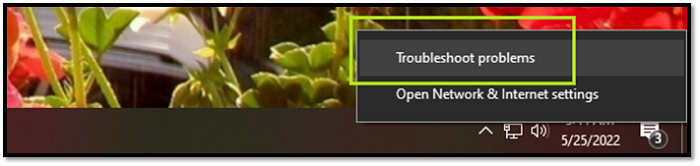
2. Click on Troubleshoot Problems
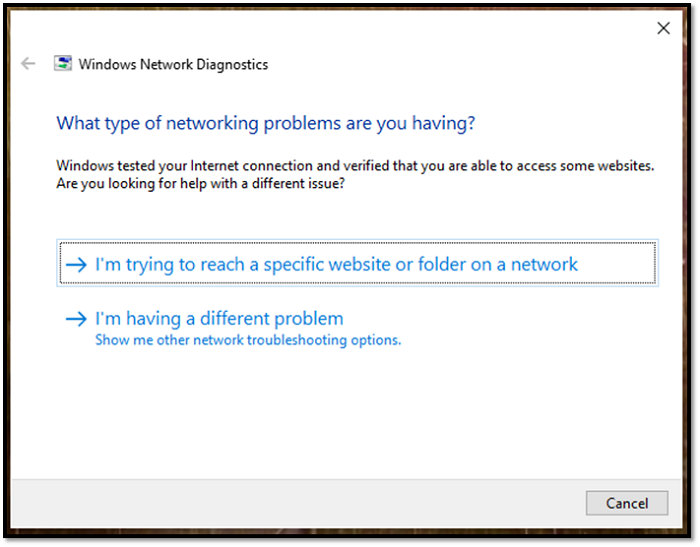
3. Let it run
You can try additional options or click on "I'm trying to reach a specific website or folder on a network" to see if you can access Google Drive.
Method 2. Clear The Browser Cache Data
The functionality of the tab key depends on the browser you're using, but in most cases, it works the same for everyone.
1. Click on the drop-down menu of your browser
2. Head to History
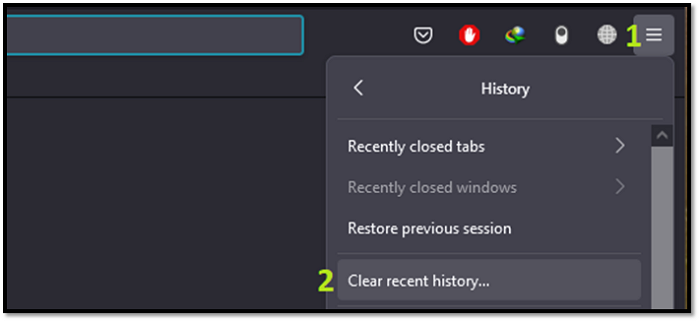
3. Click on clear browsing history/clear recent data
4. In the browser settings, go to the "Advanced" or "Privacy and security" section, click on "Clear browsing data", select the types of data you want to delete (Cookies, Cache, Browsing & download history, etc.), and then click OK.
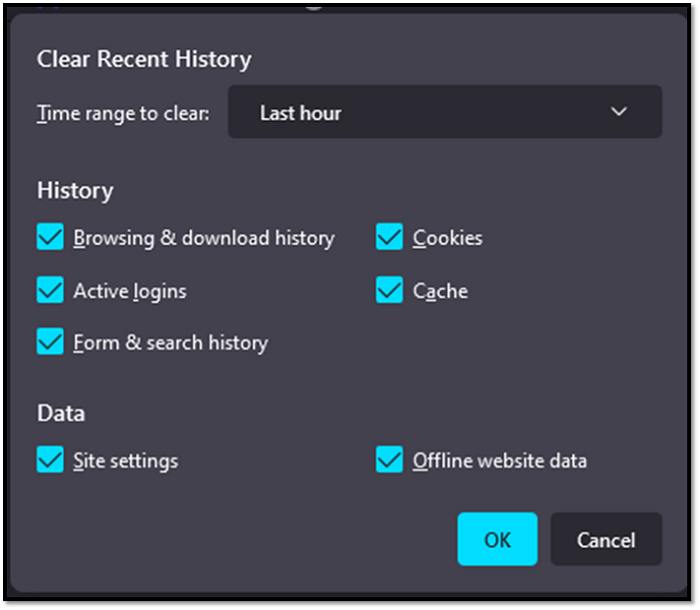
To access the "Settings" menu on a Firefox browser, click on the three horizontal lines in the top-right corner, then select "Options" from the dropdown menu. Alternatively, you can press the "Alt" key on your keyboard and click on the "Options" tab. In the "Options" window, you can adjust various settings, such as your homepage, search engine, and more.
Method 3. Allow Google Chrome Cookies
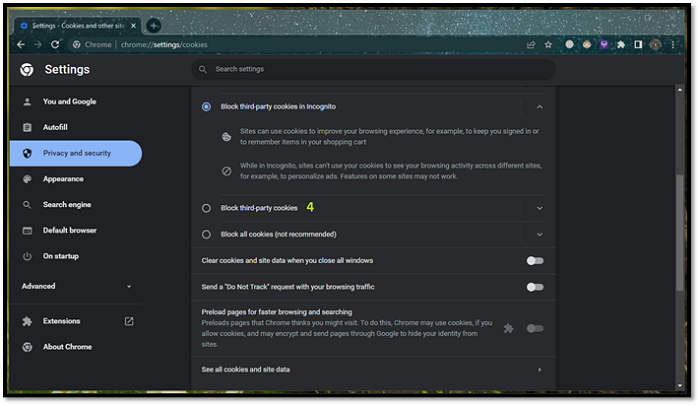
If you're using Google Chrome, the problem might be that the browser prevents third-party Cookies, which won't allow Google Drive to save necessary files to authenticate the file download. To fix it, you can try allowing third-party cookies in Chrome. You can do this by going to Settings > Advanced > Cookies and site data > Allow third-party cookies. This should resolve the issue and allow you to download files from Google Drive.
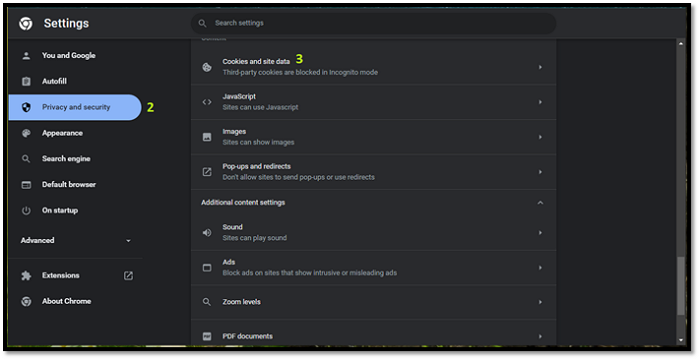
1. Click on the drop-down menu and click on Settings
2. Head to Privacy and security
3. To delete cookies and site data, scroll down and find the "Cookies and site data" option, then click on it.
4. Find and uncheck/deselect Block third-party cookies
Method 4. Remove Unnecessary Extensions
If you're using too many extensions on Google Chrome, it might prevent Google Drive from working properly. To resolve this issue, you can remove some or all of the extensions you're not using, which should allow Google Drive to function normally again.
1. Click on the drop-down menu in the top-right corner
2. Click on More Tools
3. Scroll down and click on Extensions
4. Remove the extensions you don't need
Remove any unnecessary browser extensions to prevent interference with Google Drive's file download functionality.
Method 5. Switch Or Remove Google Accounts
If you're using multiple Google accounts, you may not be able to download certain files due to access restrictions between accounts. To resolve this, open Google.com in your browser and follow the necessary steps to access the file.
1. Click on your user icon in the top-right corner
2. Pick another account
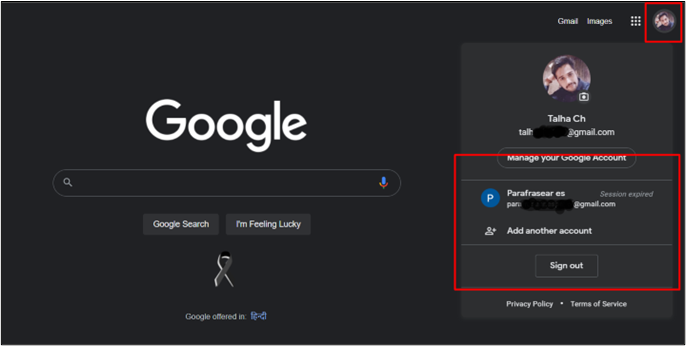
3. Or, sign out of all accounts
4. To access Google Drive, sign in with the account you use to access Google Drive. This will allow you to view and manage your files stored in Google Drive.
To prevent other accounts from being used while accessing Google Drive or specific files, you can use the "Devices" or "Recent devices" feature in Google Drive settings. This will allow you to see and remove any other accounts that might be accessing the same files, ensuring you have sole access to your data.
Method 6. Try Different Browser
If your primary browser isn't allowing you to use Google Drive, it may be a browser issue, so you can try downloading a different browser or using the one built into your Windows or Mac device, such as Microsoft Edge or Safari.
Try the Best Alternative - Qiling Backup
Qiling Backup is a cloud backup service that allows you to store and access your files from anywhere, at any time, without any limitations or restrictions. With Qiling Backup, you can enjoy a seamless and secure cloud storage experience, free from the issues you've been facing with Google Drive. Its user-friendly interface and robust features make it an ideal solution for individuals and businesses alike, providing them with peace of mind and a reliable way to protect their valuable data.
This backup tool offers an impressive 250GB of free cloud storage, allowing you to store your files securely. What's more, its cloud storage feature can automatically update your restore points, creating regular backups of your files and ensuring you have the latest versions in case of hardware failure or issues accessing other cloud storage services like Google Drive.
The software allows you to create encrypted backups, keeping your files secure in case of a hardware failure or virus attack, and also offers generous cloud storage for added security.
You can follow the steps to backup your files:
Step 1. To initiate a backup, click the File backup option in the Backup and recovery page.

Step 2. On the list view, both local and network files are displayed, allowing users to browse and select the desired backup files from an extended directory.

Step 3. Follow the on-screen instructions to choose a location to store the backup.

To encrypt the backup with a password, click on the "Options" button in the "Backup Options" section. This will allow you to add an extra layer of security to your backup by requiring a password to access it. You can also customize other settings in this section to suit your needs.

To specify the backup schedule, click on the "Backup Schedule" option, which allows you to set the timing for the backup to start at a particular event. This enables you to automate the backup process and ensure that your data is protected at a specific time.

Step 4. The backup may be stored on a local disk, Qiling's online service, or NAS.

Step 5. To begin the backup process, click Proceed. After the backup is complete, it will be displayed as a card on the left side of the panel. To further handle the backup job, right-click on it.
People Also Ask
1. How do I allow Google Drive to download?
As mentioned in this article, you need to follow one of the six steps to either allow your browser or Google Drive app to download files on your computer.
2. Where does the download from Google Drive get saved to?
Typically, downloaded files are saved to the "Downloads" folder, which can usually be found in the "This PC" section of the computer. However, users can often change the default download location in their web browser settings to a different folder.
Conclusion
If you're experiencing issues with Google Drive downloading files on your computer, try one or all of the steps mentioned in this article to resolve the problem. Alternatively, you can consider using Qiling Backup software as a replacement for Google Drive if you're consistently facing issues with it.
Related Articles
- The Settings You Should Change in Windows 11
- Is Norton Ghost 15 Crack with Serial Key 100% Working
- What Is the Best Free Backup Software? Think Twice Before You Start
- New Protection Strategy: Protect Backups from Ransomware
- Windows 7 Backup Encryption and Your File Encryption Key
This article introduces you to Windows 7 backup encryption workarounds and 'Back up your file encryption key' solutions. - Windows Server 2012 R2 Restore OS and Files from Backup
How to make your Windows Server 2012 R2 restore from backup? You could use the built-in software, Qiling Disk Master or Qiling Backup. Click for more details and operation steps.
Products
Articles & Tutorials
- Data Recovery
- Data Backup
- File Recovery
- File Backup
- System Backup and Restore
- Disk and Partition Clone
- Technical articles
- Mobile articles
- Disk Master Help
- Windows Data Recovery Tutorials
- Windows Secure Delete Tutorials
- Windows Partition Management Tutorials
- Windows File Backup and Restore Tutorials
- Windows System Backup and Restore Tutorials
- Windows Disk Backup and Restore Tutorials
- Windows Clone Tutorials