Can I Upgrade My Laptop Processor | Your Answer Is Here
Laptops don't have much room in terms of an upgrade. But is it possible to upgrade your laptop's processor? Laptops are less upgradable than desktop computers due to their compact design, and components like processors, graphics cards, and motherboard are often soldered in and cannot be easily upgraded. Upgrading a laptop's processor is not a straightforward process and may not be possible, depending on the laptop model and design.
An Overview of Computer Processors [Desktop & Laptop]
Laptop and desktop processors from AMD or Intel are similar, with laptop processors being limited by battery power and desktop processors having more power available due to a power supply.
The processors will vastly differ despite using the same die and architecture, such as the 12th Gen i5 or i7, due to differences in clock speed, cache size, and other factors. For example, the mid-range Intel i5 12400F (desktop) and its laptop counterpart Intel i5 1230U will have distinct performance, despite sharing the same architecture.
| Features | Intel i5 12400F | Intel I5 1230u |
|---|---|---|
| Architecture | Alder Lake | Alder Lake |
| Base/Boost Clock | 2.5 GHz/4.4 GHz | 1 GHz/4.4 GHz |
| Physical Cores | 6 (12 threads) | 10 (12 threads) |
| L3 Cache | 18 MB | 12 MB |
| Die/Chip | 7nm | 7nm |
| Thermal/Power Design | 65 watts (can be taken off power limits and exceed 90 watts) | 9 watts |
The CPU Benchmark website ranks the Intel Core i5-12400F as the 348th best processor of all time, while the Intel Core i5-1230U ranks 710th. This difference in ranking is due to the processors' gaming ability, productivity, and overall performance, with the i5-12400F outperforming the i5-1230U in these areas.
Is It Possible to Upgrade Laptop Processor? [i3 to i5/i5 to i7/i3 to i7]
It's not possible to upgrade the CPU on most laptops released after 2018-2019, as they don't support CPU upgrades. If you've had a laptop for 3-4 years, it's likely you won't be able to upgrade your CPU.
Intel provides manufacturing support to help upgrade processors, but the cost of the process can be high, which is why upgrading a laptop's CPU to the latest model is not possible.
- Most modern laptops have CPUs soldered/balled on their motherboard basics
- Laptop manufacturers often choose to equip their laptops with a particular processor configuration, such as an i3, i5, or i7, to cater to different user needs and budgets.
- To avoid bottlenecks, Intel and laptop manufacturers specifically pair CPUs with laptops, ensuring optimal performance and compatibility.
Upgrading the CPU in older laptops is still possible due to the presence of removable CPUs, accessible sockets, and the absence of soldered CPUs, allowing for easier replacement and upgrade options. However, newer laptops may have soldered CPUs, making it difficult or impossible to upgrade the CPU. Additionally, the laptop's design, such as a unibody construction, can also prevent CPU upgrades.
- Laptops from previous generations often came with CPUs from older generations, which were sold separately like desktop CPUs.
- Older laptop motherboards had drop-in CPUs rather than soldered ones
Upgrading a laptop's CPU is possible if you have an older laptop and can find a compatible CPU to purchase, allowing for a potential performance boost.
How to Upgrade Laptop Processor If Possible?
Upgrading a laptop processor can be done by the user themselves for older models, or by sending the newer model back to the manufacturer for upgrade.
To upgrade your laptop's CPU, you'll need to check if it has a drop-in CPU. If it does, you can upgrade the CPU by following these steps:
CPU Upgrade on Laptops That Allow It:
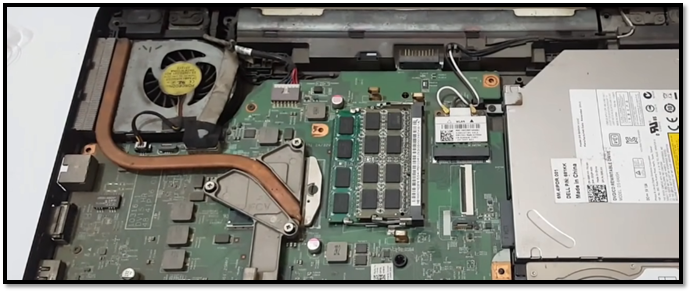
- Open the laptop and unscrew the bottom plate/case
- Unscrew the CPU cooler and set it aside
- Unscrew/unlatch the CPU holder on your laptop
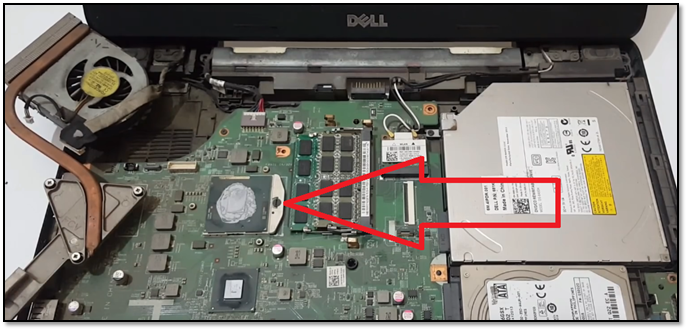
- Take the older CPU out
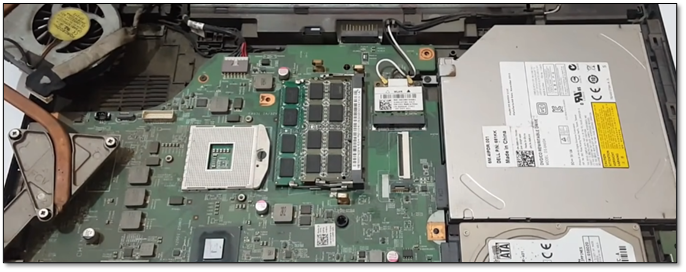
- Put the new CPU in
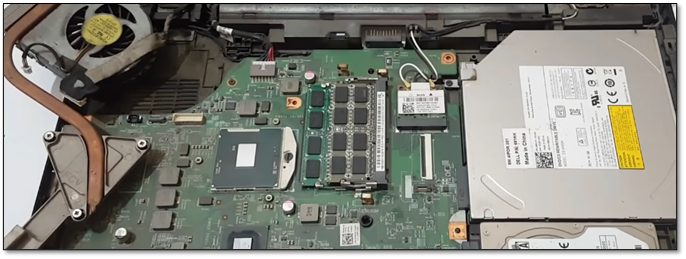
- Latch/screw it back
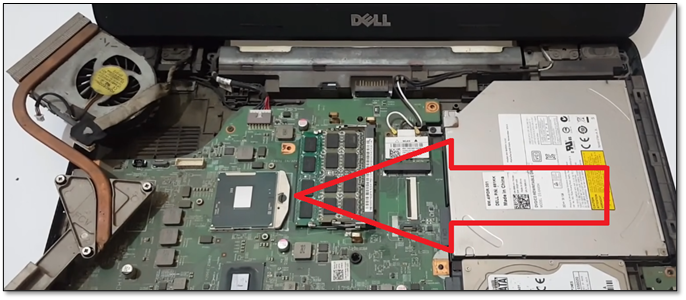
- Apply a thin layer of thermal paste to the CPU, then put the CPU cooler back on, ensuring it's securely fastened.
- Close the laptop
- Done
Before attempting a CPU upgrade, it is important to back up your data first, as the process may cause hardware damage or system corruption. Here is how to do it:
Backup Your Data Before Proceeding With Processor Upgrade:
Be cautious when upgrading a CPU, as it may cause hardware damage or system corruption, potentially requiring a fresh install of Windows.
To prevent data loss, create a backup in advance using a tool like Qiling Disk Master Pro. This will ensure that your data is safe in case of any issues.
Qiling Disk Master Pro is an unparalleled backup tool that allows you to:
- Create a backup in one click and recover it instantly/quickly
- Create a disk image of your current system setup to ensure that you have a complete backup of your data and system configuration before upgrading, in case something goes wrong during the process. This will allow you to restore your system to its previous state if needed.
- Support automatic backups, full, incremental and differential backups
- Create entire disk or partition clones for efficient recovery
- Restore system to dissimilar hardware—particularly important for any upgrades
- Help people easily migrate Windows 10 to an SSD
To back up your data with Qiling Disk Master, follow the detailed steps below to back up your system successfully.
Step 1. Launch Qiling Disk Master on your computer, click Create Backup on the home screen, and select backup contents by clicking the big question mark.

Step 2. To back up your Windows operating system, click on "System backup" to initiate the backup process.

Step 3. Your Windows operating system information and all system related files and partitions will be automatically selected, so you don't need to do any manual selection at this step. Next, you'll need to choose a location to save the system image backup by clicking the illustrated area.

Step 4. The backup location can be a local drive, external hard drive, network, cloud, or NAS, with external physical drives or cloud storage being recommended for preserving system backup files.

Step 5. The Windows system backup process can be customized with options such as enabling an automatic backup schedule on a daily, weekly, monthly, or event basis. Users can also choose to make differential and incremental backups. After selecting the desired settings, clicking "Proceed" initiates the backup process, which is then displayed on the left side in a card style once completed.

The Bottom Line
Upgrading a laptop processor does not have a straightforward yes or no answer, as it depends on the type of laptop, its manufacturer, and the processor's compatibility.
Before upgrading or sending your laptop's CPU to the manufacturer, create a backup of your important data to prevent any potential loss in case something goes wrong.
FAQ on Upgrading Laptop Processor
These questions will answer any further queries you might have:
1. Can I change the processor for my laptop?
In most modern laptops, the CPU cannot be upgraded, so if allowed by the manufacturer, it can be upgraded by sending it back to them.
2. Is it worth upgrading the laptop processor?
The performance difference between i3 and i5 laptops depends on the generation and the specific models, but generally, moving from i3 to i5 can result in noticeable improvements, especially in older laptops.
Related Articles
- Top 6 Best Windows 7 Repair Tools in 2023 (Free)
- [Data Protection] The Differences between System Image and Full Backup
- How to Disable Windows Defender on Windows 11
- How to Backup GTA V Files on Steam (2023 New Guide)
- 3-Minute Understanding SSD Cache in Windows 10/11: Is It Worth It?
- 10+ Best Windows Backup Software of 2023 (Features, Pros & Cons)
- [Tutorial] How to Backup Excel File Automatically in 2 Tested Approaches
We provided two tested tutorials on how to automatically back up Excel files. You have the option to use Excel's built-in feature or an external automatic backup tool to secure your files.
Products
Articles & Tutorials
- Data Recovery
- Data Backup
- File Recovery
- File Backup
- System Backup and Restore
- Disk and Partition Clone
- Technical articles
- Mobile articles
- Disk Master Help
- Windows Data Recovery Tutorials
- Windows Secure Delete Tutorials
- Windows Partition Management Tutorials
- Windows File Backup and Restore Tutorials
- Windows System Backup and Restore Tutorials
- Windows Disk Backup and Restore Tutorials
- Windows Clone Tutorials