What Is Disk Image? Learn How to Create One
Ⅰ. An Overview: What Is Disk Image?
A disk image is a complete copy of a disk or partition, used for backup purposes, capturing all data and structure at the time of creation, allowing for a precise restoration to a previous state.
Disk images can be used to create virtual machines by loading the image into a virtual hard disk (VHD), allowing the software to run as if on a real disk, useful for testing or running incompatible software.
History of Disk Image
Disk images have been around for many years, with one of the earliest formats being the Compressed Disk Image Format (CIF), developed by Microsoft in the early 1990s for use with their DoubleSpace disk compression utility, which was bundled with MS-DOS 6.0.
In 1996, Apple introduced the Apple Disk Image format with the release of Mac OS 8.0, which is still used today on macOS and can be opened on Windows with third-party software. The file name typically has a ".dmg" extension.
The most common disk image format today is ISO 9660, also known as CDROM or CDFS, used for storing data on optical discs like CD-ROMs and DVD-ROMs. ISO images can be created with various disk-burning software and are compatible with Windows, macOS, and Linux operating systems.
Advantages of Disk Image
The use of floppy disks and external hard drives has led to an increase in creating disk images for troubleshooting and problem prevention. Two common application scenes for disk images are system backup and computer deployment, allowing users to troubleshoot and prevent issues effectively.
System Backup:
A regular file backup only saves user files when backing up computer data, excluding system boot information and files locked by the operating system. In contrast, a disk image replicates all data, including file attributes and fragmentation status, making it suitable for backing up operating systems and enabling one-time system recovery after a system crash or boot problem.
Software Distribution/Deployment:
For a small or medium-A small company can quickly and easily distribute and install software and systems by restoring a disk image. This involves configuring one main computer, creating an image of it, and then deploying that image to many other machines connected to the network, allowing for the configuration of multiple computers at once in a time-saving and hassle-free manner.
LEARN MORE
The definition and advantages of disk images are discussed in the above part. Disk images are a digital copy of a physical disk, offering several benefits, including the ability to create a backup of a disk, test software in a virtual environment, and transfer data between computers. For more information on disk imaging, click the link to learn about what it is.
Ⅱ. Disk Imaging vs. Disk Cloning: What's the Difference?
Disk imaging and disk cloning are both used for data backup, but they differ in their approach. Disk imaging captures a complete snapshot of a disk, including all data, settings, and applications, whereas disk cloning creates an exact replica of a disk, including all data, settings, and applications, but also includes the disk's physical characteristics. This means that disk imaging can be used on different hardware, whereas disk cloning requires the same hardware configuration.
Disk cloning is the process of creating an exact copy of a computer's hard drive, including all the files, settings, and applications. This can be done for various reasons, such as backing up important data, migrating to a new computer, or deploying identical systems for multiple users.
Disk cloning, like disk imaging, creates an exact copy of a disk or partition. It can be used to back up data, similar to disk imaging, but is not suitable for creating a virtual machine. Additionally, disk cloning is useful for upgrading disks, such as replacing an old HDD with a new SSD, without reinstalling the system or losing data.
The key difference between disk imaging and disk cloning lies in their approach to creating a duplicate of a disk. Disk imaging creates a compressed, read-only image file, whereas disk cloning directly copies all data to another disk, including unused space. This results in a cloned disk that is an exact replica of the original, allowing for easy access whenever needed. Therefore, disk cloning is generally preferred for making identical backups or copies of a disk or partition.
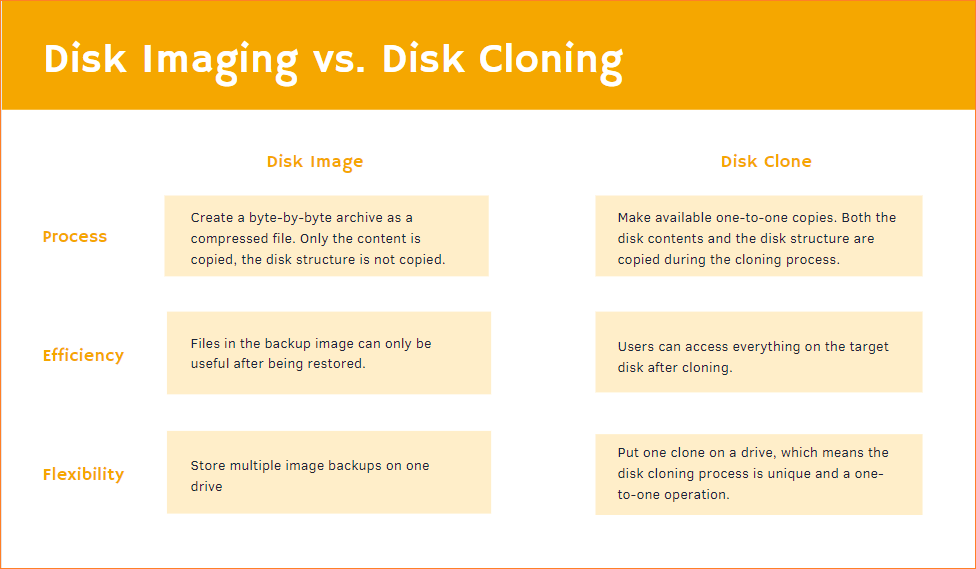
The table above highlights the key differences between a disk image and a disk clone. If you're new to these terms, the table provides a clear and intuitive comparison, helping you determine which option is best for your needs.
LEARN MORE
Now you know the definition of the disk image and disk clone. If you want to learn more about disk cloning, such as the differences between all kinds of clones, click here.
Ⅲ. How-to Guide: How to Create a Disk Image on Windows 10/11
However, for operating systems and applications, you need to create a disk image to ensure a complete and accurate backup. To do this on Windows 10/11, you'll need a third-party software like Qiling Backup. These programs allow you to create a disk image of your entire system, including the operating system, applications, and settings.
If you're creating a backup image, we suggest backing up the system drive or the entire disk to an external storage device like a USB, so you can recover the entire disk's data in case of a system failure or computer damage.
Both Windows built-in create a system image or a disk image of your local disks, including the system disk, Windows has some limitations. While it can help with creating a system image, it cannot assist with creating a disk image of a non-system disk. In this case, you'll need to rely on third-party backup software to achieve your goal, whether it's backing up the system disk or other local disks. We'll explore solutions for both scenarios in this article.
#1. Create a Disk Image with Windows Built-in Utility
Windows' Backup and Restore (Windows 7) tool allows users to create a system image. Although it was first released on Windows 7, this feature is still available in Windows 10 and Windows 11. To create a system disk image using this tool, follow the steps outlined below.
Preparation:
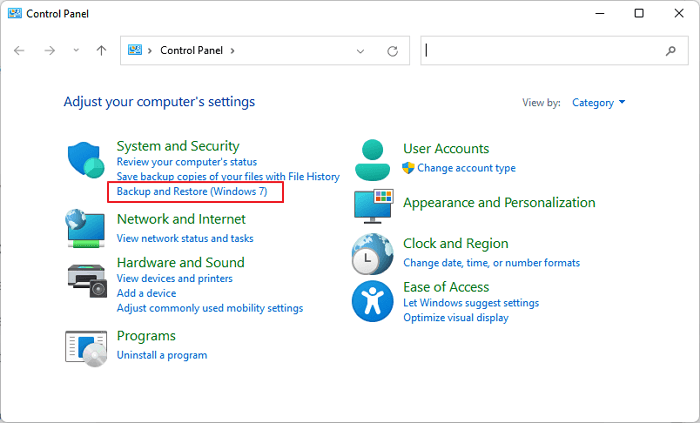
Step 1. To access the Backup and Restore (Windows 7) feature, open the Control Panel, then click on the "Backup and Restore (Windows 7)" option under the "System and Security" column.
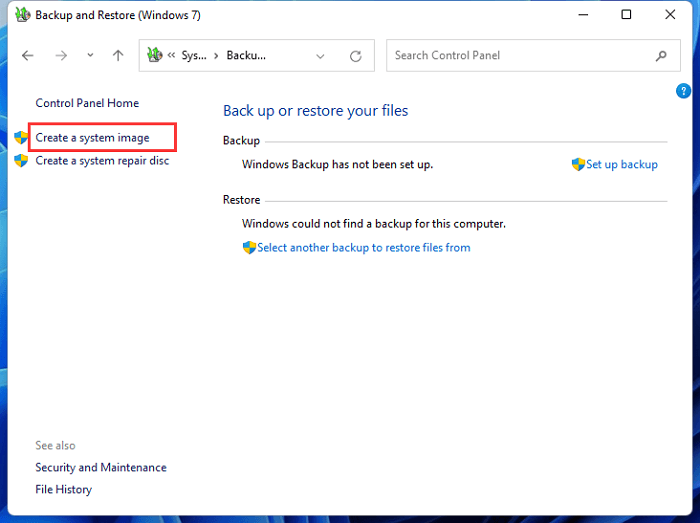
Step 2. You can start by setting up the backup or selecting "Create a system image" on the left.
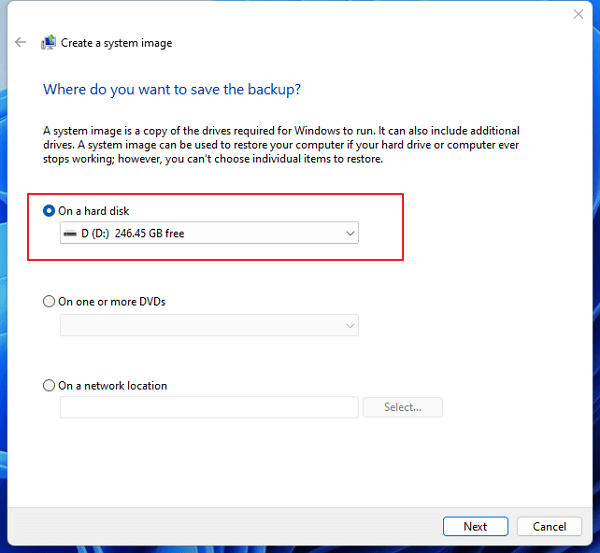
Step 3. Connect an external hard drive to your computer to choose where to save the backup.
Step 4. You need to decide which drive you want to include in the backup, and the Backup and Restore will choose the system partition by default.
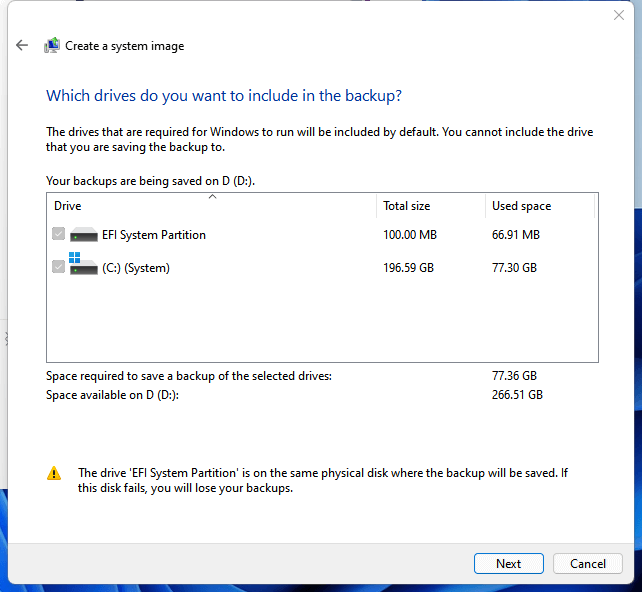
Step 5. Confirm the backup settings, check the backup location and content, and click "Start backup" to start creating a Windows system image.
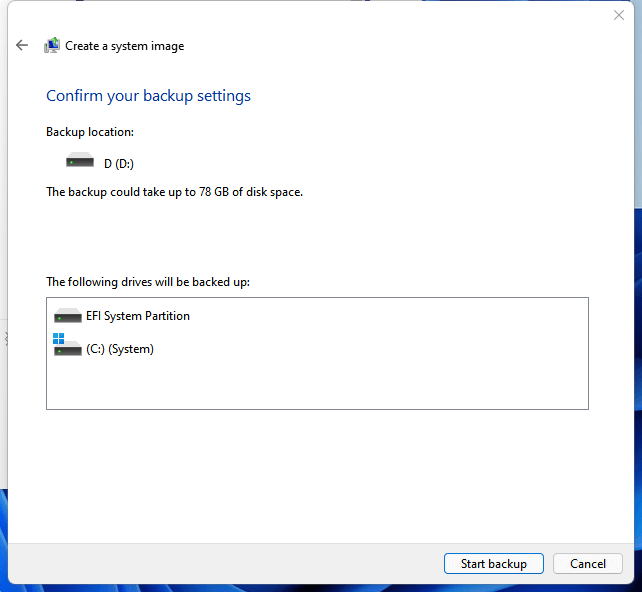
After the creating process is finished, you will have a system disk image file on your USB drive. It's essential to keep it safe, as it will serve as a backup for your system and allow you to perform a recovery when needed, simply by connecting the USB drive to your computer.
#2. Create a Disk Image with Backup Software - Qiling Backup
Third-party backup software can be used to create a backup image, similar to Windows Backup and Restore. The image file created has a unique suffix, meaning it can only be restored with the same software used to create it.
Compared with the built-In Windows backup utility, third-party backup software offers a significant advantage by simplifying the backup operation and making it easy to use, even for those who have never created a disk image before. For instance, Qiling Backup provides a straightforward guide to help you take your first step in creating a disk image, which can be applied to both system and data disks. This makes the process convenient and accessible, even for those who are new to disk imaging.
Qiling Backup - Free Backup Image Create Software
- Backs up Windows system, files&folders, partitions&disks, whole PC for FREE.
- A backup file hub helps manage computer backup files by providing a centralized location to store and organize them, making it easier to keep track of and access important data.
- Various backup options help users to customize backup plans.
- The available backup options include creating a backup image at a specified event or time, creating incremental or differential backups, and periodically deleting old backup files.
Step 1. Launch Qiling Backup on your computer, click System Backup on the Backup and recovery page.

Step 2. To begin the system image backup process, your Windows operating system information and all system-related files and partitions will be automatically selected, eliminating the need for manual selection. Next, you'll need to choose a location to save the system image backup by clicking on the illustrated area.

Step 3. The backup location can be another local drive on your computer, an external hard drive, network, cloud, or NAS, with external physical drives or cloud being recommended for preserving system backup files.

Step 4. Customization settings like enabling an automatic backup schedule in daily, weekly, monthly, or upon an event, and making a differential and incremental backup are available in the Options button. Clicking "Proceed" will initiate the Windows system backup process, which will display the completed task on the left side in a card style.

LEARN MORE
The article explains how to create a system image on a USB drive and troubleshoot any issues that may arise during the process, providing additional information on what a system image is in Windows.
Ⅳ. How to Create Disk Image on Mac
For Mac users who also want to create a disk image, Disk Utility, a built-in tool, can be used. To create a disk image on Mac, follow the steps below.
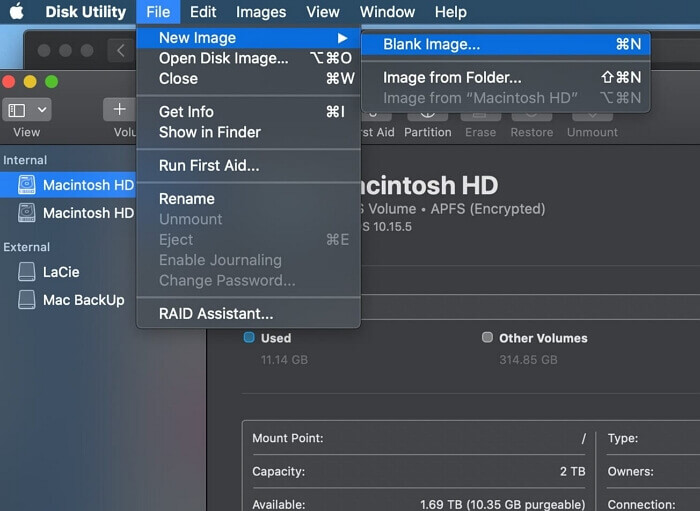
Step 1. To create a blank image in Disk Utility on your Mac, open and launch the Disk Utility app, then navigate to the menu and select "File" > "New Image" > "Blank Image".
Step 2. To save a disk image, you can name the file and add tags, then choose a save location. The name you give the file will be what appears in the Finder when you save the disk image. This will also be the name of the file that you can open later.
Step 3. Enter the name for the disk image in the Name field.
Step 4. Enter a size for the disk image in the Size window.
Step 5. To select the format for the disk, click the "Format" pop-up menu.
- For a disk that will be used with Macs, choose Mac OS Extended (Journaled) or Mac OS Extended (Case-sensitive, Journaled).
- For a disk that will be used with Windows/Macs and is 32 GB or less, choose MS-DOS (FAT).
- For a disk that will be used with Windows/Macs and is over 32 GB, choose ExFAT.
- Mac also allows you to encrypt the disk image.
To partition and format the disk image, you can follow these steps. First, open the Disk Utility application and select the disk image file.
Step 1. Click the Partitions menu, then choose a partition layout.
Step 2. To change the format of an image, click the Image Format menu and select one of the following options. These options allow you to change the format of an image from one type to another, such as converting a JPEG image to a PNG image. You can also use these options to compress or decompress an image, or to change the color depth of the image.
- Sparse bundle: The sparse image is similar to a sparse image, but the directory data for the image is stored differently, using the .sparsebundle file extension.
- Sparse disk image: Creates an expandable file that shrinks and grows as needed, using the .sparseimage file extension, with no additional space used.
- Read/write: This allows you to add files to the disk image after it's created, and uses the .dmg file extension.
- DVD/CD master: This command resizes the image to 177 MB (CD 8 cm) and saves it with the .cdr file extension.
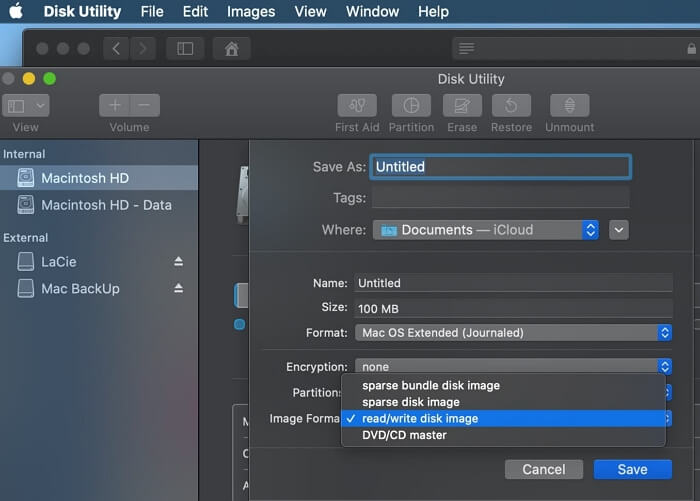
Step 3. Save the settings and click Done.
LEARN MORE
The creation of a disk image on Mac is a straightforward process, and users can refer to the linked article for more detailed information. The process involves creating a disk image, which is a digital copy of a physical disk, and can be used to restore the original data in case of any issues. This article provides a brief overview of the process, and users can find more comprehensive information in the linked article.
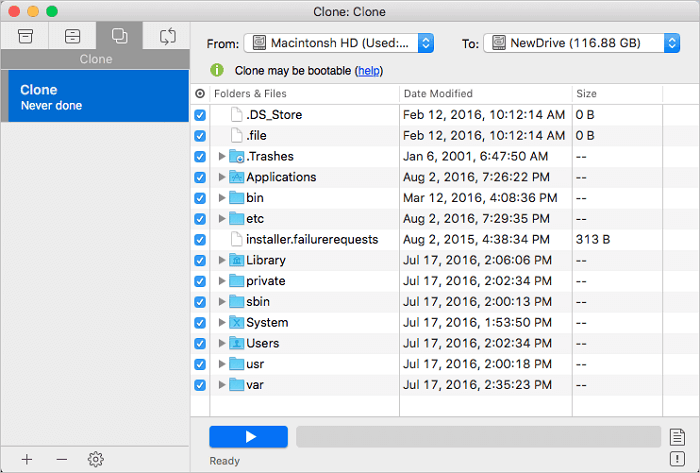
Guide on How to Clone Hard Drive on Mac
This article introduces Mac cloning software that allows you to clone your Mac hard drive to a new SSD without reinstalling the operating system and applications, making it a safe, complete, and easy way to upgrade or replace your Mac hard drive with a new HDD/SSD and create a bootable hard drive for your Mac.
Ⅴ. Disk Image Tool Recommendation: Best Disk Imaging Backup Software
The disk image is a valuable tool for backing up computer data and has been widely used in disk backup. To protect your disk data better, you can use various disk imaging backup software for Windows, which can help you create disk images easily and conveniently.
#1. Qiling Backup - The Best Disk Imaging Backup Software for Windows
Qiling Backup is a disk image software that offers various functions such as backup, restore, clone, and partition clone to ensure data security. It allows users to create disk images for Windows computers with ease, making it a popular choice. The software's simple and clear interface is a major advantage, making it easy to learn and use. Additionally, Qiling Backup can restore backup files in minutes and preserves file paths, allowing users to maintain their original file structure even when restoring an image on a different computer. Overall, Qiling Backup is a reliable and user-friendly tool for disk imaging and backup needs.
#2. Acronis Cyber Protect Home Office
Acronis Cyber Protect Home Office is a comprehensive backup and disk imaging software that combines file backup and anti-malware protection. Available for various operating systems, it also includes its own cloud server and mobile/PC software for accessing backup files remotely. However, its advanced features come at a cost, making it more expensive than other similar software.
#3. Paragon Backup and Recovery Free
While Paragon Backup and Recovery Free is the only listed backup software without online backup features, it excels in providing a comprehensive user guide that makes it easy for even novice users to navigate and use the software.
#4. Windows Backup and Restore (Windows 7)
In Windows 7, Window Backup and Restore was a built-in utility that allowed users to create a system image and system recovery disk, but in later versions like Windows 10 and 11, it's more of an optional choice for backup purposes.
Windows Backup and Restore is a free feature that covers basic backup needs, but it has limitations. It only supports backing up limited types of files and data, and lacks advanced options like incremental or differential backups.
LEARN MORE
If you're looking for disk imaging tools, here are four options with their advantages and merits. If you're still interested in exploring more free backup and image software, you can click here to learn about the best options available.
The Bottom Line
A disk image is a useful tool for backing up and restoring disks, and this article explains what it is and how to create one on Windows and Mac. If you're looking for disk imaging backup software, we recommend four options for Windows: Qiling Backup, and Windows Backup and Restore, which can be chosen based on individual needs.
Related Articles
- A Complete Guide to System Image Recovery in Windows 11/10/8.1/7
- 2022 Ultimate Guide to Clone Hard Drive to SSD
- One for All Guideline: How to Clone a Hard Drive
- System & Files | Backup Windows 10 PC with Backup and Restore Tool
- WD Backup Software and Its Free Alternative
You can back up your computer system or files to WD hard drive easily with the help of the best free WD backup software on Windows. - WD Smartware Software for Windows 10 not Compatible
As many people are using wd smartware software, you may find it's not working for Windows 10. So another alternative backup tool will be introduced here.
Products
Articles & Tutorials
- Data Recovery
- Data Backup
- File Recovery
- File Backup
- System Backup and Restore
- Disk and Partition Clone
- Technical articles
- Mobile articles
- Disk Master Help
- Windows Data Recovery Tutorials
- Windows Secure Delete Tutorials
- Windows Partition Management Tutorials
- Windows File Backup and Restore Tutorials
- Windows System Backup and Restore Tutorials
- Windows Disk Backup and Restore Tutorials
- Windows Clone Tutorials