Guide on How to Clone Mac Hard Drive to SSD
Why Is It Recommended to Clone Mac Hard Drive to SSD?
When it comes to the 'clone' topic, we usually recommend cloning your Mac hard drive in case you decide to upgrade your Mac hard drive with a solid-state drive, replace an old or corrupted Mac drive with a newly bought one, or create a bootable hard drive for Mac.
Cloning your Mac hard drive to an SSD can speed up your computer's performance, make it more reliable, and prolong battery life, all while minimizing the risk of data loss or hardware damage. This upgrade allows you to retain your existing setup and files, making the process more straightforward and convenient.
What's the Best Mac Cloning Software?
Mac cloning software allows you to create an exact copy of your hard drive, useful for backing up your computer or transferring data to a new Mac. Various software options are available, and when choosing one, consider factors such as ease of use, compatibility, and features.
The best cloning software is easy to use, even for those who aren't tech-savvy, with a user-friendly interface that guides the cloning process step-by-step.
Cloning software can be used to create an exact duplicate of your hard drive, but it's essential to ensure the software is compatible with your operating system and the type of hard drive you're using, otherwise, you won't be able to create an accurate copy of your data.
Some cloning software programs offer additional features, such as creating bootable backups or scheduling automatic backups, allowing users to tailor their backup process to their specific needs.
Here are several recommended software for Mac cloning:
- #1. Qiling Backup for Mac
- #2. Carbon Copy Cloner
- #3. Disk Utility
Qiling Backup for Mac, Carbon Copy Cloner, and Disk Utility are all utilities for Mac devices that enable users to back up, clone, and sync their data. Qiling Backup allows for easy cloning from one hard drive to another, while Carbon Copy Cloner enables users to clone from HDD to SSD or M.2 SSD. Disk Utility, a built-in macOS feature, allows users to mount/unmount, erase, format, and clone disks and USB flash drives.
To clone a hard drive on Mac, we'll use Qiling Backup as an example. With this tool, you can easily create a duplicate of your hard drive, ensuring that all your files, settings, and applications are safely backed up in case something goes wrong with your original drive.
How to Clone Mac Hard Drive to SSD (Make a bootable Mac hard drive)?
Cloning a Mac hard drive to an SSD is a straightforward process that can be completed using software like Qiling Backup for Mac. The entire process takes only a few minutes, resulting in an exact replica of the original hard drive on the SSD.
Step 1. Connect both hard drive and SSD to your Mac computer, then launch Qiling Backup for Mac.
Step 2. Select the volume you want to clone from the drop-down list, which should be the source disk.
Step 3. To choose the SSD as the destination disk, select it from the To drop-down list.
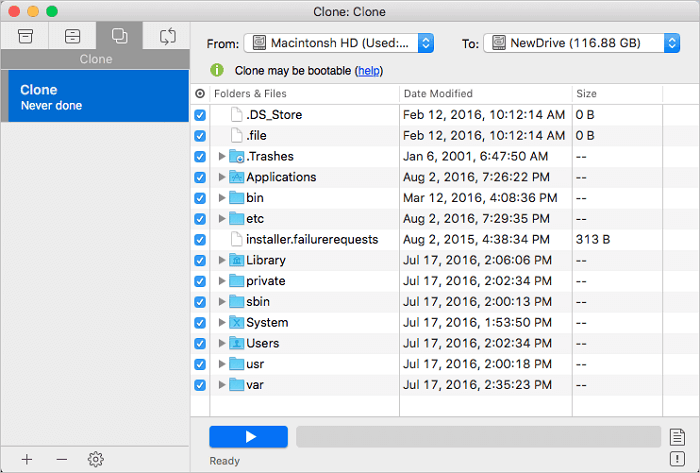
Step 4. Configure the disk cloning settings, allowing you to selectively exclude files or folders if needed.
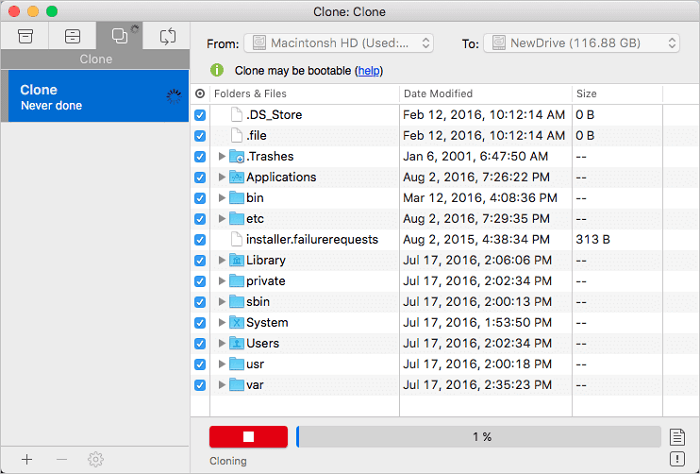
Step 5. Finally, click the Start button to execute the cloning operation.
Before Cloning Your Mac Hard Drive: Things You Should Keep in Mind
Before cloning your Mac hard drive, there are a few things to consider.
Before cloning your hard drive, it's essential to back up your data to ensure that you have a copy of all your important files in case something goes wrong during the cloning process.
Make sure you have enough free space on your destination drive, as cloning will take up the same amount of space as your source drive.
When cloning your data to a new drive, be sure to use a reputable cloning tool to ensure a smooth and safe process. With many cloning tools available, not all of them are created equal, so choosing a reliable one will help to guarantee that your data is transferred successfully to your new drive.
FAQs about Cloning Mac Hard Drive
1. Is it possible to clone a Mac hard drive?
Cloning a Mac hard drive is possible using various software programs, allowing you to create an exact copy of your drive's contents onto another drive, which can be useful for upgrading or creating a backup.
2. How do I clone a Mac hard drive with Disk Utility?
Step 1. Launch Disk Utility from the Applications folder or Spotlight.
Step 2. Select the hard drive that you want to clone in the left sidebar.
Step 3. Click the Clone button in the toolbar.
Step 4. Choose a destination for the clone in the dialog that appears. This can be another hard drive or an external storage device.
Step 5. Cloning a hard drive can take some time, depending on the size of the hard drive, as it involves copying all the data from the original drive to the new one.
Step 6. When cloning is complete, you'll have a complete duplicate of your original hard drive on the destination device, which can be used as a backup or bootable recovery volume.
3. How do I transfer my Mac OS to a new hard drive?
To transfer your Mac OS to a new hard drive, you can use the Migration Assistant utility that comes with your Mac. This utility will guide you through the process of transferring your files, settings, and applications to the new drive, making it a convenient and straightforward option.
You can also use Time Machine, a built-in backup utility for Mac, to back up your entire system to an external drive and then restore that backup to your new drive.
You can choose to clone your old drive to create an exact copy on your new drive, either by using the built-in cloning feature of your operating system or by using third-party software. Whichever method you choose, be sure to follow the instructions carefully to ensure a successful transfer.
Related Articles
- How to Clone USB Drive on Mac
- How to Upgrade and Change Mac Bootcamp Drive?
- How to Create a Disk Image on Mac
- Saving Mac Data | How to Back Up Mac Computer
- How to Incremental Backup HDD to External Hard Drive
How to incremental backup internal hard drive (HDD) to external hard drive when you frequently change and Filess or applications on the hard drive? In fact, it could be easier than ever. - How to Install OS on Multiple Computers Simultaneously?
In order to install OS on multiple computers simultaneously, a must-be access is to create system backup image. Besides, you should deploy system image files to multiple computers in a same LAN.
Products
Articles & Tutorials
- Data Recovery
- Data Backup
- File Recovery
- File Backup
- System Backup and Restore
- Disk and Partition Clone
- Technical articles
- Mobile articles
- Disk Master Help
- Windows Data Recovery Tutorials
- Windows Secure Delete Tutorials
- Windows Partition Management Tutorials
- Windows File Backup and Restore Tutorials
- Windows System Backup and Restore Tutorials
- Windows Disk Backup and Restore Tutorials
- Windows Clone Tutorials