Saving Mac Data | How to Back Up Mac Computer
Regularly backing up your computer is crucial, especially since many essential papers and data are stored on your system's storage devices. If you suffer a catastrophic data loss, the consequences can be severe, affecting various aspects of your life. To enjoy the benefits of a digital lifestyle, you must accept the risk of data loss and take proactive measures to protect your digital assets.
To ensure your data's security, consider creating multiple backups, as they don't compete with each other. Let's explore how to create a backup on your Mac, so you can rest assured that your data won't be lost forever, even in unexpected situations.
Part 1. Why Should You Backup Mac Computers?
Creating backups at regular intervals is a universally recommended practice to safeguard important data on your Mac. This is done to protect against data loss due to hardware failure, software corruption, user error, or other unforeseen events. Regular backups ensure that your files, documents, and other critical data are preserved and can be restored in case of a disaster, allowing you to recover quickly and minimize downtime.
- Backups provide protection that may assist in recovering from unforeseen data loss, serving as a vital option for retrieving data from a lost or damaged Mac.
- After reinstalling macOS or setting up a new Mac, you can restore user data from backups created beforehand.
- Make regular backups of your important files to protect yourself in case of a catastrophic disk failure or data loss on solid-state drives.
- The ability to restore older versions of data and documents can be obtained via the use of backups.
- Macs are generally less susceptible to viruses, but it's still possible for a Mac to get infected. Having a backup of your data can be helpful in case your Mac does get infected, as it will allow you to restore your files and get back to work quickly.
- Before installing a significant macOS update, back up your Mac to ensure that your data is safe in case something goes wrong.
Part 2. Three Methods: How to Back Up Mac Computers?
1. Backup Mac Computer with Qiling Backup For Mac
To back up your Mac data, consider using a third-party tool like Qiling Backup For Mac. This intelligent tool can create file backups in full, incremental, or differential modes, using templates for common data types like iTunes, mail, contacts, documents, and photos. It can also archive files to a hard drive, network volume, CD/DVD, or external device, and can even auto-mount the external device for easy access. This tool is a great companion to Time Machine, helping to reduce data loss and ensure your important files are safely backed up.
If you don't know how to back up your Mac computer's data yourself, you can use Qiling Backup, an energy-saving tool that offers many features to help you.
- Backup your important data to protect it from potential risks such as virus attacks, system crashes, hard drive failures, natural disasters, and operation errors.
- To safeguard your privacy, set up an automated backup schedule in stealth mode, ensuring that your data is securely backed up without drawing attention. Additionally, encrypt your backup to protect it from unauthorized access, providing an extra layer of security and peace of mind.
- Compressing backups can significantly reduce storage space requirements, allowing for more data to be stored in a smaller area. This can be especially useful in situations where storage space is limited.
- Clone Mac Hard Drive to SSD.
- Share and keep your files up-to-date between two different locations.
- Create a Disk Image on Mac.
See also:
To back up your Mac data with this tool, follow these simple steps: follow the steps below.
Step 1. Launch and run Qiling Backup for Mac.
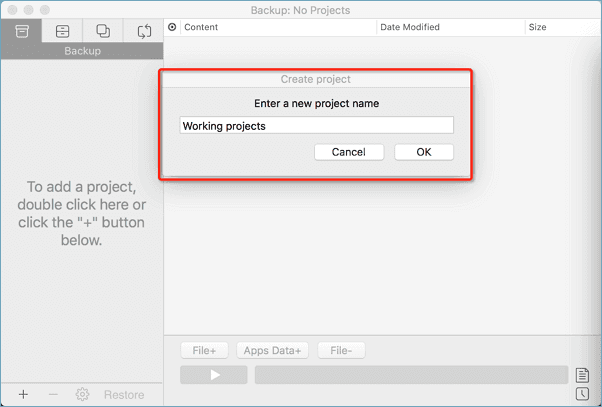
To create a backup project, click the first "Backup" tab or the "+" button in the bottom-left corner and name the backup project before clicking "OK".
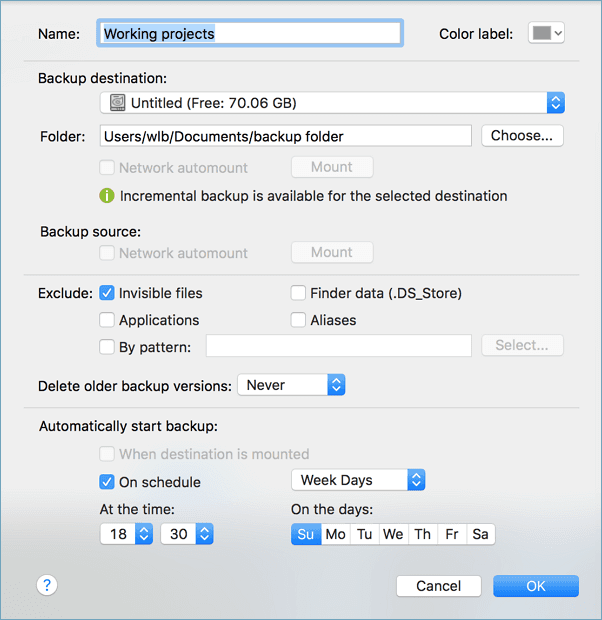
Step 2. Set up the backup destination, automatic backup frequency, and other preferences, then click OK.
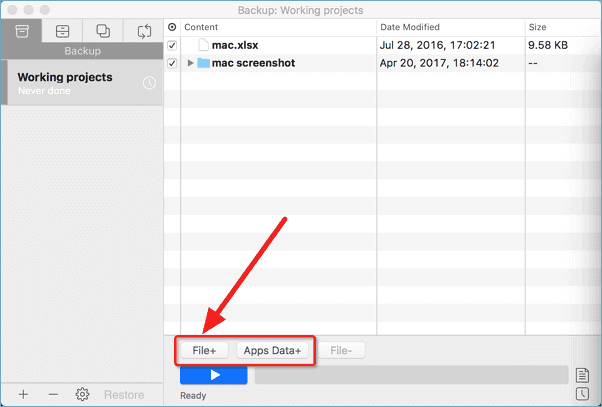
Step 3. Add files and folders to the backup project.
To initiate a backup on your Mac, click on the "File+" button to select specific files and folders to include in the backup, and then click the blue "Start" button to begin the backup process, which can be saved to another drive or external device.
2. Backup Mac Computer with Time Machine
Choosing a Mac for all your computing needs can be a great decision, with its simplicity and user-friendly interface making it easy for even inexperienced users to utilize its advanced capabilities. The computer is packed with features designed to simplify and enhance your time spent using it, making it a great option for those looking for a hassle-free computing experience.
Apple developers recognize the importance of backing up data and operating systems, so they've included Time Machine, a high-quality backup software, in the Mac operating system. This allows users to easily and quickly create backups of their data and operating system, providing a safeguard for their computer's data.
Step 1: Launch the Time Machine software.
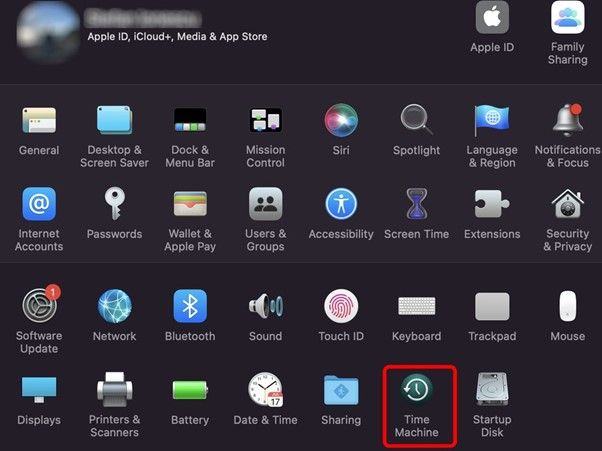
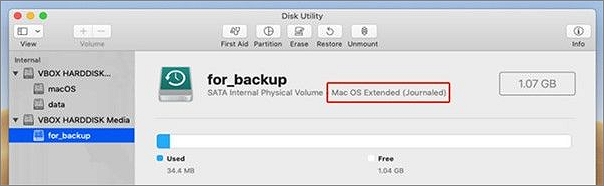
Step 2: Connect the drive to the Mac, noting that Time Machine backups on macOS Big Sur use APFS, but you can also use Mac OS Extended (Journaled) and Xsan formatted drives.
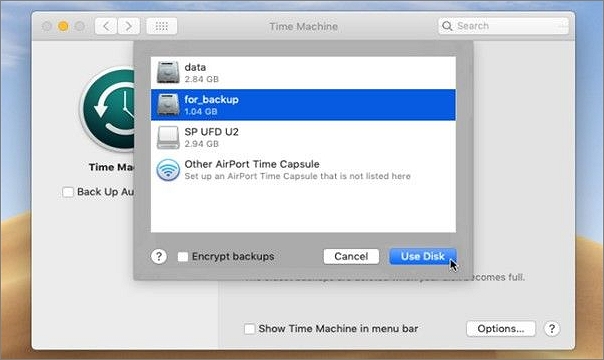
Step 3: When you connect a storage device, Time Machine will prompt you to use it as a backup disk. It's recommended to encrypt your backups for security. If Time Machine doesn't automatically detect your drive, you can manually add it to use as a backup disk.
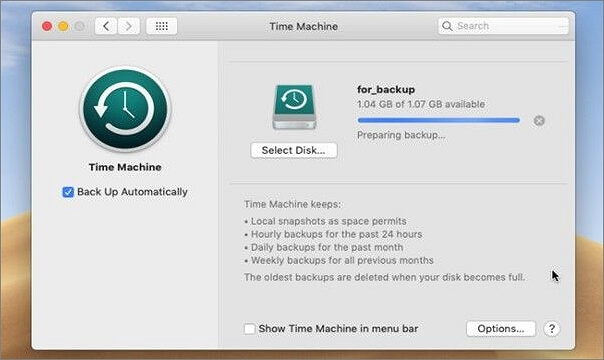
Step 4: Time Machine starts a backup once the disk is chosen, taking time to complete. Subsequent backup times depend on the number of new files or system changes since the last backup.
3. Backup Mac Computer to iCloud
To avoid data loss on your Mac, you can use iCloud to back up your data and documents. This requires setting up iCloud on your Mac, which involves creating an Apple ID, signing in, and configuring iCloud settings. You can then select the types of data you want to back up, such as contacts, calendar, reminders, and Safari data.
Step 1: To resolve the issue, first check that your Mac is running the most recent version of macOS by visiting apple.com. 3.
Step 2: When your macOS version is up to date, click on the Apple menu, then select System Preferences.
Step 3: If you're already logged in, you can go to System Preferences and select Apple ID from the menu just once.
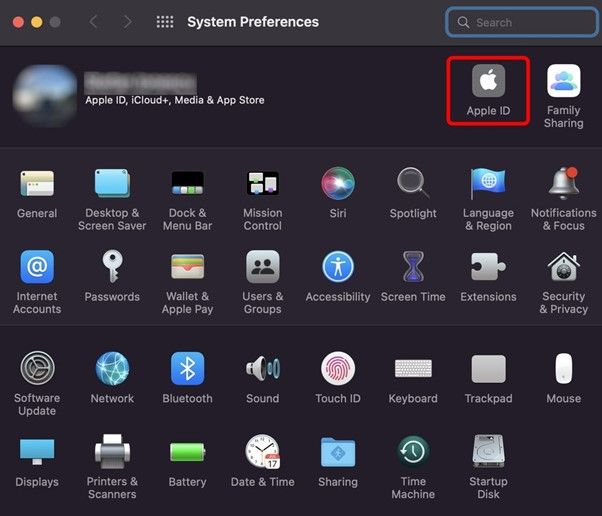
Step 4: Sign in at the top if you're not already.
Step 5: Click Next after entering your Apple ID and password.
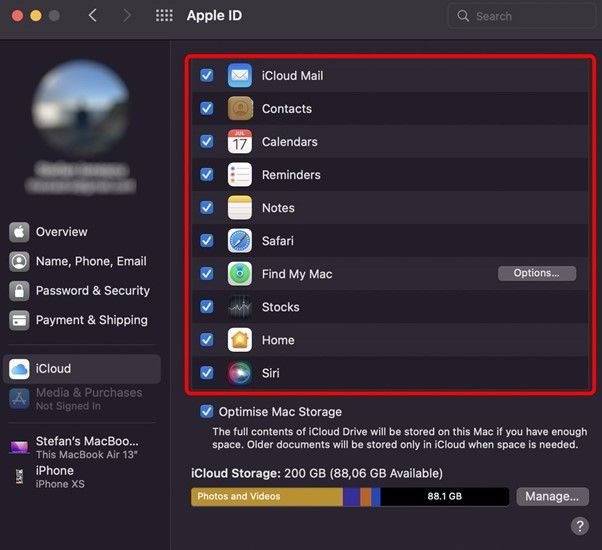
Step 6: You'll be prompted to combine iCloud with Contacts, Calendar, and Safari. Simply choose whether to merge or not merge them.
Step 7: You can view which apps you can add or remove from your iCloud account and see how much of your 5 GB storage space is being used, with the option to upgrade to a larger iCloud storage plan.
Part 3. FAQS
1. How Do I Make A Backup of My Mac Manually?
Time Machine's menu bar icon can be clicked to manually back up your files, or you can hold Ctrl and select the icon for your backup disk to do the same. Additionally, your computer will automatically back up in the background.
2. Can You Backup Mac without Time Machine?
To back up your Mac's data without Time Machine, simply connect an external hard drive to your Mac, go to Finder > Preferences > Hard Disks, select the drive, and create a desktop shortcut for it.
3. Why Won't My Mac Backup to An External Drive?
Make sure your backup disk is securely connected, active, and plugged in. If it's networked, ensure your Mac is also connected to the network, as a disconnected network may prevent access to the backup drive.
Backing up a Mac is crucial to prevent data loss and its consequences. If you're not backing up your Mac, start doing so immediately, as you never know when a backup will save your data. If the methods mentioned in this article don't work, you can also consider using Qiling Backup to quickly and safely back up your data.
Bottom Line
Backing up a Mac is crucial to prevent data loss and its consequences. If you're not already backing up your Mac, it's essential to start now, as you never know when a backup will save your data. If the methods mentioned in this article don't work, Qiling Backup For Mac is also a quick and safe option for backing up your data.
Related Articles
- 2 Methods to Change iTunes Backup Location on Mac
- 3 Ways to Backup Mac Mail
- How to Upgrade, Change and Replace Mac SSD to A Bigger SSD?
- How to Upgrade and Change Mac Bootcamp Drive?
- Creating Windows 10 System Image to an External HDD | 2 Ways
This article will guide you through the process of creating a system image to an external HDD in a step-by-step manner, providing two easy methods to complete it. - Fixed | System Image Restore Failed 0x80042412 in Windows 7/8/10
If you encountered system image restore error 0x80042412 in Windows 7 or 10, what could be the reason? How to fix it? Here you'll find several solutions along with an alternative to restore system image without such errors.
Products
Articles & Tutorials
- Data Recovery
- Data Backup
- File Recovery
- File Backup
- System Backup and Restore
- Disk and Partition Clone
- Technical articles
- Mobile articles
- Disk Master Help
- Windows Data Recovery Tutorials
- Windows Secure Delete Tutorials
- Windows Partition Management Tutorials
- Windows File Backup and Restore Tutorials
- Windows System Backup and Restore Tutorials
- Windows Disk Backup and Restore Tutorials
- Windows Clone Tutorials