How to Upgrade and Change Mac Bootcamp Drive?
Can I clone and change my Mac bootcamp drive to a bigger one?
"Hi guys, do you know any easy and effective methods that can help me clone or change my Mac boot camp drive to a new SSD drive? I bought a bigger new SSD drive the other day, thinking that my bootcamp drive in Mac is almost full. And if I can clone the bootcamp drive to the new SSD drive, then I can upgrade my Mac drive to the new SSD without any boot errors.
Here's a concise guide to help you upgrade your Mac's Boot Camp drive to a new SSD: To clone your existing Boot Camp drive to the new SSD, you'll need a cloning software like SuperDuper or Carbon Copy Cloner. Follow these steps: 1. Back up your existing Boot Camp drive to an external drive. 2. Connect the new SSD to your Mac."
Upgrading the Mac boot drive is no longer a new issue for many users, but it can still be a challenging task, especially for those unfamiliar with the process. Some users may even experience boot errors after attempting to upgrade their boot drive to a new SSD. However, with the right guidance, it's possible to successfully change and clone the Mac boot drive to a larger new SSD drive without encountering boot errors. In the following steps, we will outline the necessary preparations to ensure a smooth transition.
How to clone and upgrade Mac bootcamp drive to a new SSD?
To upgrade the Mac bootcamp drive, you'll need a new or larger drive to replace the old one. You can purchase a new SSD and follow these steps:
Step 1. Initialize new SSD drive to GPT for Mac bootcamp drive upgrade
1. Connect the new SSD drive to your Mac, then go to Applications, Utilities, and click on Disk Utility.
2. Click Repair Disk. Check whether S.M.A.R.T Status is Supported or Not Supported and whether Partition Map Scheme is Formatted or Unformatted.
3. If the SSD is not recognized, go to Erase and select the new SSD as the formatting goal in the Format column, click Erase, and then click Erase again to confirm the formatting.
4. Check if the Partition Map Scheme has changed from the Master Boot Record to the GUID Partition Table or not.
If your SSD isn't being recognized by your Mac, try initializing it by going to Disk Utility, selecting the SSD, clicking on the "Partition" tab, choosing "Mac OS Extended (Journaled)" and "GUID Partition Table", and then clicking "Apply" to reformat the SSD to a GPT disk.
Step 2. Clone and upgrade Mac bootcamp drive to the new SSD
Upgrading your Mac bootcamp drive to a new SSD drive without boot errors is highly suggested, and the best way to do this is to clone the whole SSD boot drive to the new one. Qiling Backup for Mac is a great software that allows you to effectively clone your Mac bootcamp drive and upgrade to a new SSD within just 3 simple clicks, compatible with macOS 10.12 (Sierra) and previous OS X systems. You can download it for free and follow the steps to upgrade your Mac boot drive and clone to a new SSD now.
1. Connect a new SSD to your Mac computer and then run Qiling Backup for Mac to ensure the new drive is properly configured and backed up.
2. Select Clone from the drop-down list, choosing the old Mac boot SSD as the source disk and the new SSD drive as the destination disk.
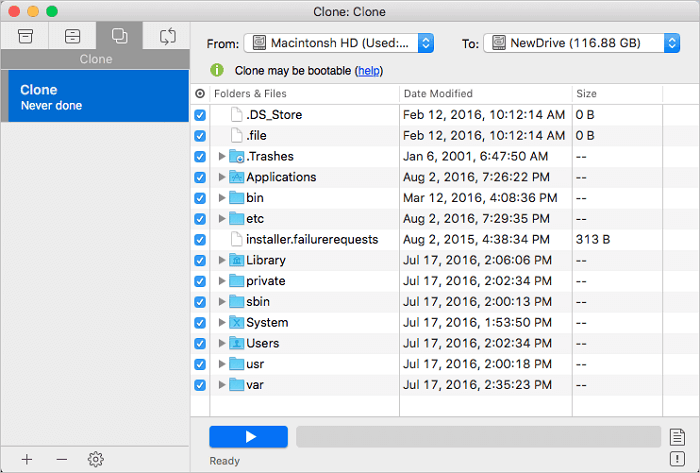
3.Set up SSD clone properties and select all data in old SSD to be cloned to new SSD; ( You can also selectively choose only Mac bootcamp partition to clone from old Mac disk to new SSD.)
Click the blue Start button to start upgrading and cloning Mac SSD to new SSD drive now.
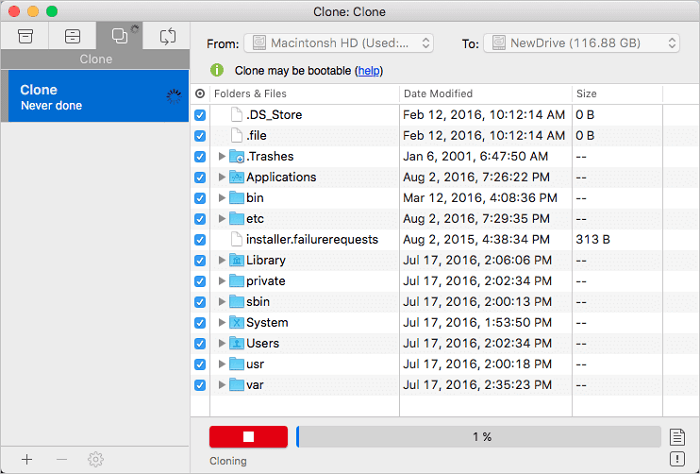
After setting up the new SSD drive, jump to Step 3 and complete the last operation to make your Mac bootable on the new SSD drive.
Step 3. Set and change Mac to boot from new SSD drive
1. To keep both old and new SSD drives connected to your Mac computer, you can simply have both drives connected and running at the same time. This allows you to access and use files from both drives simultaneously, without having to worry about transferring everything to the new drive.
2. To change the startup disk to a new SSD drive, go to System Preferences, click on Startup Disk, and select the new SSD drive as the new boot drive.
3. Right-click on the old SSD drive in Finder, select "Eject Only Macintosh HD" to safely remove it, and then replace it with the new SSD.
4. To upgrade your Mac's storage, shut down the computer, then install a new Solid-State Drive (SSD) in place of the existing one. Once the new SSD is installed, reboot your Mac to complete the upgrade.
After replacing the original SSD, you can insert a new one into your Mac computer and boot it up without any issues. This allows you to use the old drive as a storage drive, expanding your Mac's storage capacity and freeing up space for optimizing its performance by saving data on the old drive.
Related Articles
- How to Upgrade, Change and Replace Mac SSD to A Bigger SSD?
- 3 Ways to Backup Mac Mail
- How to Clone Mac Hard Drive to SSD
- How to Clone USB Drive on Mac
- Full Analysis: Is Windows 11 Need Any Antivirus
Windows 11's built-in Windows Defender provides some protection, but it's still essential to use antivirus software to safeguard against malware and cyber threats. Consider using the Qiling Backup tool for comprehensive PC protection. - Comprehensive Tips: Keep Your Data Backup Safe
Regular backups should be a daily routine, but that's not enough - they also need to be protected with a password to ensure the safety of your data, even if it's stolen. This post provides guidelines to help keep your data backup safe.
Products
Articles & Tutorials
- Data Recovery
- Data Backup
- File Recovery
- File Backup
- System Backup and Restore
- Disk and Partition Clone
- Technical articles
- Mobile articles
- Disk Master Help
- Windows Data Recovery Tutorials
- Windows Secure Delete Tutorials
- Windows Partition Management Tutorials
- Windows File Backup and Restore Tutorials
- Windows System Backup and Restore Tutorials
- Windows Disk Backup and Restore Tutorials
- Windows Clone Tutorials