Show Hidden Partition Using Command Prompt
It's easy to hide system partitions in Windows, and there are a couple of ways to do it. You can use a built-in system tool to hide regular partitions from appearing in Windows, or use alternate software to achieve the same result.
To show hidden partitions using Command Prompt, follow these steps:
How to Show Hidden Partition Using Command Prompt
We are utilizing a powerful tool, Diskpart, which provides a command line interface to manage disk partitions. It allows users to perform various functions, such as creating a FAT32 partition or deleting all partitions.
To show hidden partitions using the command prompt, you can use the Diskpart utility. Before diving into the commands, let's cover the basics. Diskpart is a command-line utility that allows you to manage your computer's disks and partitions.
diskpart: This command is used for opening the Diskpart console.
assign letter #: This command assigns a drive letter to the selected volume.
list Volume: This command displays all volumes on the computer system.
select The command "select partition" is used to choose the partition you want to use as your drive. This is typically used in operating systems like Windows or Linux to specify which partition to use for booting or storing files.
Once you have acquired complete information about these commands, you can easily follow the detailed process below to show a hidden partition. This process typically involves using specific commands to reveal the hidden partition, allowing you to access its contents.
Step 1: Open the Run window using Windows + R button together.
Step 2: To proceed with the process, type the "CMD" command in the Run Prompt and press the Shift + Enter button. This will open the Command Prompt, allowing you to execute the necessary commands to complete the process.
Step 3: Once you do it, you can find the UAC prompt on your device. Just tap on the Yes button from the pop-up window.
Step 4: To launch the Diskpart console on your device, type the command "Diskpart" in the given place and press the Enter key.
Step 5: To use Diskpart in the Command Prompt, replace the path with "Diskpart". Then, type the command "list volume" to list all the partitions.
Step 6: Select volume 3, and press Enter.
Step 7. Input "assign letter H" and hit Enter.
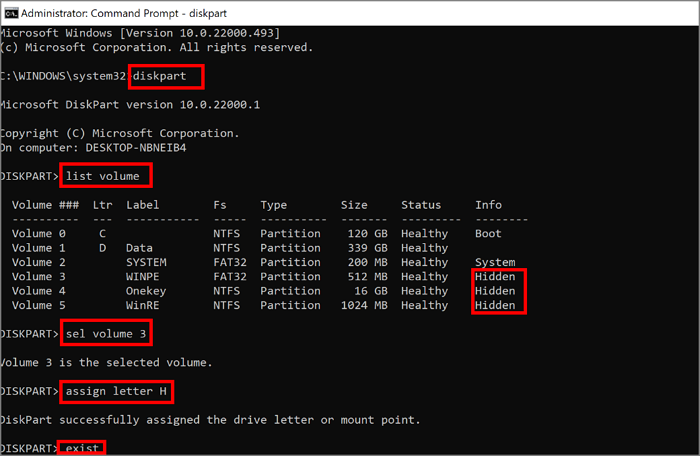
Your partition has been unhidden successfully now. You can find the hidden partition easily, but be careful with wrong commands, as this method requires professional knowledge. We have an easier alternative.
Show Hidden Partition Using Command Prompt Alternative
Finding hidden partitions is no longer a daunting task, thanks to Qiling Disk Master, a safe and convenient tool that makes it easy to deal with partition problems.
This tool offers professional-level access to users, allowing them to get the most out of it.
Option 1 - Hide Partition
- Right-Click the partition you want to hide, then select "Hide partition" from the drop-down menu.
- Then the partition will be hiding.
Option 2 - Unhide Partition
- Right-To view and access a partition, click on the partition you want to view and access. From the drop-down menu that appears, select "Show partition".
- Then the app will unhide the partition on Windows 11/10/8/7.
Qiling Disk Master is a versatile tool that suits both beginners and professionals, offering a wide range of features related to disk partition, making it a perfect fit for various user needs.
- Copy hidden partition
- Hide system reserved partition
- Convert dynamic disk to basic
- Format partitions to FAT, NTFS, EXT2, and EXT3 file systems
- To check and fix bad sectors on your disk and partition, a surface test can be performed. This test scans the disk for any errors or bad sectors and can help identify and repair any issues, ensuring your data remains safe and accessible.
Conclusion
You can easily show hidden partitions using the command prompt with tools like Diskpart or Qiling Disk Master, making it a straightforward task to hide and find partitions at your convenience.
Qiling Disk Master is a user-friendly and affordable partition manager that allows individual users to copy OS and data to another storage device, convert MBR to GPT, and more without any issues.
FAQ of Show Hidden Partition Using Command Prompt
We've provided a comprehensive guide on showing hidden partitions using Command Prompt. If you have any remaining questions, here are some frequently asked questions about the topic.
1. How can I see all partitions in CMD?
Follow the steps below to use CMD to see all the partitions:
Step 1. Right-click the Windows button and choose "Run."
Step 2. Input "diskpart.exe" and click "OK."
Step 3. Type the following commands and hit Enter:
list volume
select volume 1
assign letter H
exit
2. Why is my partition hidden?
Computer vendors often hide hard drive partitions to prevent unauthorized access, but these partitions can also be used to store evidence files, such as those needed to revert the system to its factory state.
3. How do I show hidden partitions?
You can try a third-To view the disk usage of a drive, you can use File Explorer or a third-party tool like Qiling Disk Master. Alternatively, you can use Windows built-in tools. To use File Explorer, follow these steps below.
Step 1. Open File Explorer and click the hide drives.
Step 2. Select the "do not restrict drives" option.
Related Articles
- How to Open Terminal on Mac and How to Use it [2024 Guide]
- Solved: Dell Boot Loop Error on Windows 10 - With Pictures
- [Detailed Guides] How to Backup WeChat in 5 Ways
- How to Solve No Usable Free Extent Could Be Found [Efficient Solutions]
- How to Transfer Stardew Valley Saves Between Different Devices
Stardew Valley is a farm simulation game available on multiple platforms. To prevent players from losing their game progress when switching devices, we provide methods to transfer Stardew Valley saves between PC, iOS, Android, Switch, and PS Vita. - 2 Available Ways | How to Update BIOS Without USB
If you're wondering how to update your BIOS without using a USB, this guide can help you through the process in two different ways, making it easy to update your BIOS on your own.
Products
Articles & Tutorials
- Data Recovery
- Data Backup
- File Recovery
- File Backup
- System Backup and Restore
- Disk and Partition Clone
- Technical articles
- Mobile articles
- Disk Master Help
- Windows Data Recovery Tutorials
- Windows Secure Delete Tutorials
- Windows Partition Management Tutorials
- Windows File Backup and Restore Tutorials
- Windows System Backup and Restore Tutorials
- Windows Disk Backup and Restore Tutorials
- Windows Clone Tutorials