Solved: Dell Boot Loop Error on Windows 10 - With Pictures
Despite Dell's impressive performance, users still experience issues with the device, including a frustrating boot loop problem. Qiling noticed that many users have encountered this problem and are looking for a solution; the following is a real case.
You're experiencing a boot loop on two Dell laptops, where they repeatedly restart at the Dell logo after powering on. You've tried changing BIOS settings and running diagnostics, but they passed. Possible causes could be a faulty power supply, overheating, or a failing storage device. You may also want to try resetting the BIOS to its default settings or running a system file check. If the issue persists, it might be worth contacting Dell support for further assistance.
If your Dell computer or laptop is stuck in a boot loop, it means that it is unable to complete the boot process and is instead restarting over and over. This can be frustrating and may be caused by a variety of factors, including a faulty hard drive, a malfunctioning graphics card, or a corrupted operating system. To resolve this issue, you can try running a virus scan, checking for BIOS updates, and running a system file checker. If the problem persists, you may need to reinstall your operating system or seek further assistance from a professional.
Why Are You Stuck in a Dell Boot Loop
If your Dell laptop keeps restarting or gets stuck on the Dell logo, it could be due to various reasons such as a faulty power supply, corrupted BIOS, overheating, outdated drivers, or a failing hard drive. These issues can cause the laptop to continuously restart or get stuck in an infinite loop, making it difficult to access the operating system. To resolve this problem, you may need to troubleshoot the power supply, update the BIOS, clean dust from the laptop, update drivers, or replace the hard drive if it's failing. It's also recommended to run a diagnostic test to identify the root cause of the issue.
- Operating System Corruption: OS corruption occurs when critical system files become invalid or damaged, often due to sudden shutdowns or freezes, causing the entire computer to malfunction in unpredictable ways.
- Malware Infection: Certain forms of malware can cause a Dell laptop or computer to get stuck on the startup page, hindering its usability.
- Damaged Battery or Charger: Your laptop's battery may be dying and unable to provide any or much power to the laptop, causing it to shut down or not turn on.
- Faulty Memory: Your laptop's RAM might be faulty, leading to frequent crashes and shutdowns.
- Hard Disk Failure: If a hard disk failure causes a boot error, the system may display error messages like "Boot sector not found" or "Windows boot error."
The reasons why some people might not like the new development in their area include a lack of transparency, concerns about noise and traffic, worries about the impact on local businesses, and potential environmental issues. These concerns can be addressed by engaging with the community, providing clear information, and implementing measures to mitigate the effects of the development.
A Dell laptop or computer stuck in a boot loop error can be caused by various reasons, including hardware interference, malware, software conflicts, system file corruption, and more. To resolve the issue, identify the root cause and take appropriate corrective actions, such as running a virus scan, checking for software conflicts, and repairing system files.
How to Fix Dell Boot Loop Error on Windows 10 - 5 Fixes
If your Dell computer is stuck in a boot loop error, there are several effective ways to fix it. Before attempting to resolve the issue, you can try the following guide to quickly solve the problem. Four effective ways to fix your Dell computer stuck in a boot loop error include the methods below.
- 1. Press the FN key (function key) while powering on the Dell system.
- 2. To bypass the issue, hold down the FN key and start tapping the Windows key to access the login screen.
If the above steps don't resolve the issue, there are three other Dell boot loop fix solutions: 1) Run a System File Checker (SFC) scan, 2) Run a DISM scan, and 3) Perform a System Restore. These solutions can help identify and fix any corrupted system files, registry issues, or other problems that may be causing the boot loop.
Fix 1. Apply Boot Repair via Qiling Disk Master
The Dell boot loop error can be caused by several factors, but it's difficult to determine which one is affecting your computer. Fortunately, Qiling Disk Master offers a powerful solution with its "Boot Repair" feature, which can effectively solve various boot failure errors and make your computer bootable again.
To repair the Dell boot loop error, follow these steps: first, restart your computer and immediately start tapping the F2 key to enter the BIOS settings. From there, navigate to the "Boot" tab and set the boot order to prioritize the internal hard drive.
Step 1. After connecting the external drive/USB to your computer, start Qiling Disk Master and go to "Tools" where you can click "Create bootable media".

Step 2. Insert a USB drive or CD/DVD, and click "Proceed" to continue with the installation. You can also burn the Windows ISO file to the storage media.

Step 3. Connect a bootable drive to a new computer, reboot it by pressing F2/Del to enter the BIOS, set the bootable drive as the boot disk, and exit the BIOS by pressing F10.
Step 4. Boot the computer again and enter the WinPE interface. From there, open Qiling Disk Master and navigate to the "Tools" tab page, where you can click on "Fix Boot" to resolve the issue.

Step 5: Select the system you want to repair and click "Proceed".

Step 6. Wait a moment, and you will receive an alert that the system has been successfully repaired.
⭐Consultation Entrance
What kind of help do you offer? Do you provide technical support or guidance on how to use the software?
Qiling experts offer 1-on-1 manual services 24/7 to fix Windows boot errors, BSOD, and computer boot loops. They provide free evaluation services and use their decades of experience to diagnose and resolve system boot failures, Windows stop codes, and OS lagging issues.
- 1. To fix the Blue Screen of Death (BSOD) error caused by Windows updates or other reasons, try restarting your computer in Safe Mode, then uninstall any recently installed updates. If that doesn't work, try running a System File Checker (SFC) scan to scan for corrupted system files and replace them if necessary.
- 2. To resolve Windows boot errors like "no bootable device found" or BCD file corruption, you can try booting from a Windows installation media, such as a USB drive or CD/DVD, and run the built-in System File Checker (SFC) and DISM tools to scan and repair corrupted system files. Additionally, you can also try using the Windows Recovery Environment (WinRE) to access the Command Prompt and run specific commands to repair the BCD or boot configuration.
- 3. 0X000_error codes on Windows system or OS boot loop issues can be resolved by running the built-in System File Checker (SFC) tool, which scans and replaces corrupted system files, or by running a full disk check using the Check Disk (chkdsk) utility to identify and repair disk errors. Additionally, running a System Restore to a previous point when the system was working normally can also resolve the issue.
In addition to resolving Dell boot loop errors, Qiling Disk Master can also address various color screen boot issues, such as blue/black/white/yellow screens of death.
Fix 2. Run a Hard Reset
To fix a Dell boot loop, try unplugging all peripherals and external devices, then press and hold the power button for 30 seconds to discharge the system. Next, plug in the power cord and press the power button again to restart the system. If the issue persists, try booting in safe mode, disable any recently installed software, and update the BIOS if necessary.
Step 1. Unplug all devices from your Dell laptop/computer, except the monitor, mouse, and keyboard, to ensure a clean and safe shutdown.
Step 2. Unplug the power cord, remove the laptop battery (if applicable), and press and hold the power button for about 15 seconds.
Step 3. Plug it back in and try restarting.
🧑💻Read Also: Fix Windows 10 Boot Loop
Fix 3. Clean Boot Troubleshooting
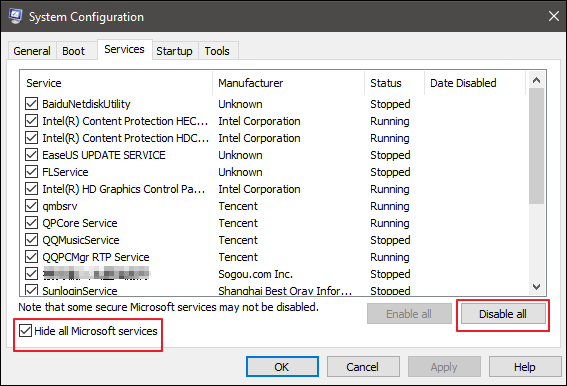
To resolve a Dell boot loop error caused by a software conflict in Windows 10, perform a clean boot. This involves disabling all startup programs and services to isolate the issue. Start by pressing the Windows key + R to open the Run dialog, then type "msconfig" and press Enter. In the System Configuration window, navigate to the Services tab, check the box next to "Hide all Microsoft services," and then click the "Disable all" button.
Step 1. Boot into safe mode:
- To access the Windows Recovery Environment (WinRE), turn your computer on and off three times. The third time, it will automatically boot into WinRE.
- To access the Startup Settings, follow these steps: Choose Troubleshoot, then click Advanced Options, followed by Advanced Startup Options, and finally Startup Settings, before restarting your computer.
- Your Dell laptop/computer will restart and enter the startup settings menu. Press 4 to select Enable Safe Mode. This will allow you to troubleshoot and resolve any issues without loading unnecessary drivers and programs.
Step 2. Perform a clean boot:
- To access the System Configuration utility, click the Search box on the taskbar at the bottom of the screen, type "msconfig", and choose System Configuration from the search results.
- Check the "Hide All Microsoft services" option on the Services tab of the System Configuration dialog box, then click "Disable All".
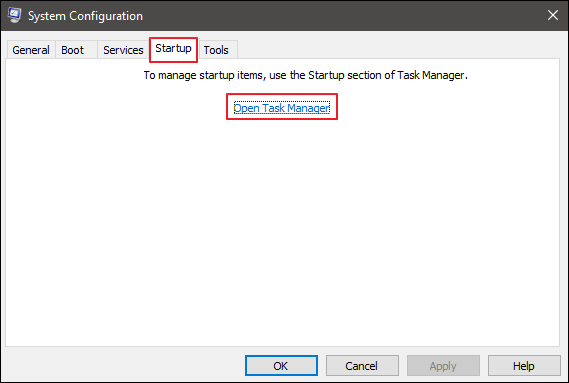
- Then, on the same page, click Open Task Manager.
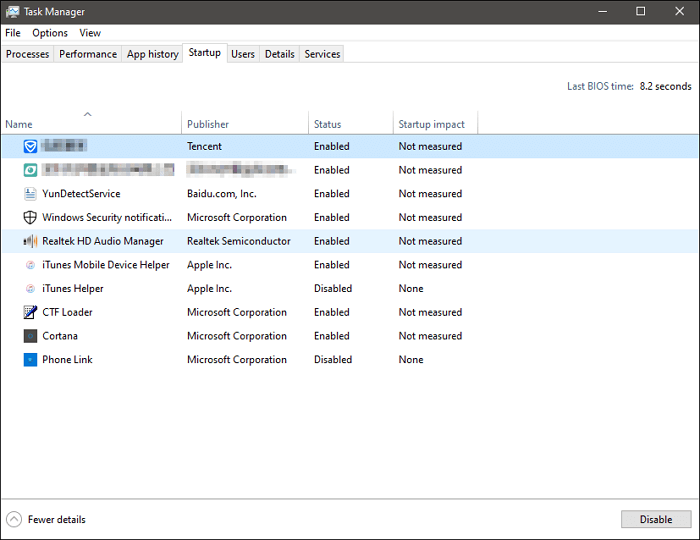
- To disable startup items, open Task Manager, go to the Startup section, select each item, and click Disable, then close Task Manager.
- To resolve the issue, go back to the Startup tab of the System Configuration dialog box, click OK, and then restart the computer.
Step 3. Identify the problem item:
If the boot loop error doesn't happen in a clean boot environment, you can figure out which startup app or service is causing the issue by turning them on and off one by one in the System Configuration dialog box and restarting the computer.
- Tip
- To troubleshoot a computer issue, test half of the potential causes at a time, eliminating half of the possibilities each time the computer is restarted, and repeat the process until the problem is found.
If you find a problematic item, contact the manufacturer to see if they can resolve the issue, or run Windows with the item disabled.
Step 4. Reset the Dell computer to start normally:
- Enter the system configuration as above.
- On the General tab, click the Normal Startup option.
- On the Services tab, uncheck the box next to "Hide all Microsoft services" and then click "Enable All".
- On the Startup tab, click Open Task Manager, and then enable all startup programs. Close Task Manager, and then click OK on the Startup tab of the System Configuration dialog box.
- Click Restart when prompted.
This method is time-consuming and requires the user to click multiple times to complete the operation, so please follow the above tutorial carefully to avoid other mistakes.
Fix 4. Repair Boot Sector
Dell laptops can get stuck in a boot loop due to damaged or missing boot sector or BCD file, but Qiling Disk Master Professional can help repair these issues and fix the boot loop error without losing data.
Step 1. Create a WinPE bootable disk
- Launch Qiling Disk Master, click "Bootable Media" on the toolbar, and select "Create bootable media".
- Click "Next" to finish the process.
Step 2. Boot Qiling Disk Master Bootable USB
- Connect the bootable USB or CD/DVD to your PC.
- To access the BIOS screen, press F2 or Del when restarting the computer. Once in the BIOS, set your computer to boot from the "Removable Devices" or "CD-ROM Drive". After doing so, Qiling Disk Master will automatically run.
Step 3. Rebuild MBR
- Right-click the disk and choose "Rebuild MBR".

- Select the type of MBR. Then, click "Proceed".

This tool can rebuild MBR, create a bootable USB, and help manage hard drives when the OS can't boot properly.
Fix 5. Reset the OS
To resolve a Dell boot loop caused by corrupted system files, you can reset Windows 10. This process will reinstall the system files without affecting your personal data. To do this, follow the steps below:
- Press the Windows key + S to open the Search bar.
- Type "Reset this PC" and select the result.
Step 1. After three unsuccessful boot attempts, Windows 10 will automatically enter the Windows Recovery Environment (WinRE) mode.
Step 2. To fix your computer, go to the Settings app, choose Troubleshoot, select Reset this PC, and then click Keep my files. This will reset your computer without deleting your personal files.

Step 3. Select your user account and enter a password when prompted.
Step 4. Select Reset. Windows will go through the reset process.
You can also check the following article for more solutions to Windows 10 won't boot.

Windows 10 Won't Boot? 8 Ways to Fix Your PC
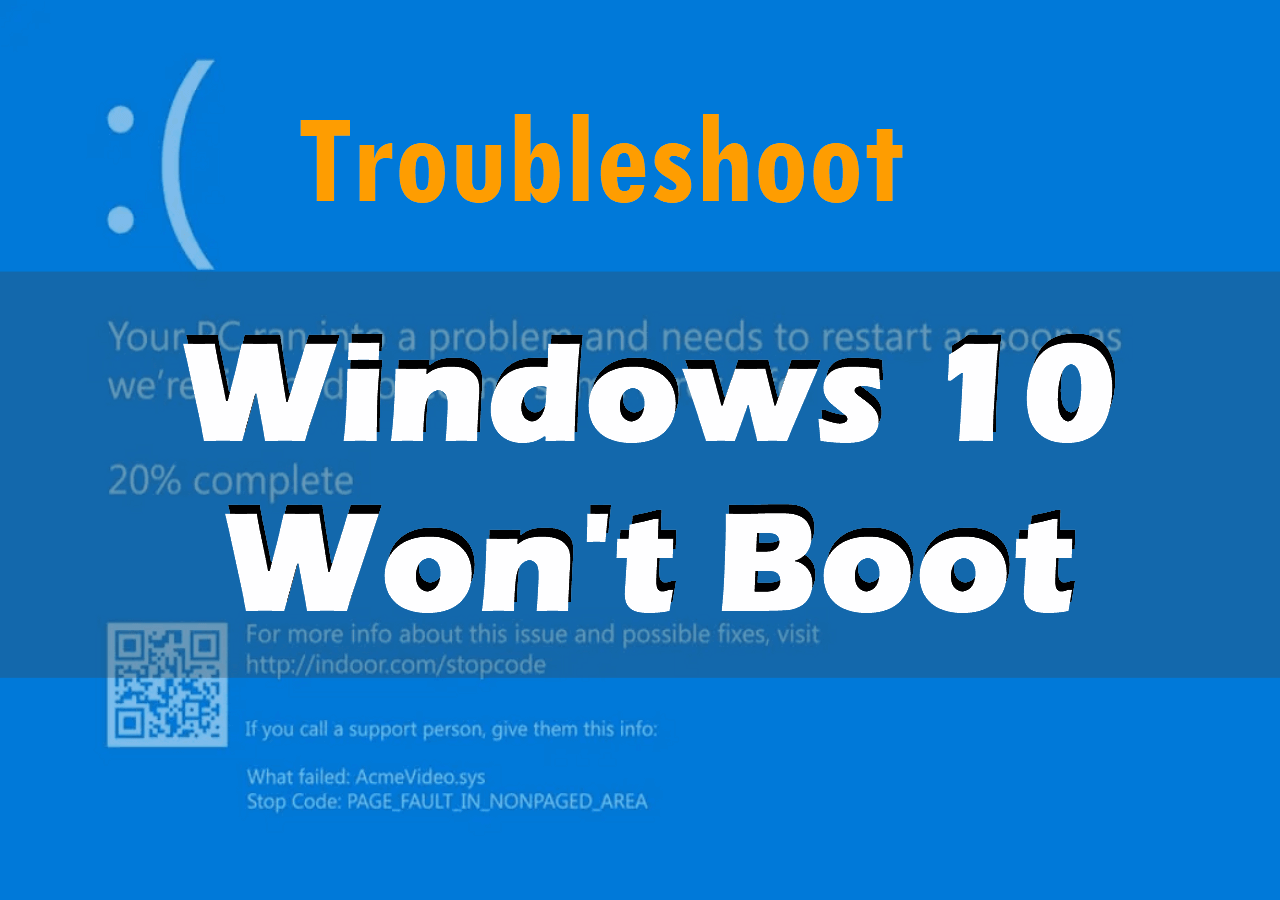
Windows 10 boot issues are common among users, but resolving them can be tricky. Fortunately, this article provides 8 methods to help you fix the 'Windows 10 won't boot' problem, so you can get back to using your computer without any hassle.
Conclusion
If your Dell computer is stuck in a Windows 10 boot loop, don't worry - there are effective solutions to fix the issue. You can try using the FN key, repairing the boot sector, performing a hard reset, or troubleshooting with a clean boot. Alternatively, you can reset Windows to its original settings. These solutions have been tested and proven to work, so you can try them to resolve the problem. To avoid data loss, be sure to back up your important files before attempting to fix the issue.
Dell Boot Loop Error FAQs
Dell computer boot loop issues can be frustrating, but there are steps you can take to resolve them. If your Dell computer is experiencing a boot loop, try booting in safe mode, checking for BIOS updates, and running a diagnostic test. Additionally, ensure that your system is free from malware and viruses, as these can cause boot issues.
1. How do I fix the Dell boot loop error?
Dell boot loop errors can occur due to various reasons including hardware interference, malware infection, software conflicts, system file corruption, etc. To resolve this issue, you can try pressing the FN key, performing a hard reset, resetting Windows, or repairing the boot sector.
2. Why does my Dell laptop keep booting to BIOS?
If your Dell computer keeps booting into the BIOS, it may be caused by an incorrect boot sequence. Check the BIOS to see if a suitable boot device is available and set the disk as the primary boot option. If the hard drive is not listed under Boot Devices in the BIOS, consider replacing the hard drive.
3. What to do if your Dell computer is stuck on the loading screen?
To bypass the infinite loop loading Windows on a Dell computer, hold down the FN key while powering it on, then start tapping the Windows key. This should display the login screen.
Related Articles
- Fix WD External Hard Drive Not Showing Up/Recognized Error [2024 Tutorial]
- Computer Freezes When Playing Games in Windows 10
- How to Add Storage to Steam Deck [2024 Full Guide]
- How to Fix Installer Information on The Recovery Server Is Damaged?
Are you a Mac user experiencing a common challenge of The installer information on the recovery server being damaged? In this article, you learn why the installer information error occurred and the right approach to fix the problem in a detailed manner. - 5 Best Ways to Fix Windows Update Error 0x80080005
If your Windows update failed with error 0x80080005 and you're unable to update Windows 10 to the newest version. There are 5 effective ways to fix this issue. - Windows Update Something Went Wrong - How to Fix?
The 'Windows update something went wrong' error message can occur due to several reasons. This issue may arise from various factors, and the article will explore some of the common causes of this problem.
Products
Articles & Tutorials
- Data Recovery
- Data Backup
- File Recovery
- File Backup
- System Backup and Restore
- Disk and Partition Clone
- Technical articles
- Mobile articles
- Disk Master Help
- Windows Data Recovery Tutorials
- Windows Secure Delete Tutorials
- Windows Partition Management Tutorials
- Windows File Backup and Restore Tutorials
- Windows System Backup and Restore Tutorials
- Windows Disk Backup and Restore Tutorials
- Windows Clone Tutorials