How to Make Dell Boot from USB on Windows 11/10
When your Dell computer malfunctions or fails to work as expected, you can try booting it from a USB drive, which can solve irreparable errors and allow you to access your computer again. This process involves creating a bootable USB drive and setting your Dell computer to boot from it, which can be done on Windows 11/10.
This article will guide you through a simple process to solve the problem of burning a Windows ISO file onto a USB drive, making it easy to boot from. The steps outlined are detailed and straightforward to follow, and you'll also learn how to use a third-party tool to conveniently burn the ISO file onto the USB drive before initiating the boot process on your computer.
| ⏱️Duration | 5-7 Minutes (Step-by-step Tutorial) |
| 💻Applies to | To get your Dell laptop or Dell XPS to boot from a USB drive on Windows 11, 10, 8, or 7, you'll need to create a bootable USB drive with the installation media for your operating system. Here's a step-by-step guide to help you achieve this: |
| ⛏️ Tools |
✔️USB ✔️Windows ISO files ✔️Dell laptop or desktop |
| 🖌️ Stages |
1️⃣Stage 1. Preparations Before Dell Boot from USB |
| 🔍Required Software | USB creators and ISO burner - Qiling Disk Master |
How to Make Dell Boot from USB
Booting your Dell computer from a USB drive allows you to install a new operating system and potentially resolve errors that prevent your device from functioning correctly. To prepare, you'll need to create bootable media and make your Dell computer boot from the USB drive, which involves a series of steps that will be outlined in this section.
Stage 1. Preparations Before Dell Boot from USB
To ensure a smooth boot process from a USB, you must prepare everything needed by assembling the necessary components, including a working USB drive, a compatible operating system, and a reliable bootable USB creator tool. Additionally, you should ensure that your computer's BIOS or UEFI settings are configured to prioritize booting from the USB drive. It's also essential to verify that your computer's hardware is compatible with the chosen operating system. Furthermore, you should be prepared to troubleshoot any potential issues that may arise during the boot process.
1. Prepare USB Drives
Ensure you have a flash drive that is detectable by your computer and is at least 8GB, formatted to FAT32, to create bootable media on it.
2. Download the ISO File
The ISO file contains all the data and information about the operating system you want to install, which can be downloaded from the Microsoft website. You can select whether you want an ISO file for Windows 11 or Windows 10.
- Windows 11: www.microsoft.com/software-download/windows11
- Windows 10: www.microsoft.com/en-us/software-download/windows10
This download file is typically large, requiring a stable internet connection and sufficient disk space.
3. Download Bootable Media
Once you've downloaded the ISO file, you'll need a tool to burn it onto a flash drive or CD/DVD. Apart from Rufus, another bootable media we recommend using is Qiling Disk Master.
The tool simplifies the process of burning Windows ISO files, making it easy for even PC newbies to master the burning skills.
Stage 2. Create Bootable USB for Dell Laptop
Once you've completed assembling all the requirements, the next step is to create a bootable USB drive. This is an essential step that allows you to smoothly boot from a USB drive, making it easier to access your Dell laptop. There are various methods to create a bootable USB, which will enable you to boot your laptop from the USB drive.
Guide 1. Create Bootable USB without ISO
You can create a Windows 10 installation USB drive without using an ISO file by utilizing Qiling Disk Master, a program specifically designed for creating Windows bootable drives.
Read more: How to Create Bootable USB
Guide 2. Burn ISO with Professional Tool
To boot a Dell computer from USB, users can run their system, reinstall Windows, or troubleshoot startup issues. A recommended method is to reinstall the system by burning the Windows ISO to a USB drive using Qiling Disk Master. This process can help resolve problems and get the computer up and running again.
The software enables you to select and burn the downloaded ISO file to your flash drive, allowing you to add a bootable partition manager option to the Windows boot menu or create WinPE bootable media, which can help troubleshoot common OS issues or boot problems.
Below are the steps to create a bootable USB for your Dell computer using Qiling Disk Master.
Step 1. Launch Qiling Disk Master and navigate to the Bootable Media section, then click on "Create bootable media".

Step 2. To proceed with the operation, select the target USB as the destination and click "Proceed" to execute the action.

You may also like the following topics related to burning features:
Stage 3. Make Dell Boot from USB
After you've created a bootable USB, the next step is to connect the flash drive to your Dell computer and start booting it. Before starting, you must set the boot order to UEFI. Follow the steps below to achieve that.
Step 1. Shut down your computer and connect the bootable USB drive.
Step 2. Turn on your computer and press F2 when the Dell logo appears.
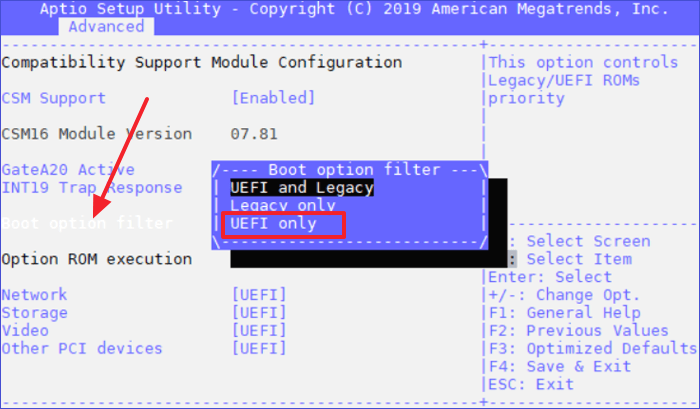
Step 3. To set UEFI as your boot order, navigate to the BIOS setup, then go to "Advanced" and select "CSM Configuration." From there, choose the "Boot option filter" section and select "UEFI only." This will set UEFI as your boot order.
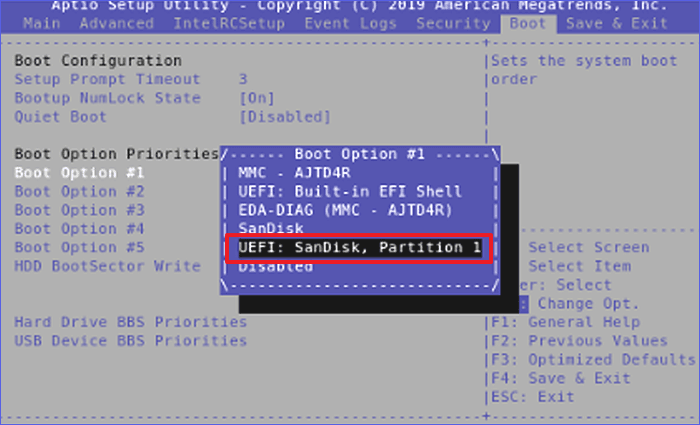
Step 4. To boot from a USB drive, go to the "Boot" menu tab, select your bootable USB drive from the displayed drives, press ENTER, and confirm the selections with F4 to exit the screen.
Step 5. To confirm "Save & Exit", select "Yes" and press the ENTER button, then wait for the Dell computer to boot from the connected USB drive, following the onscreen instructions until the process completes.
You can also watch the video below to learn how to make a Dell computer boot from USB:
You can also use the methods provided in this article to boot other laptops from a USB drive, allowing you to run a different operating system or troubleshoot issues on a different device.

How to Boot Raspberry Pi From USB [Step-by-Step]
This article explains how to modify the Raspberry Pi bootloader to boot from a USB storage medium, providing detailed steps on booting the Raspberry Pi from USB.
Bonus Tip: How to Fix It If You Don't See USB Devices Under Boot Options
If your bootable USB drive isn't listed among the devices available for booting your computer, try disabling fast boot on your system, which might be causing the issue. To do this, follow these steps: 1) Go to your computer's BIOS settings. 2) Look for the "Boot" or "Boot Options" section. 3) Disable the "Fast Boot" or "Quick Boot" feature.
Step 1. Turn on your Dell computer and let it boot normally, disconnecting the bootable USB drive in the process.
Step 2. To access the power settings on Windows, follow these steps: Open your Windows settings, then navigate to "System" and click on "Power & sleep." From there, select "Additional power settings" to make further adjustments.
Step 3. To change the power button settings, click on the pop-up window that appears and select "Choose what the power buttons do." Then, click on "Change settings that are currently unavailable."
Step 4. To resolve the issue, uncheck the "Turn on fast startup (recommended)" option, which is located in the Power Options of the Control Panel, allowing the computer to boot normally and potentially resolving the problem with detecting the bootable USB drive.
If you meet other errors on Dell laptop, click the following link and fix it:
Why Make Dell Boot from USB
To boot from a USB drive on a Dell computer, you can follow these steps: insert the USB drive into a USB port, enter the BIOS settings by pressing the F2 key (or F12, F1, or Del key depending on your model), navigate to the Boot Order settings, select the USB drive as the first boot device, and save your changes. You may need to disable Secure Boot or Legacy Boot to enable USB booting. Additionally, you can also try booting from a USB drive using the Dell Bootable USB Creator tool or by creating a bootable USB drive using a third-party tool.
When encountering boot errors or seeing the "no bootable image found, notebook will be shut down" error, trying to boot Dell from USB can be a helpful method. This approach can also be useful for those searching for a tutorial on booting Dell from USB, possibly due to reasons such as reinstalling Windows, fixing a corrupted operating system, or running a specific software that requires a bootable USB drive. To achieve this, you can follow the steps below to create a bootable USB drive for your Dell notebook. Firstly, you need to download the ISO file of the operating system you want to install. Then, you can use a tool like Rufus to create a bootable USB drive.
- For troubleshooting. Sometimes, system errors can prevent your computer from functioning normally. In such cases, booting your computer with a new operating system via USB can be a viable solution to fix irreparable errors.
- For Windows upgrading or installing. To install a new operating system or upgrade from an old one on a Dell computer, you need to perform a USB boot. This process allows you to conveniently install a new OS and start enjoying its features.
- For system recovery. To recover your computer password, you can reset it by booting your device via USB boot after not using it for a while, causing you to forget your existing password.
The article provided helpful booting tips, and it would be great if you could share it with friends.
Conclusion
Creating a Dell boot from USB allows you to troubleshoot common issues, upgrade your OS, install a new OS, or perform a system recovery on your computer. To do this, you'll need to create a bootable USB drive, which involves downloading the Windows 11/10 ISO file from the Microsoft website and then burning the setup to a flash drive. This process enables you to install Windows on your Dell computer.
One of the best tools to burn a Windows setup to a USB flash drive is Qiling Disk Master, which is particularly useful when upgrading to Windows 11. This tool allows you to easily create a bootable media and boot your Dell computer with minimal strain, and also enables you to optimize disk performance.
To use Qiling Disk Master on your Dell computer, download and install it today.
FAQs About Dell Boot from USB
To boot a Dell computer from USB, you'll need to create a bootable USB drive with the operating system or recovery media you want to install. You can use a tool like Rufus or the USB creator in the Dell Support website to create the bootable USB drive.
1. How Can I Boot from USB on Dell Latitude Laptop?
To boot your Dell Latitude laptop from a USB drive, first, ensure the USB drive is inserted into the correct port. Next, restart your laptop and immediately start pressing the F2 key to enter the BIOS settings.
Step 1. Shut down your computer and connect the bootable USB drive.
Step 2. Turn on your computer and press F2 when the Dell logo appears.
Step 3. Once you've entered the BIOS setup, go to Advanced, then Configuration. Navigate to the boot option filter section and select UEFI only.
Step 4. To boot from a USB drive, go to the Boot menu, select your bootable USB drive from the drive list, press enter, and then confirm your selections by pressing F4. This will allow you to exit the screen and proceed with booting from the USB drive.
Step 5. If asked to confirm save and Exit, select Yes and hit the enter button. Your Dell computer will start booting from the connected USB drive. Stay patient and follow the onscreen instructions until the process completes.
2. What Is the Boot Key for Dell Laptop?
The boot key for most Dell laptops is F12. Pressing this key lets you enter the Boot menu on your laptop/computer.
3. How to Boot Windows 10 from USB on Dell?
To install Windows 10 on your computer, start by downloading the official Windows 10 ISO file from the Microsoft website. Then, use a tool like Qiling Disk Master to burn the ISO file onto a USB drive, creating a bootable media. Once the USB drive is prepared, you can follow the steps outlined in the previous response to complete the installation process.
Related Articles
- Top 8 Free SD Card Speed Test Tool 2024 New Checklist
- How to Boot Lenovo Laptop from USB Windows 11/10 [Full Guide]
- Best Solutions on How To Fix Adobe Acrobat Error 0 104
- HDD Regenerator Free Alternative [Download & Review]
- How to Delete Unallocated Space Windows 10 [Three Efficient Ways]
To delete unallocated space in Windows 10, you can create a new partition on the unallocated space, extend the existing partition into the unallocated space, or merge the unallocated space with the existing partition. - Fix "Disk Already Contains the Maximum Number of Partitions" Error [Step-by-Step Guide]
To boot a Lenovo laptop from a USB drive, you'll need to create a bootable USB and follow a step-by-step guide. First, prepare the USB drive by formatting it and downloading the Lenovo bootable ISO.
Products
Articles & Tutorials
- Data Recovery
- Data Backup
- File Recovery
- File Backup
- System Backup and Restore
- Disk and Partition Clone
- Technical articles
- Mobile articles
- Disk Master Help
- Windows Data Recovery Tutorials
- Windows Secure Delete Tutorials
- Windows Partition Management Tutorials
- Windows File Backup and Restore Tutorials
- Windows System Backup and Restore Tutorials
- Windows Disk Backup and Restore Tutorials
- Windows Clone Tutorials