How to Fix Dell Laptop Running Slow on Windows 10/11
Dell laptops are known for their sleek designs, reasonable prices, and lightweight yet feature-rich features. However, many users have reported that their Dell laptops have become slow over time, which may be a concern for those experiencing similar issues.
Knowing what makes your Dell laptop run slow will help eliminate the performance drop, so you can enjoy the same snappy speeds you're used to. This article will share the causes of a slow Dell laptop on Windows 10 and Windows 11.
| ⏱️Reading Time | 3-5 minutes |
| 🧑💻Task | To fix Dell laptop slow error, try restarting the laptop in safe mode, running a virus scan, disabling startup programs, and checking for updates. Also, clear browser cache and cookies, close unnecessary programs, and check for disk space issues. |
| ⛏️Solutions | |
| ✍️Difficulty | Easy with a step-by-step guide |
How to Fix a Dell Laptop Running Slow
As promised, here are a few solutions that should fix your Dell laptop that is running slowly:
1. Remove All External Devices and Restart the Computer
If you haven't already, try disconnecting any external devices like monitors, mice, keyboards, and storage drives (SSDs or HDDs) that are connected to your computer, then restart your PC. This can sometimes resolve issues.
Disconnecting devices from your laptop is necessary because they consume your laptop's resources, and when starting up, they can use up too many resources, causing your Dell laptop to slow down.
2. Check for Malware
If your laptop is infected with malware, it can cause various problems, such as making it unresponsive, preventing it from booting up, or slowing it down. To resolve this, use a malware remover to scan and remove the malware.
You could use a third-To remove malware, you can use a third-party malware remover tool or rely on Windows' built-in security feature, Windows Defender. Both options can scan your system for malicious software and remove it to keep your computer safe and secure.
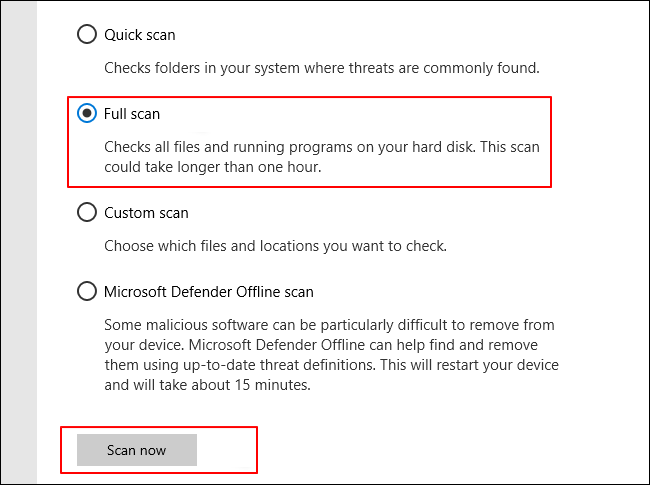
Alongside Windows' built-To clean a virus from your computer, you can use a virus cleaning utility or run a third-party software like TotalAV, which can help remove viruses, malware, and online threats from your PC.
TotalAV is an award-winning antivirus and security software that offers real-time protection against viruses, malware, and online threats.
Antivirus Protection Enabled
3. Optimize the Startup of Windows 10
Some installed programs may be set to launch automatically when Windows starts, which can slow down your laptop's boot time. Disabling this feature can help your laptop boot up faster.
To disable apps that launch at startup, go to the Start menu, type "msconfig" and press Enter. In the System Configuration window, click on the "Startup" tab.
Step 1. Right-click on the "Start" button and select "Task Manager."
Step 2. Click on "Startup."
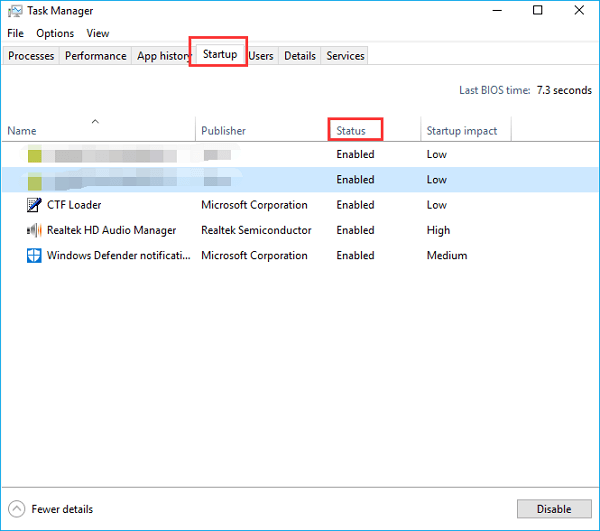
Step 3. Right-click on the apps marked "High" under "Startup impact" and select "Disable" to prevent them from launching at startup.
If you're still experiencing issues, check out our next section!
4. Increase C Drive Space
If your Dell laptop is running slowly, check if your C drive is full. Try deleting apps and unnecessary files to free up space. Remove unused apps and delete their cache files, then restart your PC to see if it's faster.
You can also use Qiling Disk Master, trusted by over 530 million users, to utilize the extended partition feature and expand Local Disk C's storage space, potentially improving your laptop's performance.
Option 1. Extend System C drive with unallocated space
- 1. Right-click on the System C: drive and select "Resize/Move".
- 2. To expand the C: drive, drag the system partition end into the unallocated space, effectively adding it to the C: drive. This will increase the size of the C: drive.
- 3. Click "Proceed" to execute the operations and extend the C drive.
Option 2. Extend System C drive without unallocated space
- 1. Right-click a big partition with enough free space on the system disk, select "Allocate Space".
- 2. Select the system drive at the "Allocate Space From" (*) To section, and drag the end of the System C drive into the unallocated space.
- 3. To proceed, click on the "Proceed" button to save the changes and extend the C drive. This will finalize the operation and provide the desired outcome.
0:00-To extend the system drive with unallocated space, one can use the built-in Disk Management tool in Windows. This involves opening Disk Management, selecting the system drive, and then using the "Extend Volume" option to add the unallocated space to the drive.
However, if this didn't help, check out our next solution, which should help!
5. Clean Up the Hard Disk
If the solutions above don't help, you may want to try clearing the hard disk. This can sometimes resolve issues with your system.
Here's a quick way to delete files and increase Local Disk C's storage space:
Step 1. Click on the magnifying glass icon.
Step 2. Search and open "Disk Cleanup."
Step 3. To free up space on your computer, select the file types that are taking up too much space and click "OK" to delete them.
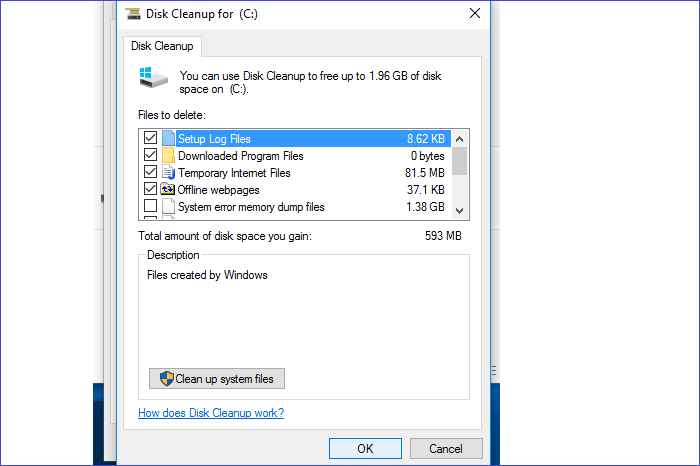
Step 4. To delete all the selected file types, click on the "Delete Files" button.
You can use Qiling Disk Master's wipe hard drive feature to clear everything on your hard drive in a few clicks and free up space in a few seconds, providing a more efficient solution than other methods.
6. Defragment the Hard Drive
A corrupted or fragmented hard drive can cause this issue. To resolve it, you can defragment the hard drive. Here's how:
Here's what you need to do:
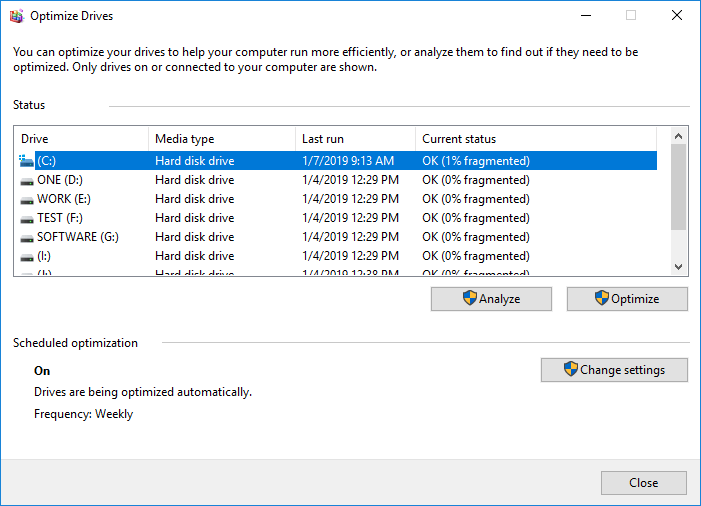
Step 1. Click on the magnifying glass icon and search "Defragment and Optimize Drives."
Step 2. To clear a drive, select the drive you want to clear and click on "Analyze"
Step 3. After scanning the drive, select it and click "Optimize."
Step 4. Restarting your computer is a simple troubleshooting step that can often resolve issues related to speed. By restarting your laptop, you're essentially giving your computer a fresh start, allowing it to clear out any temporary files or glitches that might be slowing it down.
7. Upgrade Dell Hard Drive to SSD
If none of the above solutions have worked, consider replacing your hard drive with a solid-state drive (SSD), as they are much faster and more durable than traditional hard drives. To make this transition smoother, you can use Qiling Disk Master to clone the data from your old hard drive to the new SSD, ensuring that the exact same data is transferred. Ensure that the SSD has a capacity equal to or greater than the used disk space on your old hard drive. This approach can be a more efficient and effective solution to your issue.
Then, download Qiling Disk Master and follow the steps to clone data:
Step 1. Select the source disk.
- To clone an OS disk or a data disk, first click on the "Tools" tab page. Then, select the option that corresponds to the type of disk you want to clone, which is either "Clone OS Disk" or "Clone Data Disk".
- Choose the source disk and click "Next".
Step 2. Select the target disk.
- Choose the desired HDD/SSD as your destination and click "Next" to proceed.
- Read Warning message and confirm "Yes" button.
Step 3. View the disk layout and edit the target disk partition size.
To reinstall Windows, insert the Windows installation media into the computer and restart it. Boot from the media, select the target disk to install Windows on, and then click "Continue" when the program warns it will wipe out all data on the target disk. If you have valuable data on the target disk, back it up in advance.
You can choose to automatically adjust the disk layout, clone the disk as the source, or edit the disk layout to customize it, especially to leave more space for the C drive.
Step 4. Click "Proceed" to start the disk cloning process.
If your laptop still runs slowly after swapping the hard drive with a solid state drive (SSD), the problem might be with the RAM.
Upgrading your hard drive can breathe new life into an old computer, allowing you to install a faster and more efficient storage system. With the right tools and some basic technical knowledge, you can swap out your old hard drive for a new one, giving your computer a much-needed boost.
8. Increase the Capacity of RAM
If your Dell laptop is running slower, try upgrading your RAM to see if it improves performance, especially if the current RAM is less than 4 GB, as this can be a common cause of slowdowns.
Step 1. Check the specific condition of your RAM: open Task Manager>Performance>Memory.
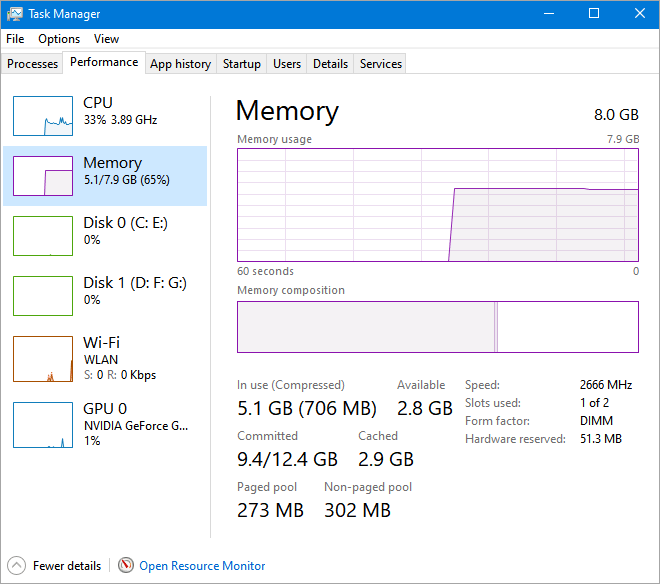
If the RAM is running out of space, you can either clean up unnecessary data and programs to free up space, or upgrade to a larger RAM to increase the available space.
Step 2. Turn off the laptop and remove the laptop battery.
Step 3. Check that the RAM you have is compatible with your computer's motherboard. Then, locate the RAM slot on the motherboard and carefully insert the RAM into the slot, making sure it is securely seated and the notches on the RAM match the tabs on the slot.
Step 4. Cover the back panel and turn on the power.
We hope this article was helpful in fixing your Dell laptop, and it's now working normally. If you know someone who owns a Dell laptop and is experiencing the same issue, consider sharing this article with them to help them troubleshoot and resolve the problem.
Overview of Dell Laptop Running Slow
Dell laptop running slow can be caused by various factors such as outdated drivers, malware, and disk space issues. To resolve the issue, you can try updating your drivers, running a virus scan, and checking your disk space. Additionally, you can try disabling any unnecessary startup programs, closing unnecessary background applications, and checking for any software updates. If the issue persists, you may want to consider running a disk cleanup, disk defragmentation, or even reinstalling Windows.
We've can help! The detailed solutions to the issue are provided above. But don't worry, we'll explain what causes the problem and how to avoid it in the next section. In the meantime, here are two common questions people have about Dell laptops:
1. What Are the Dell Performance Issues?
Here are some performance issues you will experience when your Dell laptop starts running slowly: freezes, crashes, slow startup times, slow performance, high CPU usage, high disk usage, and poor battery life. These are fixable using the solutions below.
- Your Dell laptop may become unresponsive.
- Your laptop could keep freezing.
- Your laptop gets unreasonably hot quickly.
- It takes ages for Windows to boot up.
Your Dell laptop performance needs a boost, as indicated by the symptoms mentioned. These symptoms can help you detect potential laptop problems in advance, allowing you to fix them promptly and maintain your laptop's optimal performance.
Further Reading: Dell No Bootable Devices Found
2. Why Dell Laptops Running Slow
Here are some possible reasons why your Dell laptop might be slowing down:
- Insufficient RAM
- When Windows 10 was updated, it didn't properly remove the outdated files.
- Outdated drivers
- Fragmented hard drive
- Malware infection
- Disk error
- Low storage space
This article provides solutions to the reasons why a Dell laptop may be running slow. You can continue reading the content provided earlier to find the fixes.
Conclusion
If your Dell laptop is running slow, try disconnecting all external devices and checking for malware. If that's not the issue, consider optimizing startup apps or cleaning up your hard disk. Upgrading your RAM and swapping your HDD for an SSD can also improve performance.
I highly recommend using Qiling Disk Master during the repair process, as it is a powerful disk partition management software that can help with any problems you may encounter on your Dell laptop, including booting from a USB drive.
FAQs About Dell Laptop Running Slow
Do you have any other questions about why your Dell laptop running slow? Here, we answer a few questions about it.
1. Why is my Dell laptop slow to startup?
Your laptop may be running slowly due to a combination of factors, including low disk space, insufficient RAM, outdated drivers, or malware infections, which can significantly impact its performance.
2. How do I speed up my Dell laptop?
To speed up your Dell laptop, try the solutions we've shared, including closing unnecessary programs, updating your operating system and drivers, disabling unnecessary startup programs, upgrading your RAM, cleaning up disk space, and using the built-in Disk Cleanup tool and Dell's System Update tool. By following these methods, you can help improve your laptop's performance and make it run more smoothly.
- Increase C drive space
- Clean up the hard disk
- Defragment the hard drive
- Upgrade Dell hard drive
3. Why is my laptop slow all of a sudden?
If your computer suddenly slows down, it could be due to running too many programs at once, which can decrease its processing power, or a virus or malware infection, which can also cause a slowdown.
Related Articles
- How to Extend C Drive in Windows 10 Without Formatting
- 5 Ways to Hide Drives in Windows 10 | Check Your In-depth Tutorial
- What Is the Best MBR to GPT Convert Tool? Your Checklist Here
- Resize/Move Partitions to Solve Low Disk Space Issue
- 2022 Tips to Fix 100 Disk Usage in Windows 7/8/8.1/10/11
When you are faced with disk usage 100 in Windows 7/8/8.1/10/11, you can follow the solutions here. You can fix Windows 7 100% disk usage and speed up your laptop and computer with ease. - What Is Disk Management and Its Features? Your Windows 11 Guide
What is Disk Management and what can you do with this tool in Windows 11, 10, 8, or 7? Follow this page to learn what is Disk Management, its features, and how to use it in Windows 11 or older computers on your own.
Products
Articles & Tutorials
- Data Recovery
- Data Backup
- File Recovery
- File Backup
- System Backup and Restore
- Disk and Partition Clone
- Technical articles
- Mobile articles
- Disk Master Help
- Windows Data Recovery Tutorials
- Windows Secure Delete Tutorials
- Windows Partition Management Tutorials
- Windows File Backup and Restore Tutorials
- Windows System Backup and Restore Tutorials
- Windows Disk Backup and Restore Tutorials
- Windows Clone Tutorials