How to Fix Dell No Bootable Devices Found
You turn on your Dell computer, but instead of booting up, it displays the frustrating message "No bootable devices found." This issue can be caused by a variety of factors, including a faulty or loose hard drive connection, a malfunctioning BIOS, or a corrupted boot order. Don't worry, as this is a common problem that can be resolved with some troubleshooting and patience.
Qiling will delve into the causes behind the issue and explore various solutions to resolve it, providing a detailed, step-by-step guide to help resolve the frustrating problem. To find out more about a tool that can resolve such issues hassle-free, stick with the article.
Why Dell No Bootable Devices Found
Dell no bootable devices found is a frustrating issue. Users often encounter this problem when their computer fails to recognize any bootable devices, such as a hard drive or USB drive, making it impossible to start the system. This issue can be caused by a variety of factors, including faulty hardware, corrupted system files, or incorrect BIOS settings.
The "Dell No Bootable Devices Found" error occurs due to a variety of reasons, including a faulty BIOS, corrupted or missing boot files, incorrect boot order, and issues with the bootable device itself. This includes problems with the hard drive, SSD, or USB drive, which can prevent the system from recognizing and booting from it. Additionally, a malfunctioning or outdated BIOS can also cause this error, as it may not be able to properly read or execute the boot files. Furthermore, a corrupted or damaged boot sector can also lead to this error, making it essential to troubleshoot and resolve these underlying issues to resolve the problem.
- 1. Incorrect Boot Sequence: The boot sequence, which determines the order in which your computer checks for bootable devices, can be misconfigured, potentially causing your system to fail to detect the operating system.
- 2. System Partition Not Active: If the system partition is marked inactive, the computer can't find the necessary boot information, leading to a "No bootable devices found" error.
- 3. Boot Hard Disk is Corrupted: When the boot disk becomes corrupted, the system is unable to locate the necessary files to start the boot process, resulting in the error message.
- 4. Internal Hard Drive Corruption: The operating system's boot process is disrupted when it fails to access necessary files from a corrupted hard drive. This prevents the system from loading and starting up normally.
- 5. Virus Infection: Malware or viruses can cause significant issues with your Dell computer's functionality, particularly if they target the boot sector or critical boot files, potentially rendering the device unable to boot properly.
Now that we've explored the reasons behind the "Dell No Bootable Devices Found" error, let's move on to the solutions. If this article helps you resolve your issue, click the buttons and share it with others.
How to Fix Dell No Bootable Devices Found
To troubleshoot and resolve the issue with your Dell computer, follow these effective fixes. Start by checking the step-by-step instructions provided, which will guide you through the process of getting your computer back up and running. By following these simple steps, you should be able to identify and resolve the problem, ensuring your Dell computer is functioning properly once again.
Fix 1. Start Boot Repair
When your Dell computer encounters the dreaded "No bootable devices found" error, initiating a boot repair is the first step in resolving this frustrating issue. This solution aims to diagnose and fix any underlying problems preventing your system from properly booting up, and by following the steps outlined, you can embark on the path to restoring your Dell computer's boot functionality.
Step 1: To install Windows, insert your Windows installation disc or USB drive and restart your computer. When prompted, press the boot key specific to your laptop or computer brand to boot from the installation media.
Step 2: Select language preferences and click "Next." Click "Repair your computer" at the bottom-left corner, then choose "Troubleshoot" and "Advanced Options."
Step 3: To fix a computer that won't boot, select the "Troubleshoot" option from the Startup Settings menu. Then, choose "Startup Repair" or "Automatic Repair" in the "Advanced options." Follow the on-screen instructions to allow the repair process to run, which will attempt to fix any issues preventing the computer from booting.

Also read: The System Cannot Find Any Bootable Devices
Fix 2. Select the Correct Boot Device
An incorrect boot device selection is a common cause of the "No bootable devices found" error on your Dell computer. When the system boots, it needs to locate the device containing the operating system, but if the wrong boot device is chosen or prioritized, it will fail to find the necessary files, resulting in an error message. To resolve this, follow the steps to ensure the correct boot device is selected.
Step 1: Start by restarting your Dell computer and pressing the BIOS key during the startup process, which may be F12, F2, or Del, and continuously press the key until BIOS setup appears on the screen.
Step 2: Review the boot sequence to ensure the device with the operating system is listed as the highest priority boot device.
Step 3: If the correct boot device is not listed or set as the first boot option, select it and move it to the top of the boot sequence using the appropriate "+" or "-" keys, then exit the BIOS and reboot your system.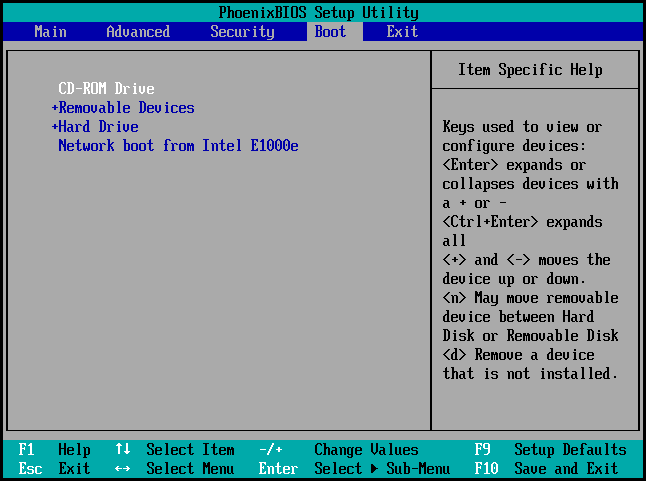
Fix 3. Check the Disk Status
If your Dell computer is showing the error "no bootable devices found", it could be due to a faulty BIOS, a corrupted or malfunctioning hard drive, or a boot order issue. To fix this, you can try updating your BIOS, checking your hard drive for errors using Qiling Disk Master, or adjusting your boot order in the BIOS settings. This should help resolve the issue and allow your computer to boot normally.
Qiling Disk Master allows you to check for file system errors and perform surface tests, helping to identify and potentially resolve issues that may be preventing your disk from booting properly. By examining the health and integrity of your disk, you can take steps to address any detected errors or issues, increasing the chances of successfully resolving the boot problem.
To resolve the Dell no bootable devices found issue, use Qiling Disk Master to check the disk status. First, boot from a Qiling Disk Master USB drive.
If you're experiencing the "No bootable devices found" error, we highly recommend using Qiling Disk Master to diagnose and address any disk-related issues. Its user-friendly interface and comprehensive features make it an ideal tool for disk management tasks, and it can help you resolve your booting problem and optimize your disk performance.
Fix 4. Rebuild MBR
A corrupted Master Boot Record (MBR) can cause a Dell computer to display the "No bootable devices found" error. Rebuilding the MBR can resolve this issue, and Qiling Disk Master is a reliable tool that offers a "Rebuild MBR" function to perform this fix.
The "Rebuild MBR" function in Qiling Disk Master is used to repair or recreate the Master Boot Record (MBR), which is necessary for a Dell computer to boot properly, and can fix issues like the "No bootable devices found" error.
To rebuild the Master Boot Record (MBR) using Qiling Disk Master, follow these simplified and detailed steps. First, boot from a Qiling Disk Master bootable media, such as a USB drive or CD/DVD, and select the option to rebuild the MBR.
Qiling Disk Master offers a range of features beyond disk status checking, including partition management, data backup, and disk cloning, making it a valuable tool for efficiently managing your Dell computer's disks and enhancing overall performance.
Fix 5. Replace Dell Hard Disk
If previous attempts to resolve the "No bootable devices found" error on your Dell computer have failed, it may indicate a serious hardware issue with your hard disk. In this case, replacing the hard disk is a viable solution to restore your system's functionality, but it requires caution and may result in data loss.
Before replacing a Dell hard disk, it's crucial to prioritize data safety by backing up all important files and documents to an external storage device, ensuring valuable information can still be retrieved even if data loss occurs during the replacement process.
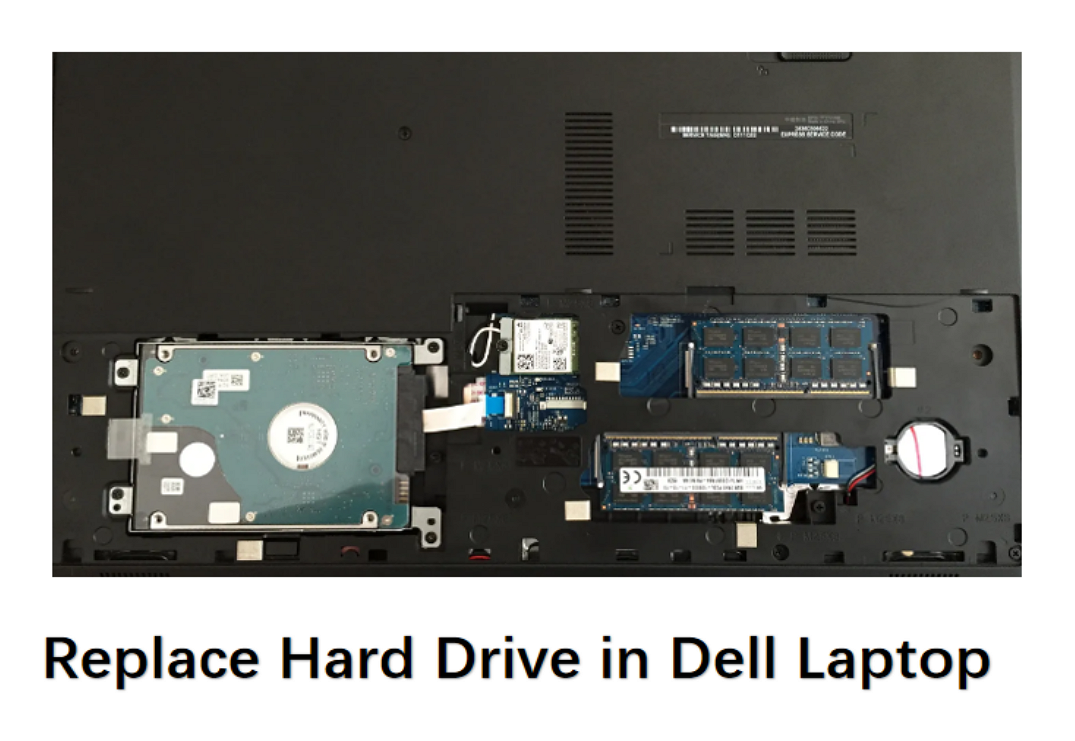
How to Replace Hard Drive in Dell Laptop [Step-by-Step]
This guide provides a step-by-step process on replacing a hard drive in a Dell laptop, along with the best cloning solution to transfer your data.
Conclusion
The "Dell no bootable devices found" error can be frustrating, but understanding its causes can help resolve the issue. This error is often caused by incorrect boot sequence, inactive system partition, boot hard disk corruption, internal hard drive issues, or virus infections. By identifying the root cause, users can troubleshoot and resolve the problem, making their computer usable again.
We presented step-by-step resolve the Dell laptop boot issues, start by attempting to boot in repair mode (if available) or use a bootable USB drive to access the repair tools. If that doesn't work, try selecting the correct boot device in the BIOS settings to ensure the laptop is attempting to boot from the correct drive. If the issue persists, check the disk status using built-in tools like Disk Management or a third-party app to identify any potential problems.
Qiling Disk Master is a comprehensive disk management tool that offers a user-friendly interface to diagnose and resolve various disk-related issues. It allows users to check disk status, repair file system errors, perform surface tests, and rebuild the Master Boot Record (MBR), making it a reliable solution for diagnosing and resolving disk problems.
FAQs About Dell No Bootable Devices Found
The "Dell no bootable devices found" error is a common issue that can occur when a Dell computer fails to boot up. This error message is usually displayed on the screen when the computer is unable to find a bootable device, such as a hard drive or solid-state drive (SSD), to load the operating system from. The error message may appear in different forms, including "No bootable devices found" or "No boot device found".
1. What does it mean when a laptop says, "No bootable devices found"?
When a laptop displays the error message "No bootable devices found," it means the computer can't locate a storage device with the necessary files to start the operating system, due to reasons like incorrect boot device selection, corrupted boot sectors, or faulty hardware connections.
2. How to fix "No boot devices found" on Windows?
Step 1: Ensure the correct boot device is selected in the BIOS or UEFI settings and verify the connections between the storage device (hard drive or SSD) and the motherboard.
Step 2: If Windows fails to boot, you can try running a startup or automatic repair using a Windows installation disc or USB drive. Alternatively, you can rebuild the Master Boot Record (MBR) using specialized tools or commands. If these methods don't work, a clean installation of Windows may be the best option.
3. How to boot into Dell in BIOS?
You can't chat with this user because the user has blocked you.
Step 1: Restart your Dell computer and look for the key prompt displayed on the screen during startup, which is usually F2, F12, or Del. Press this key repeatedly to access the BIOS settings.
Step 2: To enter the BIOS or UEFI setup menu, press the key designated for entering the BIOS setup, which is usually F2, F12, or Del, depending on your computer's manufacturer. This will allow you to configure various settings related to your computer's hardware and boot options. Once in the BIOS setup, navigate through the menus using the arrow keys, make the necessary changes, and save your settings before exiting.
Related Articles
- Fixed: We Couldn't Format the Selected Partition | 0x8004242d Error [2023 Tutorial]
- 3 Best Disk Repair Tools for Windows Server Free Download 2023
- How to Upgrade Steam Deck SSD [Easiest Way]
- How to Change Dynamic Disk to Basic Disk Safely
- [FIXED]No Bootable Image Found, Notebook Will Be Shutdown
When you receive the error message 'No bootable image found, notebook will be shutdown', it means your computer is unusable. Fortunately, Qiling offers 6 effective fixes, providing both professional technical advice and experimentation to help resolve the issue. - No EFI System Partitition Was Found? 4 Quick Fixes!
When booting a computer, users may encounter issues due to a missing EFI system partition. This article provides guidance on resolving the 'No EFI System Partition Was Found' error, allowing users to troubleshoot and fix the problem. - Fix Not Enough Disk Space But There Is Plenty [Five Solutions]
There are several reasons why your computer may say there is not enough disk space, despite having plenty of free space available. This issue can be caused by various factors such as corrupted system files, incorrect disk space calculations, or software issues. - Best NTFS to exFAT Converter [2024 Top]
Struggling to use your drive on both Windows & Mac? Convert NTFS to exFAT quickly and safely with a top-rated converter for 2024, which is compatible with both Windows and Mac operating systems.
Products
Articles & Tutorials
- Data Recovery
- Data Backup
- File Recovery
- File Backup
- System Backup and Restore
- Disk and Partition Clone
- Technical articles
- Mobile articles
- Disk Master Help
- Windows Data Recovery Tutorials
- Windows Secure Delete Tutorials
- Windows Partition Management Tutorials
- Windows File Backup and Restore Tutorials
- Windows System Backup and Restore Tutorials
- Windows Disk Backup and Restore Tutorials
- Windows Clone Tutorials