Fix Not Enough Disk Space But There Is Plenty [Five Solutions]
When installing a program, you may encounter a situation where Windows claims there's not enough disk space, despite having plenty, and you're wondering what's going on. This issue can be frustrating, but understanding the possible causes and solutions can help you resolve it quickly. To fix this problem, you can try checking the disk space available on your system, running a disk cleanup, and ensuring that the program you're trying to install is compatible with your system.
| ⏱️Duration: | 3-5 minutes reading |
| 🧰Tools: | Disk with not enough space error, Windows PC, disk |
| 🎯Fixes: |
|
| 💽Supported Disks: | HDDs, SSDs, External hard drives, USB drives, SD cards, etc. |
If you have met the following situation and are looking for a solution, the methods below can help.
These methods can be helpful to you, and each one works in a specific way. If you like them, you can share them with others who need them.
Why Windows Says Not Enough Space But There Is Plenty
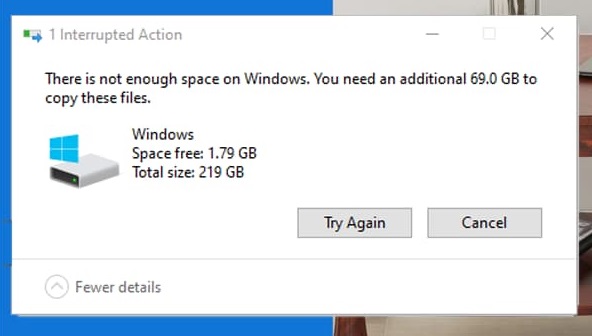
The "not enough space but there is plenty" error can occur due to several reasons. This issue often arises when there's a discrepancy between the amount of available disk space and the space required by the system or an application. It can also be caused by file system fragmentation, where files are scattered across the disk, making it appear as though there's not enough space.
- No administrator privilege To launch programs, you need to have sufficient reading or writing privileges. This is a security feature to prevent unauthorized access to sensitive data.
- Disk error There may be bad sectors on the disk that are causing it to report not enough disk space, even though there is actually plenty available.
- Programs installed on the wrong partition You may have installed the program on an insufficient partition. To resolve this, check the storage location where the program is installed to ensure it's on a partition with sufficient space.
- Exist virtual memory files The partition may be set up with virtual memory files that take up physical space.
- Non-contiguous sector If the sectors of a hard drive are not adjacent, it can lead to a shortage of available sectors for use.
To determine what's taking up disk space, you can click on a link that provides a detailed analysis of your disk space usage. This provides you a clear picture of which files and folders are consuming the most space, helping you identify and address the issue.

How to Analyze Disk Space on Windows 10 [Step-by-Step Guide]
A disk space analyzer can help you identify the main files consuming memory and determine which files are too large for your file system, providing valuable insights to optimize storage usage. Two methods to analyze disk space will be explored in this article.
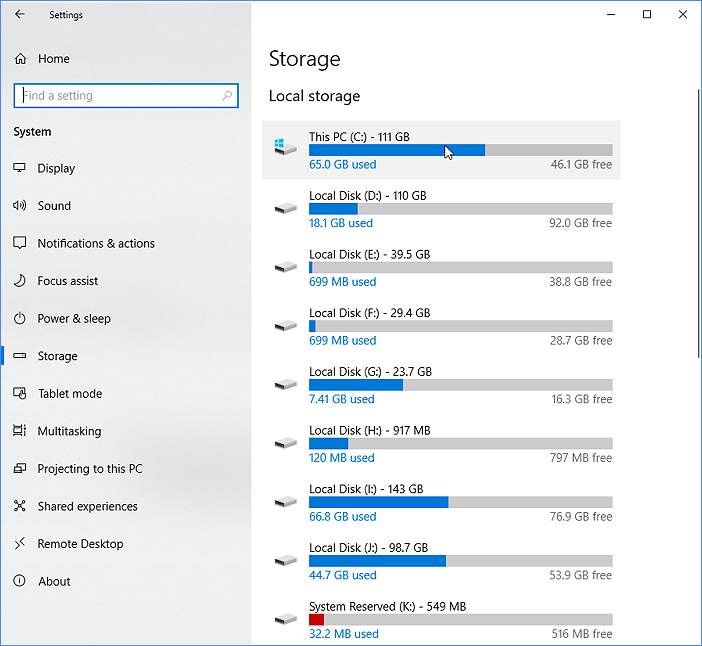
Then, let's see how to solve this problem next.
How to Fix Not Enough Space But There Is Plenty
If you're experiencing the "not enough disk space" issue despite having plenty of space available, it's likely due to one of six possible causes. To resolve the issue, you can try right-clicking on the file's properties to authorize or change the program's storage location if permissions are the issue. For other reasons, solutions are listed below.
Fix 1. Clean the Disk
If your program is downloaded to a disk with insufficient space, you may encounter a "not enough disk space but there is plenty" error. To resolve this issue, you can use the Disk Cleanup tool provided by Windows to scan for and remove useless and obsolete files on the target drive. This built-in tool can help free up disk space by identifying and deleting unnecessary files.
Step 1. Open File Explorer and right-click on the target drive, selecting it.
Step 2. Click "Properties" and select the "Disk Cleanup" button.
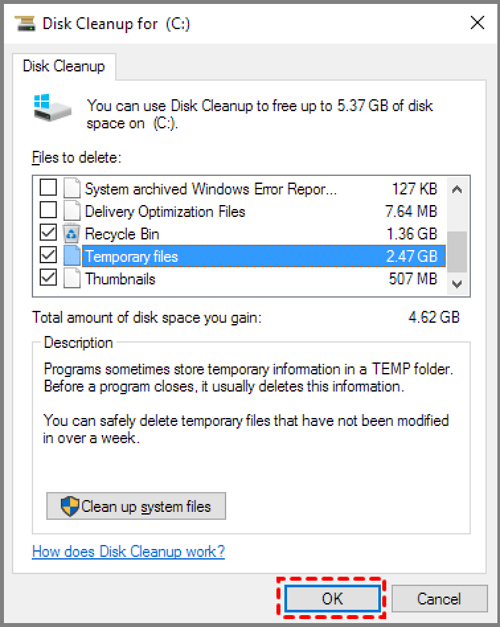
Step 3. Select the files you want to delete in the pop-up window and click "OK" to confirm the deletion.
With Disk Cleanup, you can delete previously installed Windows files, system restore points, the Recycle Bin, and other system files to free up space on your computer.
📖Further Reading: Windows 7 System Image Backup Failed Not Enough Disk Space
Fix 2. Check the Disk Error and Fix It
If a disk has bad sectors, it may appear to have enough free space but show insufficient space. To resolve this issue, you can use the "check disk" function in Qiling Disk Master to check for bad sectors and repair any damaged disk.
Step 1. Right-click the target partition that has a problem.
Step 2. Choose "Advanced" > "Check File System".
Step 3. Confirm if you want to hide the partition or not.
Step 4. In the Check File System window, select the "Fix the error on the disk" option.
Step 5. Click "Start" to check errors on your partition.
Qiling Disk Master is a powerful tool for managing disk partitions, capable of meeting various disk needs and resolving related problems.
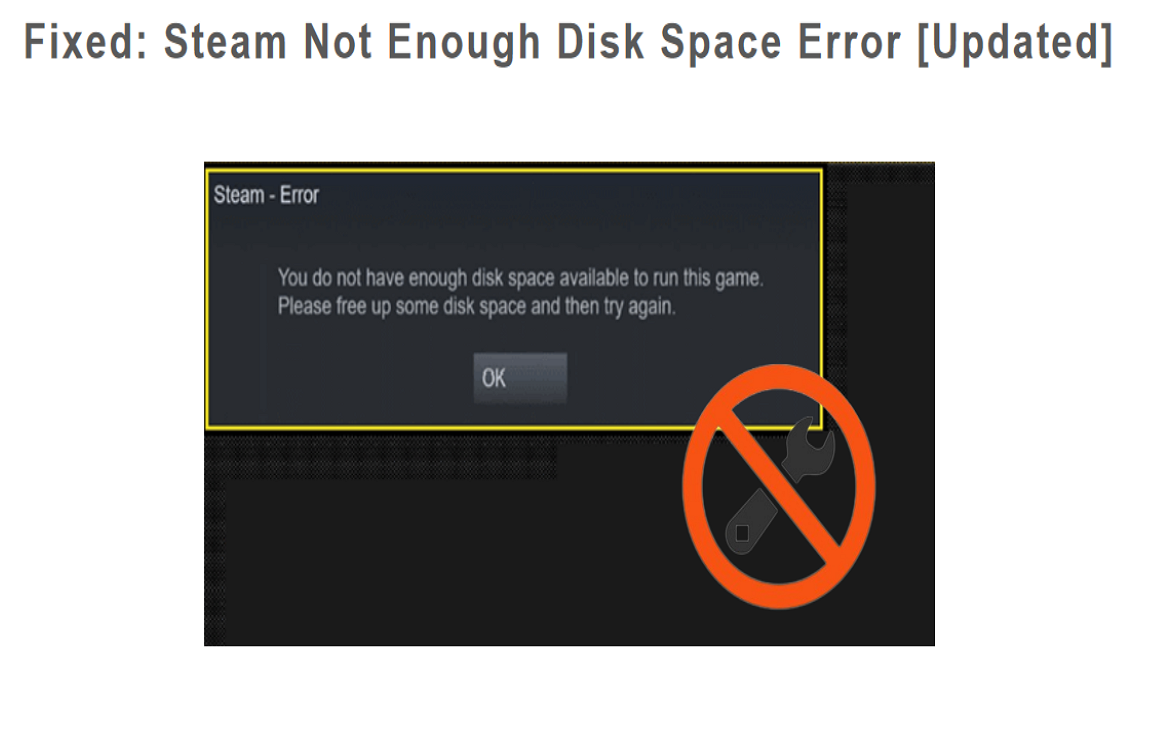
How to Fix Steam Not Enough Disk Space Error [Updated]
To resolve the Steam not enough disk space error, first, check the disk space usage on your computer and identify the files taking up the most space. Then, delete any unnecessary files or programs to free up space. Alternatively, you can use third-party software like MiniTool Partition Wizard to extend your partition and free up more space for Steam. This will allow you to continue using Steam without any issues.
Fix 3. Delete Virtual Files
Virtual memory stores hidden system files on the C drive, naming them ". SYS". Deleting these files can help reduce the I/O load on the drive.
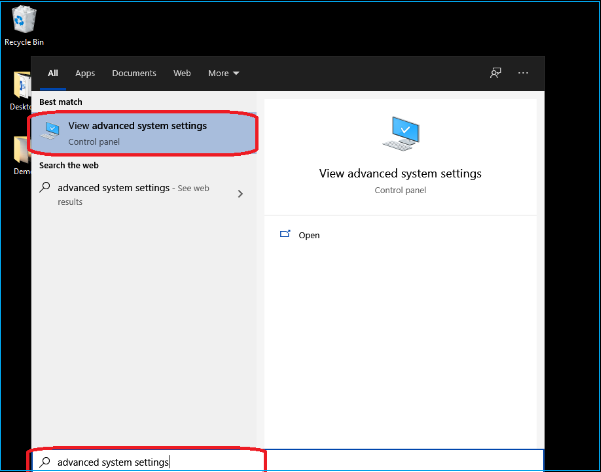
Step 1. To access the advanced system settings, you can type "advanced system settings" in the search box and open it.
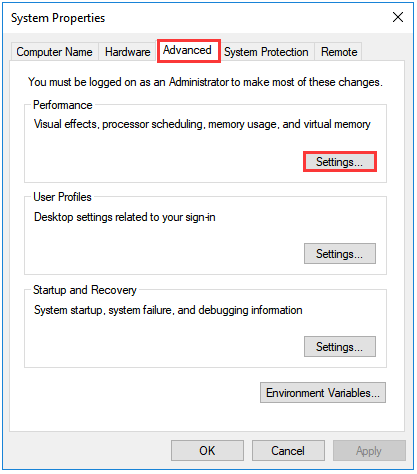
Step 2. On the "System Properties" page, select "Advanced" and click on "Settings".
Step 3. In the pop-up window, select "Advanced" and click on "Change" under Virtual Memory.
Step 4. Deselect "Automatically manage paging file size for all drives."
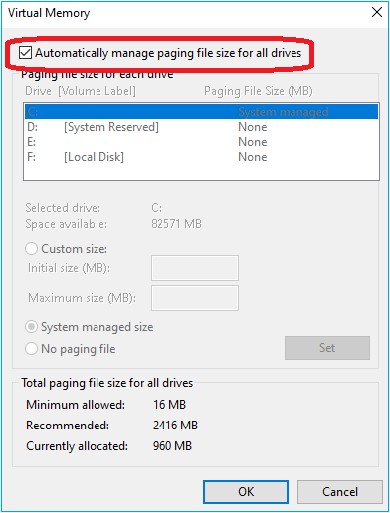
Step 5. To adjust the size of the page file, select the "Custom size" option and enter the desired size in megabytes (MB) or gigabytes (GB).
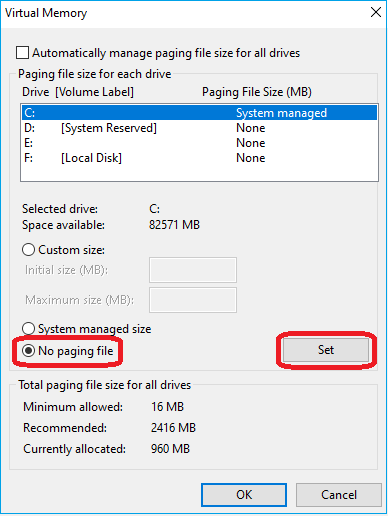
Step 6. To disable the paging file, select "No paging file" and click "OK" to finish.
🔎Read Also: Hard Drive Showing Wrong Capacity
Fix 4. Organize Debris Sectors
If the sector storage on the disk is not contiguous, there won't be enough free sectors left, which may cause a "not enough disk space but there is plenty" error. Using Windows disk defragmenter can help.
Step 1. Click on the search box and input "defrag."
Step 2. Select "Defragment and Optimize Driver."
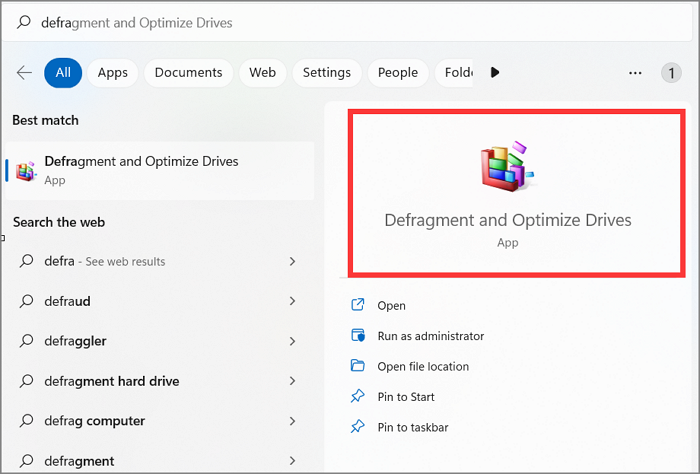
Step 3. The "Optimize Driver" window should be selected and then "Optimize" should be chosen to initiate the process of analyzing the disk's defragmentation level and defragmenting it.
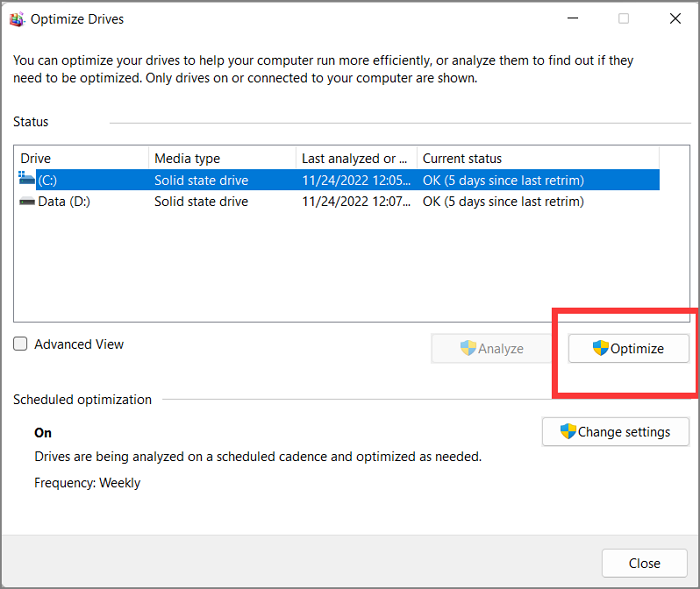
Step 4. When defragmentation is complete, click "OK."
Fix 5. Extend the Partition
Qiling Disk Master allows you to change the storage address or extend the space on a disk where your program is downloaded, even if it's not adjacent. This powerful disk partition software can help you move free space to the target drive or extend non-adjacent space.
Step 1. Locate the Target Partition.
To resize a partition, go to Partition Manager, locate the target partition, and select "Resize/Move" to adjust its size.

Step 2. Extend the Target Partition.
To expand your current partition, drag the partition panel to the right or left, incorporating the unallocated space into your existing partition. This action will increase the size of your current partition by adding the unallocated space.

Extra Option: Get Space from Another Drive
If there's not enough unallocated space on your disk, you can allocate space from a larger partition with available space. To do this, right-click on the larger partition, select "Allocate space", and the unallocated space will be created.
To extend the target partition, select the partition you want to extend and click on the "Allocate space to" column. This will allow you to increase the size of the selected partition.
Step 3. Execute Operations to Extend Partition.
Drag the dots of the target partition into the unallocated space.
To save your changes, click the "Proceed" button. This will keep all the modifications you've made.
Conclusion
This article explores the "not enough disk space but there is plenty" error, identifying its causes and offering six solutions to resolve the issue. Qiling Disk Master, an all-in-one disk manager, can fix most disk problems.
Windows comes with tools to manage disks, including cleaning the disk and removing hidden files, which can help resolve issues with not enough disk space when there is actually plenty available. This article aims to provide helpful solutions to this common problem. Additionally, here are some more questions that people often ask.
FAQs About Not Enough Disk Space But There Is Plenty
1. Why does my computer say there is not enough disk space when there is?
You may be running out of space on your virtual partition, causing the issue. This could be due to hidden or virtual memory files taking up space, which you can delete. Alternatively, the issue might be caused by a disk format limitation, such as FAT32 not supporting files larger than 4GB. Additionally, bad sectors or non-contiguous sectors on your disk could be the problem. You can check out this post for more specific causes and solutions.
2. Why is Windows 11 taking up so much space?
Windows 11 requires more disk space to ensure a successful upgrade, taking up space for temporary files, system restore files, and junk files.
3. Why my hard disk is not showing full capacity?
If your drive isn't showing full capacity, it might be due to an outdated external hard drive or firmware. You can use Qiling Disk Master to convert your MBR to GPT or update your drive.
Related Articles
- How to Fix "Steam Not Enough Disk Space" Error [Updated] guide
- How to Check SSD Health on Windows 10 [Safe & Efficient Guide]
- How to Create Bootable USB to Wipe Hard Drive
- How to Format EFI System Partition as FAT32? Your Guide Here 2024
- How to Remove Drive from RAID?
Removing drive from Software RAID 0, 5 array shrinks volume to free up unallocated space and reconfigure dynamic disk structure to optimize PC performance. - How to Shrink Volume on Dynamic Disk?
Qiling Dynamic Disk Manager can help you shrink volume on dynamic disk to free up unallocated space which can be used to create and extend volume.
Products
Articles & Tutorials
- Data Recovery
- Data Backup
- File Recovery
- File Backup
- System Backup and Restore
- Disk and Partition Clone
- Technical articles
- Mobile articles
- Disk Master Help
- Windows Data Recovery Tutorials
- Windows Secure Delete Tutorials
- Windows Partition Management Tutorials
- Windows File Backup and Restore Tutorials
- Windows System Backup and Restore Tutorials
- Windows Disk Backup and Restore Tutorials
- Windows Clone Tutorials