How to Create Bootable USB to Wipe Hard Drive
Erasing a hard drive completely is often necessary before selling a computer, reinstalling your operating system, or ensuring sensitive data is unrecoverable. Traditionally, this required technical knowledge and bootable CDs, but now creating a bootable USB to wipe your hard drive is a straightforward process that can be accomplished using user-friendly tools, allowing you to securely wipe your hard drive and start fresh.
To create a bootable USB and wipe your hard drive yourself, follow this guide. There are two easy methods to do so.
How to Create Bootable USB to Wipe Hard Drive?
To create a bootable USB to wipe your hard drive, you can use either a user-friendly USB bootable partition manager or create a bootable USB from DBAN ISO Images, which is a more technical approach. This guide provides steps to securely wipe your hard drive, catering to different preferences and experience levels.
Tips:
- Ensure your USB drive has a storage capacity of at least 4GB for a 32-bit operating system or 8GB for a 64-bit system.
- Be sure to back up any files on the USB drive before formatting, as it will erase all data on the drive.
Way 1. Create Bootable USB to Wipe Hard Drive via Qiling Disk Master
Qiling Disk Master Professional offers a user-friendly and seamless experience for creating bootable USB drives, going beyond just that with its intuitive disk management capabilities.
With its comprehensive features, Qiling Disk Master allows you to create a bootable media to fix various Windows boot issues, and also integrates a bootable partition manager choice into the Windows boot menu, enabling you to boot from the media and format, wipe, or free up your hard drive.
Follow the steps:
Step 1. To create a bootable disk of Qiling Disk Master, prepare a storage media such as a USB drive or CD/DVD disc, and connect it to your computer.
Step 2. Launch Qiling Disk Master, and click on the "Bootable Media" feature on the left.
Step 3. You can choose to save the ISO file to a USB, CD/DVD, or local drive, and then click the "Create" button to start the process.
- Check the Warning message and click "Yes".
Step 4. When the process finishes, a pop-up window will appear, asking if you want to restart your computer from the bootable USB.
- Reboot Now: You want to restart the PC and enter Qiling Bootable Media to manage disk partitions without OS.
- Done: it means you don't want to restart the current PC but to use the bootable USB on a new PC.

Note: To use the bootable disk on a new PC, restart the target computer and press F2/F8/Del key to enter BIOS, then set the USB bootable disk as the first boot disk.
Your computer will automatically boot up from the USB bootable media and enter the Qiling WinPE desktop once you wait patiently.
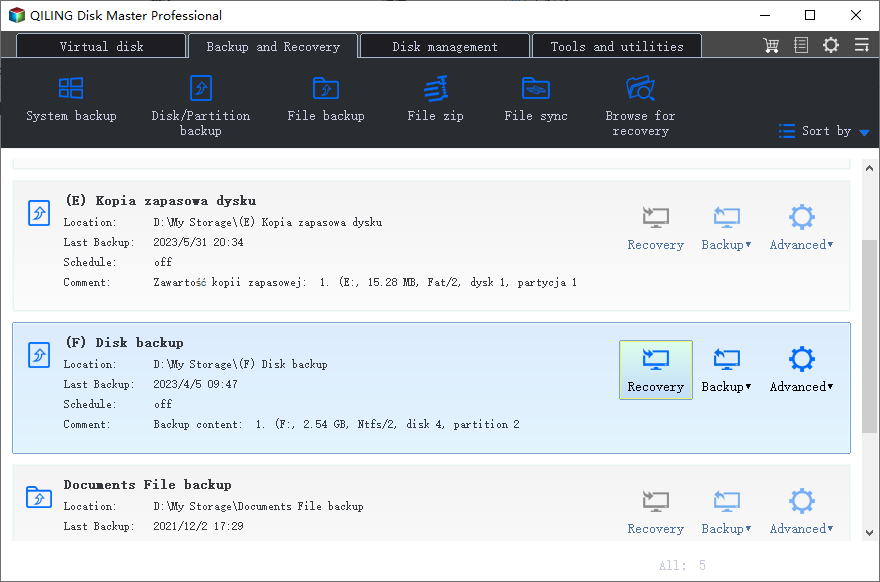
Key Features of Qiling Disk Master:
- Format a Disk in Windows
- Perform disk/partition cloning for backup purposes.
- Secure Erase SSD or HDD for Free
- Partition formatting is a process of formatting a partition on a hard drive to a specific file system, such as FAT32 or NTFS. This allows users to easily manage and organize their data by creating separate partitions for different types of files, making it easier to maintain and upgrade their computer system.
For securely wiping hard drives, we recommend using Qiling Disk Master, which can be run from a bootable USB drive. Its user-friendly interface, extensive features, and reliability make it a valuable tool for disk management tasks.
Way 2. Make Bootable USB from DBAN ISO Images and Erase Hard Drive
DBAN (Darik Boot and Nuke) is a free and powerful tool for erasing hard drives, but it requires more technical expertise than user-friendly software like Qiling Disk Master.
Follow the steps:
Step 1. To obtain the latest DBAN ISO image file, visit the official DBAN website and download the most recent version available.
Step 2. Download the latest Rufus from the official Rufus website.
Tip: This process will completely erase all data on the USB drive, so it's crucial that you have backed up any important files beforehand.
Step 3. Connect your USB drive to a USB port on your computer.
Step 4. Locate the downloaded Rufus executable file and launch the program.
Step 5. To select your USB drive, open the Rufus window and click on the "Device" dropdown menu. From the menu, select your USB drive.
Step 6. To select the boot device for DBAN, go to the Boot selection dropdown menu and choose "Disk" or "ISO image" (the default setting). Next, click on SELECT and locate the downloaded DBAN ISO file. Select the file and click "Open" to proceed.

Step 7. To create a DBAN bootable USB drive, press the START button to initiate the process. Confirm the operation by clicking "OK" if prompted.
Erase your Hard Drive using the DBAN Bootable USB Drive
Step 1. To boot your PC from a DBAN (Darling Be Annoyed) bootable drive, you need to access your PC's BIOS (Basic Input/Output System) and designate the DBAN bootable drive as the primary boot device. This involves restarting your PC, entering the BIOS settings, and adjusting the boot order to prioritize the DBAN drive over the existing operating system.
Step 2. To start the DBAN process, boot your system from the DBAN bootable drive, which will take you to the DBAN main menu. From there, follow the instructions provided and press "Enter" to enter interactive mode, which is the recommended step for hard disk wiping.
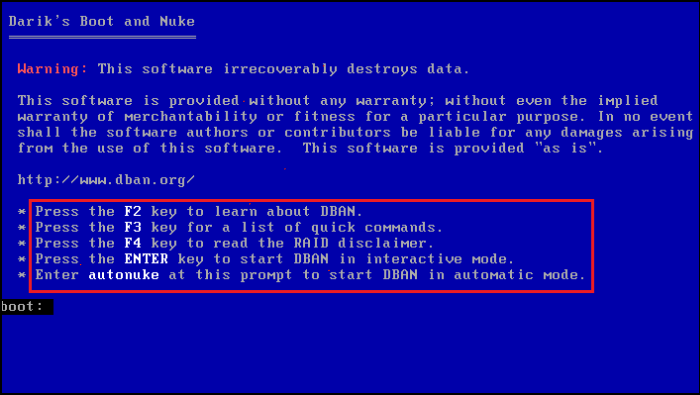
Step 3. In the next window, use the Space key to choose the target drive for erasure. If multiple drives are displayed, use the J or K keys to highlight the drive you want to erase, then press Space to select it.
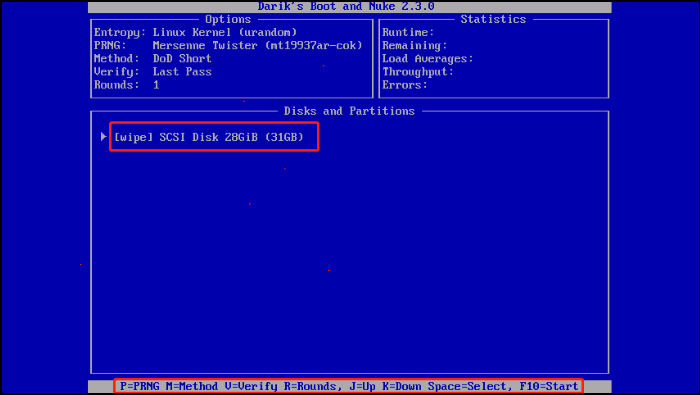
Step 4. Once you've made your selection, initiate the process by pressing F10. The duration of the disk-wiping process varies based on the size of the chosen drive, so be patient until the operation finishes.
Here are two easy methods to make a bootable USB for wiping hard drives:
Why Need to Make a Bootable USB to Wipe Hard Drive?
Wiping a hard drive is essential to keep data secure and prevent it from falling into the wrong hands when selling or reinstalling a computer, where a bootable USB drive can be a hero.
Traditional methods can be unreliable, especially if your system isn't booting properly. A bootable USB is a self-contained toolkit that lets you securely erase your hard drive, regardless of the state of your operating system, by booting your computer directly into a dedicated wiping program. This allows for a complete and secure erase of your data.
Conclusion
Using a bootable USB drive is a reliable method for securely wiping a hard drive, making it suitable for scenarios such as selling an old computer or preparing for a fresh Windows installation by providing a clean slate.
To protect your data, create a bootable USB and use the right tools to erase your hard drive securely. We highly recommend Qiling Disk Master, which simplifies the process and offers various features to effectively manage your hard drive. This software ensures your privacy is safeguarded.
FAQs About Create Bootable USB to Wipe Hard Drive
Have questions about creating a bootable USB to wipe your hard drive? Follow these FAQs.
1. How do you format a hard drive with a bootable USB?
Qiling Disk Master allows you to format your hard drive with ease and precision, providing a user-friendly interface to manage your storage devices.
- Connect the bootable USB and open Qiling Disk Master.
- Right-click the target partition and select "Format."
- Set the parameters.
- Confirm the action and proceed.
- Review changes and click "Proceed" to start formatting.
2. How do I completely wipe my hard drive?
To completely wipe your hard drive, you can use a bootable USB from DBAN or Qiling Disk Master. Follow detailed steps and instructions in way 1 or way 2.
3. How do I wipe my hard disk from BIOS?
BIOS starts your computer, but wiping requires a bootable OS, like a USB drive.
Related Articles
- How to Upgrade PS3 Hard Drive without Losing Data
- How to Test Western Digital Hard Drive Speed [Full Guide in 2024]
- Qiling Disk Master Full Version Free Download with Serial Code/Key
- At Least 98GB! Marvel's Spider-Man 2 Storage Space Requirement on PS5
Marvel's Spider-Marvel's Spider-Man 2 was released on PS5 on October 20th, but many players are concerned about its storage space. - How to Format My 1TB Hard Drive to FAT32? 2024 Guide for Beginners
Briefly state the goal of this page, and call Windows users to follow this page to learn how to efficiently 1TB hard drive to FAT32 successfully. - How to Format 2TB hard drive to FAT32 in Windows 11, 10, 8, 7?
If you want to format a 2TB hard drive to FAT32 file system for better compatibility, you can use the free Qiling Disk Master Standard, which can format large hard drive to FAT32 with ease in Windows 11, 10, 8, 7 computer.
Products
Articles & Tutorials
- Data Recovery
- Data Backup
- File Recovery
- File Backup
- System Backup and Restore
- Disk and Partition Clone
- Technical articles
- Mobile articles
- Disk Master Help
- Windows Data Recovery Tutorials
- Windows Secure Delete Tutorials
- Windows Partition Management Tutorials
- Windows File Backup and Restore Tutorials
- Windows System Backup and Restore Tutorials
- Windows Disk Backup and Restore Tutorials
- Windows Clone Tutorials