At Least 98GB! Marvel's Spider-Man 2 Storage Space Requirement on PS5
Sony Interactive Entertainment's Marvel's Spider-Man 2 is an action-adventure game developed by Insomniac Games, released in 2026, where Peter Parker and Miles Morales face new threats like Kraven the Hunter, Lizard, and Venom.

If you're unsure about the storage space requirements for Marvel's Spider-Man 2, this article from Qiling will provide you with the necessary information and a comprehensive guide on how to ensure you have enough space for the game.
Marvel's Spider-Man 2 Requires at Least 98GB
Marvel's Spider-Marvel Spider-Man 2, available on the PlayStation 5, requires at least 98GB of free storage space, with potential to exceed 100GB after additional patches.
Marvel's Spider-Man 2 has been confirmed as a PlayStation 5 exclusive, leaving out fans of Spider-Man on other platforms, including PS4, Xbox Series X|S, Xbox One, and PC.
Considering the storage space requirements for Marvel's Spider-Man 2, you may need to free up some space on your PS5 or PS4 to install and play the game. To do this, you can delete unused games, apps, and other data to create more space.
Share the post with more Spidey fans on your social media if you find anything useful.
How to Get More Space for Marvel's Spider-Man 2
If your PS5 is full of games, you can try deleting unused games, deleting old PS5 system software updates, and using an external hard drive to expand your storage. This provides you more free space on your PS5 to install additional games.
- Notice:
- The PS5 requires a specific type of external drive, which must be at least 256GB in capacity and support 5Gbps or faster transfer speeds, also known as USB 3.0, USB 3.1, or USB 3.2. Most modern drives meet these requirements, but older USB 2.0 drives will not work.
Method 1. Replace the Original SSD with a New One
Upgrading to a better SSD is a viable option when your current one is no longer sufficient. The first step in replacing a PS5 SSD is to clone all your games and data to the new SSD, and using powerful disk clone software like Qiling Disk Master Professional is recommended to avoid unexpected issues.
This software allows you to clone all data from one drive to another, making it a reliable tool to upgrade your PS5 SSD. After downloading, follow these steps to complete the cloning process.
To prepare your PS5 SSD and the new SSD for cloning, first format the new SSD to an exFAT or FAT32 format, as the PS5 only supports these formats. Then, connect both SSDs to your computer, ensuring they are properly recognized. This setup allows the cloning process to proceed, allowing you to transfer your PS5 data to the new SSD.
Stage 1. Format the new SSD to exFAT(Recommended) or FAT32
Step 1. Launch Qiling Disk Master, right-click the partition you intend to format and choose "Format".
Step 2. Enter the Partition label, choose the FAT32/EXT2/EXT3/EXT4 file system, and set the cluster size according to your needs in the new window.
Step 3. Click the "Proceed" button to start formatting the partition to FAT32/EXT2/EXT3/EXT4.
Step 4. Then you will see a warning window, click "Yes" in it to continue.
Stage 2. Clone your games to the new SSD
Step 1. Select the source disk.
- To clone a disk, click the "Clone" button from the left menu, select the appropriate disk type (either "Clone OS Disk" or "Clone Data Disk"), and then click "Next".
- Choose the source disk and click "Next".
Step 2. Select the target disk.
- Select the desired hard drive or solid-state drive as your destination and click "Next" to proceed.
- Read Warning message and confirm "Yes" button.
Step 3. View the disk layout and edit the target disk partition size.
To install Windows 10, you'll need to create a bootable installation media. First, download the Windows 10 Media Creation Tool from Microsoft's official website. Run the tool and follow the instructions to create a bootable USB drive or CD/DVD. Then, insert the bootable media into the target computer and restart it.
You can choose to automatically fit the disk, clone the disk as the source, or edit the disk layout to customize it, with the option to edit the layout if you want to leave more space for the C drive.
Step 4. Click "Proceed" to start the disk cloning process.
Finally, install the new M.2 SSD on your PS5 and enjoy.
If you have friends who also want to expand their PS5 storage space, share this post with them. They can use a PS5-compatible external hard drive to add more storage to their console.
Method 2. Add an External Drive
The PS5 allows users to add an external drive to expand storage space, enabling the storage of games developed for both the PS4 and PS5 on an external storage device.
The external hard drive for PS5 can be used to play PS4 games directly, but it's limited to PS4 games. PS5 games need to be copied back to the internal SSD first, and the external hard drive needs to be formatted for PS5 usage.
Fortunately, Qiling Disk Master provides a free feature to help with formatting a drive from NTFS to exFAT, which will wipe out all data during the process.
Step 1. Launch Qiling Disk Master, right-click the partition on your external hard drive/USB/SD card which you want to format and choose the "Format" option.

Step 2. Assign a new partition label, file system (NTFS, FAT32, EXT2, EXT3, EXT4, exFAT), and cluster size to the selected partition.

Step 3. To format your external hard drive, USB, or SD card, click the "Proceed" button. This will begin the formatting process, erasing all data on the device.

Step 4. In the Warning window, click "Yes" to continue.
The PS5's formatting process is complete, allowing you to transfer games like PS4 titles and long-unplayed games to an external device, freeing up internal storage space for Marvel's Spider-Man 2.
Here are the detailed steps.
Step 1. Connect the external drive to your PS5.
Step 2. To free up space on your console, go to Settings, then select Storage, followed by Console Storage, and finally Games and Apps.
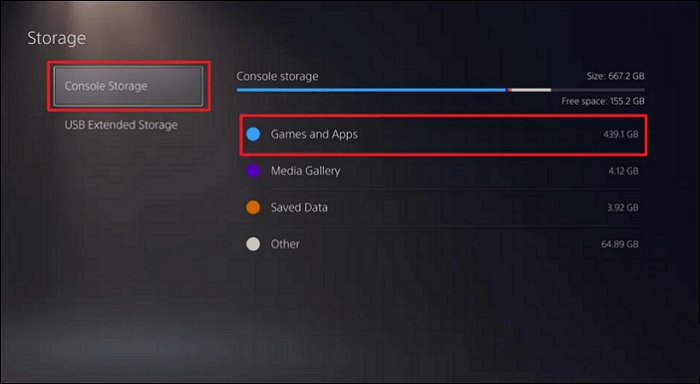
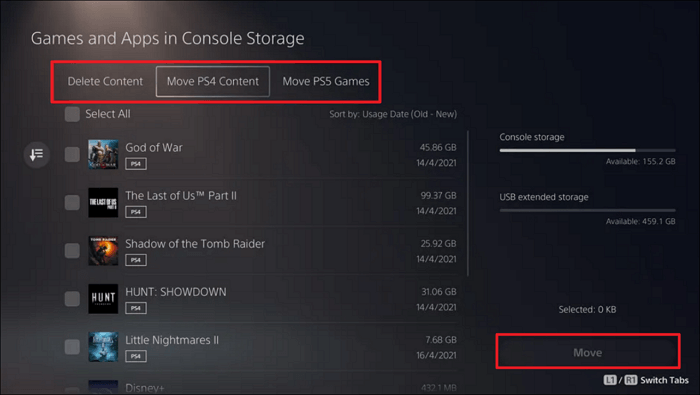
Step 3. To transfer games from one console to another, select the "Move PS4 Content" or "Move PS5 Games" option and choose the games you want to transfer. Next, click the "Move" button to initiate the transfer process.
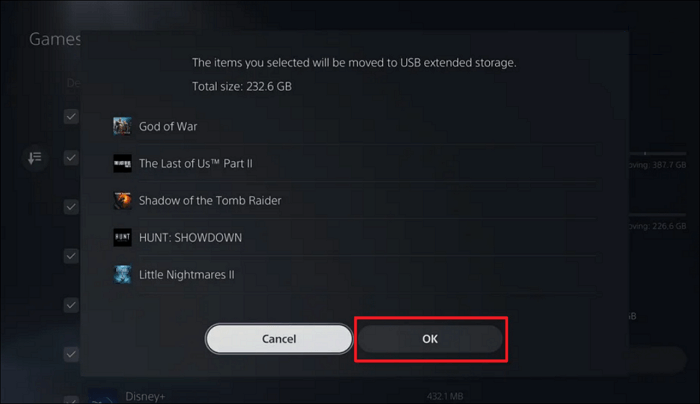
Step 4. Confirm your selection for games and choose "OK".
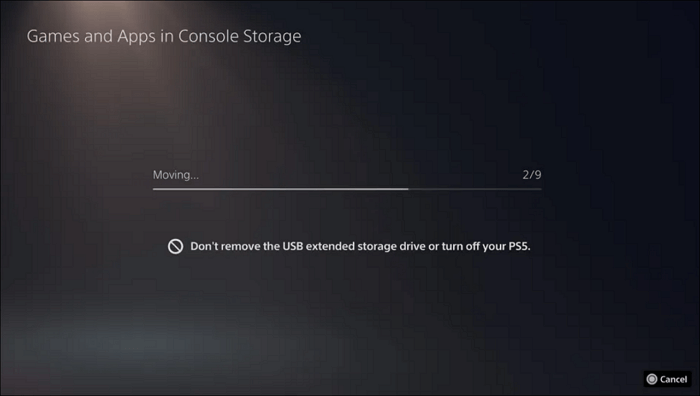
Step 5. Wait for the process to complete. Then, you are ready to play.
You might also be interested in:
Method 3. Install a New NVMe SSD
The PS5 features a built-in NVMe SSD slot, allowing players to expand the console's internal storage capacity by installing a new SSD that can work alongside the existing hard drive, thereby instantly increasing available space.
Step 1. According to Sony's updated support page, there are specific requirements for the PS5 SSD, including critical specifications that must be met.
- The PS5 console requires an M.2 SSD that communicates via the NVMe protocol to function.
- The M.2 SSD should have a PCIe 4.0 x4 model that can support up to 5,500 MBps of sequential read speed.
- The PS5 console can support storage capacities ranging from 250 GB to 4 TB.
- To keep the SSD's temperature under control, Sony suggests using a cooling solution.
Step 2. Unplug the PS5, turn it upside down, and ensure all cables are disconnected.
Step 3. Grip the faceplate at the top corner and gently lift it. Then, using a cross-head screwdriver, remove the SSD slot cover.
Step 4. To remove the spacer and screw near the end of the SSD housing, first locate the small plastic spacer and the screw holding it in place. The spacer is typically located near the end of the SSD housing, and the screw is usually a small Phillips head screw.
Step 5. To install the SSD, start by inserting it into the slot and securing it with the mounting screw. Next, put the expansion slot cover back in place with its corresponding screw. Finally, flip the PS5 over and connect the HDMI cable.
Depending on the length of SSD cards, the SSD is fixed by different holes.
Step 6. To format your PS5's NVMe SSD for the first time, power up your console and follow the on-screen guide. If the drive is incompatible, it will display a format screen and prompt you to format the drive. Follow the on-screen instructions to complete the process.
To expand the storage space on your PS5, you can use a compatible external SSD. First, ensure the SSD is compatible with your PS5 and has a USB-C interface. Next, insert the SSD into the PS5's storage expansion slot.
Conclusion
The system and space requirements of many video games, including Marvel's Spider-Man 2, are becoming increasingly stringent, with some games like Spider-Man 2 requiring at least 98GB of storage space. This can be a challenge for gamers, especially if they need to install multiple games, but upgrading the capacity of their PS5 with the help of Qiling Disk Master can be a solution. This tool allows users to upgrade their SSD without losing games and data, and can also be used to format the SSD to make it compatible with the PS5, making it a convenient option for gamers.
FAQs on Marvel's Spider-Man 2 Requires at Least 98GB
1. How much space is Spider-Man 2?
Marvel's Spider-Man 2 requires a minimum of 98GB of storage space to play, but it's unclear if additional space is needed for optimal performance.
2. How many hours is Marvel's Spider-Man 2 PS5?
The main story of the game takes around 15 hours to complete, and with additional side missions, the total playtime comes out to be around 40 hours, which is a fairly standard length for video games.
3. Will Spider-Man 2 be available on PC?
The PC version of Marvel's Spider-Man 2 has not been officially released, and it is currently only available on the PS5, with no plans for a release on other platforms.
Related Articles
- SSD Optimzier for Windows 11 Free Download with Ultimate Guide
- Computer Slow to Play Games? How Do I Upgrade Gaming PC? [Beginners Guide]
- How to Format Hard Drive in Windows 7? [Detailed Tips]
- Download Partition Magic Server 2008 (R2) to Manage Server 2008 Disk Partition Safely
- How to Repair Pen Drive Not Detected Problems in Windows 10, 8, 7?
This tutorial tells how to repair pen drive not detected effortlessly, as well as probes into the problem and explains the probable reasons for you. - How to Split Local Disk in Windows 11, 10, 8, 7?
Wanna split local disk in Windows 10? Here we introduce two ways to separate local disk into multiple partitions in Windows 11, 10, 8, 7.
Products
Articles & Tutorials
- Data Recovery
- Data Backup
- File Recovery
- File Backup
- System Backup and Restore
- Disk and Partition Clone
- Technical articles
- Mobile articles
- Disk Master Help
- Windows Data Recovery Tutorials
- Windows Secure Delete Tutorials
- Windows Partition Management Tutorials
- Windows File Backup and Restore Tutorials
- Windows System Backup and Restore Tutorials
- Windows Disk Backup and Restore Tutorials
- Windows Clone Tutorials