Fix Genshin Impact Insufficient Storage Space | Best Ways 🏆
Genshin Impact is a free-roam role-playing game published by miHoYo, where players can explore the open world of Teyvat in a fantasy world, available on various platforms including Android, iOS, PlayStation 4/5, and Windows.
If you're experiencing the "insufficient storage space" error while downloading or upgrading Genshin Impact, don't worry, Qiling is here to help. The large interactive game requires a significant amount of storage space, leading to storage space errors on PC, Android, and iPhone. This guideline will provide a solution to eliminate the error and ensure a smooth gaming experience.

How Much Storage Space Does Genshin Impact Take
The storage space required for Genshin Impact varies by platform, with approximate requirements being 4.5 GB on PC, 3.5 GB on PS4, and 4.
- Windows PC: Genshin Impact requires a total of about 70 GB of storage space, but only needs 304 MB to install, with the remaining 64.5 GB of game data and resources being downloaded when the game is first run.
- Mobile devices(Android/iOS): The game requires a total of about 16GB of storage, including 616 MB for the app and 15 GB for data and resources, specifically for the 2.4 version.
- PS4/PS5: The game requires only 30 GB of storage space on a PlayStation console, but players may use more space to install and load its data, totaling around 70 GB in total.
Now, you know how much storage space Genshin Impact takes on different platforms. If you want to install Genshin Impact but your free space is not enough, keep reading and find out how to fix it in the next part.
Explore More Highly Acclaimed Games' File Size:
If you're interested in playing a game but don't have enough storage space, you can consider deleting unused apps, updating to a larger storage plan, or using cloud storage to free up space and make room for the game. You can also uninstall and reinstall the game periodically to keep your storage usage in check.
How to Fix Insufficient Storage Space Genshin Impact - PC/Android/iPhone
The "Insufficient storage space Genshin Impact" issue can be resolved using various methods across PCs, Android devices, and iPhones. By implementing these solutions, users can successfully download Genshin Impact and enjoy improved read and write speeds, reduced latency, and a smoother gaming experience.
Now, let's take a closer look at these solutions:
Part 1. Insufficient Space on PC
Resolving the insufficient space error can be a tedious task, but a powerful solution exists - Qiling Disk Master Professional. This application provides thorough insights into your hard drives and offers four sophisticated deep-cleaning procedures, optimizing storage space and ensuring a lightning-fast and responsive system.
Method 1. Free Up the Hard Disk Space
For PC, players can free up space on their hard drives by deleting useless Apps and programs. Qiling Disk Master's Space Analyzer tool scans the entire disk, shows detailed space usage, and allows users to modify or delete these programs and files, eliminating the need for data transfers or reinstalling games, and enabling storage of more games.
Quick steps to clean up the hard drives:
Method 2. Extend C Drive Space
To free up space on the C drive, which is often set as the download destination for large games, users can utilize Qiling Disk Master's "Resize/Move" and "Allocate Space" functions. These tools allow users to easily move free space from other partitions, whether adjacent or non-adjacent, to the C drive, effectively resolving the space issue.
Option 1. Extend System C drive with unallocated space
- 1. Right-click on the System C: drive and select "Resize/Move".
- 2. To expand the C: drive, you need to drag the system partition end into the unallocated space, effectively adding it to the C: drive. This will increase the size of the C: drive and make more space available for use.
- 3. Click "Proceed" to execute the operations and extend the C drive.
Option 2. Extend System C drive without unallocated space
- 1. Right-click a big partition with enough free space on the system disk, select "Allocate Space".
- 2. To allocate space, select the system drive at the "Allocate Space From (*) To" section and drag the end of the System C drive into the unallocated space.
- 3. Proceed to save the changes and extend the C drive.
Method 3. Move Genshin Impact to Another Partition
If you only have one hard drive, you can safely transfer Genshin to another partition with enough free space using Qiling Disk Master's "App Move" tool, which won't result in any data loss during the process. To do this, you'll need to follow the steps provided.
Method 4. Extend C Drive Space with the 2nd Drive
When facing insufficient space issues, consider adding a new external hard drive to your PC to expand storage capacity, such as an external SSD, to help alleviate the problem.
To install and initialize a new hard drive, start by powering down your computer and physically installing the new drive into your system. Next, power on your computer and enter your BIOS settings to configure the new drive as a bootable device.
🚩Read Also: How to Install a Second SSD[Comprehensive Guide]
To extend the C drive, you can use the "Extend C drive with 2nd Disk" feature in Qiling Disk Master. This feature will automatically detect large files and programs on your C drive and suggest moving them to a second hard drive, effectively increasing the storage capacity of your C drive.
Method 5. Clone the Hard Drive to a Bigger One
If you're experiencing issues with Genshin Impact due to insufficient space, loading screens, or game stutters, you can clone the game's download files, data, and resources to a larger capacity disk using Qiling Disk Master's "Clone OS Disk" feature, without losing any data.
Step-by-step guide:
Step 1. Launch Qiling Disk Master, go to the Tools tab, select "Clone OS Disk" and click "Next".
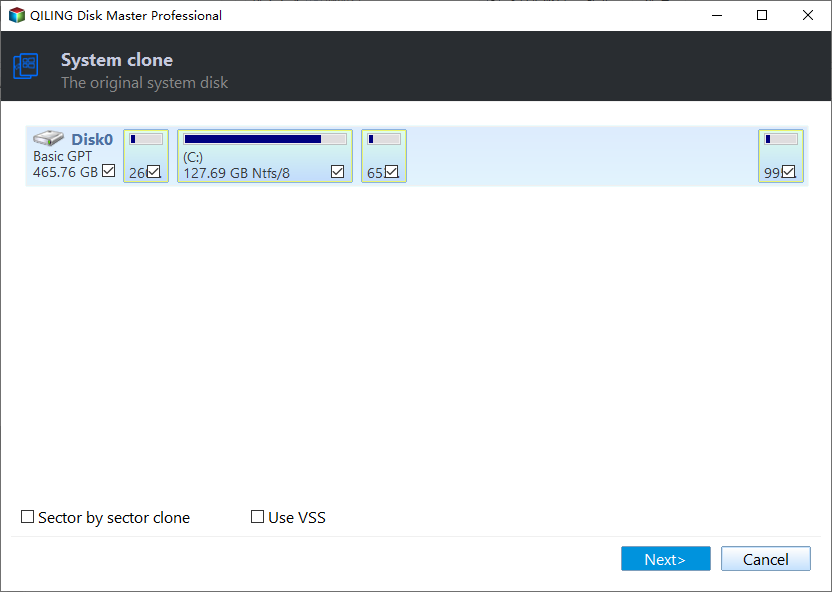
Step 2. Select the target new drive where you want to clone the OS to, and click "Next".

Click "Yes" to confirm that you want to continue the OS disk cloning process.

Step 3. To initiate the OS cloning process, view the disk layout and click "Proceed" to start the operation.

Step 4. Once the cloning process is complete, a message will appear, asking if you want to start up your computer from the cloned target disk.
- Reboot Now To "reinstall" means to reboot your PC and configure the computer to boot OS from the new disk immediately.
- Done means you want to make the changes later.
Part 2. Not Enough Space on Android
To play Genshin Impact on your Android phone, you can follow these steps: first, ensure your device meets the game's system requirements, then download the game from the Google Play Store or other authorized platforms; next, create an account or log in to an existing one to access the game; after that, follow the in-game instructions to complete the initial setup and begin playing.
Option 1. Clean Cache
When you've already installed Genshin Impact and want to do some major upgrades, you can use this method to install the game on a new drive or expand your current drive to make room for the upgrade. This involves cloning the existing installation to the new drive, then upgrading the game to the latest version.
Step 1. Go to "Settings" > "Apps" > "App Managemnet."
Step 2. Tap "Other Apps" to see a complete installed App list.
Step 3. To clear the cache and data for Genshin Impact, go to your device's settings, find the app, and select the options to clear cache and data. This will reset the game's storage and remove any saved data. Note that this action is irreversible and will require you to log in again and potentially lose progress.
To upgrade the PlayStation storage space, you can consider purchasing an external hard drive or a solid-state drive (SSD) that is compatible with your PlayStation model. The drive should have a USB 3.
Option 2. Free Up Storage Space
If you're running out of storage space on your mobile due to Genshin Impact installation, consider uninstalling some unnecessary apps to free up space. This will allow you to reinstall Genshin Impact or install other games without storage issues.
Step 1. Open "Settings" > "About phone" > "Storage."
Step 2. Tap on "Clean up storage space"(Free up xx MB).
Step 3. Confirm this action by picking "Yes"
Of course, you can try to use an SD card on your mobile devices:
Part 3. No Free Space on iPhone
Deleting unused apps and programs can help free up storage space on your device, making it run more efficiently and smoothly.
Step 1. Enter "Settings" > "General" > "iPhone Storage."
Step 2. Scroll down and select unwanted apps.
Step 3. Tap on the app and pick "Delete App."
Conclusion
Genshin Impact takes up varying amounts of storage space on different platforms, and users may encounter insufficient storage space issues. For Windows PC users, Qiling Disk Master is a helpful resource to resolve storage space problems, allowing for optimized storage space management and an enjoyable gaming experience in Genshin Impact.
FAQ About Insufficient Storage Space Genshin Impact
To resolve the insufficient storage space issue in Genshin Impact, follow these steps:
1. Why does Genshin take up 70 GB?
Genshin Impact's game file is large due to its detailed design, especially in the new Sumeru region, and the game receives frequent updates, releasing a new version every 6-7 weeks.
2. How much GB does the Genshin Impact 4.0 update need?
The pre-installation resource package size for PCs will range from 32.0 to 34.2 GB, and the unzipping will take up 64.0 to 68.4 GB of space.
3. Can you move Genshin Impact to an SD card?
You can move games like Genshin Impact to an SD card by putting the SD card in a card reader and connecting it to the PC that installed Genshin Impact. From there, follow the quick steps to transfer the game files to the SD card.
Step 1. Enter "File Explorer" and locate the Genshin Impact folder.
Step 2. To copy all gaming files, select them by pressing the "Ctrl + A" keys, then copy them to the clipboard by pressing the "Ctrl + C" keys.
Step 3. To transfer Genshin Impact files to your device, insert the SD card into your computer. Then, access the SD card and press the "Ctrl + V" keys to paste the Genshin Impact files.
4. How to delete cache in Genshin Impact?
To clear the cache in Genshin Impact on your smartphone, go to your device's Settings, then look for the "Storage" or "Storage & USB" section. From there, select the "Manage Storage" or "Internal Storage" option, and choose the "Genshin Impact" app.
- To view the detailed information about the Genshin Impact app, go to your device's Settings, then select the Apps or Applications option, and finally choose Genshin Impact from the list.
- Select "Storage" from the information page for Genshin Impact.
- Tap "Cache" to finish.
Related Articles
- How to Upgrade Xbox Series X/S Storage [Ultimate Guideline]
- WD Quick Formatter Free Download with Roundup Review 2024 [Pros & Cons]
- How to Convert MBR to GPT Without Reinstalling Windows
- Optimize SSD Performance with 4K Alignment Software and Speed Up PC
- Internal Drive vs External Hard Drive. Which is better?
The choice between an external and internal hard drive depends on your specific needs. If you're using a PC or laptop, you may need an external drive for backup purposes or to expand your storage capacity for gaming. - Is 8GB RAM Enough? Get the Answers Here!
With memory prices dropping, you might be tempted to get a high-capacity upgrade, but how much RAM do you need for your laptop or desktop computer? Is 8GB RAM enough, or do you need more? You'll find the answers here.
Products
Articles & Tutorials
- Data Recovery
- Data Backup
- File Recovery
- File Backup
- System Backup and Restore
- Disk and Partition Clone
- Technical articles
- Mobile articles
- Disk Master Help
- Windows Data Recovery Tutorials
- Windows Secure Delete Tutorials
- Windows Partition Management Tutorials
- Windows File Backup and Restore Tutorials
- Windows System Backup and Restore Tutorials
- Windows Disk Backup and Restore Tutorials
- Windows Clone Tutorials