How to Upgrade Xbox Series X/S Storage
Regarding gaming, storage plays a crucial role, especially on consoles with limited storage space. As you download new games, updates, and high-quality games, storage becomes an issue. However, the Xbox Series X/S allows users to upgrade their storage by adding or replacing hard drives with higher-capacity drives, making the process simpler with step-by-step instructions and expert recommendations provided in this article.
How to Upgrade Xbox Series X/S Storage
Upgrading Xbox Series X/S storage can be achieved by either upgrading the console's internal SSD or adding an external storage device, such as an Xbox expansion card or external hard drive, allowing users to choose the storage size that best suits their needs.
We will display a comparison table to provide a comprehensive overview of the two upgrading methods, allowing you to compare and contrast them side-by-side.
| ⏱️Duration | 2-8 Minutes |
| 💻Goal | Upgrade Xbox Series X/S Storage |
| 🧰Preparation | The Xbox Series X/S console, an Xbox Expansion Card, or a 512GB/1 TB/2 TB SSD can be used to expand storage on an Xbox Series X/S console. The Xbox Expansion Card is a special card designed specifically for the Xbox Series X/S, while a regular SSD can also be used to expand storage, offering capacities of 512GB, 1 TB, or 2 TB. |
| 🔒Difficulty |
✔️Upgrading the Xbox Series X/S SSD is an easy process with the help of Qiling Disk Master. ✔️[Easy] Additional Storage Option: plug-and-play, although pricy. |
| 🛠️Methods |
Way 1. Upgrade the Xbox Series X/S SSD
The once-To expand your Xbox's storage for a relatively cheaper way, replace the hard drive with a higher-capacity SSD. We recommend using Qiling Disk Master, which simplifies the cloning process with its "Disk Clone" feature.
Upgrading storage on an Xbox console can be done by cloning the existing data to a better SSD, which can instantly carry every piece of information and be plugged into another system, allowing for seamless transitioning and instant start-ups. This process enables users to replace the existing storage with a new one, cloning the data and instantly starting to play without any interruption.
Before starting, refer to the guide below to install and initialize the additional external hard drive:
🚩Read More: How to Install and Upgrade Xbox Hard Drive
Here is how you can clone the used storage of your Xbox to a higher device with Qiling Disk Master:
Step 1. Select the source disk.
- To clone a disk, go to the "Tools" tab, click "Clone OS Disk" or "Clone Data Disk", and then click "Next" to proceed.
- Select the source disk that you want to copy or clone, then click "Next".
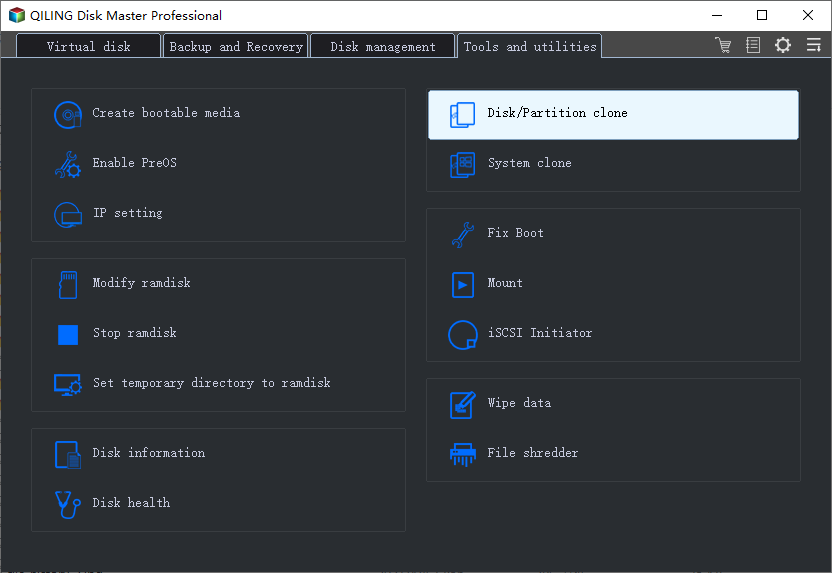
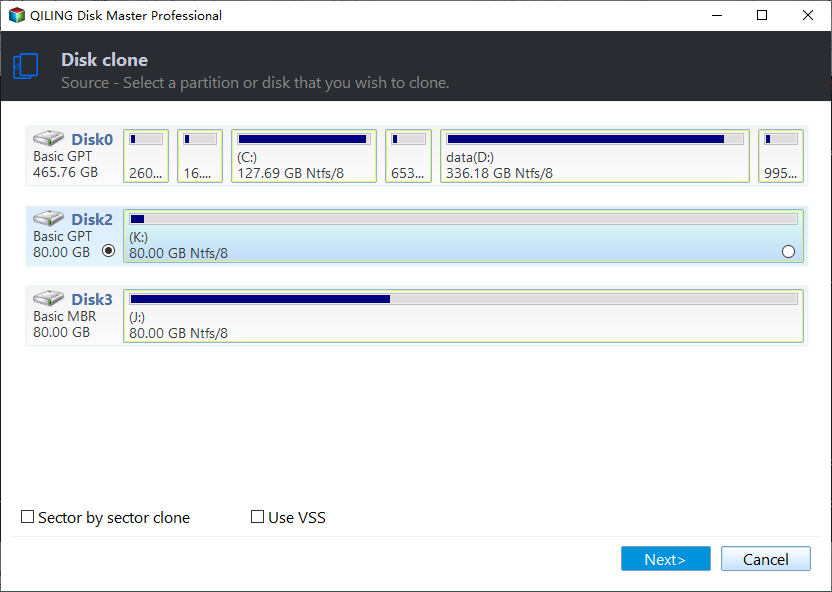
Step 2. Select the target disk.
- Select the desired hard drive or solid-state drive as the destination and click "Next" to proceed.
- Check the warning message and click "Yes" to confirm.
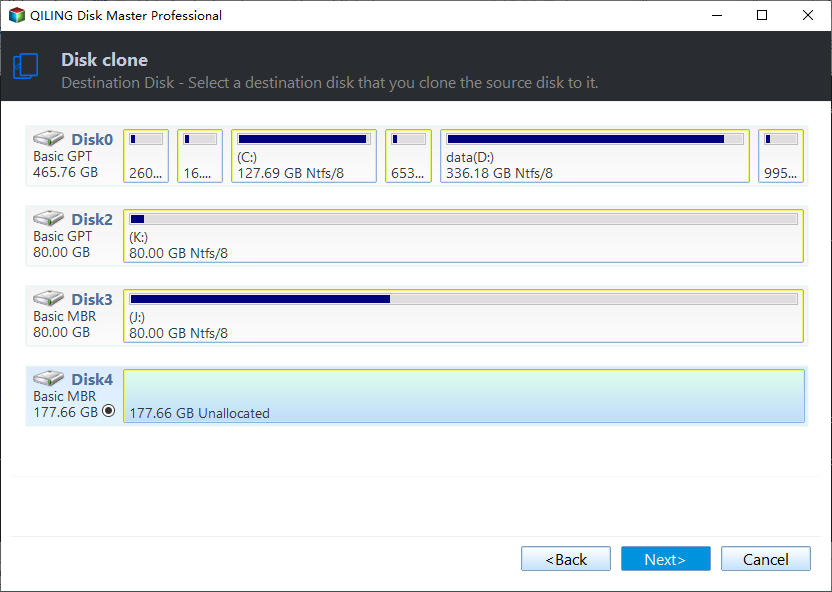
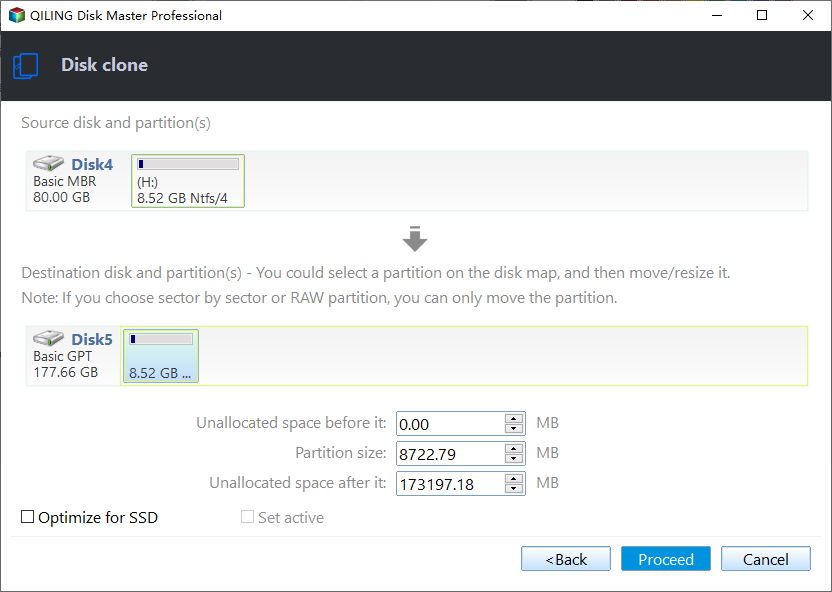
Step 3. Select clone mode.
To customize your disk layout, you can select either "Autofit the disk" or "Clone as the source".
Step 4. Click "Proceed" to start cloning process.
After cloning, install the new SSD on the Xbox, download the offline update file from Microsoft on a USB flash, and plug it into the console to perform an offline system upgrade, as per the official guide from Xbox Support.
Noble Features:
Qiling Disk Master offers features beyond SSD cloning, including partitioning, formatting, and merging data on an SSD.
- This tool can run performance tests on SSDs and also modify them to improve their performance.
- To keep your SSD running smoothly, check for errors by scanning and locating bad sectors that can slow down the drive.
- Qiling Disk Master provides multiple supports for maintaining performance and extending the lifespan of SSDs.
We highly recommend giving this tool a shot.
Way 2. Use an Additional Storage Option
To upgrade your Xbox Series X/S storage, you can add extra storage by using an additional storage device, such as an Xbox Expansion Card, an External Hard Drive (SSD/HDD), or a USB Flash Drive.
Add an Xbox Expansion Card:
The Storage Expansion Card for Xbox X and Xbox S is a Microsoft-certified storage solution that matches the internal storage speed of the console, allowing users to move games to the card and utilizing the console's dedicated slot.

The Xbox console has a dedicated storage expansion port, making it easy to add storage by simply plugging in a compatible card or SSD, which will be instantly recognized and added to the console.
Add an External Hard Drive or USB
When selecting an external hard drive or USB, it's crucial to ensure that the read-write speed matches or is comparable to the internal storage. Opting for SSD (Solid-State Drive) hardware is recommended over other alternatives. This ensures seamless performance and compatibility.
These devices can also be included, but must be formatted and a plan chosen for the console, excluding them.
Step 1. Turn on your console and the controller.
Step 2. To connect an external storage device to your console, simply insert the SSD or USB drive into one of the available USB ports on the console. This will allow you to transfer files, play games, or access other content stored on the external device.
Step 3. An option should appear on the console asking how you want to use it—media or Games and apps.
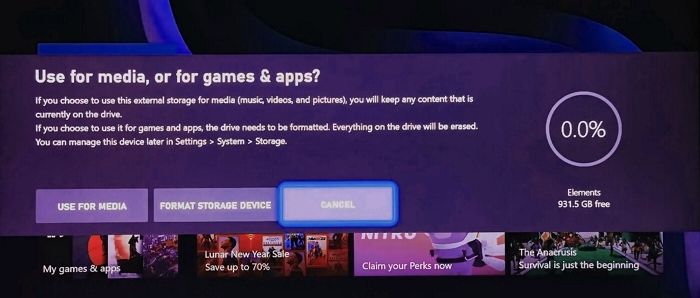
Step 4. To store games, click on the Format button, which will format the drive and make it part of the console.
Step 5. You can also choose it as the default storage space to save games.
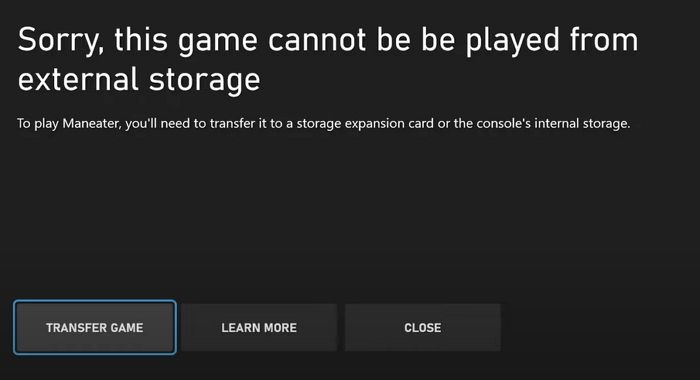
Some OEMs or game developers may not allow games to be moved to external drives, requiring them to be played through an expansion card or internal storage instead.
Both of the above methods can significantly upgrade your Xbox series X/S storage, and you can share this useful information on your social media platforms.
Why Should I Upgrade Xbox Series X/S Storage
Upgrading your Xbox Series X/S storage is a great idea, as it allows for more games to be stored, resulting in smoother gameplay and the ability to play a wider range of titles.
Larger Game Installations: As video game graphics become increasingly detailed, their storage requirements skyrocket, with modern games often taking up tens of gigabytes. This means that even the Xbox Series X, with its 1TB SSD, and the Series S, with its 512GB SSD, can only hold a limited number of these large games. Upgrading your storage allows you to install more games, giving you the freedom to play your favorite titles anytime.
Optimized Performance: The Xbox Series X/S consoles use Microsoft's Xbox Velocity Architecture to improve game load times, asset streaming, and game switching. To take advantage of this technology, games must be installed on the internal SSD or a proprietary expansion card, which can be expanded with a compatible device to ensure all games benefit.
Save Management: Upgrading your storage can provide more flexibility with game save data and installations, allowing you to juggle multiple games without constantly uninstalling and reinstalling them.
Next-Gen Games: The Xbox Series X/S-specific games are optimized to utilize the consoles' SSD technology, resulting in improved performance. However, when played on an external HDD, they won't offer the same level of performance.
Media Storage: If you use your Xbox Series X/S as a media center, additional storage will allow you to store more movies, music, and other media files.
Conclusion
The Xbox Series X and S gaming systems were introduced with a significant upgrade in storage technology, featuring bespoke PCIe 4.0 NVMe solid-state drives (SSDs) as opposed to the slower hard disk drives (HDDs) in previous consoles. The Xbox Series X comes with a 1TB SSD, while the Xbox Series S has a 512GB SSD.
Upgrading your Xbox Series X/S is a relatively straightforward process that can significantly enhance your gaming experience. You can add external storage or upgrade your SSD using tools like Qiling Disk Master, making it a worthwhile and easy-to-execute upgrade.
FAQs About Upgrade Xbox Series X/S Storage
If you're considering upgrading your Xbox Series X/S storage, you might have some questions. Some common ones include: What are the benefits of upgrading? How do I upgrade?
1. Can you upgrade the Xbox One storage?
You can upgrade the Xbox One storage by adding an external hard drive or replacing the internal HDD with a faster one, such as the official Seagate storage, and regularly test the SSD performance to maintain high-speed operation.
2. How do I add more storage to my Xbox?
You can add more storage to your Xbox by using an external hard drive, SSD, USB, or an Xbox Expansion Card, but only the expansion card and internal storage allow you to move games.
3. What storage is best for the Xbox Series S?
The Xbox Series S requires a high-speed SSD or the official Xbox Expansion Card for optimal performance, with up to 2 TB of expansion card storage approved by Microsoft. Alternatively, an external HDD can be used for less demanding storage.
Related Articles
- What Is 4k Hard Drive
- [Full Guide] How to Rebuild MBR | Fix Damaged MBR
- How to Fix SD Card Saying Full When Empty in Windows 11/10/8/7
- Fix Unable to Shrink C Drive on Windows 11/10/8/7
Windows is unable to shrink the C drive, a common issue that can be frustrating to resolve. The primary reason behind this error is that the drive is already too small or has insufficient free space to be shrunk. Once you've created enough space, you can try shrinking the drive again. - Windows 11 System Migration Software: Free/Paid Software to Move OS to SSD
Many users are now choosing SSDs for a better user experience. After investing in a new device, the next step is to consider using a Windows 11 system migration software to ensure a smooth transition. - 9 Best Tips to Troubleshoot Windows 7 Is Running Slow
Your Windows 7 slows down all of a sudden because you have many apps, programs, web browsers, and so on open at once. To trouble Windows 7 running slow, I have provided you with useful solutions in this guide. You can optimize the system and get better performance after trying these solutions.
Products
Articles & Tutorials
- Data Recovery
- Data Backup
- File Recovery
- File Backup
- System Backup and Restore
- Disk and Partition Clone
- Technical articles
- Mobile articles
- Disk Master Help
- Windows Data Recovery Tutorials
- Windows Secure Delete Tutorials
- Windows Partition Management Tutorials
- Windows File Backup and Restore Tutorials
- Windows System Backup and Restore Tutorials
- Windows Disk Backup and Restore Tutorials
- Windows Clone Tutorials