Fix Unable to Shrink C Drive on Windows 11/10/8/7
PAGE CONTENT:
Many users face an issue where they cannot shrink their C drive, receiving a message stating that they cannot shrink a volume beyond the point where any unmovable files are located. This error often occurs due to the presence of system files, programs, or other data that cannot be moved or relocated. To resolve this issue, users can try running the built-in Disk Cleanup tool to remove temporary files and free up space, or use third-party tools like CCleaner to identify and remove unnecessary files. Additionally, users can attempt to move the problematic files to a different drive or partition, or use the built-in System File Checker tool to scan for and repair corrupted system files.
4 Fixes for Unable to Shrink C Drive Error
To resolve the error, an effective solution is to use a free third-party tool that allows you to shrink the C partition without any settings or changes. This tool provides a straightforward and efficient way to solve the issue.
Fix 1. Shrink C Drive via Free Tool Qiling Disk Master
- System supported: It supports Windows 11/10/8/7/XP/Vista
- Device supported: HDD/SSD/USB, SD card, and other external hard drives
- Interface: Clear
- Operation Difficulty: Easy for even beginners
If you're unable to shrink your C drive due to files that can't be moved or file system issues, don't worry. Third-party free software can help you partition your hard drive to overcome Microsoft technology's limitations. Tools like Qiling Disk Master Free are reliable and can shrink the C partition/volume without disabling unmovable files.
Download this free tool to help shrink the C drive now.
Step 1: Locate and select target partition to shrink
To shrink a partition, go to the Partition Manager section, right-click on the partition you want to shrink, and select "Resize/Move".
Step 2: Adjust to shrink partition
To shrink a partition, use your mouse to drag the end of the target partition to the desired size, effectively reducing the partition space.
You can also adjust the partition size box to shrink the target partition. Once done.
Step 3: Execute operation
Click the "Proceed" button to keep all changes.
You can use Qiling Disk Master to shrink the C drive and free up more space, but this tool is capable of much more, including manipulating and modifying your disk partitions.
- Resize the C drive
- Clone C drive on Windows
- Move unallocated space to C drive
- Free up hard drive space on C drive
You can download this tool and follow the links above to try and achieve your goals.
Fix 2. Disable the Unmovable Files
To disable non-movable files on Windows 11/10, you can use the built-in tool, Disk Management. First, open Disk Management by searching for it in the Start menu, or by typing "diskmgmt.msc" in the Run dialog box (Windows key + R). In Disk Management, right-click on the C drive and select "Properties".
Disable Hibernation File:
Step 1. Run Command Prompt as administrator."
Step 2. Type the commands powercfg /hibernate off
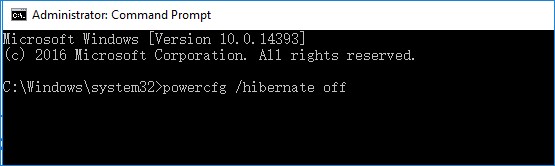
This command will clear the hiberfil.sys from the C drive.
Disable System Protection:
Step 1. To access the System Properties window, press the Windows key and the R key simultaneously, then type 'SystemPropertiesProtection.exe' in the Run dialog box, and press the "Enter" key.
Step 2. To disable system protection on the C drive, go to the C drive, select "Disable system protection", click "Apply", and then confirm by clicking "Yes".
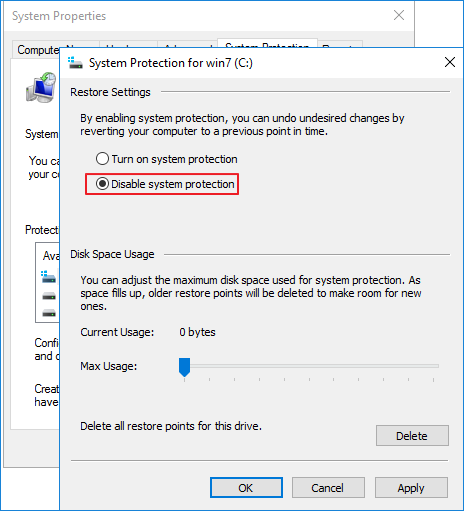
Step 3. Restart your PC.
If you're not comfortable moving files, it might be easier to use a different method, such as Fix 1, to resolve the issue.
Disable Paging File:
Step 1. To view system properties, type "propertiesadvanced.exe" in the Run dialog, which can be accessed by right-clicking on the Windows icon and selecting "Run".
Step 2. To make changes to the browser's performance settings, click on the "Advanced" option under the Performance section, then select "Settings", click on the "Advanced" option again, and finally click the "Change" button.
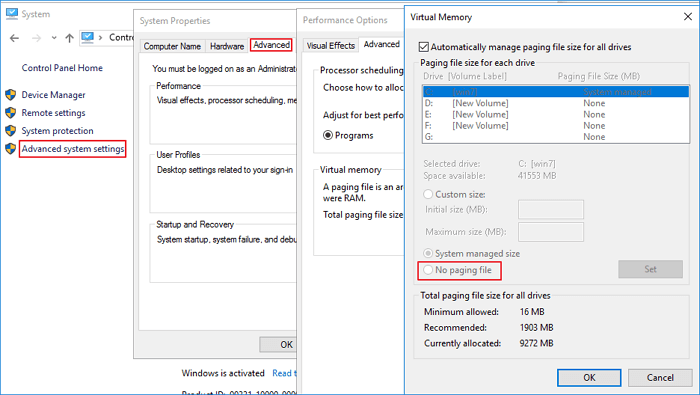
Step 3. Select "No paging file" and click "Set."
Don't forget to share this guide with users who want to shrink their C drives:
Fix 3. Convert FAT32 to NTFS
To resolve the issue of not being able to shrink the C drive due to its FAT32 format, one can quickly fix this by converting the FAT32 to NTFS. This conversion can be efficiently done using Qiling Disk Master, which can convert FAT32 to NTFS without formatting and thus avoiding any data loss.
You may also like the following:
Fix 4. Defrag C Drive and Check Disk Error
To fix the shrink volume issue in Windows, you can defragment and check the disk for errors, requiring an administrator account.
Guide 1. Defrag C Drive
First, follow the guide to defrag the C drive now.
Step 1. Click Start > File Explorer > This PC.
Step 2. Right-click "Local Disk (C:)" and select Properties > Tools, then click "Optimize" under the "Optimize and Defrag Drive" section.
Step 3. To optimize the drives on your computer, select the C drive in the Optimize Drives window and click "Analyze." This will initiate a scan to identify any issues or problems with the drive's performance.
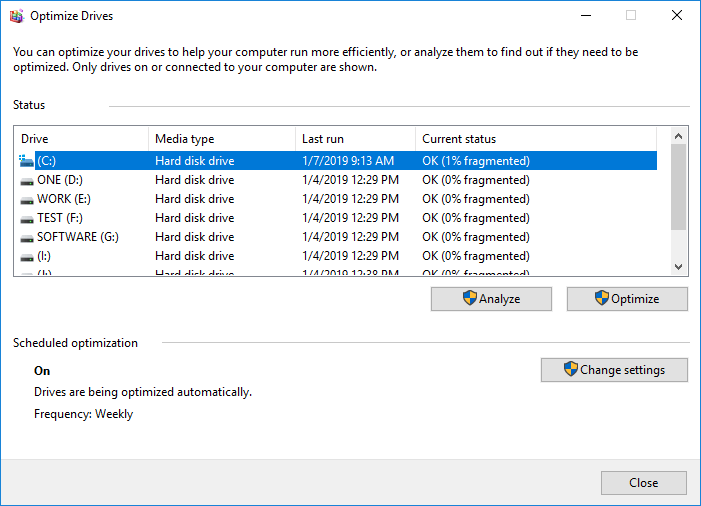
Finally, wait for this process to be finished.
Guide 2. Check Disk Errors
After Guide 1, it is time to check the disk errors on the C drive. Let's start with the following:
Step 1. Right-click on the C drive, select Properties, then click on the Tools tab and choose Check.
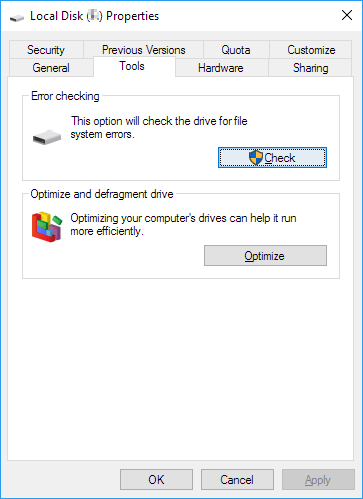
Step 2. This will check the file system errors on the C drive. Just wait for it to be done.
Qiling Disk Master can also check file system errors and perform surface tests on your disk. If needed, refer to the tool for more information.
Why Unable to Shrink C Drive
Windows users often encounter issues shrinking their volumes, with some experiencing the "can't shrink C drive Windows 11" problem. To resolve this effectively, it's essential to understand the underlying causes, which can include various factors. The main reasons for the unable to shrink C drive error are often related to the system's inability to free up sufficient space or due to other technical issues.
- Unmovable files You can't shrink a volume beyond the point where any unmovable files are located. This includes files at the end of the C volume, such as the hibernation file, page file, and system volume information folder used by the system restore.
- The error message "There is not enough free space on the disk to complete this operation" occurs when there is not enough space on the C drive to shrink, preventing the desired operation from being completed.
- Many fragments on the C drive.
- A file system error has made the volume partition inaccessible or invisible.
- The C drive is actually in the FAT32 format, not NTFS, which is the reason for wanting to shrink it.
The "unable to shrink the C drive volume" error can be caused by various reasons, including disk space issues, disk errors, disk fragmentation, disk usage by system files, disk usage by system processes, disk usage by antivirus software, disk usage by other applications, disk usage by Windows Update, and disk usage by other system services. To fix this error, we will need to troubleshoot and resolve the underlying issue.
Conclusion
When Windows Disk Management can't shrink the C drive due to unremovable files or insufficient space, you can use Qiling Disk Master to resize the drive instead.
This tool allows users to shrink the C drive and create unallocated space in just three simple steps, making it accessible even for inexperienced computer users.
Unable to Shrink C Drive FAQs
Shrinking the C drive can free up unallocated space, but here are some additional questions and answers you may find helpful:
1. Why is "shrink volume" greyed out?
If the selected volume/partition doesn't have enough free space, the Shrink option will be unavailable. This can also happen if the partition isn't an NTFS file system. To resolve this, ensure there's enough contiguous free space, or convert the partition to NTFS. You can free up space by deleting unnecessary files or uninstalling programs, or shrink other partitions to get more space.
2. How to shrink the C drive on Windows 10/11?
Using tools like Disk Management and Diskpart can help shrink the C drive, but a more user-friendly option is Qiling Disk Master, which can overcome Microsoft's limitations. To use it, you can follow the steps to shrink the C drive.
Step 1. Launch Qiling Disk Master and right-click the C drive.
Step 2. To resize a partition, choose Resize/Move from the menu and then select how much capacity you want to shrink.
Step 3. Click Proceed button to execute the operation.
3. Why is C drive suddenly full?
Your C drive is taking up space because your hard drive is full, likely due to having too many applications or files stored on it.
Related Articles
- How to Clone PS4 Hard Drive to SSD Without Losing Data
- How to Wipe a Hard Drive in Windows XP Without CD
- How to Delete Ubuntu from Dual Boot Windows 🔥
- How to Fix HP Stream Factory Reset Not Enough Space
- What is CHKDSK(Check Disk)? All You Should Know about CHKDSK
CHKDSK is a utility tool provided by Windows that checks and fixes disk errors, allowing you to tackle disk corruption and save time. - What Is Format SD Card, Everything You Are Concerned About
What is format SD card? When do you need to format your SD card? This page covers what formatting an SD card means and also elaborates on how to format an SD card.
Products
Articles & Tutorials
- Data Recovery
- Data Backup
- File Recovery
- File Backup
- System Backup and Restore
- Disk and Partition Clone
- Technical articles
- Mobile articles
- Disk Master Help
- Windows Data Recovery Tutorials
- Windows Secure Delete Tutorials
- Windows Partition Management Tutorials
- Windows File Backup and Restore Tutorials
- Windows System Backup and Restore Tutorials
- Windows Disk Backup and Restore Tutorials
- Windows Clone Tutorials