How to Free Up Space on C Drive in Windows 11/10 [8 Efficient Ways]
If your C drive is always full, don't worry! This article provides a detailed guide on how to free up space on your C drive, offering a solution to your storage conundrum.
Why Does C Drive Get So Full?
The C drive is the primary hard drive partition that contains the operating system and related system files, and it often becomes full after usage due to storing the operating system, system files, and other data.
- Windows operating system, system-related files, and settings
- Installed applications, Windows built-in programs, and downloaded software
- Personal data and files, including documents, photos, and other user-generated content, are typically stored on the desktop or computer's local storage. This data can include sensitive information, such as login credentials, financial records, and personal communications.
Sometimes, you can move unallocated space to the C drive to get more space. There is a link for you to help.
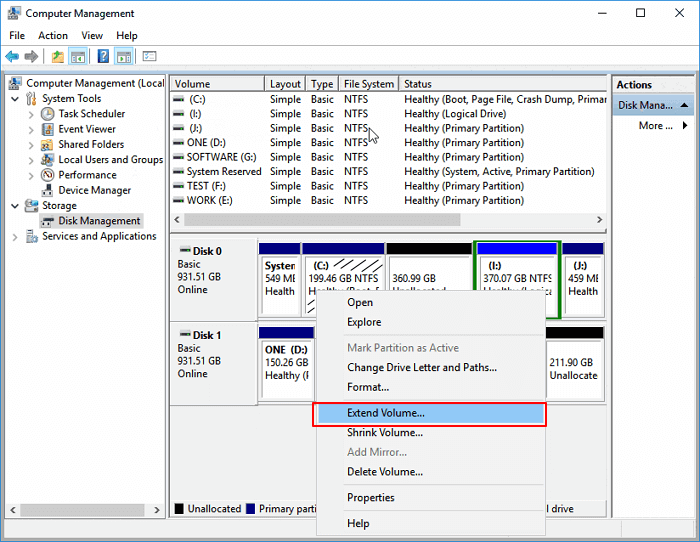
To move unallocated space to the C drive in Windows 10/11, follow these steps: Open Disk Management by pressing the Windows key + R, typing "diskmgmt.msc," and pressing Enter.
Unallocated space can be used to extend another partition or create a new volume, with most users wanting to use it to extend another partition.
The operating system, located on the C drive, gradually consumes more space over time as it requires frequent updates to enhance performance.
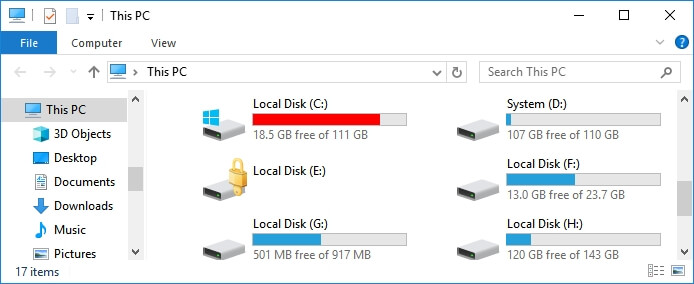
Saving large work files, game videos, and other files to the C drive can be convenient for daily use. However, storing too many large or cluttered files on your computer can lead to serious performance problems.
Here are some other issues you might encounter and links to help you resolve them:
To free up space on C drive in Windows, try deleting unnecessary files and folders, uninstalling unused programs, and using the Disk Cleanup tool to remove temporary files. You can also use the Storage Sense feature to automatically delete temporary files and free up space. Additionally, consider transferring files to an external drive or cloud storage to free up space on your C drive.
How to Free Up Space on C Drive in Windows - Eight Efficient Ways
To free up space on the C drive, you have two main options: extending the C drive or freeing up space on it. Fortunately, there are eight ways to help you achieve the latter, allowing you to reclaim valuable storage space on your computer.
Method 1. Extend C Drive to Get More Space
Method 2. Transfer Larger Files to Another Drive
Method 5. Delete Temporary Files
Method 7. Uninstall Apps You No Longer Need
Method 8. Disable Hibernation Mode
So let's learn the specific ways one by
Method 1. Extend C Drive to Get More Space
Extending the C drive is the most effective way to get more space on the C drive. A professional disk management tool, Qiling Disk Master Professional, can help achieve this.
Qiling Disk Master Professional breaks Windows rules to give flexibility in partition extension/move, and simplifies the process without data loss by adding unallocated space to the C drive.
Step 1. Right-click on the D: partition with enough free space and select "Resize/Move".

Step 2. Select the target partition, which is the C: drive, and drag the partition panel to the right to merge the free space from the D: drive with the C: drive.

Step 3. To proceed, the system will automatically allocate free space from the D: drive to the C: drive. This process may take a few minutes, and during this time, the system may appear to be slow or unresponsive.
Qiling Disk Master is compatible with all Windows systems, including Windows 8, and allows you to free up disk space. It also offers additional features such as adding unallocated space to the C drive.
- Convert MBR to GPT
- Merge and resize Partitions
- Expand SSD C drive across disks
- Check file system errors and bad sectors
- Format hard drive and external hard drives
If you're experiencing disk management issues, you can download this tool, which is sure to help you a lot.
Method 2. Transfer Larger Files to Another Drive
You can also transfer larger files to another drive to free up space on the C drive, and use a professional PC transfer software like Qiling Disk Master to transfer large files and programs to another drive efficiently.
Method 3. Run Disk Cleanup
Windows has a built-in tool called Disk Cleanup that helps keep your computer storage organized. With it, you can delete temporary files that can accumulate to gigabytes over time, freeing up space on your device. To get started, simply follow the steps and give it a try.
Step 1. To free up space on your computer, click "This PC" and right-click on the C drive, then select "Disk Cleanup" from the results.
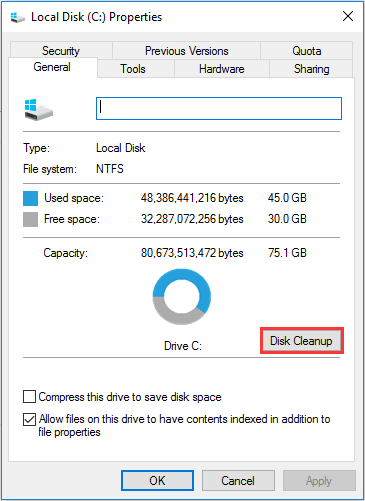
Step 2. The script will display a list of files and their sizes, categorized by file type. From there, you can select the types of files you want to exclude and click "OK" to proceed.
Method 4. Enable Compact OS
Compact OS reduces Windows application footprint to free up disk space, but use with caution and back up important data first.
Step 1. Search for Command Prompt and choose "Run as Administrator."
Step 2. Then, type the command "Compact.exe /CompactOS:always" and hit Enter.
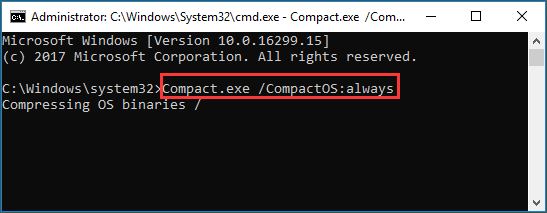
Step 3. It will take 20 minutes or so, and wait patiently.
- Tip
- At any time you want to recover, you can run the opposite command: Compact.exe /CompactOS:never
Method 5. Delete Temporary Files
To free up space on your C drive, you can delete temporary files. These files are created by various applications and can take up a significant amount of space. To delete them, you can use the Disk Cleanup tool in Windows.
Step 1. To open the Storage settings, press the "Windows key + I" on your keyboard to open the Settings app, then navigate to the "System" section and select "Storage" from the options.
Step 2. Then, select "This PC (C:)" to analyze.
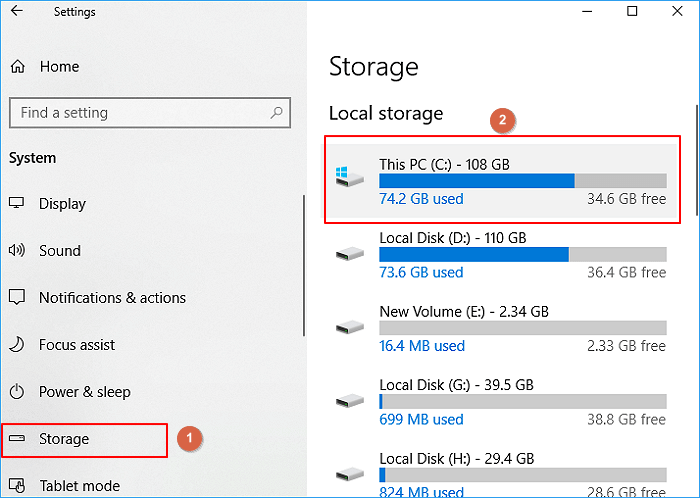
Step 3. Windows will list "Temporary files," "Recycle bin," "Downloads folder," and more folders in this section.
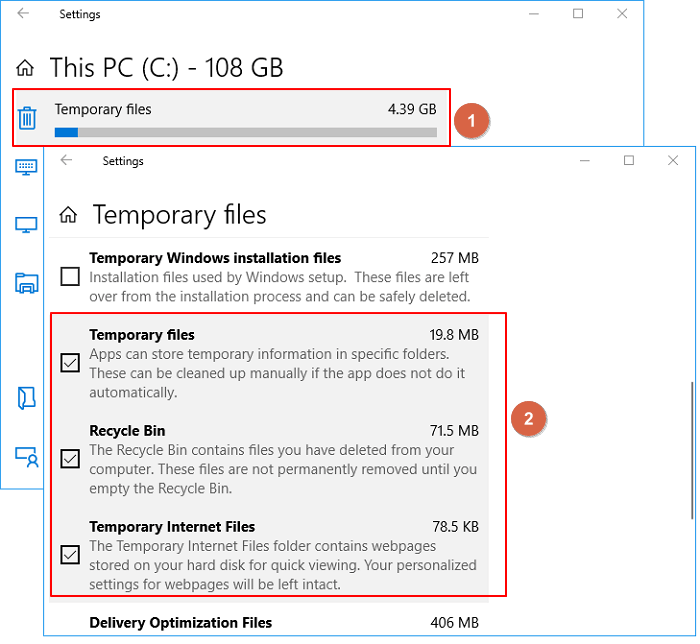
Step 4. To delete unwanted files, select the files you want to remove by ticking the box next to each file, and then click on the "Remove files" button.
Method 6. Empty Recycle Bin
When files are deleted in Windows, they are not actually removed from the drive, but rather moved to the Recycle Bin and marked as deleted. Emptying the Recycle Bin can help free up space on the C drive.
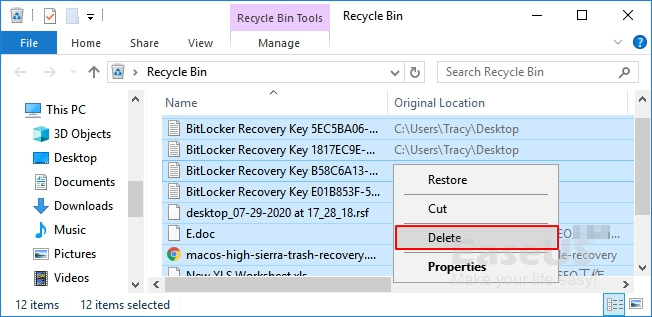
Step 1. Open the "Recycle Bin" from the desktop.
Step 2. To permanently remove all files and documents currently in the Recycle Bin, select all of them, right-click on them, and choose "Delete."
Method 7. Uninstall Apps You No Longer Need
If you've installed programs that are no longer needed, you can uninstall them to free up space on your C drive.
Step 1. To access the Programs and Features window, right-click on the Windows Start menu and click on Programs and Features.
Step 2. To remove a program, right-click on it and select "Uninstall."
Step 3. To remove unnecessary applications, go to the Start menu, click on "Settings," then click on "System," followed by "Apps & features." From there, you can browse through the list of installed applications and click on any that you no longer use or need.
Method 8. Disable Hibernation Mode
To disable Hibernate mode in Windows, which also takes up several gigabytes of space on your C drive, follow these steps below.
To disable hibernation, open Command Prompt and run the command `Powercfg /hibernate off`.
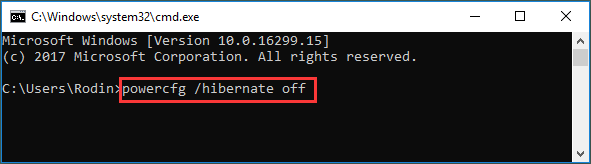
Then, you can disable hibernation mode.
Try these ways to free up space on your C drive. By the way, there are some links for you if you have problems, such as:
Conclusion
To free up space on the C drive, consider deleting unnecessary files, uninstalling unused programs, and emptying the Recycle Bin. You can also compress files and folders using the built-in compression tool, or move them to an external drive or cloud storage to free up space. Additionally, use the Disk Cleanup tool to remove temporary files, system logs, and other items you don't need. If you're running low on space, consider upgrading your storage or using a solid-state drive (SSD) for improved performance. By implementing these methods, you can efficiently free up space on your C drive.
FAQs About How to Free Up Space on C Drive
This part lists three questions related to how to free up space on C drive. Continue to read if you need.
1. What can I delete from C drive to free up space?
You can remove various types of temporary files, including recycle bin contents, upgrade log files, Windows Update Cleanup files, temporary internet files, device driver packages, and other miscellaneous files.
2. Why do I have so little space on my C drive?
The reasons for low C drive space may be as follows.
- Viruses and malware can cause your computer to generate files to fill up your C drive, leading to a full hard drive.
- You might have unknowingly saved large files to your C: drive, which could be taking up valuable space.
- Files from previous Windows installations, temporary files, and other system files may have taken up space on the C drive.
3. How can I solve the C drive full problem?
You can try the following methods:
- Uninstall a program
- Remove duplicate files
- Remove large, unnecessary files
- Run Disk Cleanup
- Delete temporary files
- Extend C drive via Qiling Disk Master
Related Articles
- How to Check Total Hard Disk Size in Windows 10/8/7 in Every Possible Way
- We Couldn't Create a New Partition or Locate an Existing One
- Fixed: Unmountable Boot Volume Windows 11
- Your Best Guide to Clone Windows to M.2 SSD [2024 Tutorial]
Do you want to know the process to clone Windows to M.2? You can find the right ways and complete the steps with the following tutorial. - How to Split C Drive in Windows 11/10/8/7🔥
What should I do when I get a new computer? Is it possible to improve the system performance by separating the C drive into partitions? In this article, we show you how to split C drive in Windows OSs. Continue reading to learn more. - Ultimate Guide on SSD Benchmark, Everything You Should Know
In this blog post, you'll learn about SSD benchmarking, including how it works and why it's necessary for testing SSD speed. We'll cover everything you need to know about SSD benchmarking and the best reliable tools to use for accurate results.
Products
Articles & Tutorials
- Data Recovery
- Data Backup
- File Recovery
- File Backup
- System Backup and Restore
- Disk and Partition Clone
- Technical articles
- Mobile articles
- Disk Master Help
- Windows Data Recovery Tutorials
- Windows Secure Delete Tutorials
- Windows Partition Management Tutorials
- Windows File Backup and Restore Tutorials
- Windows System Backup and Restore Tutorials
- Windows Disk Backup and Restore Tutorials
- Windows Clone Tutorials