One for All Guideline: How to Format/Reformat A Hard Drive
Hot Topic Today - How to format or reformat a hard drive?
In this article, you'll learn:
- I. Introduction: Why Would You Format/Reformat A Hard Drive?
- II. Does Formatting A Hard Drive Do?
- The format you choose for your hard drive or external hard drive depends on the type of device and the operating system you are using. If you are using a Windows device, you should choose the NTFS format. If you are using a Mac, you should choose the APFS format.
- IV. How to Reformat/Format A Hard Drive on Windows?
- V. How to Format/Reformat A Hard Drive on Mac?
- VI. Format A Hard Drive Windows 10/11 Troubleshooting
- VII. Wrapping Things Up - Is This Guide Helpful?
I. Introduction: Why Would You Format/Reformat A Hard Drive?
Formatting or reformatting a hard drive can be a necessary step for various reasons, such as deleting all data on the drive, preparing it for resale, or resolving issues with the operating system. This process essentially wipes the drive clean, allowing you to start fresh and install a new operating system, or use the drive for a different purpose. Additionally, reformatting can also be used to fix problems with the drive, such as corruption or errors, by creating a new file system and partition table.
- When you decide to sell or give away a computer: Formatting the hard drive will erase all data on it, including any personal files, photos, and installed software. This process is usually done through the computer's operating system, and the steps may vary depending on the type of computer and operating system you're using. If you're unsure about how to format the hard drive, it's a good idea to consult the user manual or contact the manufacturer's support team for guidance.
- When you need to fix a corrupted computer or reinstall OS:Formatting your computer's hard drive can be a viable solution if you're experiencing problems with your device and think it might resolve the issue, or if you want to start with a fresh system.
- When you try to use a new USB/SD card on a new computer: When setting up a new removable device, the first step is to format it, allowing you to use it for the first time.
Formatting a hard drive is a simple process that can be completed by anyone, regardless of their technical expertise.
II. What Does Formatting A Hard Drive Do?
Formatting a hard drive does not completely wipe it. It only removes the file system and formatting, leaving the actual data intact. The data remains until it is overwritten by new data or deleted. Formatting is a non-destructive process, meaning it does not erase the data, but rather prepares the drive for new data to be written.
✔. The data on the drive can be deleted, but the chances of recovering it are still possible. This is because deleted data is not immediately erased from the drive, but rather marked as available for use by the operating system.
Formatting a hard drive means that any files you had stored on the drive and any programs you had installed will be gone, but it's not the same as wiping, which completely erases data. Instead, formatting cleans the address tables and resets the file system and file structure, making it possible to recover data, although it may be difficult.
✔. Reset the drive format
The file system of a hard drive is the way it organizes and stores files. The two most common file systems are NTFS and HFS.
✔. Remove virus or malware from hard drive
Formatting a drive can be a useful solution if it's no longer working correctly, as it can resolve corruption issues and allow you to continue using the drive.
✘. Note that formatting will also delete any files saved on the drive, so be sure to back up your data before proceeding.
- Extend Knowledge
- The blog is the home for high-level formatting, which is a process to regenerate file structure and file system. This process can be extended to identify the lowest level format by following the provided links.
III. Choose the Right Format for Your Hard Drive/External Hard Drive
NTFS The Standard Windows File Format is the best choice for most computers.
FAT32/16 - Works for 32GB or smaller drive.
ExFAT - Available for Windows, Mac, and Linux
HFS+/APFS - Mac supported.
You May be Concerned about details of popular file systems:
IV. How to Reformat/Format A Hard Drive on Windows?
To format a hard drive, you can use straightforward methods on Windows and Mac computers. However, formatting your C drive is not possible without creating a bootable device first. This means you'll need to create a bootable USB drive or CD/DVD to perform the formatting process on your C drive.
See also to format USB and SD Card:
Method 1. Format A Hard Drive Windows 10/11 with Disk Management
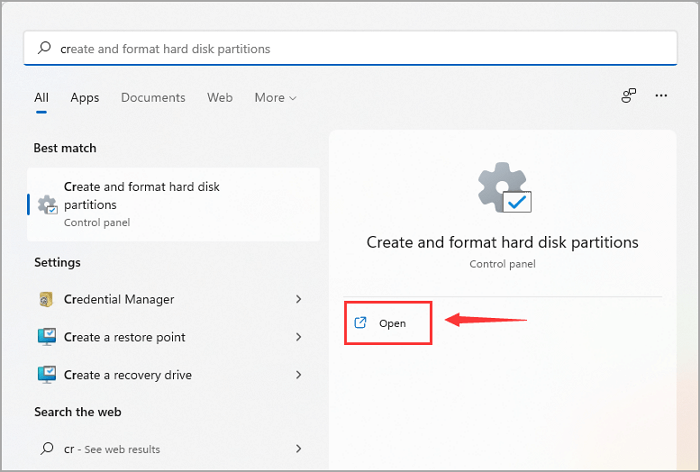
Step 1. To create and format hard disk partitions, type "Create and format hard disk partitions" in the search bar and click it to open Windows Disk Management.
Step 2.To format a drive, locate the drive you want to format, right-click it, and select the "Format..." button.
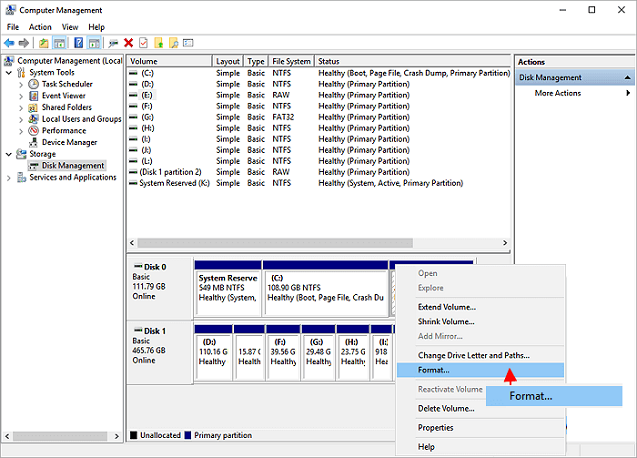
Step 3.Set the volume label and file system, then click "OK" to start formatting.

Method 2. Reformat Hard Drive with Qiling Partition Master
To format a hard drive for Windows 10, you can use a user-friendly hard drive format tool like Qiling Partition Master Free.
Qiling Partition Master Free is a software that enables users to manage and optimize their computer's hard drive partitions, offering features such as resizing, formatting, deleting, creating, and converting disk types, as well as copying data disks, all in a user-friendly interface.
Download This Free Hard Disk Format Tool:
Format A Hard Drive Windows 10/11:
Step 1. Launch Qiling Partition Master, right-click the partition you intend to format and choose "Format".
Step 2. In the new window, enter the Partition label, choose the desired file system (FAT32/EXT2/EXT3/EXT4), and set the cluster size according to your needs, then click "Proceed".
Step 3. The formatting process will start after clicking "OK". This may take a few minutes, depending on the size of the partition.
Method 3. How to Reformat Hard Drive Using Diskpart
You can also use another Windows built-in tool - Diskpart, a smart choice for formatting or reformatting a hard drive.
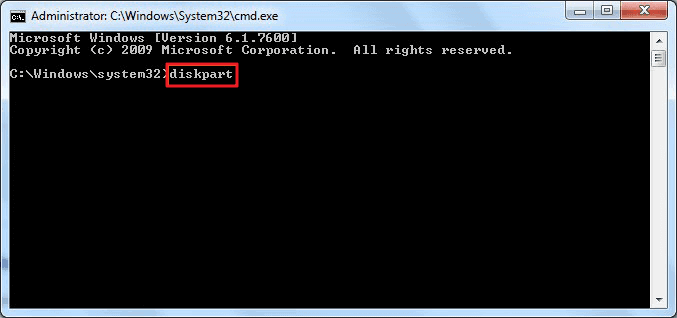
Step 1. Type "cmd" in the search bar, right-click on Command Prompt and select "Run as administrator".
Step 2. Type command lines and press Enter each time.
- diskpart
- list disk
- select disk x (Replace x with your disk number, like disk 2.)
- list volume
- select volume x (Replace x with the volume number of the partition that you want to format)
- format fs=ntfs quick(If you need to format a hard drive other file systems, change NTFS with FAT32, exFAT, etc.)
- exit
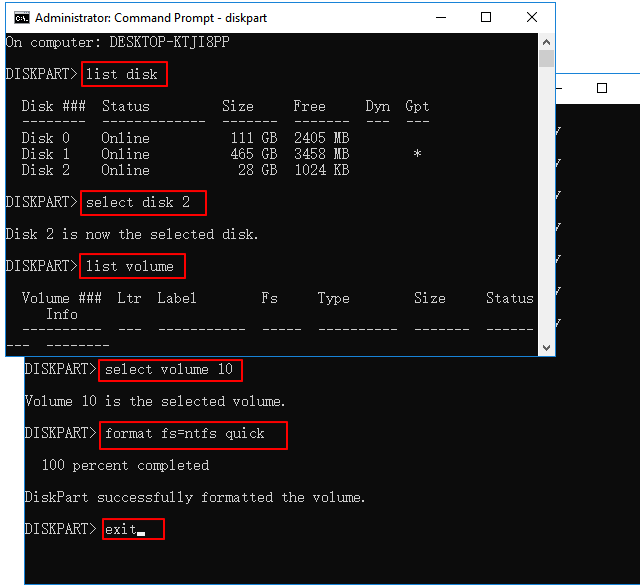
Formatting a hard drive and cleaning up the disk can be done on your own using various methods. On Windows 10/8/7, you can use the DiskPart quick format command to format a hard drive, or a third-party free formatting tool for a more straightforward approach. This guide will walk you through both options to help you achieve a clean and formatted disk.
✔Additional Tip: How to Format A New Hard Drive Windows 10/11
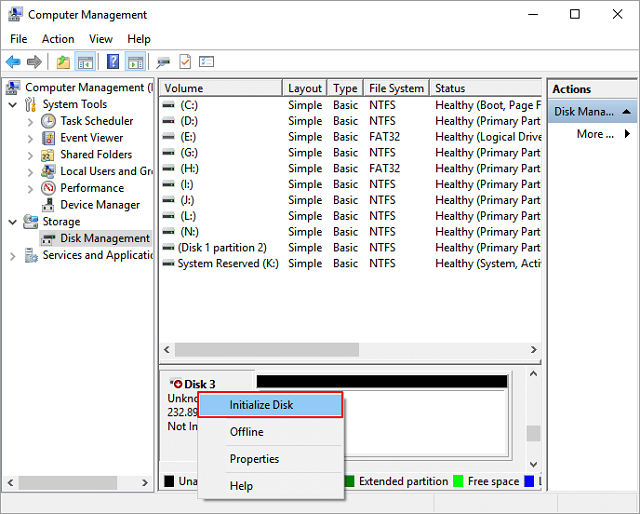
If you have a new disk that hasn't been partitioned, you'll need to initialize it, create partitions, and format them. To do this, follow the steps in Disk Management to create and format a partition: 1. Initialize the disk, 2.
- Right-click Windows icons and select disk management.
- Right-Click the unallocated hard disk and select the "Initialize Disk" option.
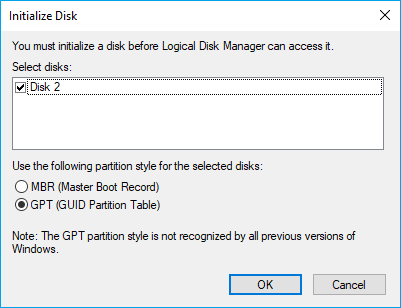
- Select the partition style on the Initialize Disk window and click OK.
- MBR - Works for drives smaller than 2TB.
- GPT - Works for drives larger than 2TB.
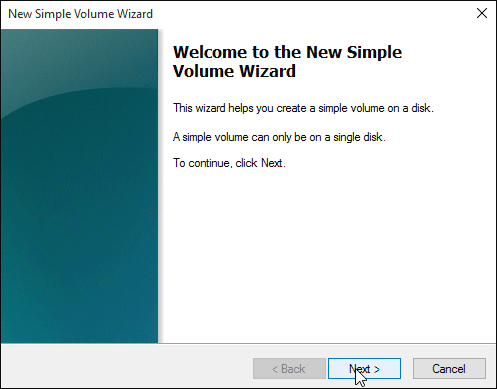
- Right-Select the unallocated space, then click on "New Simple Volume" and proceed with "Next".
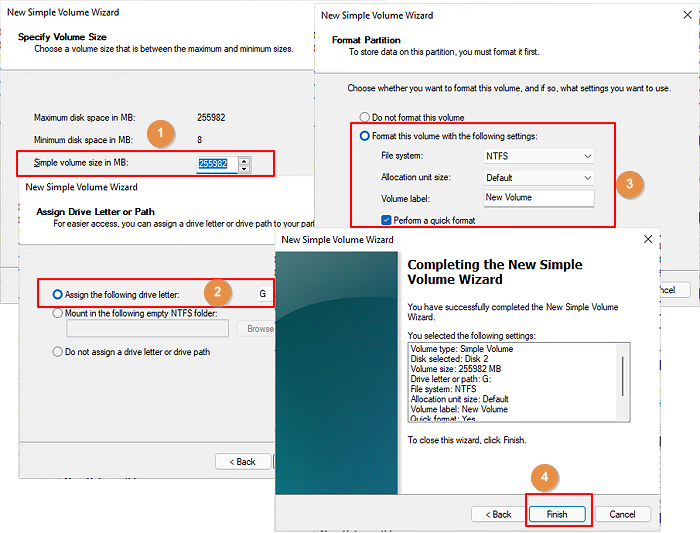
- Leave the default size in the "Simple volume size in MB" section.
- Check the "Assign the following drive letter and click Next.
- To set the settings for formatting this volume, select the file system as NTFS, leave the allocation unit size as the default, and enter a name for the volume label in a single paragraph.
- Only check the "Perform a quick format" option.
- Click "Next" and "Finish".
Not Enough? Home for Picking the Best Disk Formatter!
1. Qiling Partition Master Format Tool
2. HP USB Disk Storage Format Tool
3. HDD Low-Level Format Tool
4. Windows File Explorer
5. Windows Disk Management
6. Windows Command Prompt
Check All Software
Read on to check all six disk format tool.
V. How to Format/Reformat A Hard Drive on Mac?
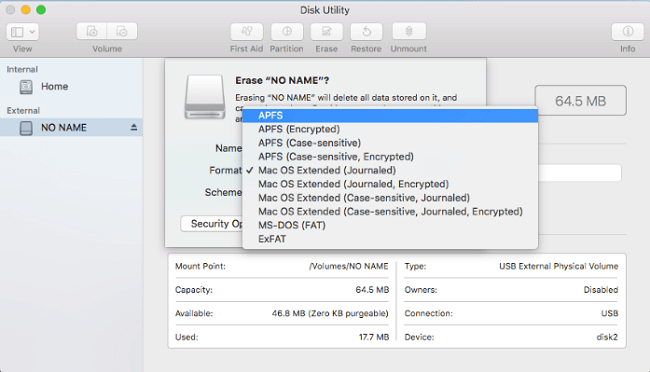
To reformat a hard drive, you can use the Disk Utility.
Step 1. Open Disk Utility by searching it in the spotlight.
Step 2.To format a drive, first select the drive you want to format from the left list, then click on the "Format" button to initiate the formatting process.
Step 3. Select Erase tab from the upper toolbar.
Step 4. Change disk name and format. Click "Erase" button.
VI. Format A Hard Drive Windows 10/11 Troubleshooting
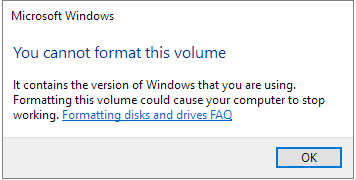
✘. Can't Format C Drive with Windows OS
To fix the error "You cannot format this volume" when trying to format a C drive, try restarting your computer in Safe Mode, booting from a Windows installation media, or using the built-in Windows tools such as Disk Management or Command Prompt to format the drive. If none of these methods work, you may need to seek further assistance from a professional or consider reinstalling Windows.
To format the C drive, download Qiling Partition Master, create a bootable disk, change the boot mode, and then use the hard drive formatter within the software to format the C drive.
Get Depth Instructions: how to format C drive.
✘. Windows Was Unable to Complete the Format
The "Can't format USB" and "Unable to format SD card" errors are common issues that can occur due to various reasons such as unsupported drive format, bad sectors, or virus attacks. Fortunately, Qiling Partition Master can help resolve these issues by reformatting the USB drive or SD card. Alternatively, you can try using CMD or other recommended options if you prefer not to use a third-party tool. If you're interested in learning more, you can follow the step-by-step instructions provided.
See Also
7+ valuable solutions to fix "Windows was unable to complete the format" error include checking the disk for errors, running the built-in Check Disk utility, using the Command Prompt to format the disk, running the Windows Disk Cleanup tool, using the Disk Management tool to delete the partition, using the Disk Management tool to create a new partition, using the Disk Management tool to format the disk, and checking for disk corruption. Additionally, users can try running the built-in System File Checker tool, using the built-in System Restore tool, and using a third-party disk formatting tool.
✘. Recover Files from Formatted Hard Drive
Yes, it is possible to recover data from a formatted hard drive. With a specific data recovery software, such as Qiling Data Recovery Free, you can unformat the hard drive and recover all your data.
Follow the video guide to recover formatted hard drive:
✘. Format RAW Hard Drive
If your hard drive is inaccessible, indicated by the "RAW" status, the best solution is to reformat the hard disk with a compatible file system. You can recover data from the raw drive and then repeat the format steps using disk management.
Other Unexpected Error:
VII. Wrapping Things Up - Is This Guide Helpful?
Formatting a hard drive with Windows built-in utilities or Qiling is a fast and efficient way to do so on Windows 10/11 and Mac computers. By using these tools, you can securely erase any data on the drive, eliminating the risk of data leaks or unworkable devices. This process is a great way to breathe new life into an old hard drive, making it ready for use again.
Related Articles
- Computer Is Running Slow? Causes and Fixes Are Found! [Your Ultimate Guide]
- Ultimate Guide: What Is GPT Disk, How to Use GPT in Windows
- Beginner Geek: Everything about Disk Partition Explained
- A Starter Guide to the Windows Disk Management
- 3 Ways| How to Fix Disk Management Format Option Greyed Out in Windows 11/10/8/7
If the format volume option is greyed out in Disk Management on Windows 11/10, 8.1, 8, 7. You can try running the built-in Check Disk utility, checking the disk for errors, and then try to format the disk. - How to Fix Error No Such Partition Grub Rescue in Windows 11/10
Get error no such partition grub rescue Windows 11/10 and cannot boot your system? This page shows you how to fix error no such partition by fixing MBR and restoring the BCD, configuring the active partition, rebuilding BDC, etc. Try these solutions to solving grub rescue Windows 11/10.
Products
Articles & Tutorials
- Data Recovery
- Data Backup
- File Recovery
- File Backup
- System Backup and Restore
- Disk and Partition Clone
- Technical articles
- Mobile articles
- Disk Master Help
- Windows Data Recovery Tutorials
- Windows Secure Delete Tutorials
- Windows Partition Management Tutorials
- Windows File Backup and Restore Tutorials
- Windows System Backup and Restore Tutorials
- Windows Disk Backup and Restore Tutorials
- Windows Clone Tutorials