RAW Drive Fix: How to Fix RAW Hard Drive or External Hard Drive
Overview of External Hard Drive Becoming RAW
Your computer's hard drive, external hard drive, USB flash drive, SD card, or other external storage devices can suddenly become RAW, making your data inaccessible. This occurs when the device is not formatted with a compatible file system like NTFS or FAT32, and the data remains locked.
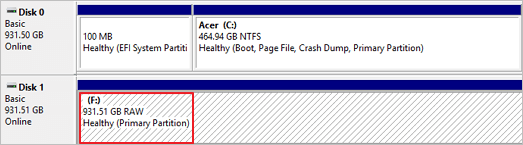
If your external hard drive has become RAW, you can identify it by being in one of the following situations: your hard drive is no longer accessible, its file system is corrupted, or it's showing a RAW file system instead of a normal NTFS or HFS+ file system. In these cases, the hard drive's file system is in a raw state, making it unreadable and inaccessible. This can be caused by various factors such as power failures, file system corruption, or physical damage to the drive.
- The file system is displayed as "RAW"
- File names contain weird characters
- Windows shows a message saying "This disk is not formatted. Do you want to format now?"
If you've encountered a situation where your external hard drive, SD card, USB flash drive, or other storage device has become RAW, the next step is to know how to fix it without losing any files. There are two methods to fix a RAW drive, which can also be applied to other storage devices. Based on our experience, you can try these methods to recover your files and get your device back to its normal state.
Top 10 Best Data Recovery Software on Windows and Mac
Data recovery software can be a lifesaver for Windows and Mac users who have lost or deleted important files. With a range of options available, users can quickly retrieve their data using specialized software designed to recover deleted or lost files.
RAW External Hard Drive Fixes
If your hard drive is physically damaged, it may not be recoverable. However, if it's just the data that's corrupted, you may be able to recover it using data recovery software or by taking it to a professional data recovery service.
Method 1. Fix RAW External Hard Drive Without Formatting
If the drive shows RAW but still has a drive letter, you can try to fix the RAW hard drive without formatting it using CMD and the CHKDSK command. This might be an option if your external hard drive appears with a drive letter. However, if your external hard drive is shown as RAW without a drive letter, a different method should be followed.
- Warning
- Running chkdsk may resolve the RAW drive issue, but it can also result in total data loss. Therefore, it's recommended to perform data recovery in advance and then proceed with the CMD method.
Step 1. Connect your RAW external hard drive to your computer.
Step 2. To open Command Prompt as administrator, click the search icon in the taskbar, type cmd, right-click "Command Prompt" and choose "Run as administrator".
Step 3. To fix a RAW external hard drive, enter the command "chkdsk G: /f" in the Command Prompt, replacing "G" with the drive letter of your RAW drive, and press Enter. This will initiate the check and fix process.
After repairing your hard drive, you can check if it's fixed by opening Disk Management. If CHKDSK isn't working, don't worry, you can still fix your RAW external hard drive using an alternative method.
Method 2. RAW Drive Fix: Format RAW External Hard Drive to NTFS Without Losing Data
To recover data from a RAW external hard drive, first use a hard drive recovery software like Deep Data Recovery to recover your files. Once the data is recovered, you can then format the drive to NTFS or another file system, avoiding data loss.
Deep Data Recovery software helps recover files from a Windows hard drive, allowing you to safely and quickly retrieve all files before formatting a RAW external hard drive to NTFS.
- Notice:
- It's recommended to recover data from a RAW external hard drive before formatting it to NTFS or another file system, as formatting will erase all data.
- You can't access data on a RAW hard drive from your computer, but data recovery software can still access and recover the data for you.
First, Recover Data from the RAW Hard Drive:
To restore files from your hard drive, follow these steps: First, ensure your hard drive is connected to your computer and turned on. Next, check if the files you need are accessible through the operating system. If the files are not accessible, try booting your computer from a recovery drive or a Windows installation media.
Detailed Steps to Recover Files with Deep Data Recovery:
Step 1. Select file types
Launch Deep Data Recovery. Select file types and click "Fast Scan" to start the recovery process.

Note: You can choose different search modes based on where and why the data was lost.
Step 2. Select and scan the RAW partition
If the RAW partition has a label, you can select it from the drive list and click "Scan" to search for lost files. If the partition has lost its label, it will be listed as "Lost Partition", so select that and click "Scan" to initiate a full scan of the RAW drive.

Step 3. Preview found data from the scan result
After the scan is completed, all files available on the RAW hard drive will be displayed, allowing you to view and select the files you want to recover. You can sort the scanned data by file format or search directly in the "Search files or folders" box to quickly locate the desired files.

Step 4. Recover data from RAW partition
Select all files and click "Recover" to get all the data back. Select another internal or external hard drive to save the recovered data and click "OK" to start RAW drive recovery.
This solution is also applicable to raw flash drive recovery and raw pen drive recovery. Additionally, the software can retrieve data from various situations, such as recovering deleted files after emptying the Recycle Bin, recovering data from a formatted SD card, and restoring lost data after reinstalling the operating system. It's recommended to download Deep Data Recovery on your computer to minimize the risk of data loss.
Then, Format the RAW Hard Drive to NTFS:
After you have successfully recovered files from the RAW external hard drive, you can format the external drive to NFTS. After formatting, the drive will become normal and usable.
Step 1. Connect your RAW external hard drive to your computer.
Step 2. Go to "This PC" > "Manage" > "Disk Management".
Step 3. Find and right-click the RAW hard drive and choose "Format".
Step 4. To set up the file system and assign a drive letter to your hard drive, select NTFS as the file system and choose a drive letter from the available options. This will format your hard drive and prepare it for use as a storage device.
Step 5. Click "Start" to format your RAW hard drive. When formatting has been completed, click "OK".
Method 3. Fix RAW External Hard Drive with RAW Recovery Services
If you're experiencing issues with your RAW external hard drive, you can try an efficient method to fix and recover your data using manual RAW recovery services.
Consult with Qiling data recovery experts for one-on-one manual RAW recovery service, which includes the following services after a FREE diagnosis:
- Repair damaged RAW drive without formatting
- Recover data from RAW drive, including BitLocker encrypted drives
- The process of recovering a RAW partition involves using specialized software to scan the affected drive and identify the original file system. This can be done with tools like Deep Data Recovery, Disk Drill, or R-Studio.
If the external drive remains readable but its files are absent, choose a recovery mode by the cause and save results on another device.
Related Articles
- Free | How to Recover Files from Formatted USB/Pen Drive
- 10 Best Data Recovery Software for Windows 7 Free Download Full Version
- Best Way to Store Digital Photos Long Term
- How to Fix Invalid Media or Track 0 Bad - Disk Unusable Error in 8 Ways
- How to Recover Permanently Deleted Files in Windows 10 Without Software (Mac Included)
If you've accidentally deleted essential files or folders, you can recover them without software in Windows 10, 8.1, 8, or 7. Try these methods to retrieve your data, even if you've emptied the recycle bin or used Shift delete. - How to Recover Deleted Instagram Posts/Photos/Videos
If you've lost photos, videos, or stories on Instagram, you may have tried using the app to restore them, but it only supports posts deleted within 30 days. For permanently deleted or lost posts, Qiling data recovery software might be able to help.
Products
Articles & Tutorials
- Data Recovery
- Data Backup
- File Recovery
- File Backup
- System Backup and Restore
- Disk and Partition Clone
- Technical articles
- Mobile articles
- Disk Master Help
- Windows Data Recovery Tutorials
- Windows Secure Delete Tutorials
- Windows Partition Management Tutorials
- Windows File Backup and Restore Tutorials
- Windows System Backup and Restore Tutorials
- Windows Disk Backup and Restore Tutorials
- Windows Clone Tutorials