How to Recover Deleted Instagram Posts/Photos/Videos
Instagram Posts/Photos/Videos Are Suddenly Gone
You're experiencing a frustrating issue where some of your posts, photos, and videos on Instagram are disappearing without notice, making it difficult to share special moments with your followers and friends. You've tried recovering them through the Instagram app and checking your PC and phone, but nothing has changed. To further troubleshoot this issue, you may want to try checking your account's settings, reporting the issue to Instagram's support team, and reviewing your account's activity history to see if there are any patterns or clues that might help resolve the problem. Additionally, you may want to consider reaching out to Instagram's community support or online forums to see if others have experienced similar issues and if there are any known solutions or workarounds.

Instagram allows anyone 13 and above to sign up for an account by entering an email address and choosing a username. As a popular social media platform, it offers a free space for millions of users to share moments with their followers and interact with them on various devices. However, some users have encountered an issue where their posted content, including photos, videos, and stories, suddenly disappears from their Instagram account.
Instagram users may experience the frustrating issue of deleted or lost posted photos, videos, and stories due to various common factors. These factors can include accidental deletion, Instagram's algorithm removing content, technical glitches, server issues, or even hacking and cyber attacks.
- The account may involve suspicious activities.
- There is a dramatic change in posting frequency.
- The uploaded posts violate community guidelines.
- The Instagram app is not updated to the newest version.
- The email address/phone number has not been confirmed.
Five Ways to Recover Deleted Instagram Posts
Here are some commonly used methods that may help recover deleted posts: When you find that the photos, videos, and stories posted on your Instagram are deleted or lost, you can refer to the methods below to deal with such a problem. You can try checking your Instagram account's archive, checking your device's recycle bin, and checking your internet history to see if the deleted posts are still stored somewhere. Additionally, you can also try using third-party recovery software or contacting Instagram's support team for assistance.
1. Wait for a While and Refresh the Interface
If you're sure your email and phone number are verified and your uploaded content didn't violate Instagram's rules, you can try waiting for a bit and then refreshing the app to see if your posts reappear.
2. Log Out and Resign In
If your Instagram posts are being instantly or temporarily removed, it could be due to a program bug. Try logging out of Instagram and then signing back in to see if that resolves the issue.
3. Stop Using Bots
Using bots or automation services to like other photos, videos, or stories on Instagram can lead to your account being flagged as risky, resulting in deleted or lost posts. To avoid this, it's essential to stop using such tools to maintain a safe and active account.
4. Update the Instagram
If you haven't updated your Instagram, your stories, photos, and videos may also be deleted. The app's recent update has fixed some bugs and issues, making it more compatible with devices. If your posts suddenly disappear, check if the app has been updated and try updating it if it hasn't.
5. Restore Deleted Posts Directly From Instagram
Instagram has released a "Recently Deleted" feature, which allows users to recover deleted posts, including stories, videos, and photos. The deleted content is moved to the "Recently Deleted" folder, where it remains for 24 hours for stories not in the archive and 30 days for other posts, before being permanently erased. To access this feature, users must upgrade to the latest version of Instagram.
Step 1. Open the Instagram and find "Settings".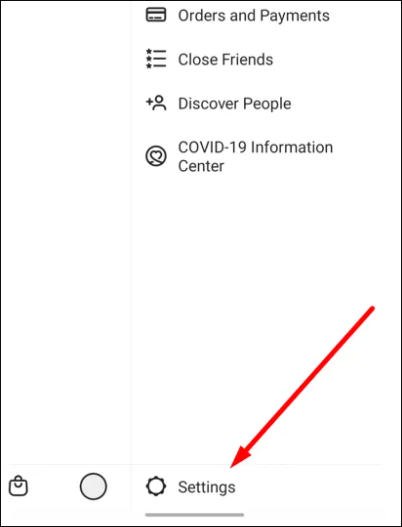
Step 2. Select "Account".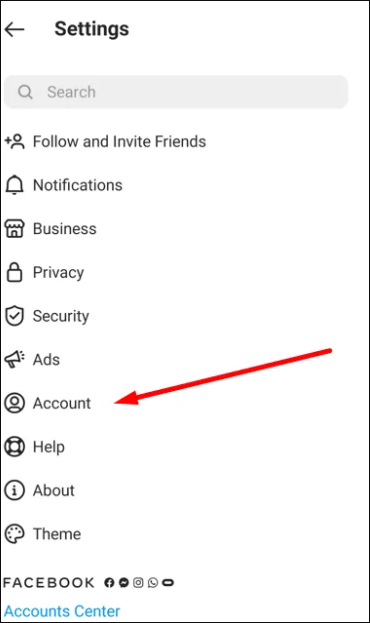
Step 3. Choose "Recently Deleted".
Step 4. Restore deleted posts.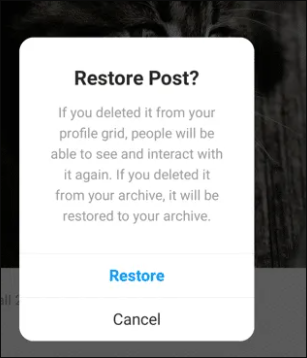
Recover Deleted Instagram Photos/Video from PC, Android, and iPhone
The following are the particular ways to address Instagram post-loss problems on different devices: PC, Android, and iOS.
1. Recover Instagram Photos/Videos from PC
To recover lost or deleted photos and videos from Instagram, you can use the Deep Data Recovery software on your PC. This tool allows you to easily restore different types of photos and videos.
Qiling data recovery software excels on both Windows and Mac, praised for its excellent performance in restoring accidentally, mistakenly, or potentially deleted data. A notable feature is the ability to preview lost or deleted files, documents, photos, and videos before recovery, allowing users to confirm the files they want to restore.
The following steps show how to recover photos, videos, and stories from Instagram: Open the Instagram app and go to your profile page, then tap on the three horizontal lines on the top right corner and select "Settings". Scroll down and tap on "Account" and then "Help", and tap on "Report a problem" and select "Something isn't right" from the dropdown menu.
Step 1. Open Deep Data Recovery. Select file types, then click "Fast Scan".

Note: You can choose different search modes based on where and why the data was lost.
Step 2. Find the partition where the deleted or lost pictures were stored, then click "Scan" to begin the recovery process.

Step 3. After the scanning finishes, you can quickly filter photos by choosing "Pictures" in the left panel. This allows you to easily view and manage your scanned photos.

Step 4. After selecting the pictures you want to recover, you can preview them. Once you're satisfied, click the "Recover" button and choose a new location to save the recovered data.
2. Recover Instagram Photos/Videos from Android
To restore Instagram photos or videos from your Android phone, you can try two methods. First, you can try to recover them using the app's built-in features, such as checking your account's "Recents" page or searching for the content in the app. Alternatively, you can also try using a third-party data recovery app to scan your phone's storage for deleted Instagram files.
Method 1. Try Instagram Archive Feature
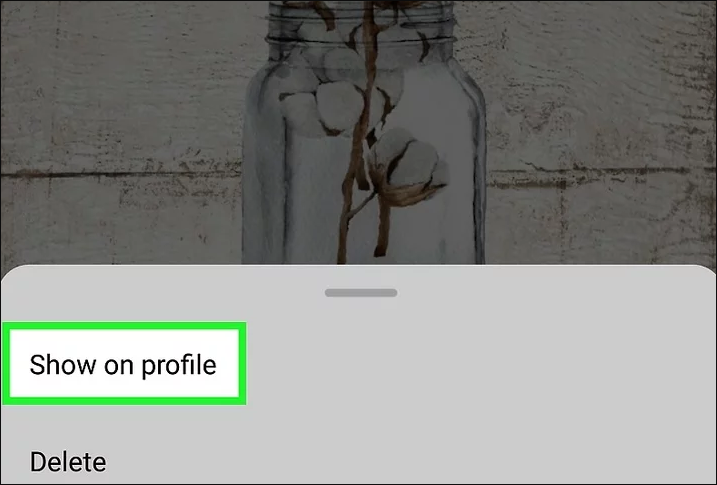
Deleted Instagram posts, photos, and videos are often moved to the "archive" where they are temporarily stored, allowing users to recover them. To access and recover deleted content, follow the steps provided, which guide you through the process of retrieving your archived posts from Instagram.
Step 1. Open Instagram and select "Archive".
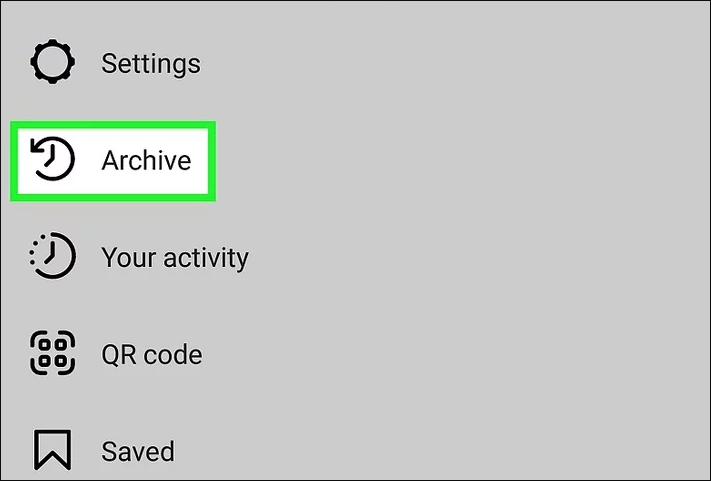
Step 2. Tap "Stories Archive" or "Posts Archive".
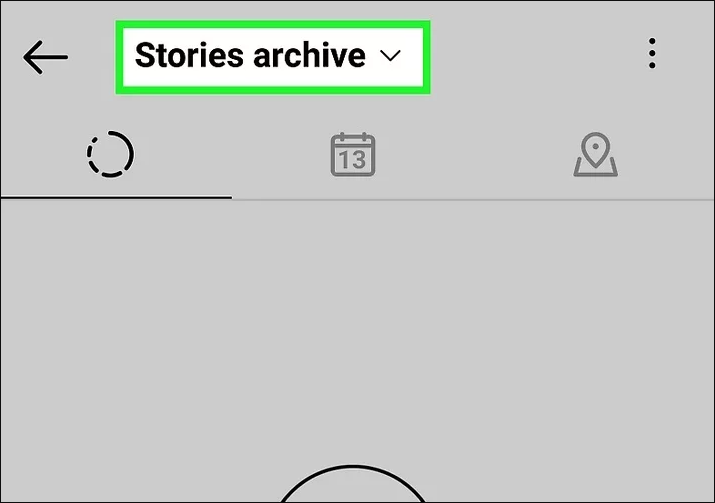
Step 3. To view an image, tap on it and then tap the three dots on the top right corner to select "Show on file".
Method 2. Check File Manager on Android
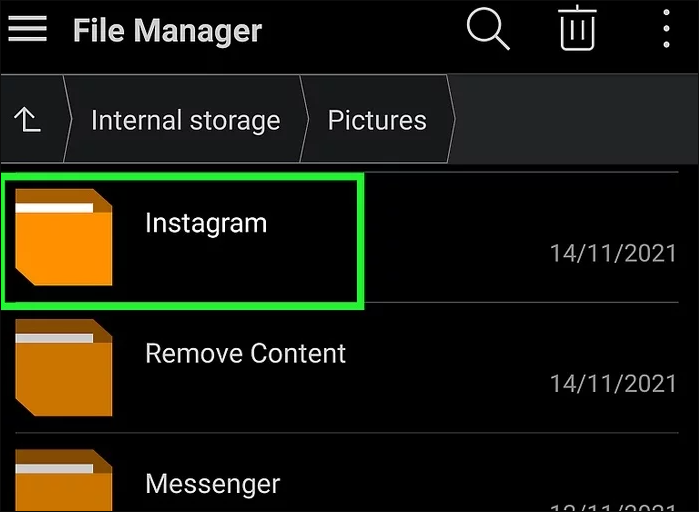
Videos and photos uploaded to the Instagram app can also be found and restored from the File Manager on Android.
Step 1. Find and open "File Manager" on the Android
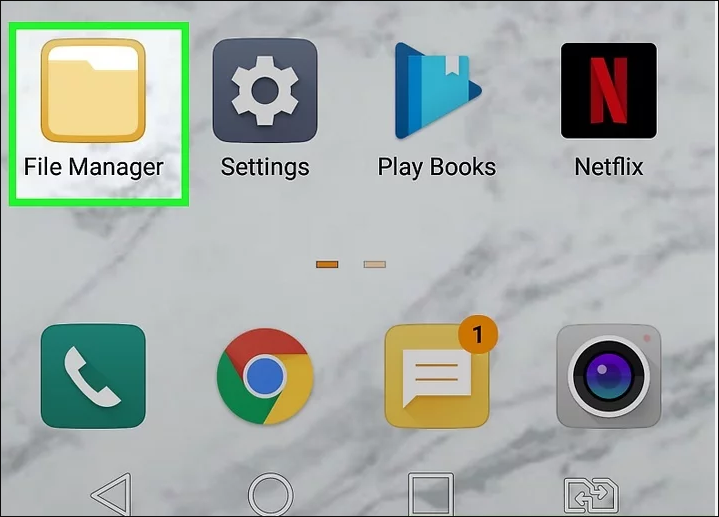
Step 2. To recover deleted Instagram photos from your internal storage, go to Internal Storage > Pictures > Instagram, and check and restore the lost photos, videos, etc. from there.
3. Recover Instagram Photos/Videos from iOS
If you're looking to restore Instagram photos and videos from your iOS device, there are efficient ways to do so. You can try three methods to recover your Instagram content: the methods listed below.
Method 1. Look In The Gallery Of Your Device
The process of finding deleted photos from an iPhone's gallery is similar to checking the gallery on an Android phone.
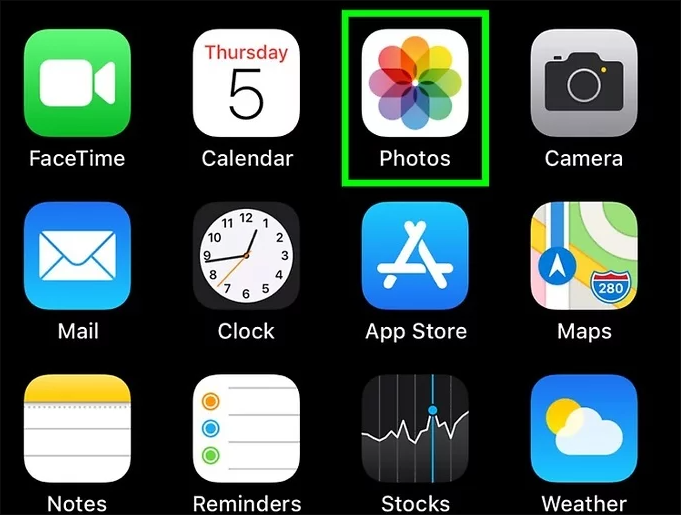
Step1. Open "Photos" and then tap "Album".
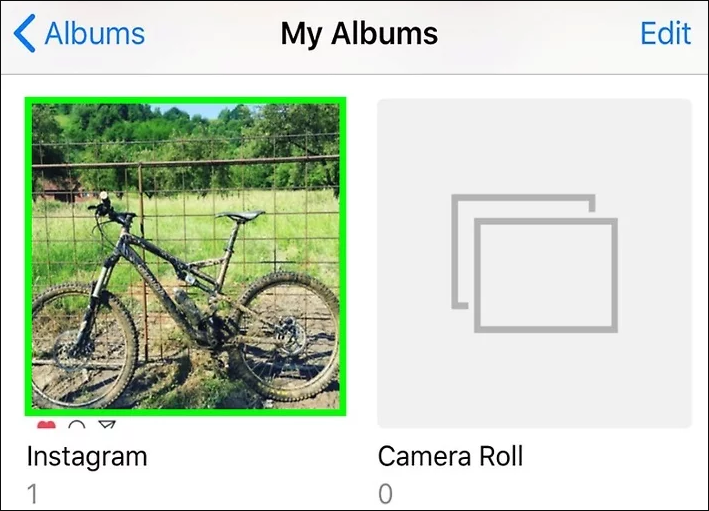
Step 2. Find lost "Instagram" photos on the album.
Method 2. Search For The Deleted Photos In File Manager
In Android and iPhone, deleted Instagram photos and videos can be found in the File Manager and Recently Deleted folder, respectively.
Step 1. Open "Photos" and find "Recently Deleted folder".

Step 2. Find deleted picture, and click "Restore".
Method 3. Check Google Photos and iCloud
Google Photos will automatically capture and back up shared photos and videos from Instagram, allowing you to view them in Google Photos if they can't be found in the Instagram folder.
For iOS users, updated Instagram photos may also be saved in iCloud, making it possible to find and restore deleted photos from the iCloud drive.
FAQs About Instagram Posts Recovery
Some frequently asked questions about recovering Instagram posts are listed below to provide more information and skills on how to do so.
1. Are deleted Instagram stories gone forever?
Deleted Instagram content is immediately erased from your account and placed in the Recently Deleted section, where stories remain for up to 24 hours. Other posts, including pictures and videos, will be permanently deleted after 30 days.
2. What happens if you restore a story on Instagram?
People can see and interact with a restored story if it was shared within 24 hours or posted to Story Highlights, or if it was deleted from the archive and restored from there.
3. How to restore deleted stories on Facebook?
Step 1. To access the "Manage Activity" feature on Facebook, start by launching the Facebook Profile, then tap the "Three Dots" icon, followed by "Activity Log", and finally select "Manage Activity".
Step 2. Choose the story or photos you wish to recover.
Step 3. Click "Restore" and confirm your choice.
4. How to recover deleted Instagram posts after 30 days?
Recovering deleted Instagram photos after 30 days can be challenging, but you can try searching for them on Google Photos. If they're still not visible, you may want to use Ease US Data Recovery Wizard to help retrieve them.
Conclusion
When special moments on Instagram go missing, it can be difficult. However, with the help of data recovery software like Qiling, you can easily restore lost data, including photos, videos, files, and documents.
Related Articles
- Recover Access Files with Access Database Recovery Software
- How to Recover Data from RAID 1 Disk with Raid 1 Recovery Software
- Recover Deleted Files from USB Flash Drive/External Hard Drive
- How to Recover Deleted Files After Windows 10 Updates [Fast and Safe]
Windows 10 updates delete my files. What can I do? You can recover Windows 10 updates deleted files with the Backup and Restore utility, File History utility, File Recovery, or Recycle Bin. The easiest way to recover deleted files on Windows 10 is by applying Deep Data Recovery. - Undo Disk Cleanup in Windows, No Data Loss
If Disk Cleanup mistakenly deleted your downloads folder, don't wait - undo the disk cleanup and try to recover your files using a backup or file recovery software. - Undo ESD-USB | Convert 32GB ESD-USB Hard Drive/External Hard Drive to Normal
If you've accidentally converted your hard drive or external hard drive into a 32GB ESD-USB drive and lost data, there are solutions to restore it to its full capacity without losing any data.
Products
Articles & Tutorials
- Data Recovery
- Data Backup
- File Recovery
- File Backup
- System Backup and Restore
- Disk and Partition Clone
- Technical articles
- Mobile articles
- Disk Master Help
- Windows Data Recovery Tutorials
- Windows Secure Delete Tutorials
- Windows Partition Management Tutorials
- Windows File Backup and Restore Tutorials
- Windows System Backup and Restore Tutorials
- Windows Disk Backup and Restore Tutorials
- Windows Clone Tutorials