How to Recover Deleted Files After Windows 10 Updates [Fast and Safe]
Windows 10 Updates Delete My Files
Windows 10 updates can be frustrating, especially when they delete important files. As a Windows 10 user, you may experience various problems and bugs, such as updates deleting files, USB drives not showing up, system crashes, and disk corruption. While updates aim to fix old bugs, they can also introduce new ones, leading to the unfortunate loss of essential files.
Today, we'll discuss how to recover Windows 10 updates deleted files on a PC. We'll introduce four reliable solutions to help you solve the problem, and the detailed tutorial will be provided in the next part.
Recover Deleted Files After Windows 10 Updates with Software
To recover Windows 10 updates deleted files quickly, using a reliable and handy file recovery software like Deep Data Recovery is a wise solution.
Deep Data Recovery can recover lost or deleted files on a PC by using advanced algorithms to scan the computer's hard drive and identify any remaining file fragments. These fragments are then reassembled into complete files, which can be recovered and restored to their original location.
- Recover deleted photos, music, documents, videos, and other files from Windows 10 using a recovery tool that can handle files deleted by Windows 10 updates.
- The software supports recovery of various file types on Windows 10, including JPG, JPEG, and PNG images, as well as GIF, MP4, PST, MOV, and DOCX files.
- Recover deleted files from various storage media, including hard disks, USB drives, and NAS, with a safe and reliable tool that can also help you recover data from a formatted hard disk Windows 10.
- Deep Data Recovery allows you to create a Windows PE bootable disk, enabling data recovery even if Windows 10 fails to start or cannot boot.
To recover Windows 10 updates deleted files on your PC, you can use a reliable file recovery tool. This tool can help you retrieve deleted files that were lost due to updates, and it's a tested guide that you can follow to get your files back.
Step 1. Choose the exact file location and click the "Scan" button to proceed.

Step 2. After the process, select the "Deleted Files" and "LostFiles" folders in the left panel. You can then apply the "Filter" feature or click the "Search files or folders" button to locate the deleted files.

Step 3. Click the "Recover" button and save the restored files – ideally, it should be different from the original one.

Recover Windows 10 Updates Deleted Files Without Software
Recovering deleted files on a Windows 10 PC after updates is not difficult. Windows 10 updates can sometimes cause bugs that lead to files being deleted or hidden, but users can recover them using file recovery software or by retrieving them from Windows' old folders. If a recent backup is available, files can be easily restored from the backup. Alternatively, Windows File Recovery can be used to find lost files.
Method 1. Recover Windows 10 Updates Deleted Files with Backup and Restore Features
Windows 10 has built-To recover Windows 10 updates deleted files, you can utilize backup and restore features such as Backup and Restore and File History. These utilities enable you to recover deleted files, and we will guide you through the process of using them to restore your lost files.
With Backup and Restore Option
To recover deleted files on Windows 10, you can use the Backup and Restore feature to retrieve files and folders from your latest backup. This feature allows you to restore deleted files and folders from your Windows 10 backup, making it a useful tool for recovering lost data.
Step 1. Open the Windows 10 Control Panel on your computer or laptop.
Step 2. Open the System and Security menu and choose "Backup and Restore (Windows 7)".
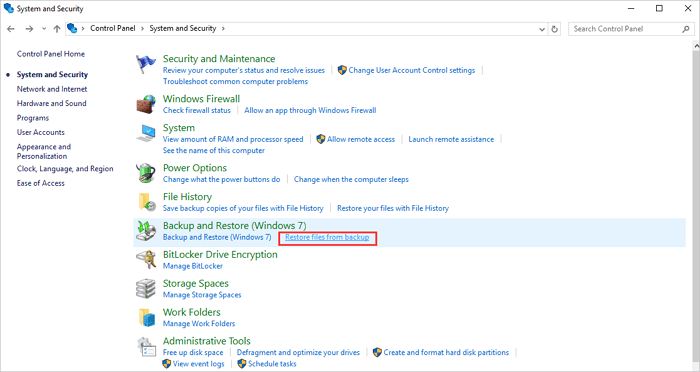
Step 3. Click the restore section and the "Restore my files" button.
Step 4. You can browse or search the files you want to restore from your backup by clicking "Browse for files".
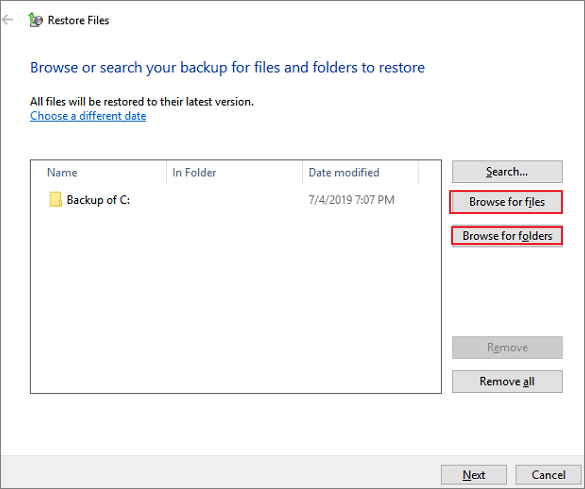
Step 5. When you find the lost files, select them and click "Add files" to add them back to the system.
Step 6. Click "Restore" to restore the files to the chosen location.
With File History Option
You can recover deleted files in Windows 10 by using the File History feature, but make sure it's enabled before Windows updates delete your files.
Step 1. Open the settings menu on Windows 10.
Step 2. Click the "Update & security" button, and choose Backup options.
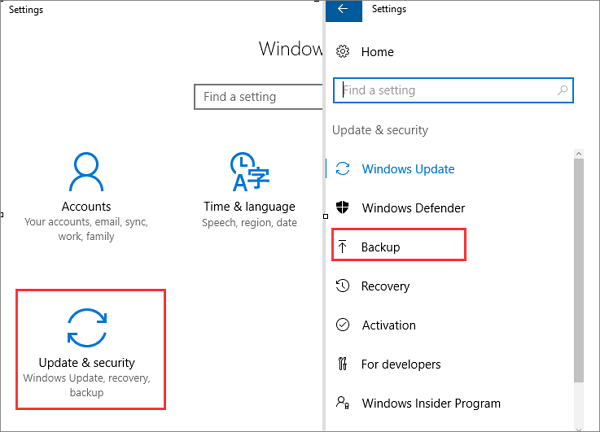
Step 3. Click "Restore files from a current backup".
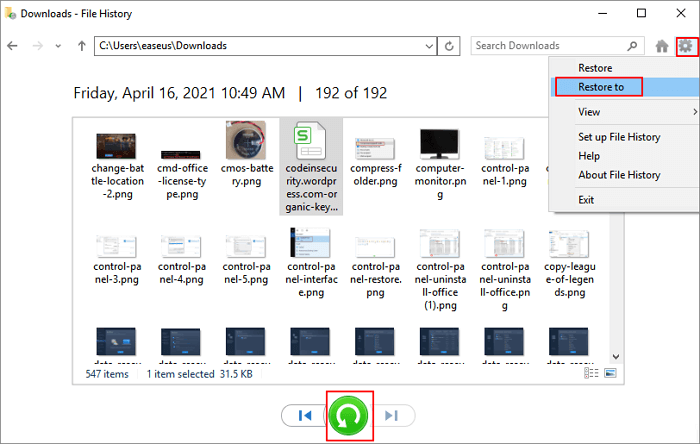
Step 4. You can scroll down to find the files you need and click the green button to recover Windows 10 updates deleted files.
Method 2. Recover Windows 10 Updates Deleted Files from Recycle Bin
If your files were moved to the Recycle Bin after a Windows 10 update, you can recover them. We can guide you on how to do this by showing you how to retrieve deleted files from the Recycle Bin.
Step 1. Find the Recycle Bin from your Windows 10 desktop.
Step 2. If your Recycle Bin is full of deleted files, you can scroll down or search for the names to find them.
Step 3. Find the target files and restore them.
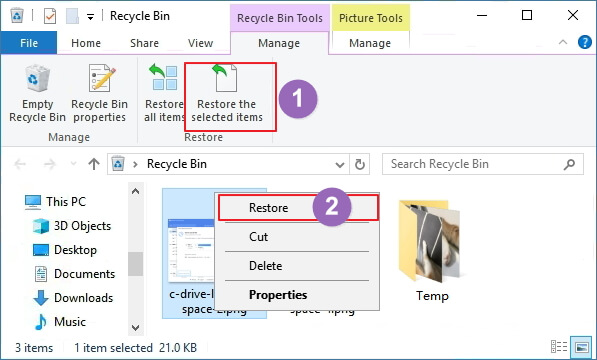
Step 4. Then you can check your files from the original place.
Method 3. Recover Windows 10 Updates Deleted Files with File Recovery
Windows File History is a built-in feature in Windows 10 that allows you to recover deleted files, not a command-line tool that needs to be downloaded. It can be enabled by going to Settings > Update & Security > Backup. Once enabled, File History will automatically back up your files to an external drive or network location.
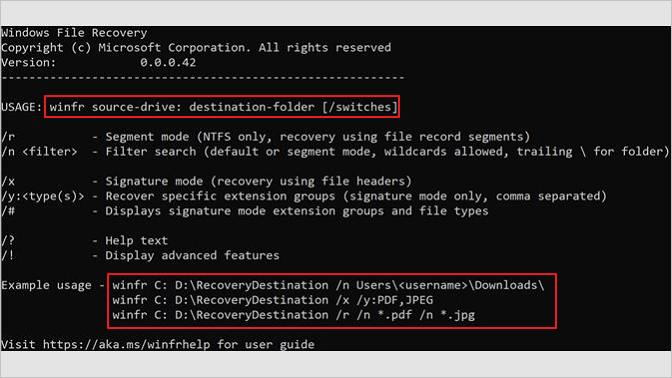
Step 1. Search Windows File Recovery in Microsoft Store.
Step 2. After downloading this Windows command-line tool, run it.
Step 3. The command to copy a file from one location to another in Windows is `copy C: D: /y \Users\Documents\test.docx`. This command copies the file from the specified location on drive C: to the specified location on drive D:. The `/y` option is used to overwrite the file if it already exists at the destination. Replace C and D with the correct source and destination drive letters.
Conclusion
You can recover Windows 10 updates deleted files on a PC using Deep Data Recovery, Windows 10's built-in backup and restore utilities, or by uninstalling the updates. Additionally, files may not be deleted but hidden in folders, which can be revealed using commands, the control panel, or software that shows hidden files.
It won't take long to download Deep Data Recovery, and we believe it can help you in some place at some time.
Windows 10 Updates Delete My Files FAQs
After some Windows 10 updates, you may suddenly lose some essential files.
Why are all my files gone after Windows 10 update?
Some Windows 10 updates may cause new bugs and delete or hide your files. To recover lost files, you can search for their names, show hidden files, or use a recent backup to restore them. If you don't have a backup, you can try uninstalling the problematic updates to retrieve your files.
How do I stop Windows 10 from automatically deleting files?
To prevent Windows 10 from deleting files without asking, you can use the following methods: 1) disable the "Quick Actions" feature, 2) turn off the "Recycle Bin" feature, or 3) use a third-party file manager that allows you to customize the deletion process. These methods can help you regain control over your files and prevent accidental deletions.
- 1. Stop Windows Defender.
- 2. Turn off Storage Sense.
- 3. Uninstall Windows 10 updates.
Can I recover Windows 10 updates deleted files?
You can recover deleted Windows 10 update files using the Backup and Restore utility, File History, or uninstalling updates. Alternatively, applying Deep Data Recovery is the easiest way to recover deleted files on Windows 10.
- 1. Launch this data recovery software.
- 2. Scan the disk where you lost your files.
- 3. Preview the lost files from Windows 10.
- 3. Confirm and recover deleted files.
Will update to Windows 11 delete files?
Upgrading to Windows 11 will not delete files, and you can choose to keep your files and apps during the upgrade process. If you're concerned about the upgrade failing, consider backing up important files beforehand.
Related Articles
- How Long Does It Take | 1 TB Data Recovery
- How to Force Delete a Folder or File in Windows 10/Windows 11
- How to Fix Corrupted Video on Windows 10/Android/SD Card - 3 Ways
- How to Recover Data Files Deleted by Antivirus
- How to Recover Shift Deleted Files Windows 11[Recover Readily]
To recover shift deleted files on Windows 11, you can use one of three tested solutions. The Windows File Recovery tool allows you to recover shift deleted files, or you can try recovering them from the File History. - Stray Lost Progress: 2 Best Ways to Recover Lost Stray Game Saves on PC/PS4/PS5
If your Stray game save is corrupted, you can recover the lost data using Qiling game data recovery software on your PC. Simply download and run the software, and follow the simple steps to restore your Stray game data.
Products
Articles & Tutorials
- Data Recovery
- Data Backup
- File Recovery
- File Backup
- System Backup and Restore
- Disk and Partition Clone
- Technical articles
- Mobile articles
- Disk Master Help
- Windows Data Recovery Tutorials
- Windows Secure Delete Tutorials
- Windows Partition Management Tutorials
- Windows File Backup and Restore Tutorials
- Windows System Backup and Restore Tutorials
- Windows Disk Backup and Restore Tutorials
- Windows Clone Tutorials