How to Fix Error No Such Partition Grub Rescue in Windows 11/10
How to Fix Error: No Such Partition Grub Rescue Windows 11/10
To fix the "error no such partition grub rescue" on Windows 11/10, try booting in safe mode, checking the BIOS settings, and running a disk check. If the issue persists, you can try reinstalling GRUB or using a Linux distribution's live USB to repair the GRUB installation. Additionally, you can use a tool like Boot-Repair-Disk to repair the GRUB installation.
| Workable Solutions | Step-by-step Troubleshooting |
|---|---|
| Fix 1. Fix MBR and Rebuild BCD |
Method 1. Qiling Partition Master...Full steps Method 2. Windows 11/10 Automatic Repair...Full steps |
| Fix 2. Boot Sector Code with Windows 11/10 Automatic Repair | Step 1. Restart your PC a few times during the boot sequence; Step 2. From the list of options...Full steps |
| Fix 3. Configure and Set Active Partition |
Method 1. Qiling Partition Master...Full steps Method 2. Diskpart...Full steps |
About "Error No Such Partition. Grub Rescue"
"I was dual-booting Windows 10 and Linux Ubuntu on my desktop. Since the system was unable to detect Ubuntu in the initial menu that appears on rebootingIf you deleted the partition where Ubuntu was installed while in Windows, you'll need to recreate the partition and reinstall Ubuntu. You can use a tool like Qiling Partition Manager in Windows to recreate the partition.10. I installed PowerISO, which then prompted me to reboot the system. Now, however, it led me to the grub rescue prompt and said, "no such partition. Grub rescue>", How can I fix no such partition grub rescue Windows 10?"
"No such partition" error occurs when you try to boot a Windows or Ubuntu system that has a corrupted or missing boot partition. This can happen due to various reasons such as a failed update, a power outage, or a disk error. To fix the issue, you can try to repair the boot partition using tools like Boot Repair or EasyBCD.
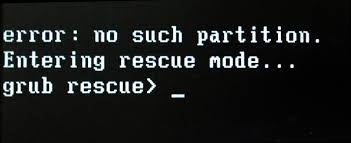
Example 1:
error: no such partition.
grub rescue>
Example 2:
error: no such partition.
Entering rescue mode...
grub rescue>
Possible Causes of Error No Such Partition Grub Rescue
Windows 10 grub rescue occurs for the following reasons:
- Corrupt boot directory
- Deactivating the correct partition
- Invalid boot loader configuration
- Damaged boot sector code
- Deleting/resizing/merging/splitting Ubuntu partition
To resolve the issues caused by the reasons mentioned, here are some solutions to help you fix the "no such partition" and "grub rescue" error on Windows 10.
To fix the Windows no such partition grub rescue error, try these practical methods. First, ensure your computer is set to boot from the correct drive in the BIOS settings.
- Fix MBR and rebuild BCD
- Restore Boot Sector Code with Windows 11/10 Automatic Repair
- Manually configure and mark system partition as active
1 - Fix MBR and Rebuild BCD
The GRUB error "no such partition grub rescue" on Windows 10 typically occurs when the Master Boot Record (MBR) is corrupted, usually after deleting or formatting the Ubuntu partition. This corruption affects the MBR boot sector and boot sector code files, preventing Windows 10 from booting properly.
You can try rebuilding the Master Boot Record (MBR) and restoring the Boot Configuration Data (BCD) files to resolve the Windows 10 grub rescue issue. Both Qiling partition management software and Windows 10 Automatic Repair can assist in this process.
Method 1. Rebuild MBR with Qiling Partition Management Tool (Recommended)
Qiling Partition Master simplifies partitioning hard drives on Windows, allowing users to optimize disk space and improve computer performance by effortlessly rebuilding the Master Boot Record (MBR) with a user-friendly interface.
Qiling Partition Master offers a range of one-stop disk partition features, including resizing and moving partitions to address low disk space issues, cloning disks, merging partitions, creating, deleting, and formatting partitions, wiping data, and converting disk/partition types, such as converting MBR to GPT, in addition to its partition checking and repairing function.
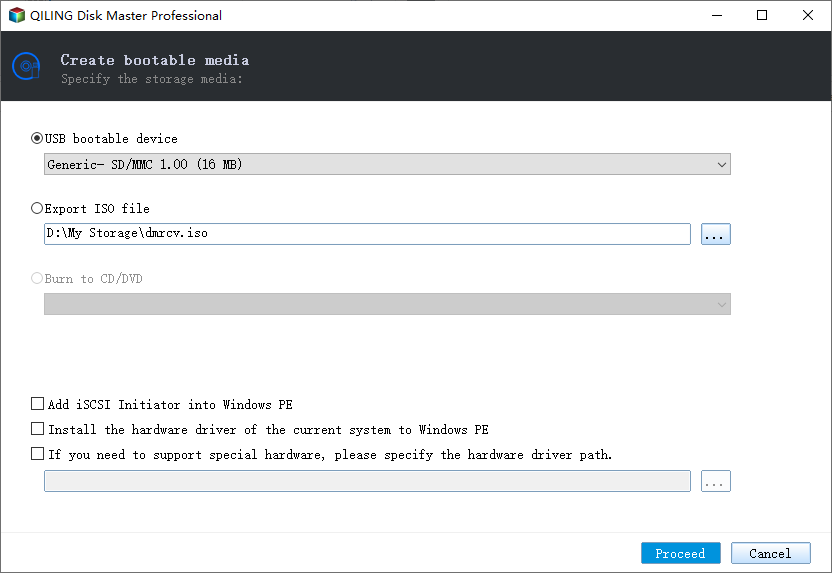
Step 1. Create a WinPE bootable disk
- Launch Qiling Partition Master, click "Bootable Media" on the toolbar, and select "Create bootable media".
- Click "Proceed" to finish the process.
Step 2. Boot Qiling Partition Master Bootable USB
- Connect the bootable USB or CD/DVD to your PC.
- To enter the BIOS screen, press F2 or Del when restarting the computer. From there, set the computer to boot from the "Removable Devices" or "CD-ROM Drive", and Qiling Partition Master will automatically run.
Step 3. Rebuild MBR
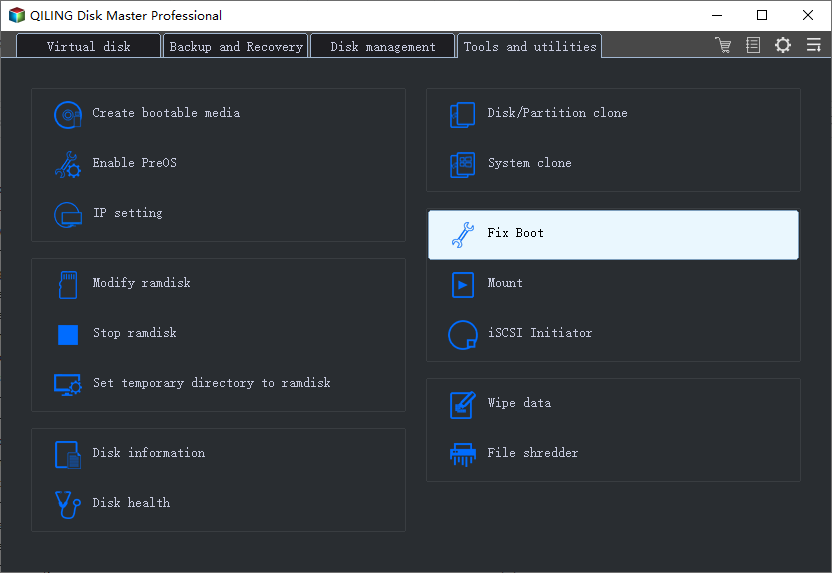
- Click "Tools and utilities" and choose "Fix boot".
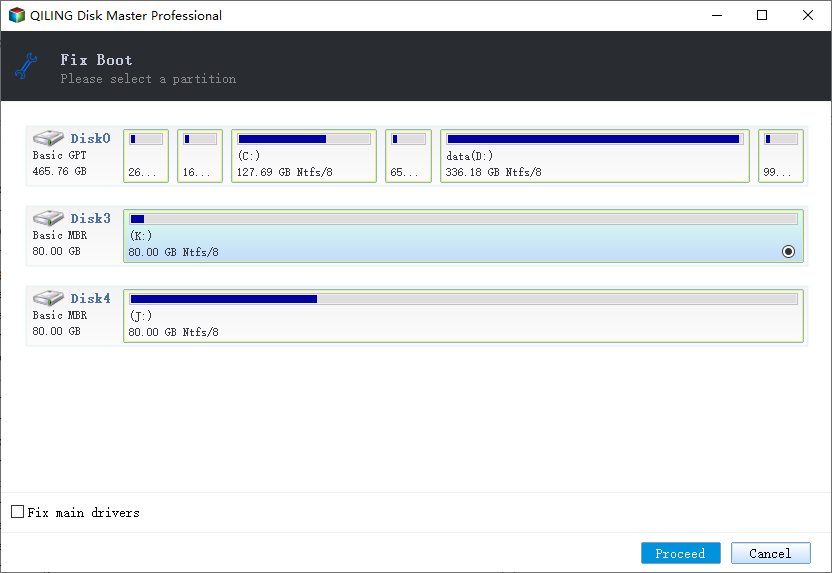
- Select the disk and the type of MBR. Then, click "Proceed".
- The message indicates that the Master Boot Record (MBR) has been successfully rebuilt on the specified disk, in this case, Disk X. This means that the disk's boot sector has been restored to a valid state, and the disk should now be recognized by the system and be able to boot properly.
Method 2. Fix MBR and Restore the BCD with Windows 11/10 Automatic Repair
To fix error no such partition grub rescue in Windows 10, you can use the Windows 10 Automatic Repair feature, which can be accessed by restarting the system several times until it enters into WinRE mode, or by using a Windows 10 bootable media. This will allow you to troubleshoot and fix the issue.
Here's the step-by-step guide.
Step 1. Connect the Windows 10 bootable media to your computer (DVD disc or USB flash drive).
Step 2. In WinRE mode, click the "Troubleshoot" button under the "Choose an option" tab.
Step 3. To fix BCD files, click the "Advanced options" feature. In the pop-up window, choose "Command Prompt" to start the process.
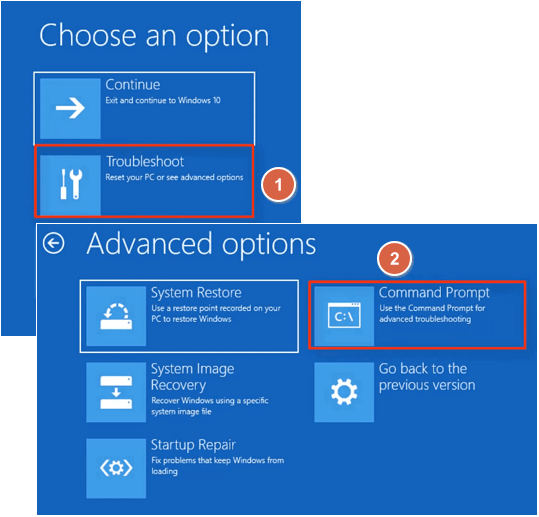
Step 4. Once CMD starts, type the following commands in turn:
bootrec /fixmbr
bootrec /fixboot
bootrec /rebuildbcd
Step 5. Close Command Prompt and restart your computer.
Rebuild MBR and BCD is an applicable method in fixing error no such partition grub rescue in Windows 10, but if the issue persists, you may need to explore further solutions.
2 - Restore Boot Sector Code with Windows 11/10 Automatic Repair
Damaged boot sector code may cause the Windows 10 grub rescue error prompt. If rebuilding the Master Boot Record (MBR) doesn't resolve the issue, you can try restoring the boot sector code using the Windows repair option.
Step 1. Restart your PC a few times during the boot sequence.
Step 2. Select "Troubleshoot" from the list of options, then choose "Advanced options" and finally select "Startup Repair".
Step 3. The repair process will now start.
Step 4. If the repair process completes, verify that the "No such partition" error has been resolved.
You can restore the boot sector code using a Windows bootable DVD or USB flash drive. To do this, follow the steps below.
Step 1. Connect your USB flash drive to your computer or insert the Windows 10 DVD into your PC.
Step 2. Restart the computer to enter into Automatic Repair mode.
Step 3. To open the Command Prompt in Windows, click on the "Troubleshoot" option in the blue screen, then select "Advanced Options" and finally click on "Command Prompt".
Step 4. In the CMD window, type the following command and hit Enter afterward:
diskpart
select disk 0
list volume
Step 5. Now, all volumes will be displayed here. In the Type column, you will find the "DVD-ROM" value. Remember the drive letter of the Windows 10 bootable disc. For example, we will take the letter F. Type the following command lines and hit Enter afterward: `diskpart`, `list disk`, `sel disk F`, `list part`, and `exit`.
Exit
F:
cd boot
Dir
Step 6. Next, you need to check if you have bootsect.exe files in the list. If so, enter the following command:
bootsect /nt60 SYS /mbr
Exit
bootsect nt60 SYS mbr
Step 7. Exit the command prompt and restart your computer to check if the "no such partition grub rescue" error is resolved.
3 - Configure and Set Active Partition
A common cause of the "no such partition" error in GRUB rescue is having the incorrect partition set as active. The BIOS attempts to start the boot loader from the active partition, and the bootloader searches for its configuration data from the active partition as well. If the active partition is corrupted or incorrectly set, the GRUB rescue environment may display the "no such partition" error.
You can set a system partition as active using either Qiling partition management software or Diskpart. To do this, you can either use Qiling's partition management features or manually input command lines using Diskpart, similar to rebuilding the MBR.
Method 1. Set Active Partition in One-click by Using Qiling Partition Master
Step 1. Run Qiling partition manager software. Right-click the target partition on the disk map and select the desired operation from the context menu.
Step 2. Then, select "Set Active" from the drop-down menu.
Method 2. Mark System Partition as Active Using Diskpart
Step 1. Use diskpart from the command line to set the correct partition.
Step 2. Connect the Windows 10 bootable media to your computer (DVD or USB flash drive).
Step 3. Restart your computer to enter into Automatic Repair mode.
Step 4. To access the Command Prompt, navigate to "Troubleshoot" > "Advanced Options" > "Command Prompt".
Step 5. Now, Type diskpart and hit the Enter. Type the following commands in order and hit enter afterward:
list disk: (this lists all hard drives in your computer)
select disk n: "Select the target disk where you want to install Windows 10. This should be the disk where you want to install Windows 10, which is usually the disk where your current Windows 10 installation is located. If you're not sure, you can select the disk with the most free space.
list volume: (this list all volumes on system disk)
select volume n: (n refers to the number of system partition)
active: (it can mark the correct system partition active)
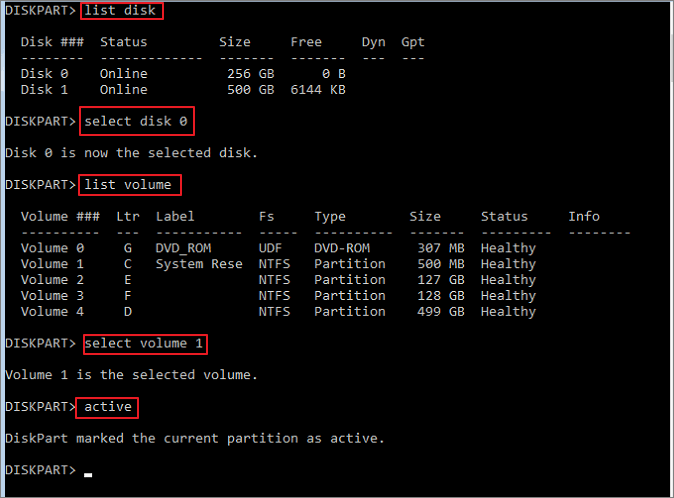
To resolve the Windows 10 grub rescue error, type quit to exit Command Prompt, then restart your PC and see if this resolves the issue.
Final Verdict
To fix the Windows 10 Grub Rescue problem, you can try one of three effective methods: using Windows Automatic Repair or Qiling Partition Master, both of which can help resolve the issue.
We highly recommend using Qiling Partition Master to correctly partition your hard drive, as it's much easier than manually inputting command lines to resolve the error "no such partition grub rescue" on Windows 10.
To use Qiling Partition Master, simply download and launch the program, select the partition you want to work with, and choose the desired action. This allows you to directly transfer space from one drive to another, making full use of your disk space.
FAQs About Error No Such Partition Grub Rescue
Do you have more questions about fixing error no such partition entering rescue mode on Windows 10? If so, check the following hot topics and their answers.
How do I fix error no such partition?
To fix the error "no such partition", you can try three possible solutions. Firstly, you can check if the disk is properly connected to the computer and if it's being recognized by the system.
- Fix 1. Rebuild the MBR and BCD
- Fix 2. Manually configuring the active partition
- Fix 3. Restore boot sector code
How do I fix grub error no such partition unknown file system?
Corrupted or damaged MBR or BCD can cause a grub error, displaying "no such partition" or "unknown file system". To resolve this, try rebuilding the MBR and BCD files first. If this doesn't work, try restoring the boot sector code and making the system partition active to ensure your Windows system can reboot properly.
How do I get rid of grub rescue error?
To resolve the Windows 10 Grub rescue error, you can use one of three solutions. To prevent this issue from happening again, it's essential to pay attention to the following points:
- To properly delete Ubuntu on both systems, follow these steps: back up any important files, boot from a live USB or CD, open a terminal, and run the command `sudo apt-get purge ubuntu-desktop` followed by `sudo apt-get autoremove` to remove all Ubuntu packages. Then, delete the Ubuntu partition from the disk manager or by running `sudo fdisk /dev/sda` (replace `/dev/sda` with the actual disk device).
- If you want to reinstall Ubuntu, install the new system to the original partition. This ensures that your data and settings are preserved.
- You should avoid downgrading your Ubuntu to a previous version, as it may cause issues with Grub.
How do you fix error attempt to read or write outside of hd0?
When you try to install Ubuntu on an older computer, you may encounter an issue after the installation is finished and you reboot the computer. The problem arises because the installation process doesn't properly configure the system to boot from the newly installed Ubuntu.
It seems like you're experiencing a disk error, specifically on the disk named 'hd0'. This could be due to a variety of reasons such as corrupted data, a faulty disk drive, or incorrect disk configuration. To resolve this issue, you might need to run a disk check or repair utility, or even replace the disk drive if it's faulty.
Entering rescue mode...
grub rescue>
To resolve the issue, you can create a boot repair USB and use Windows' automatic repair feature, or try troubleshooting methods suggested in a technical forum.
Related Articles
- How to Convert NTFS to EXT4 Without Losing Data on Windows 10
- How Long Does It Take to Format a Hard Drive? Hard Drive Takes Forever to Format Fixes
- How to Force Delete A File on Windows 11/10/8/7? [Can't Delete File Solutions]
- 5 Ways to Increase Transfer Speed of USB 3.0 External Hard Drive
- How to Create Partition From Unallocated Space?
If you meet problems when you create partition from unallocated space in Windows, have a look of this article to get the solution. - How to Remove/Delete Hidden Partition on USB Drive in Windows 11/10/8?
Plan to delete hidden partition on USB drive to get more space for further use? Here come the effective methods!
Products
Articles & Tutorials
- Data Recovery
- Data Backup
- File Recovery
- File Backup
- System Backup and Restore
- Disk and Partition Clone
- Technical articles
- Mobile articles
- Disk Master Help
- Windows Data Recovery Tutorials
- Windows Secure Delete Tutorials
- Windows Partition Management Tutorials
- Windows File Backup and Restore Tutorials
- Windows System Backup and Restore Tutorials
- Windows Disk Backup and Restore Tutorials
- Windows Clone Tutorials