How to Fix SSD Full for No Reason
Problem: SSD Full for No Reason (Including C Drive)
Top 6 Solutions:
- Delete Big Hidden Files and Folders
- Clean Up Junk Files and Large Files
- Delete Hibernate File
- Uninstall Some Programs
- Temporarily Disable System Restore
- Add Extra Space to Drive C
Applies to: Windows 10/8.1/8/7
Needed Tool: Qiling Partition Master (for Fix 2 and Fix 6)
SSD Windows C: Keeps Eating Up Space on Its Own
This is a case from Microsoft.
"Hello, I just bought a laptop yesterday with Windows 10 installed. Recently, I downloaded steam gaming app on the Windows C: SSD. The space of my windows C: SSD is 118 GB. After downloading and installing the Steam app it took quite a lot of space in my C: drive... After that, my windows C: SSD keeps filling up space for no reason. Is there anyone can help me? Can you tell me what's going on and how to fix it? Thanks in advance.
What Happens If My SSD Is Full
You may wonder what happens when your SSD gets full, but rest assured, the drive itself won't be harmed. However, a full drive can cause issues with your system, as TRIM may not work as effectively, leading to potential performance problems. Windows might also become uncooperative, resulting in system hangs or a Low disk space warning. In severe cases, this can even lead to system crashes. To avoid these problems, it's essential to free up space on your SSD as soon as possible, and following the six tried-and-true solutions can help you achieve this.
Fix 1. Delete Big Hidden Files and Folders
If your SSD shows full but you can't see any files, try un-hiding files and folders to see if hidden items are occupying disk space. Check for any suspicious or large hidden files and delete unnecessary big files.
Step 1. Show hidden files/folders in Windows 10/8/7
To access the "File Explorer Options" in Windows 10, 8.1, and 8, open the "Control Panel" and navigate to "File Explorer Options".
In the "File Explorer Options" window, go to the "View" tab, and under the "Hidden files and folders" section, select the option to show hidden files, folders and drives.
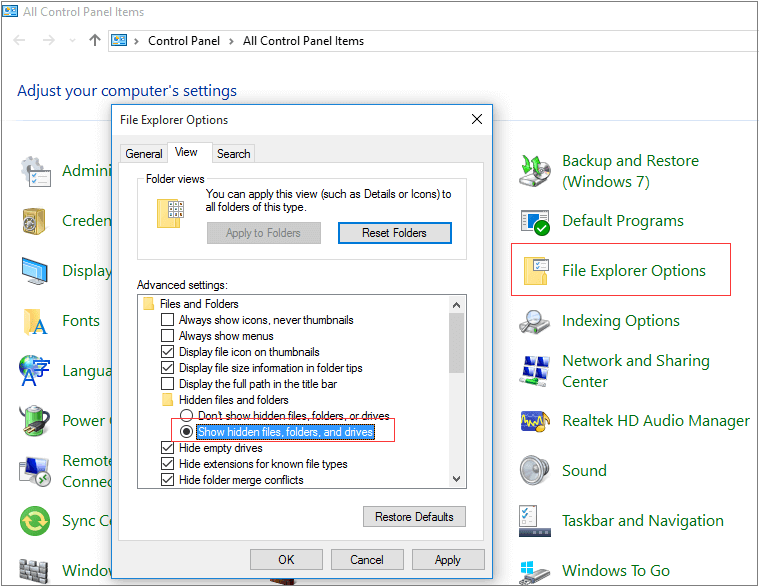
Step 2. Delete unwanted big files
Look at the hidden files on your computer, delete any unwanted large files, and empty the recycle bin afterwards. For a more thorough clean-up, continue reading.
Fix 2. Clean Up Junk Files and Large Files (Recommended)
Using Disk Cleanup can be a good option to delete unwanted files and temporary internet files to free up SSD space, but it may not be the most efficient way, especially when trying to delete specific files. A better approach is to use third-party cleanup software, which can be used across all Windows versions and is often easier to navigate. This alternative method can help users quickly and effectively clear out unnecessary files and free up space on their SSD.
You can use Qiling CleanGenius to clean junk files without difficulty.
Step 1. Download and install Qiling Partition Master Suite.
Step 2. Click PC Cleaner and install Qiling CleanGinus. Then, click "Cleanup" and click "Scan" to start cleaning up the system and make your PC as good as new.
Step 3. The software scans your computer to find large, unnecessary files and system junk, allowing you to select and delete them to free up disk space.
Step 4.When the scan is complete, click "Done" to finish cleaning system junk files.
Fix 3. Delete Hibernate File
Hiberfil.sys is a file created by Windows when the computer goes into Hibernation Mode, taking up about half of the RAM space, and can be deleted if the hard drive is small. If the hard drive has plenty of free space, there's no need to delete it. To delete hiberfil.sys, you can follow these steps.
Step 1. To run the Command Prompt as an administrator, go to the Start menu, type "cmd" and right-click on the results "Command Prompt", then select "Run as administrator".
Step 2. Then type powercfg -h off and press "Enter".
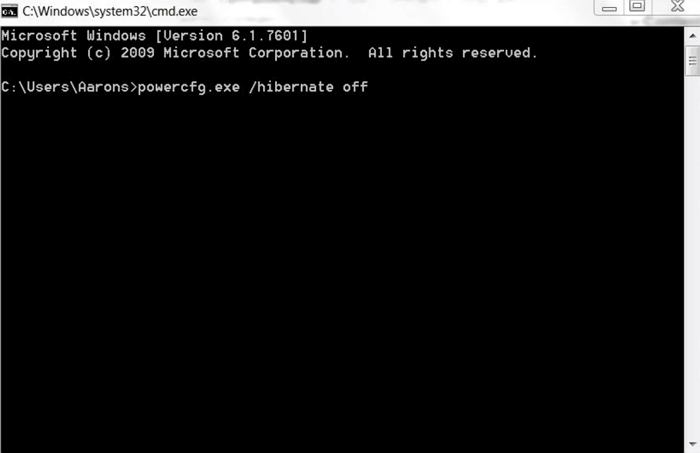
After that, Windows will disable hibernation Windows 10 as well as delete the hiberfil.sys file automatically. Your system drive on SSD should get some free space back.
Fix 4. Uninstall Some Programs
The SSD full for no reason issue can be resolved by uninstalling some programs, especially those that were installed recently such as Steam, which is taking up space on the SSD.
Step 1. Right-click the Start button in Windows 10, and select "Programs and Features".
In Windows 8/8.1, you can quickly access the Programs and Features window by typing "uninstall" in the search bar and selecting the result "Programs and Features" from the search results.
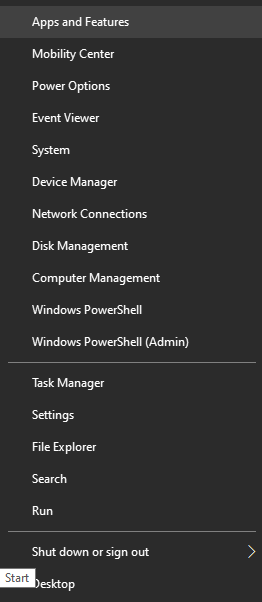
Step 2. View the programs.
Sort your SSD by size, select the drive, and click "Uninstall" on the largest item taking up space.
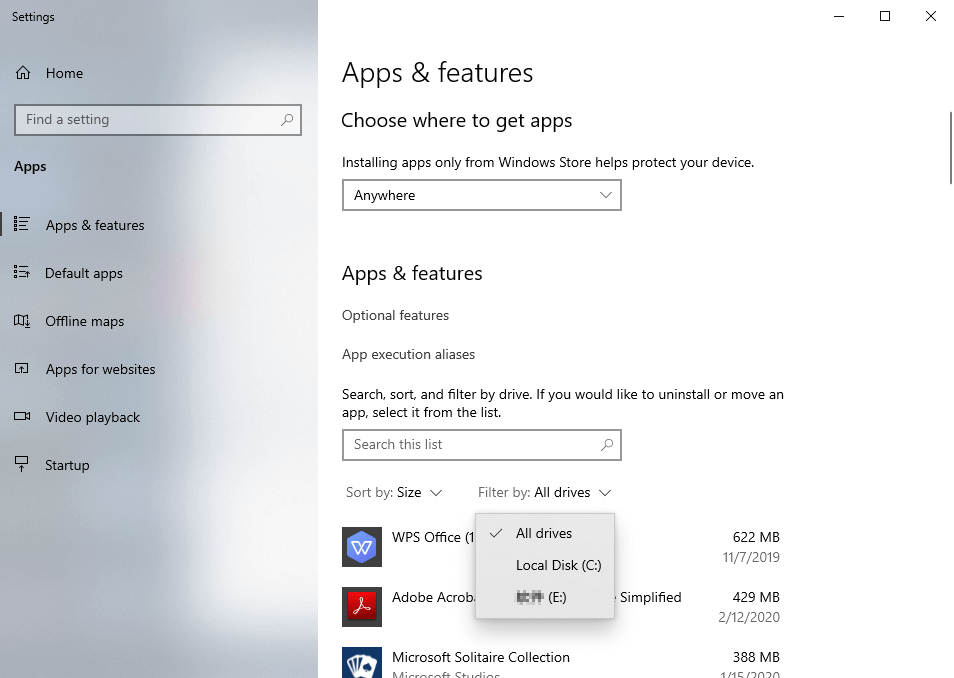
You can also consider transferring programs from your C drive to a different drive, such as the D drive, to free up space on your SSD and still have the programs you need. This way, you can keep your SSD running smoothly and efficiently.
Fix 5. Temporarily Disable System Restore
System Restore creates backups on a regular basis and stores them in the System Volume Information folder, taking up a significant amount of space on a Windows computer. Disabling System Restore can help free up a substantial amount of space.
Step 1. To access System Protection, right-click on This PC/Computer and select Properties. From the Properties window, click on System Protection.
Step 2. Click on the Configure button under the System Protection tab.
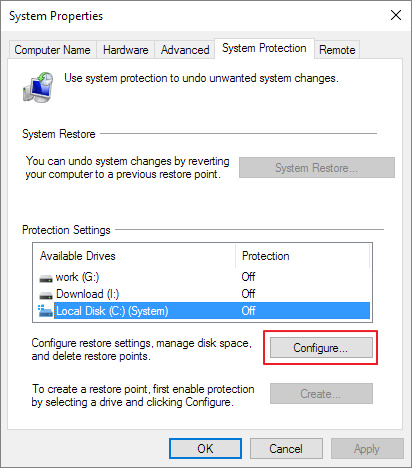
To turn off system protection, go to System Protection, click on Configure, and then select Turn off system protection. Apply the changes you made.
Fix 6. Add Extra Space to Drive C (Recommended)
If your C drive is still full after making the necessary fixes, you might need to add more space to the system partition by transferring some space from another partition on the same SSD. You can use Qiling Partition Master to extend the C drive that's running out of space.
Conclusion
The 6 solutions above could have resolved your issue, with Fix 2 and Fix 6 being my top recommendations. If you're experiencing a full C: drive or SSD without a clear reason, consider upgrading to a larger drive, which can be cloned to a new one or SSD without requiring a Windows reinstall.
People Also Ask
What are the most common issues users are experiencing with the SSD full issue? Users are experiencing issues such as being unable to install new software, having limited storage space, and being unable to store new files.
1. How do I free up space on my SSD?
To free up space on an SSD, remove unnecessary files and use junk file cleanup software to easily get rid of them.
2. What happens if my SSD is full?
The SSD won't be harmed by a full drive, and TRIM won't work as well, but it won't stop the drive from working normally. It may just not perform as well, and you might get a low disk space warning.
3. Does SSD get slower when full?
When the system drive or SSD is running low on disk space, some programs may malfunction. This can cause the system to slow down significantly, much like a snail's pace.
4. To increase your C drive space in Windows 10, you can consider deleting unnecessary files, uninstalling unused programs, and compressing files using tools like WinRAR or 7-Zip. You can also use the built-in Disk Cleanup tool to remove temporary files and system logs.
Use Qiling Partition Master to extend C drive on the same disk.
Step 1. Locate the Target Partition
Step 2. Extend the Target Partition
Step 3. Execute Operations to Extend Partition
For a detailed guide, refer to Fix 6.
For a broader checklist of a full SSD, see what to do when an SSD is full before deleting or moving files.
Related Articles
- Windows 11/10 Boot Repair: Fix UEFI Boot Issue on Windows 11/10/8/7
- Qiling Partition Master vs. Acronis Disk Director, Differences and Similarities [2022 New]
- How to Hide or Unhide Partition in Windows 11 [3 Tools]
- SSD Health Check Software Free Download in 2022
- Fix "Disk Already Contains the Maximum Number of Partitions" Error [Step-by-Step Guide]
Fix UEFI boot issues in Windows 11, 10, 8, or 7. Learn practical boot repair methods for EFI, BCD, and startup problems. - 2022 Tips to Fix 100 Disk Usage in Windows 7/8/8.1/10/11
When you are faced with disk usage 100 in Windows 7/8/8.1/10/11, you can follow the solutions here. You can fix Windows 7 100% disk usage and speed up your laptop and computer with ease.
Products
Articles & Tutorials
- Data Recovery
- Data Backup
- File Recovery
- File Backup
- System Backup and Restore
- Disk and Partition Clone
- Technical articles
- Mobile articles
- Disk Master Help
- Windows Data Recovery Tutorials
- Windows Secure Delete Tutorials
- Windows Partition Management Tutorials
- Windows File Backup and Restore Tutorials
- Windows System Backup and Restore Tutorials
- Windows Disk Backup and Restore Tutorials
- Windows Clone Tutorials