Fix "Disk Already Contains the Maximum Number of Partitions" Error [Step-by-Step Guide]
Key Takeaway:
1. Fixing the "disk already contains maximum number of partitions" error requires a strategic approach. There are three efficient ways to resolve this issue: one involves deleting an existing partition to free up space, another requires resizing a partition to create room for a new one, and the third involves using a partition manager to merge or split existing partitions, allowing for the creation of a new one.
2. The "disk already contains the maximum number of partitions" error can be frustrating, but there's an easy-to-use tool that can help resolve the issue. This tool allows you to manage and resize partitions on your disk, making it simple to free up space and avoid this error.
Do you know why you meet the "disk already contains the maximum number of partitions" error? Or Do you know how to remove this error? ! This article will help you remove this error. But first, we need to figure out what causes this error.
What Causes "Disk Already Contains the Maximum Number of Partitions" Error
When using Windows' built-in Disk Management tool, you may encounter a warning message when trying to create a new volume in unallocated space. The message states that the disk already contains the maximum number of partitions, preventing you from creating a new volume.
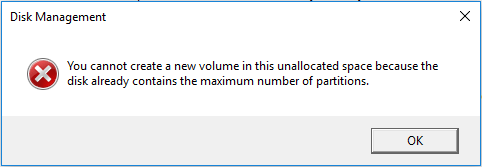
But what causes this error? Continue to learn.
Cause: MBR disk
The error occurs on MBR disks, which can only create 4 primary or 3 primary plus 1 extended partition, limiting the maximum number of partitions to 4.
The difference between MBR and GPT is an important consideration for computer users. If you're interested in learning more about the distinction between these two disk partitioning systems, click the link below for assistance.
To resolve the disk partition maximum number error, there are three ways to fix it. Firstly, you can delete an existing partition to free up space and then create a new partition. Secondly, you can merge two adjacent partitions to increase the available space.
Fix "Disk Already Contains the Maximum Number of Partitions" Error - 3 Ways
Removing the "maximum number of disk partitions" error can be easy with the right tool. A professional disk management tool like Qiling Partition Master Free can help resolve this issue. This article provides three ways to fix the disk partition maximum number error.
Fix 1. Convert MBR Disk to GPT
Fix 2. Convert Primary Partition to Logical
To create a new partition on a Linux system, you can shrink the logical partition that you want to use for the new partition. This can be done using the `resize2fs` command, which resizes the file system of a logical partition, and the `fdisk` command, which manages disk partitions. First, you need to run `resize2fs` to resize the file system of the partition you want to shrink.
Once you have Qiling Partition Master installed on your computer, you can easily use the three methods mentioned above. With Qiling Partition Master, you can take advantage of its key features, making it a convenient and effective tool for managing your partitions.
Qiling Partition Master
- Extend MBR partition
- Repair or rebuild MBR
- Initialize disk to MBR or GPT
- Set partition style as MBR or GPT
- To upgrade to Windows 11, you may need to convert your MBR (Master Boot Record) disk to GPT (GUID Partition Table) without losing any data. This process involves using the built-in Disk Management tool in Windows or a third-party software like Qiling Partition Master.
- Create/delete/resize/move partitions on (external) hard drives
Download Qiling Partition Master, and then follow the first method to convert MBR to GPT using this software.
Fix 1. Convert MBR Disk to GPT
To fix the error, you can easily convert the Master Boot Record (MBR) to the Globally Unique Identifier Partition Table (GPT) format using Qiling Partition Master. This process is straightforward, and with the tool, you can follow a simple guide to complete the conversion.
Fix 2. Convert Primary Partition to Logical
Converting a primary partition into a logical partition of a new extended partition can be a bit tricky, but you can also seek help from Qiling Partition Master to learn more about its powerful features. If you're not familiar with the process, follow these steps:
Step 1. Download and run Qiling Partition Master, then go to Partition Manager.
Step 2. To convert a partition to NTFS, right-click the partition you want to convert and select the "Advanced" option, then choose the "Convert" option from the menu.
- 1. Primary to Logical
- 2. Logical to Primary
Fix 3. Shrink the Logical Partition to Create a New Partition
If you don't want to convert your disk, you can create a new one by shrinking the logical partition using Qiling Partition Master, which can help you shrink the partition and create a new one in a few simple steps.
Step 1: Locate and select target partition to shrink
To shrink a partition in the Partition Manager, right-click on the partition you want to shrink and select "Resize/Move".
Step 2: Adjust to shrink partition
To shrink a partition, use your mouse to drag the end of the target partition to a smaller size, effectively reducing the partition's space.
You can also adjust the partition size box to shrink the target partition. Once done.
Step 3: Execute operation
Click the "Proceed" button to keep all changes.
After shrinking the partition, you'll have some unallocated space that you can use to create a new partition. To do this, follow the steps shown in the provided video.
Conclusion
Can't create partitions from unallocated space because the disc already contains the maximum number of partitions? This article shows you three solutions for this error. Once you have downloaded and installed Qiling Partition Master, it is easy to implement them. The next section shows you some frequently asked questions about this topic and I hope these questions can help.
You may also like:
FAQs About Disk Already Contains Maximum Number of Partitions
Do you know how to fix the "disk already contains the maximum number of partitions" error? Here, I list some other questions for you. Continue to read if you are interested.
1. What is the maximum number of primary partitions that can be created on a hard disk?
If your disc is an MBR, you can have up to 4 primary partitions or 3 primary and 1 extended partition for logical drives. However, if your disk is a GPT, you can have up to 128 partitions without distinguishing between primary and logical partitions. In fact, all GPT partitions are primary by default.
2. What is the maximum number of partitions a GPT disk can have?
128 partitions is the maximum number of partitions that can be created on a GPT disk. The space reserved for partition entries in the GPT disk limits this number to 128. This is because each partition requires a certain amount of space to store its metadata, and the GPT disk has a fixed amount of space available for this purpose.
3. Can you have more than four partitions?
GPT disk allows for 128 partitions, a significant increase from the 3 primary and 1 extended partition limit of MBR. This means that with a GPT disk, you can create a large number of partitions, and with enough free space, you can also create many logical partitions, offering greater flexibility and organization for your data.
Related Articles
- How Do I Securely Erase Hard Drive/SSD, Wipe Confidential Data? Your Reliable Guide Is Here
- Fixed: Windows Could Not Format A Partition on Disk 0 (Error Code 0x80070057)
- Extend System Drive but Recovery Partition is in the Way Windows 11/10/8/7
- [Easy to Go] How to Change Partition Type ID in Windows 10/8/7 Computer and Laptop
- How to Delete Partitions on SSD in Windows 11/10 [Step-by-Step Guide]
This article will focus on deleting partitions on SSD in Windows 11/10, providing a guide on how to do so using both the built-in Windows tools and reliable third-party software. - [Fixed] Dell Recovery Partition Missing on Windows
If you're experiencing a missing Dell recovery partition, it could be due to accidental deletion or not being assigned a drive letter. To recover it, you can follow a tutorial that guides you through the process, helping you restore the partition and regain access to your system's recovery tools.
Products
Articles & Tutorials
- Data Recovery
- Data Backup
- File Recovery
- File Backup
- System Backup and Restore
- Disk and Partition Clone
- Technical articles
- Mobile articles
- Disk Master Help
- Windows Data Recovery Tutorials
- Windows Secure Delete Tutorials
- Windows Partition Management Tutorials
- Windows File Backup and Restore Tutorials
- Windows System Backup and Restore Tutorials
- Windows Disk Backup and Restore Tutorials
- Windows Clone Tutorials